
Step 5: Connect HubSpot Form with Surface Workflow
Set up a Surface workflow to send form submissions to your HubSpot form so leads get enrolled in your sequence
In this step, you'll configure Surface to send form submissions to the same HubSpot form you created in Step 1. When a lead submits or drops off your Surface form, Surface will create a form response in HubSpot, which triggers the automation from Step 4 and enrolls them in your sequence.
For more detail and alternative setups, see the full guide Configure HubSpot in Surface Workflow.
Connect HubSpot to Surface
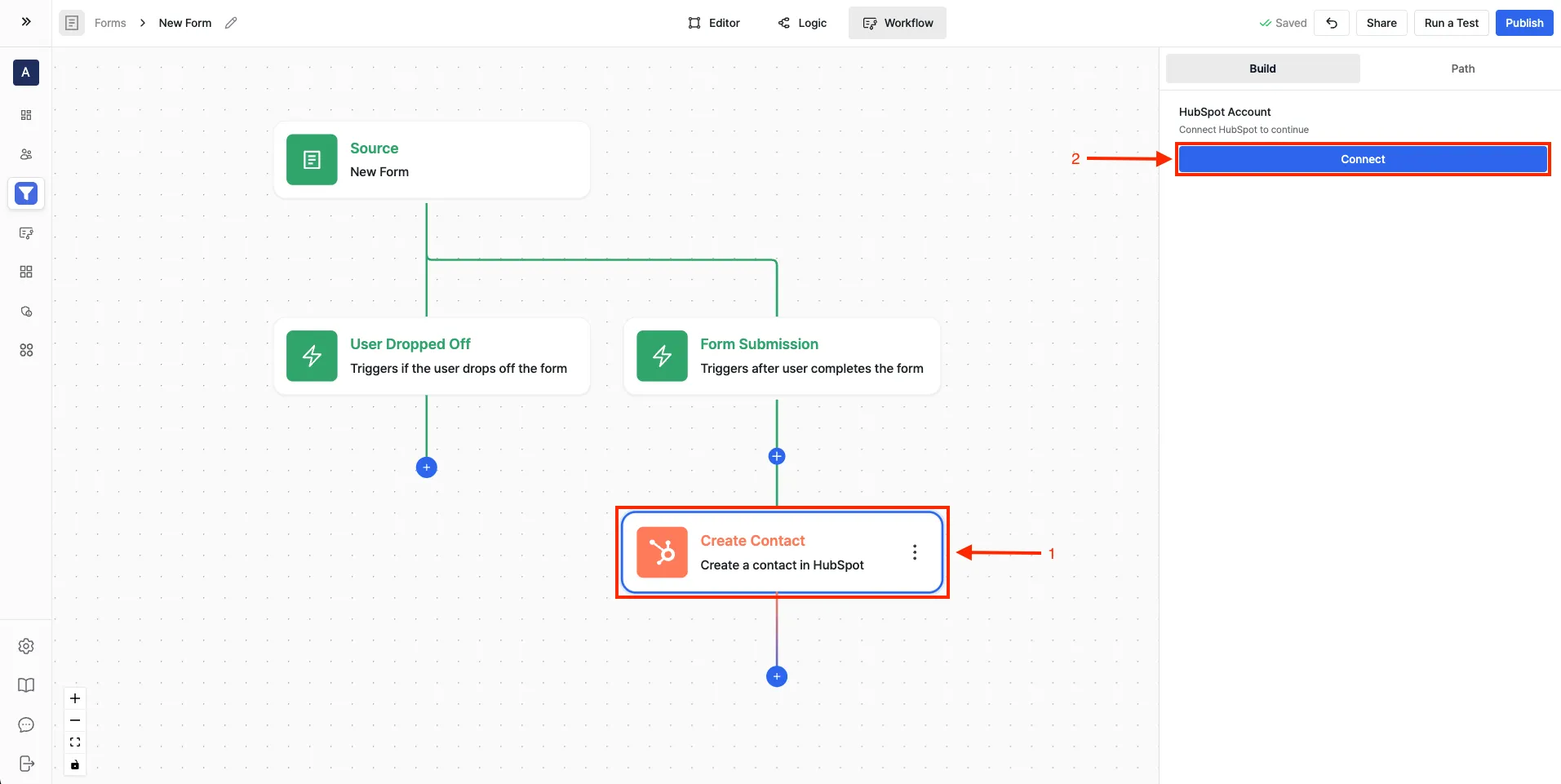
- Navigate to the Workflow Builder in Surface
- Add any HubSpot action and click Connect
- Select your HubSpot organization when prompted
- Accept Surface Labs invite
- Click Connect App to complete setup
Create a Workflow
- Go to Workflow Builder from the sidebar
- Click Create workflow
- Choose trigger type:
- Dropped Off — For partial submissions (lead leaves before completing the form). Use this so drop-offs still get enrolled in your sequence.
- Finished — For complete submissions only (lead submits the full form)
Add one or both triggers depending on whether you want to enroll partial submissions, completed submissions, or both.
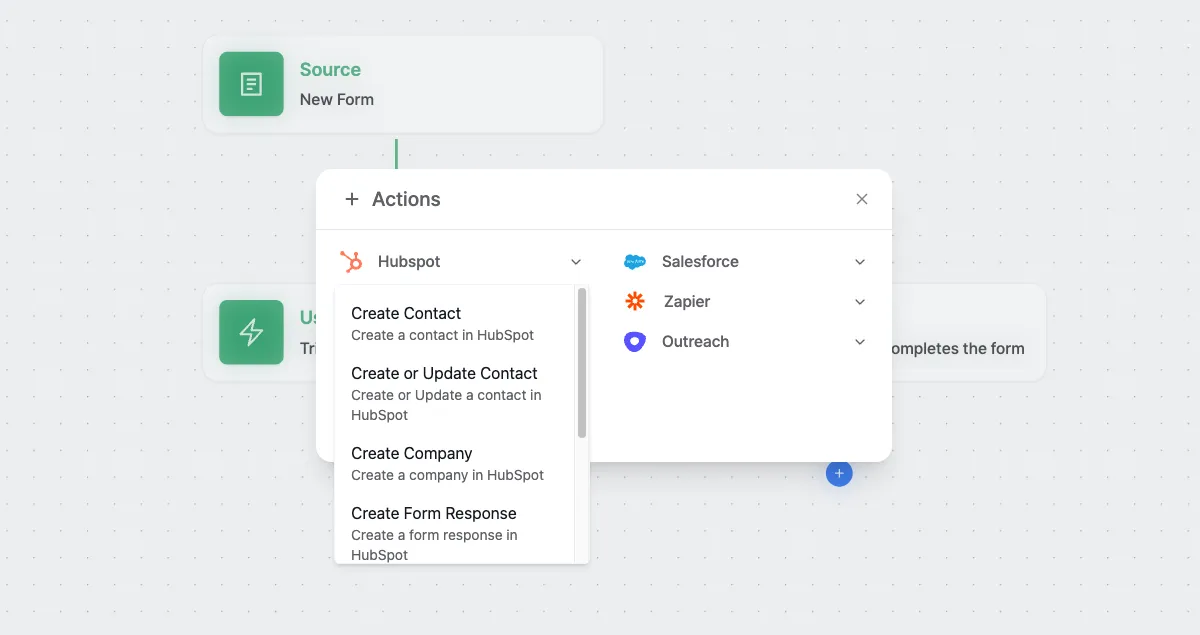
Add HubSpot Action
- Click + Actions
- Select HubSpot from the actions list
- Choose Create Form Response action
Configure Form Response Action
Select your HubSpot Form
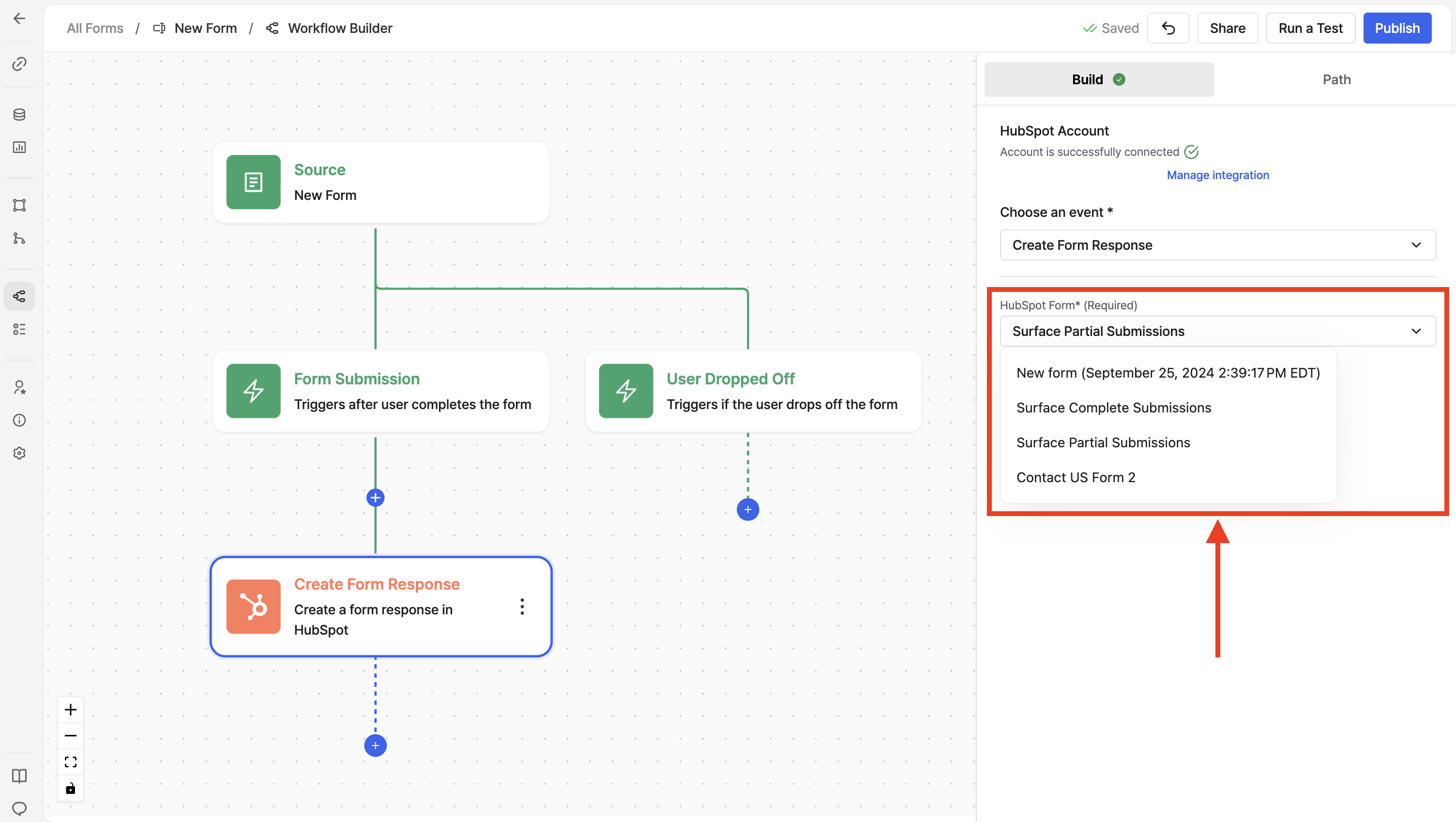
- Click on the HubSpot Form dropdown
- Select the same form you created in Step 1 and used in your Step 4 automation
This form must match the one in your HubSpot automation so that submissions from Surface trigger enrollment in your sequence.
Get Internal Names from HubSpot Form Fields
Before mapping fields, you need the internal names (API names) of your HubSpot form fields. You'll use these as the Value when mapping in Surface.
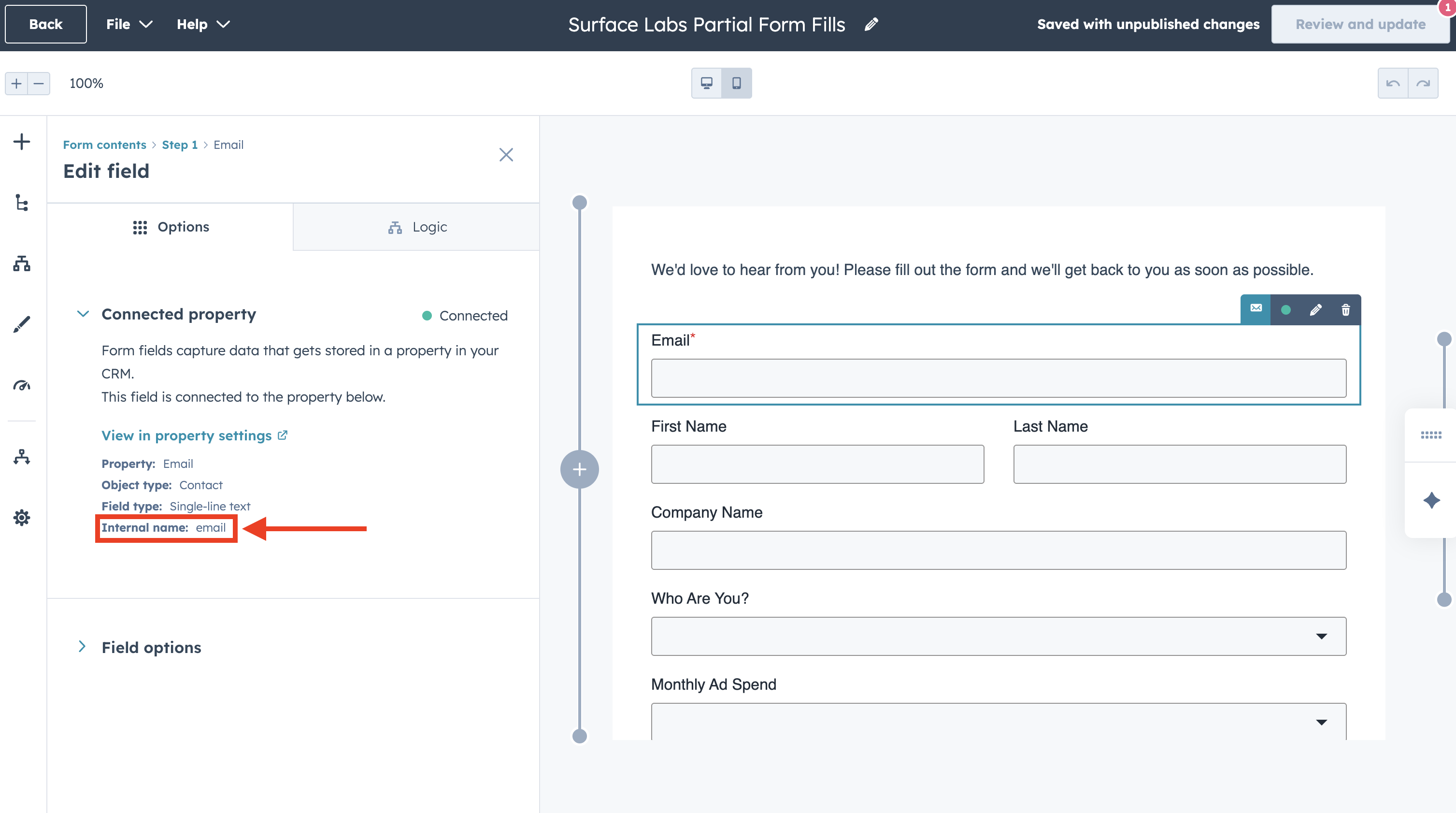
To find the internal name for each HubSpot form field:
- In your HubSpot form editor, select the field (e.g., Email or First Name)
- In the Edit field panel on the left, click Connected property (shown as "Connected" with a green indicator)
- Under the Connected property section, note the Internal name (e.g.,
email,firstname)
The internal name is different from the field label. Always use the exact internal name from the Connected property section when mapping in Surface.
Map Surface Form Fields to HubSpot Form Fields
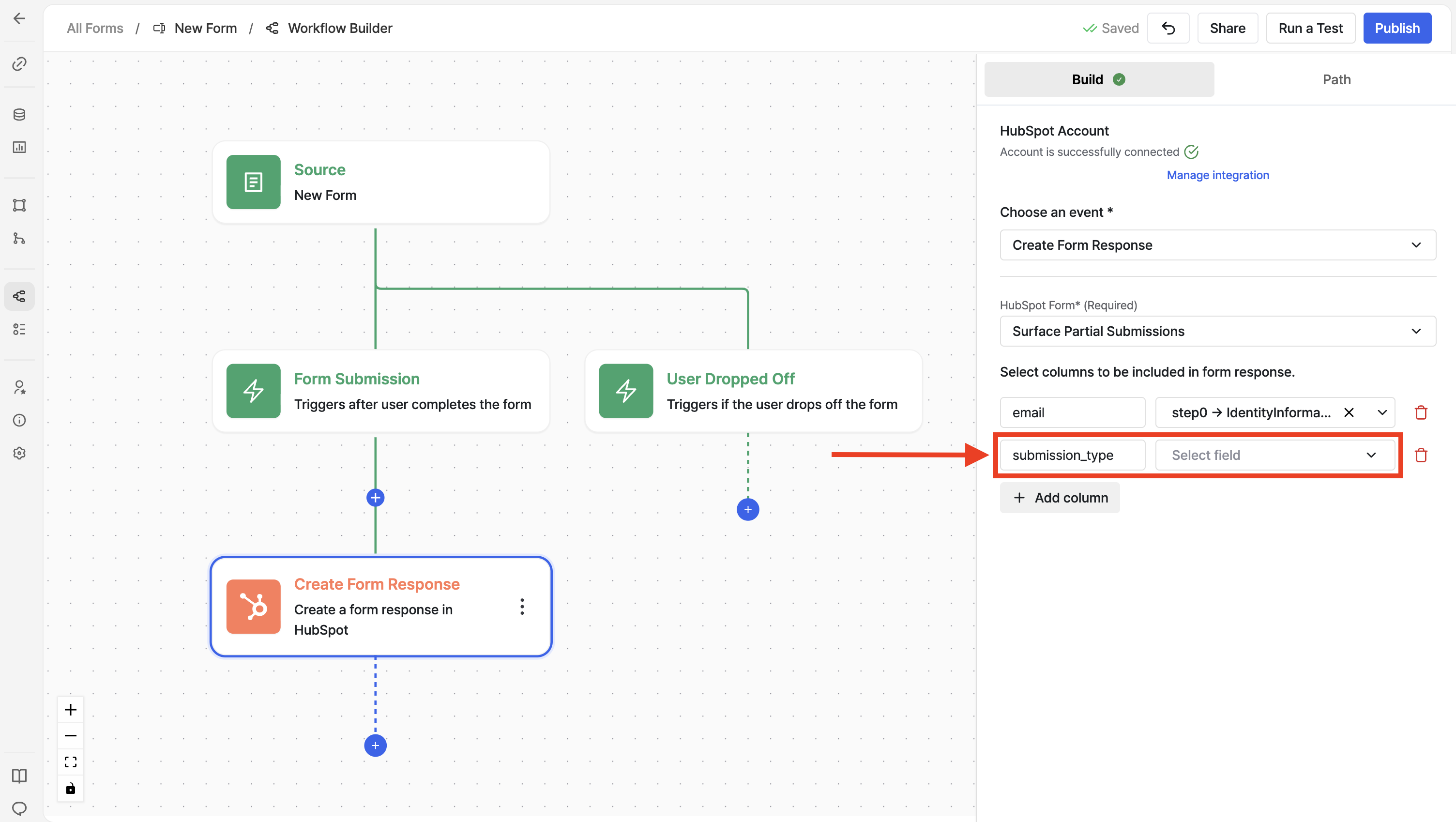
Map your Surface form fields to the HubSpot form so contact data (and sequence personalization) is correct:
- Click Add column to add a new field mapping
- Key (Surface Field): Select the field from your Surface form (e.g., from Form Submission or Lead)
- Example:
email,firstName,lastName
- Example:
- Value (HubSpot Internal Name): Enter the exact internal name from HubSpot
- Example:
email,firstname,lastname
- Example:
- HubSpot Field: Select the corresponding HubSpot form field from the dropdown (e.g., Email, First name, Last name)
Mapping examples:
| Surface Field (Key) | HubSpot Internal Name (Value) | HubSpot Field |
|---|---|---|
email (Form Submission) | email | |
firstName (Form Submission) | firstname | First Name |
lastName (Form Submission) | lastname | Last Name |
The Value must match the HubSpot internal name exactly (case-sensitive). This ensures data flows into the right contact properties and your sequence personalization tokens work.
Save and Activate
- Save the workflow
- Activate it so it runs when leads submit or drop off your Surface form
Once this is done, submissions from your Surface form will create form responses in HubSpot and trigger your automation, enrolling contacts in the sequence you set up in Steps 2–4.
Summary
You've connected your Surface form to the HubSpot form used for email sequences:
- Dropped Off trigger → partial submissions are sent to HubSpot and enrolled in the sequence
- Finished trigger → completed submissions are sent and enrolled
- Field mapping ensures email and other fields (e.g., first name) are available for sequence emails and personalization
For optional HubSpot actions (Create Contact, Create Deal, etc.), see Configure HubSpot in Surface Workflow – Additional actions.
You're All Set
Your email sequence flow is complete: when leads submit or drop off your Surface form, they're sent to HubSpot, enrolled in your sequence, and receive your automated follow-up emails. Return to the Email Sequences with HubSpot overview for the full flow diagram and related guides.