
Enable Cloudflare Turnstile
Learn how to enable **Cloudflare Turnstile** and add the widget to your Surface Form to protect your forms from spam and abuse.
Step 1: Navigate to Cloudflare Turnstile
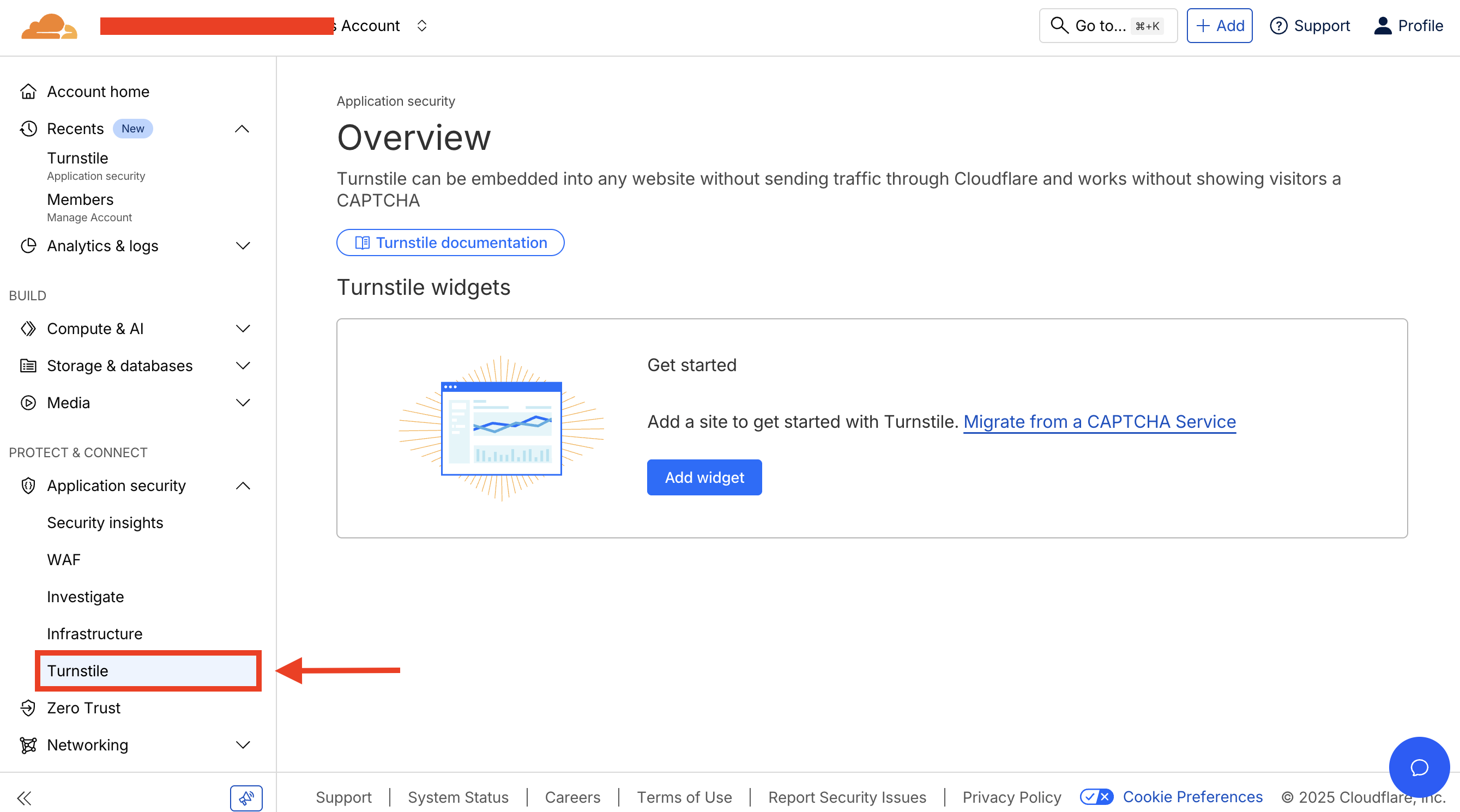
- Login to Cloudflare Dashboard
- Navigate to Protect & Connect > Application security > Turnstile
Step 2: Add New Widget
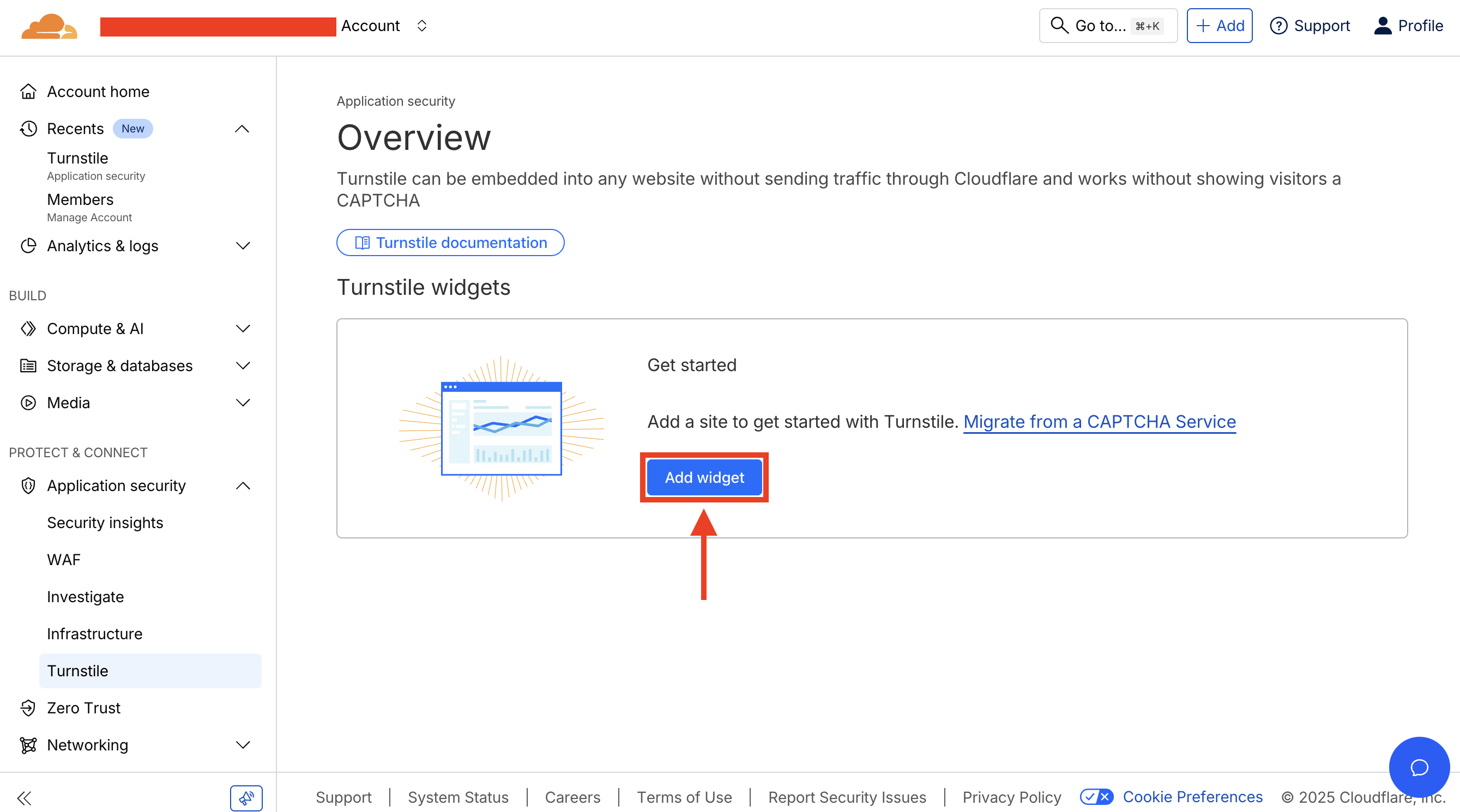
Click on Add new widget to create a new Turnstile widget.
Step 3: Configure Widget Settings
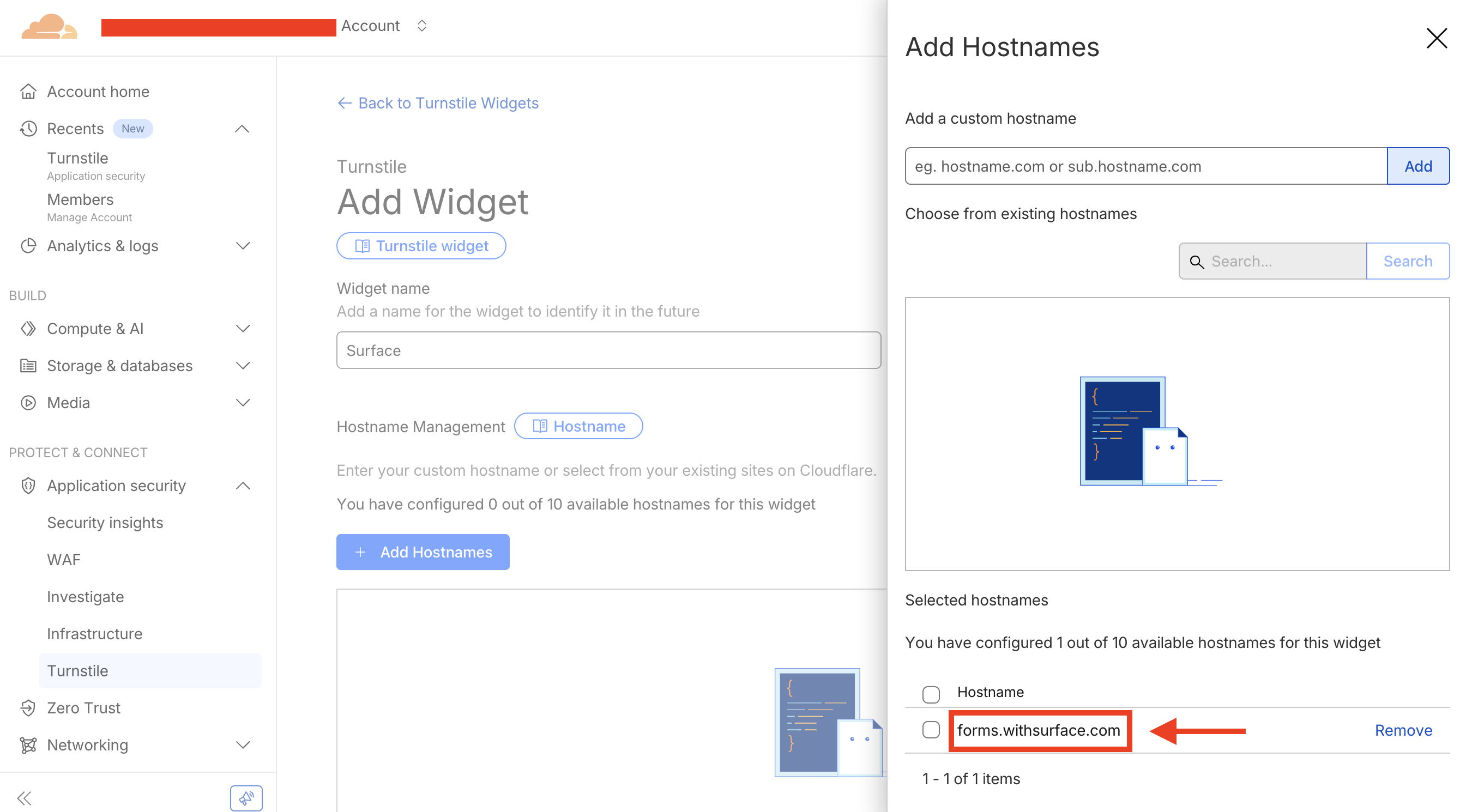
- Set up the widget configurations
- In the Hostnames field, add
forms.withsurface.comor the verified custom domain used by your form - Click
Addbutton to add the host
Step 4: Create Widget and Copy Keys
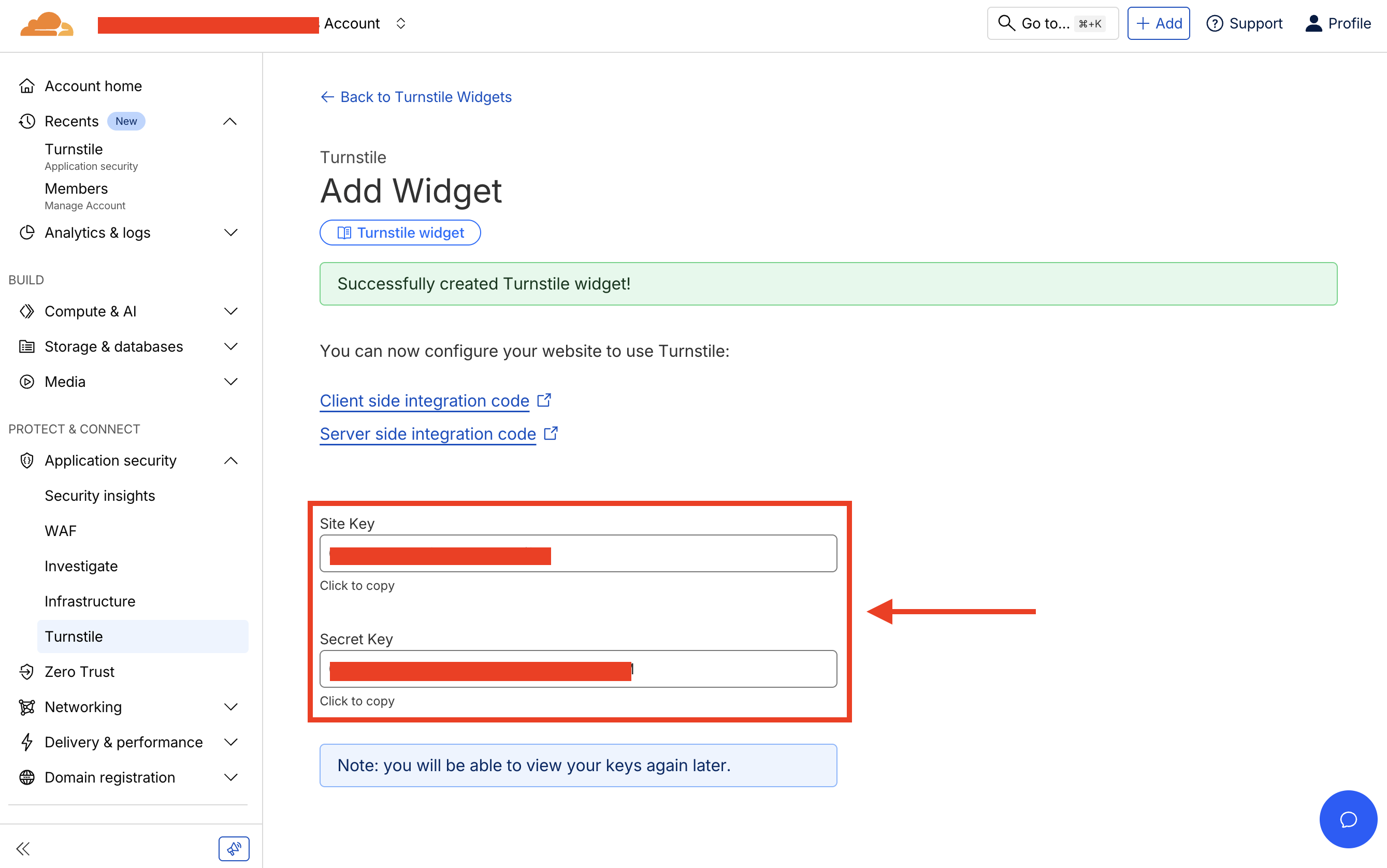
- Click Create to create the widget
- After creating the widget, copy the Site Key and Secret Key
- These keys will be used to configure Turnstile in your Surface Form settings
Step 5: Configure Turnstile in Surface Form Settings
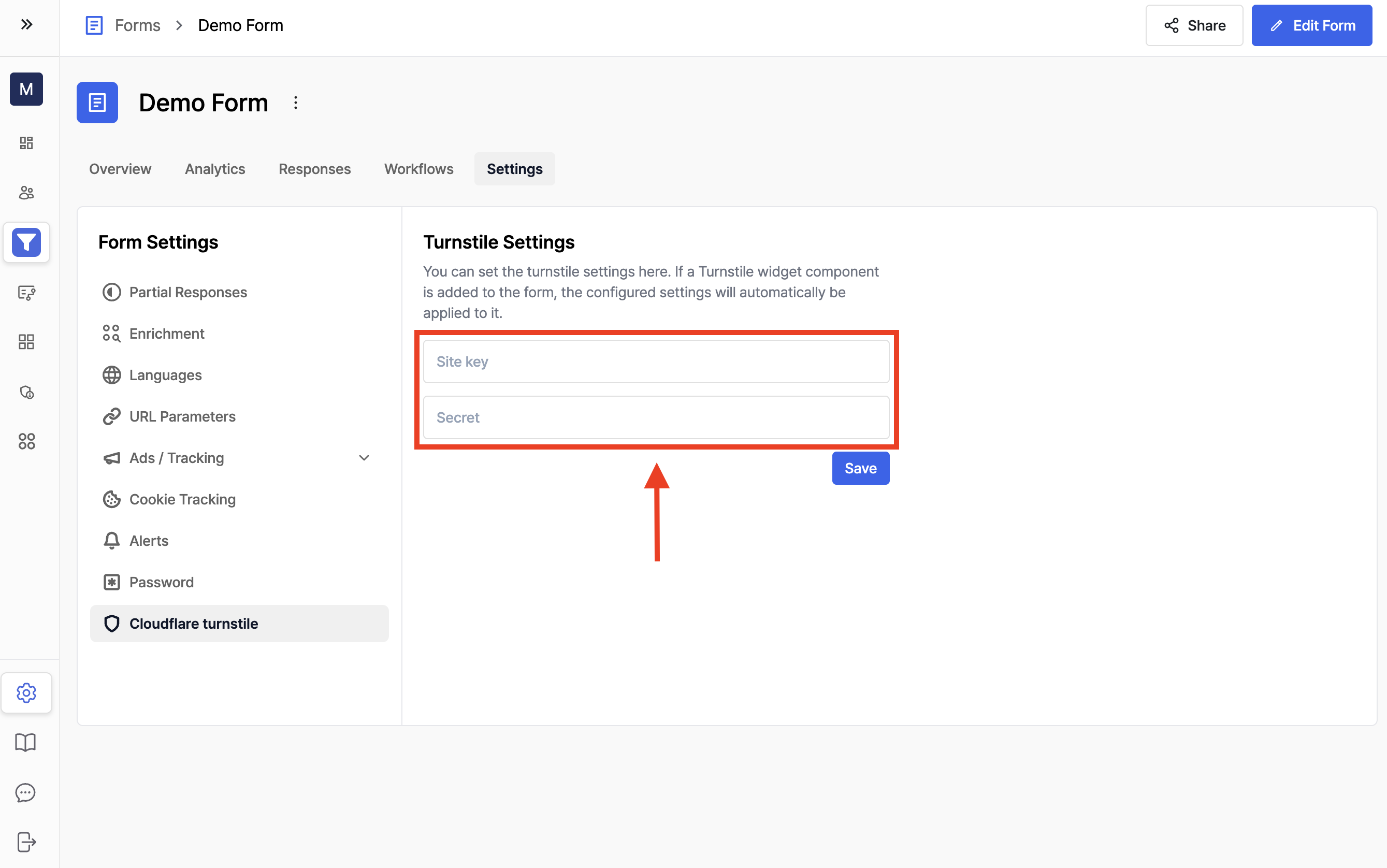
- Navigate to your Surface Form settings page
- Go to Cloudflare Turnstile section
- Paste the Site Key and Secret Key that you copied in Step 4
- Click Save to save the settings
Step 6: Add Turnstile Widget to Your Form
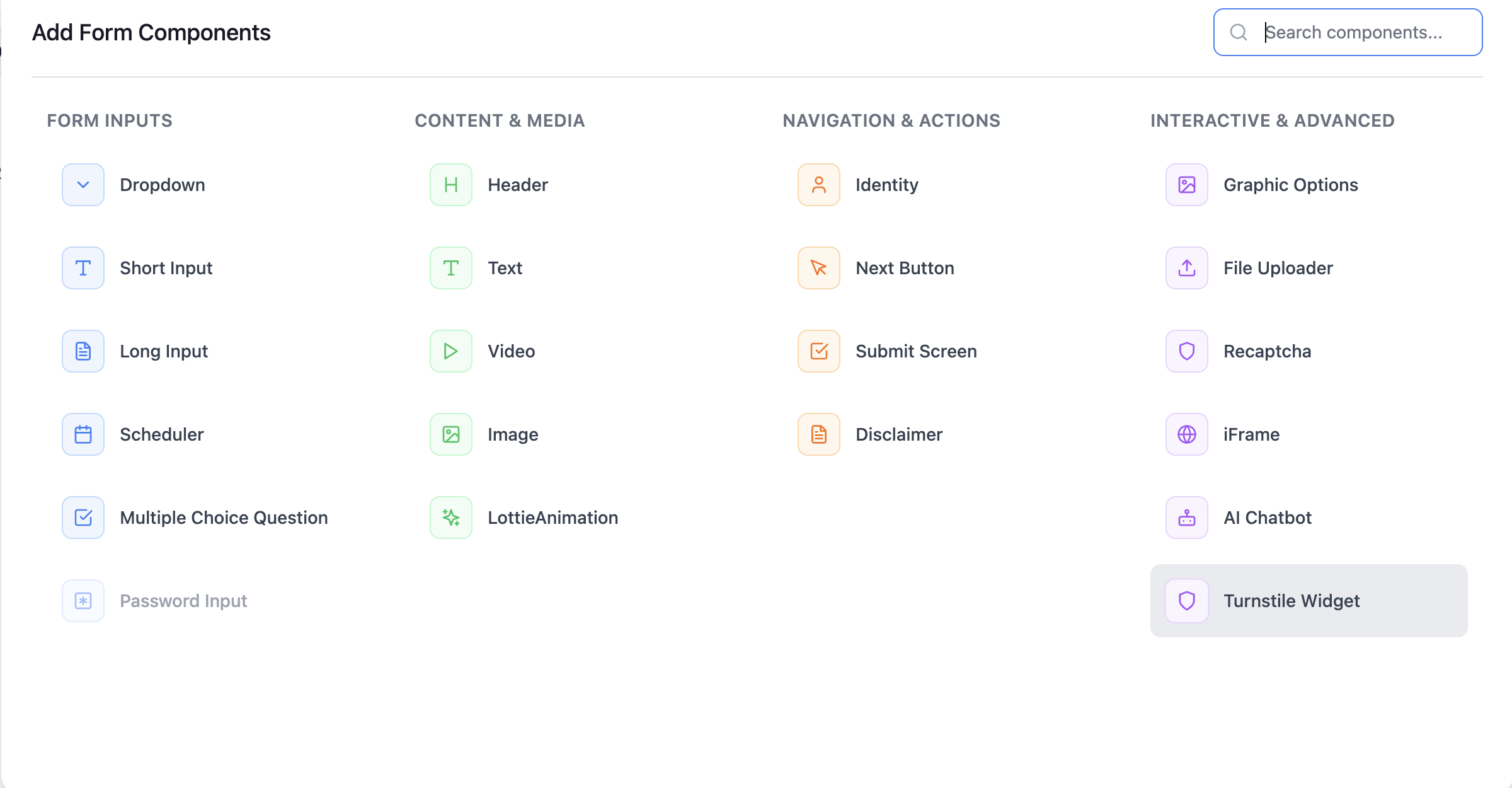
- In the Form Builder, navigate to the step where you want to add the Turnstile widget
- Click + Add component or Copy existing component
- Select the Turnstile widget component from the component list
- The Turnstile widget will now appear in your form and will be validated when users submit the form