
Send Data to Clay
Learn how to send Surface Form submissions to Clay using webhooks and the HTTP Request action
Step 1: Create a Webhook Table in Clay
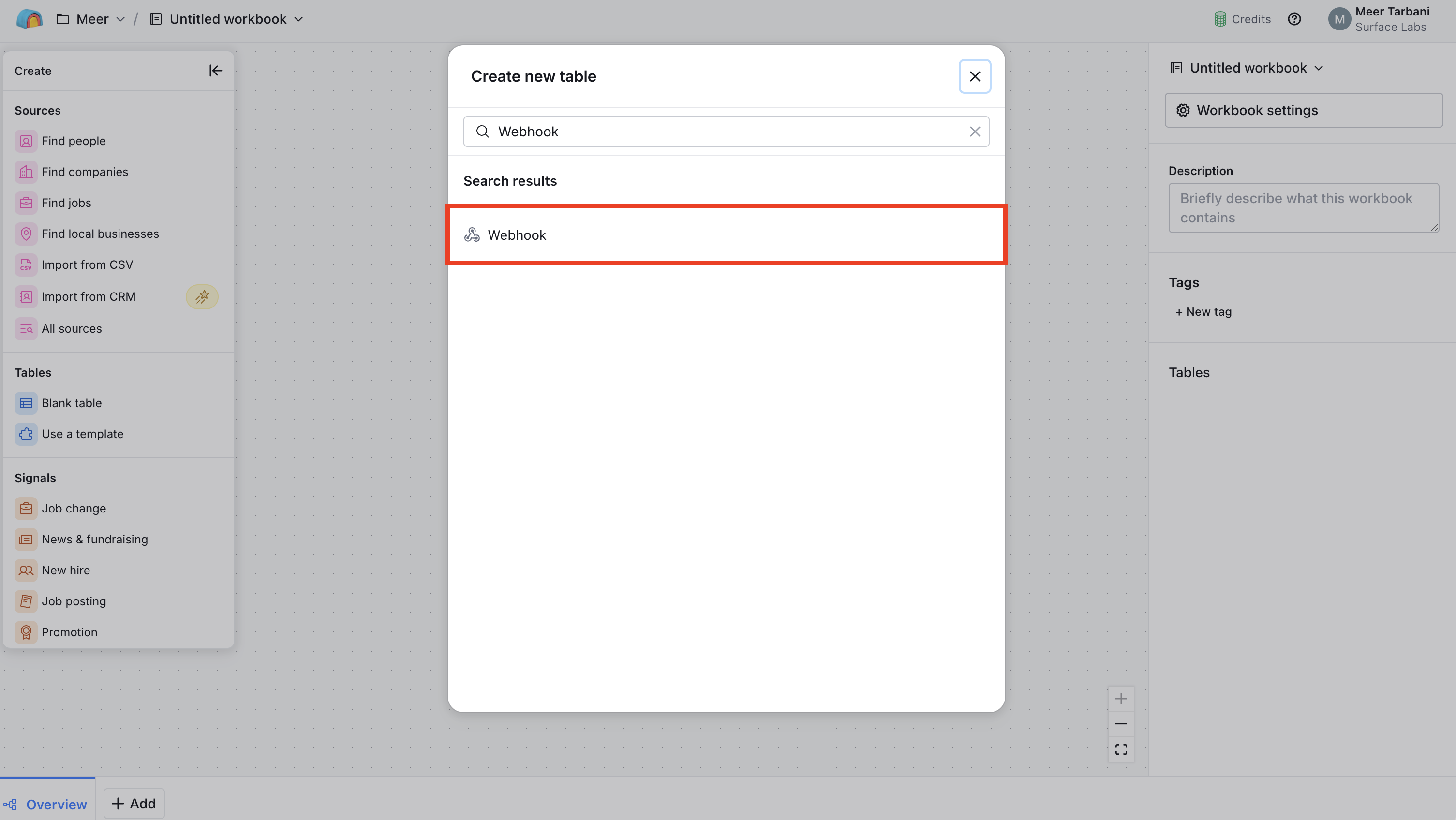
- In Clay, create a new table
- Add Webhook as the data source for the table
Step 2: Copy the Webhook URL and Set Response Format
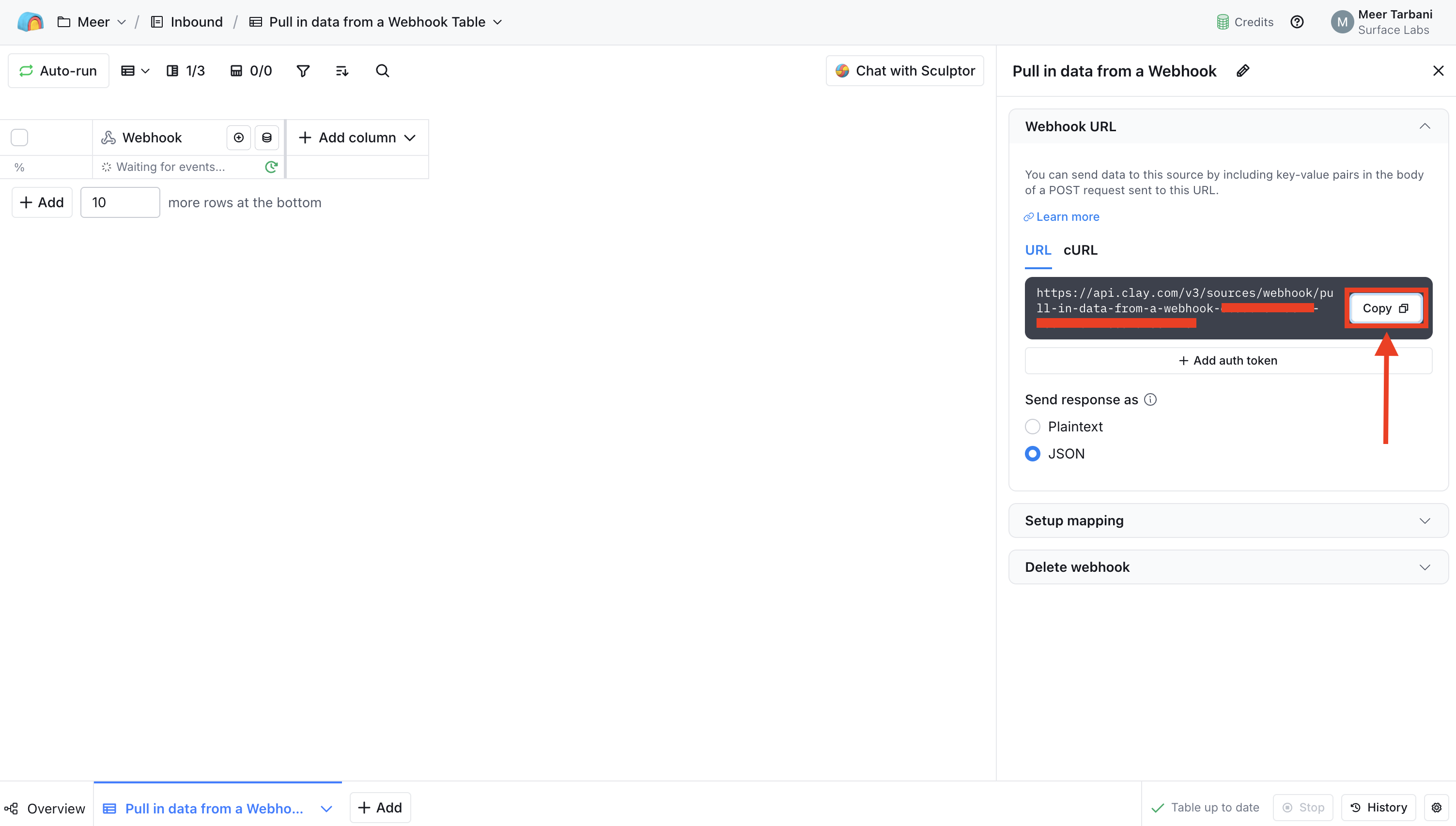
- In the Webhook source configuration, find the Webhook URL
- Copy the Webhook URL — you'll paste this into Surface in a later step
- Set
Send response astoJSONso Clay expects and parses JSON payloads
Step 3: Add an HTTP Request Action in Surface Workflow Builder
- Open the Workflow Builder in the Surface Platform for your form
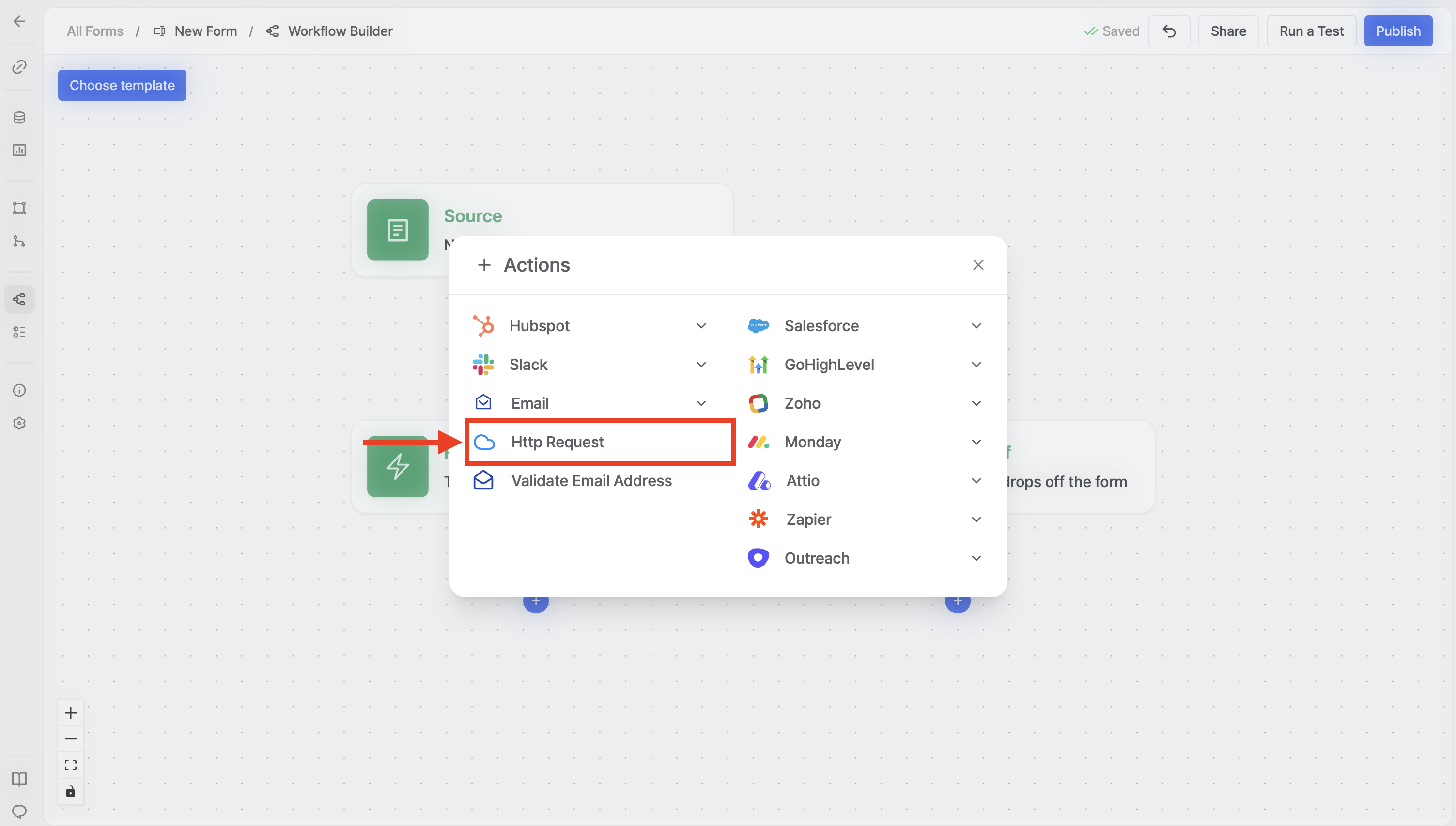
- Add a new action to your workflow
- Select HTTP Request from the available actions
Step 4: Configure the HTTP Request Action
Configure the HTTP Request action with the following settings:
- Request URL — Paste the Webhook URL you copied from Clay
- HTTP Method — Set to POST
- Body — Add a JSON object where each key is the field name Clay expects and each value is the form data. Use the
@symbol in the workflow builder to insert form variables (e.g.@email,@name).
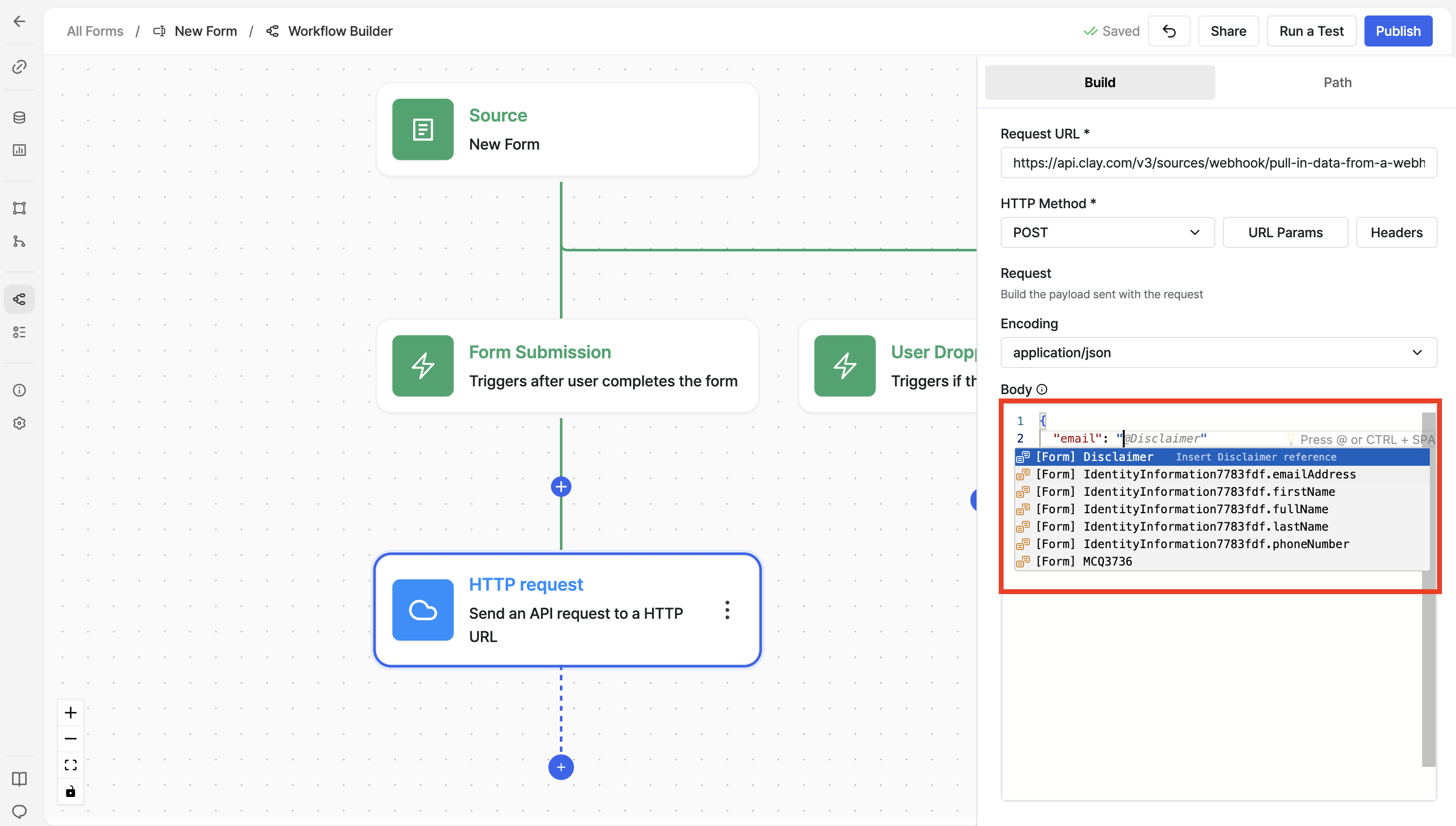
Press @ in the workflow builder and start typing to see available form
fields you can use in the JSON body.
Step 5: Verify Data in Clay
- Save your Surface workflow
- Submit a test response through your Surface Form
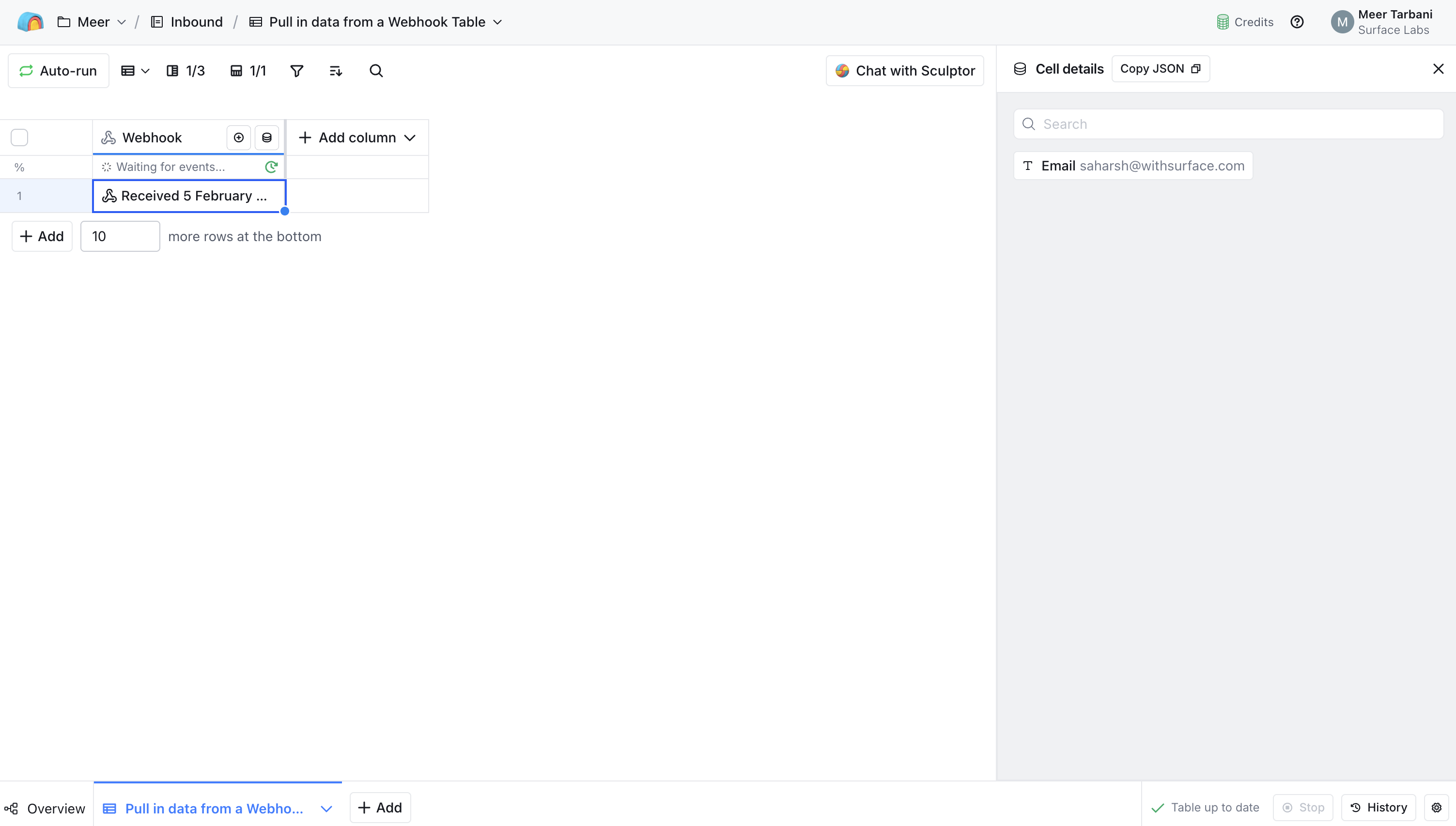
- In Clay, check your webhook table — you should see the new row with the data sent from Surface
Troubleshooting
If data isn't appearing in Clay:
- Confirm the Webhook URL in the HTTP Request action matches the URL from Clay exactly
- Ensure
Send response asis set toJSONin Clay and your request body is valid JSON - Check that the JSON keys in the body match the columns or fields Clay expects
- Review workflow logs in Surface to see if the request was sent and whether Clay returned any errors