
Step 1: Create HubSpot Form
Create a HubSpot form with all fields optional except email so partial Surface submissions can be recorded
In this step, you'll create a HubSpot form that Surface will submit to when leads complete or drop off your Surface form. Making all fields optional except email ensures that partial submissions (e.g., when a lead only enters their email and leaves) still create a valid form response in HubSpot, which your automation can use to enroll them in a sequence.
If you already have a HubSpot form and only need to adjust which fields are required, see Step 1: Configure HubSpot Form in the HubSpot forms guide to make existing fields optional.
Create a New Form in HubSpot
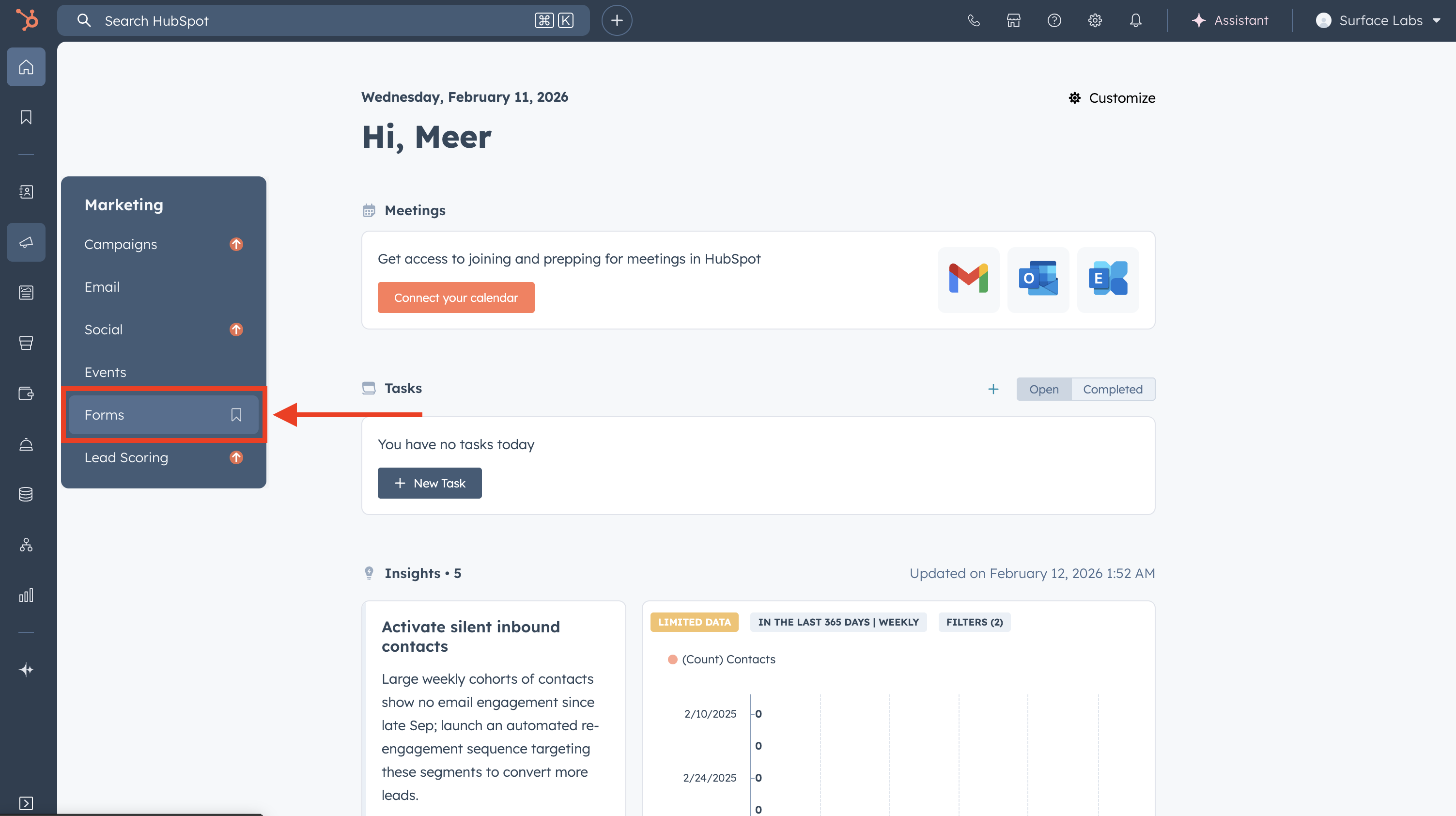
- In HubSpot, go to Marketing → Forms (or Marketing → Lead Capture → Forms depending on your HubSpot layout)
- Click Create form and choose Embedded (or the form type that fits your use case)
- Name the form (e.g., "Surface – Email sequence enrollment")
Set Fields: Email Required, Rest Optional
- Add the fields you want to capture (e.g., Email, First name, Last name, Company)
- For Email: keep it required so every submission has at least an email for the sequence
- For all other fields: set them to optional (not required), so partial submissions from Surface are accepted
This way, when a lead drops off your Surface form after only entering their email, Surface can still send that single field to HubSpot and HubSpot will accept it as a valid form submission.
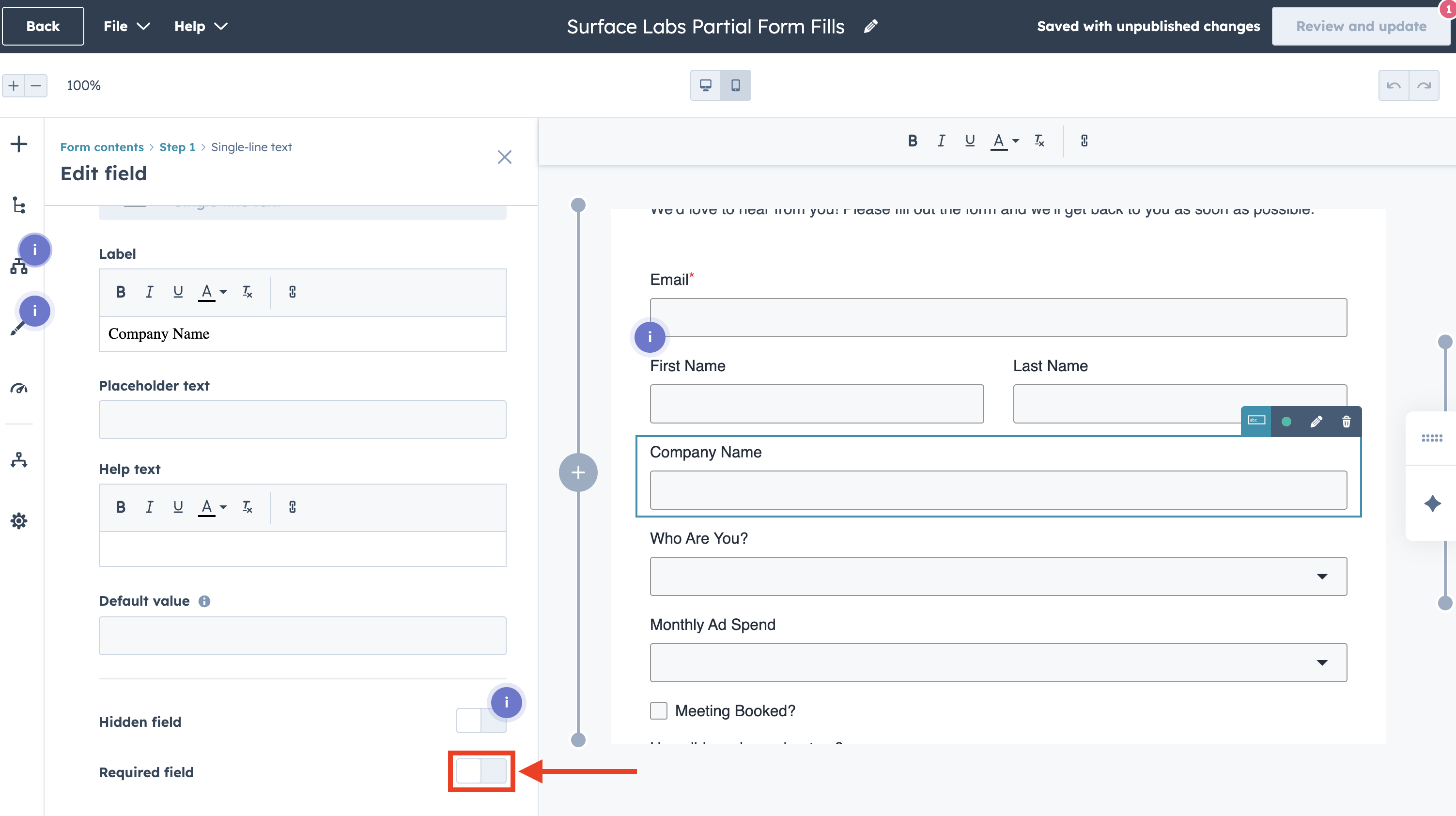
Match these fields to the ones you map in your Surface workflow. Use the same internal names (e.g., email, firstname, lastname) when configuring Create Form Response so data lines up with your sequence personalization tokens.
Connect Properties and Publish
- Ensure each form field is connected to the correct HubSpot contact property (e.g., Email →
email, First name →firstname) - Complete any other form settings (thank-you message, redirect, etc.)
- Publish the form
You don't need to embed this form on a page—Surface will submit to it via the API when you configure the workflow in Step 5: Connect HubSpot Form with Surface Workflow. Note the form name so you can select it in Step 4 (automation) and Step 5 (Surface workflow).
Next Step
Create the HubSpot sequence and first email template with personalization and meeting link. See Step 2: Create HubSpot Sequence.
You'll connect this form to Surface in Step 5. Steps 2–4 are done in HubSpot (sequence and automation) first.