
Email Sequences with HubSpot
Step 3: Add Follow-Up Emails and Delays
Add more sequence steps with follow-up emails and business-day delays between each
In this step, you'll add additional emails to your HubSpot sequence and set delays (in business days) between each step. You can repeat this for as many follow-ups as you need.
Add Another Step to the Sequence
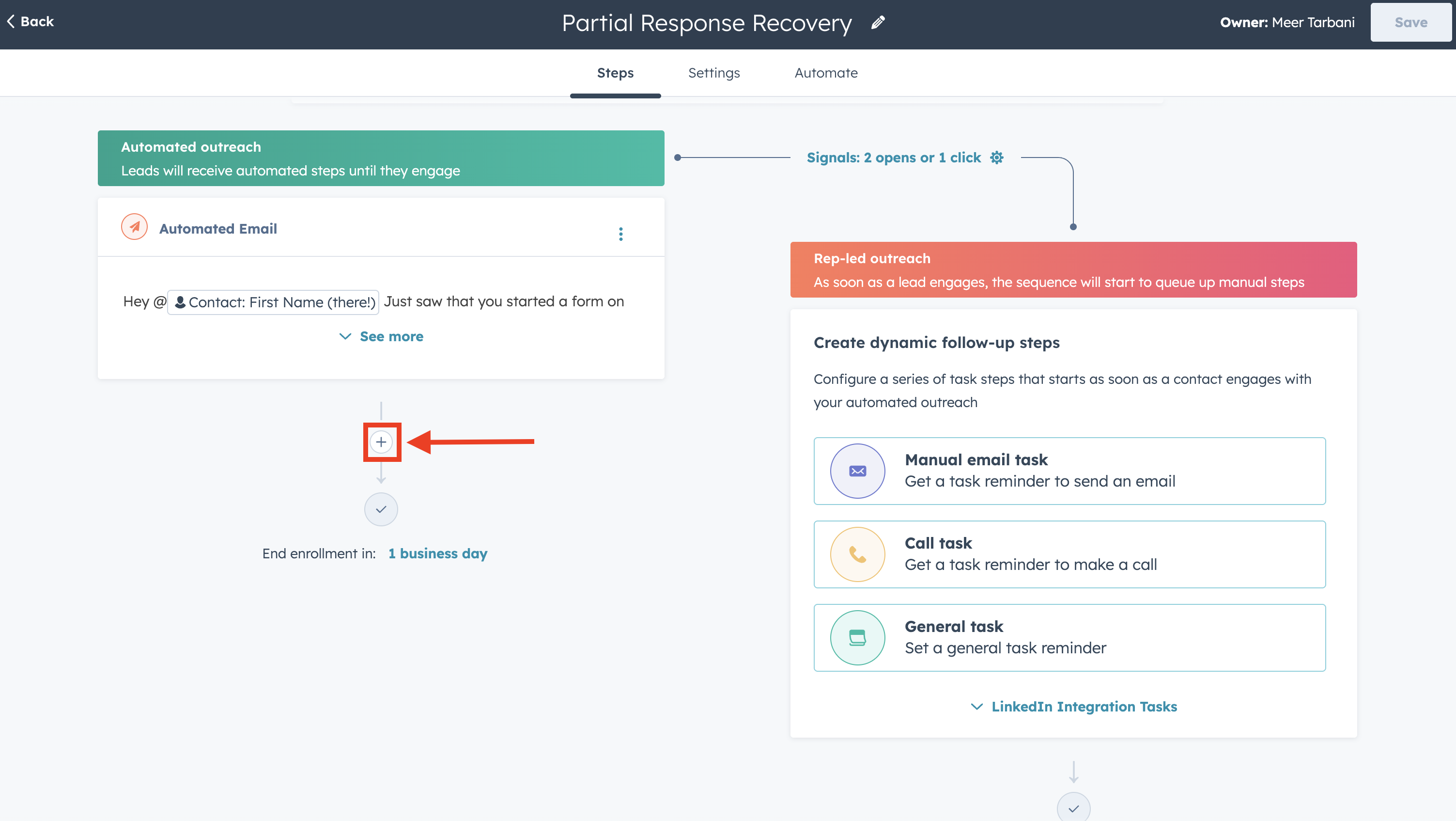
- In your sequence, under Steps, click the + button to add a new step
- Choose Automated email (or the step type you want)
Edit the Follow-Up Email
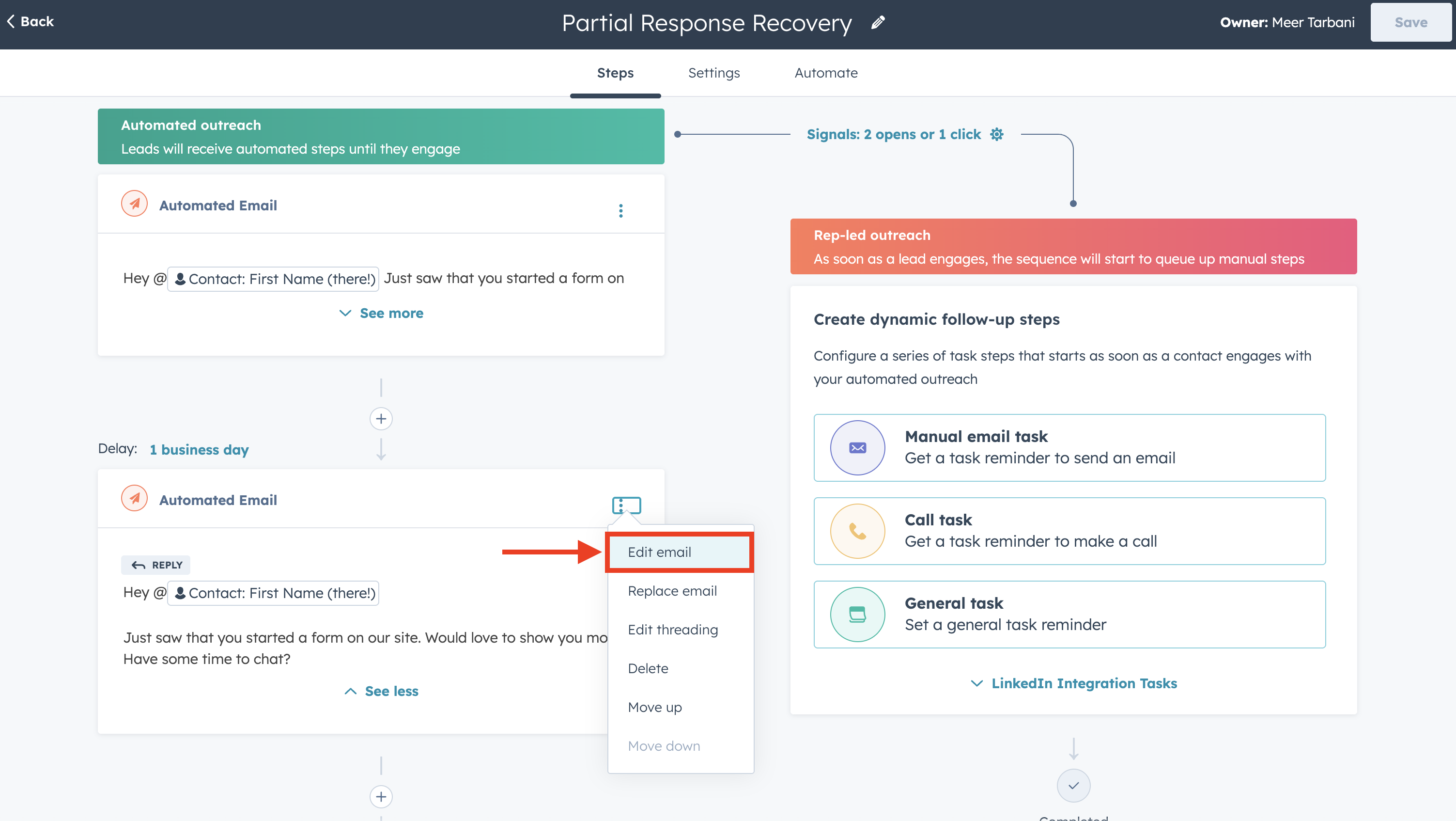
- Click Edit email on the new step
- Either create a new template or use an existing one
- Add personalization tokens and your meeting link the same way as in Step 2 (Insert → Personalization tokens, Insert → Meetings)
- Save the template when done
Set the Delay Before This Email
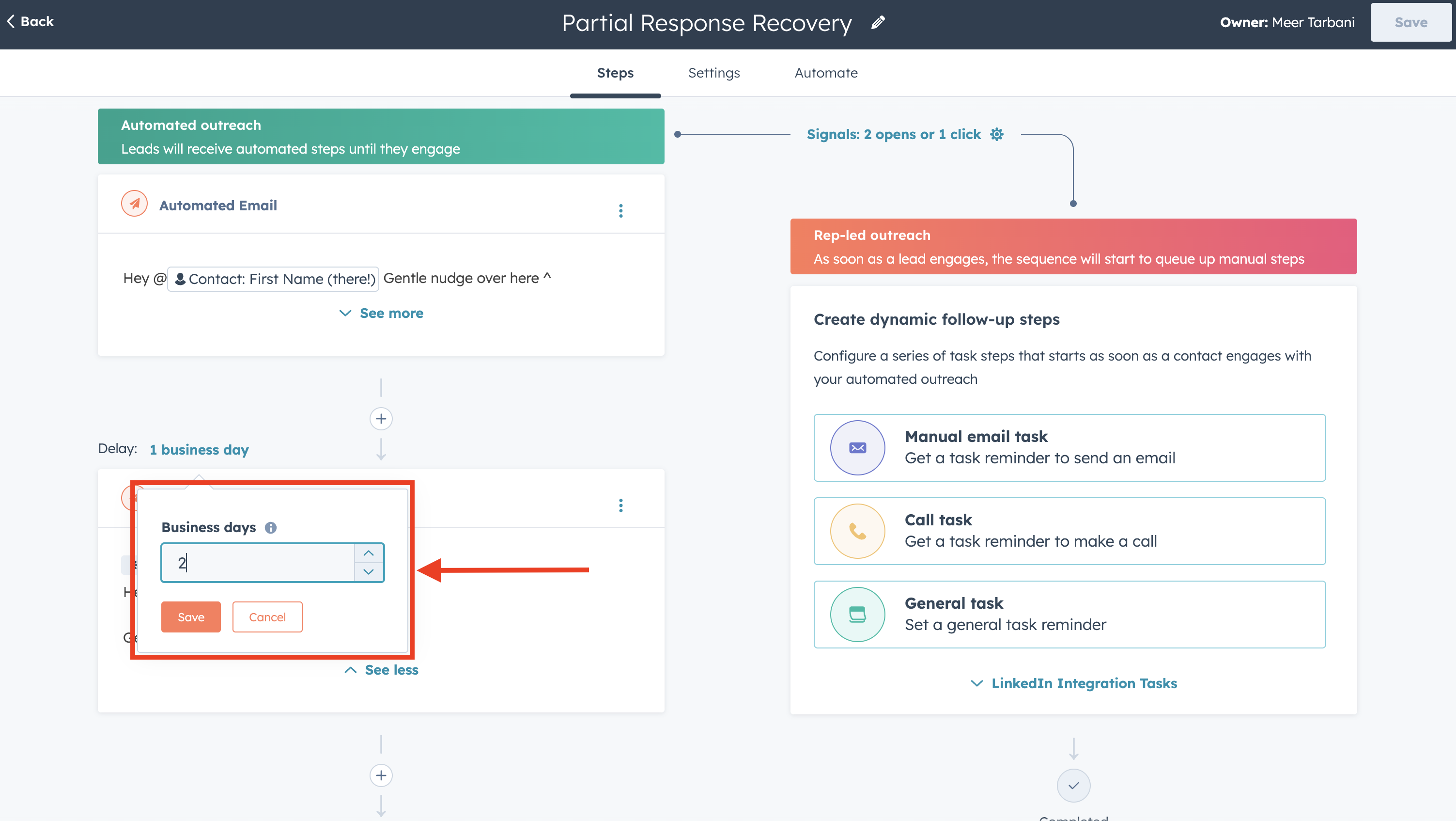
To control how many days pass before this email sends:
- Click Delay on the step (or in the step settings)
- Set the delay in business days (e.g., 2, 3, or 5 business days after the previous step)
- Save
Typical patterns: 2-3 business days between the first and second email, then 3-5 for later follow-ups. Adjust based on your audience and how many touches you want.
Repeat for More Follow-Ups
For each additional follow-up:
- Click + to add another step
- Click Edit email and set the content (new template or existing)
- Click Delay and set the number of business days
- Save
Your sequence might look like:
- Step 1: Automated email (sends immediately when enrolled)
- Step 2: Delay 2 business days → Automated email
- Step 3: Delay 3 business days → Automated email
- Step 4: Delay 5 business days → Automated email
- (Optional) Step 5: Task or other action