
Email Sequences with HubSpot
Step 4: Add Automation
Create a HubSpot automation that enrolls contacts in your sequence when they submit the form
In this step, you'll create a HubSpot automation that triggers when a contact submits the HubSpot form you use with Surface. The automation will enroll the contact in your sequence so they receive the emails you set up in Steps 2 and 3.
Create the Automation
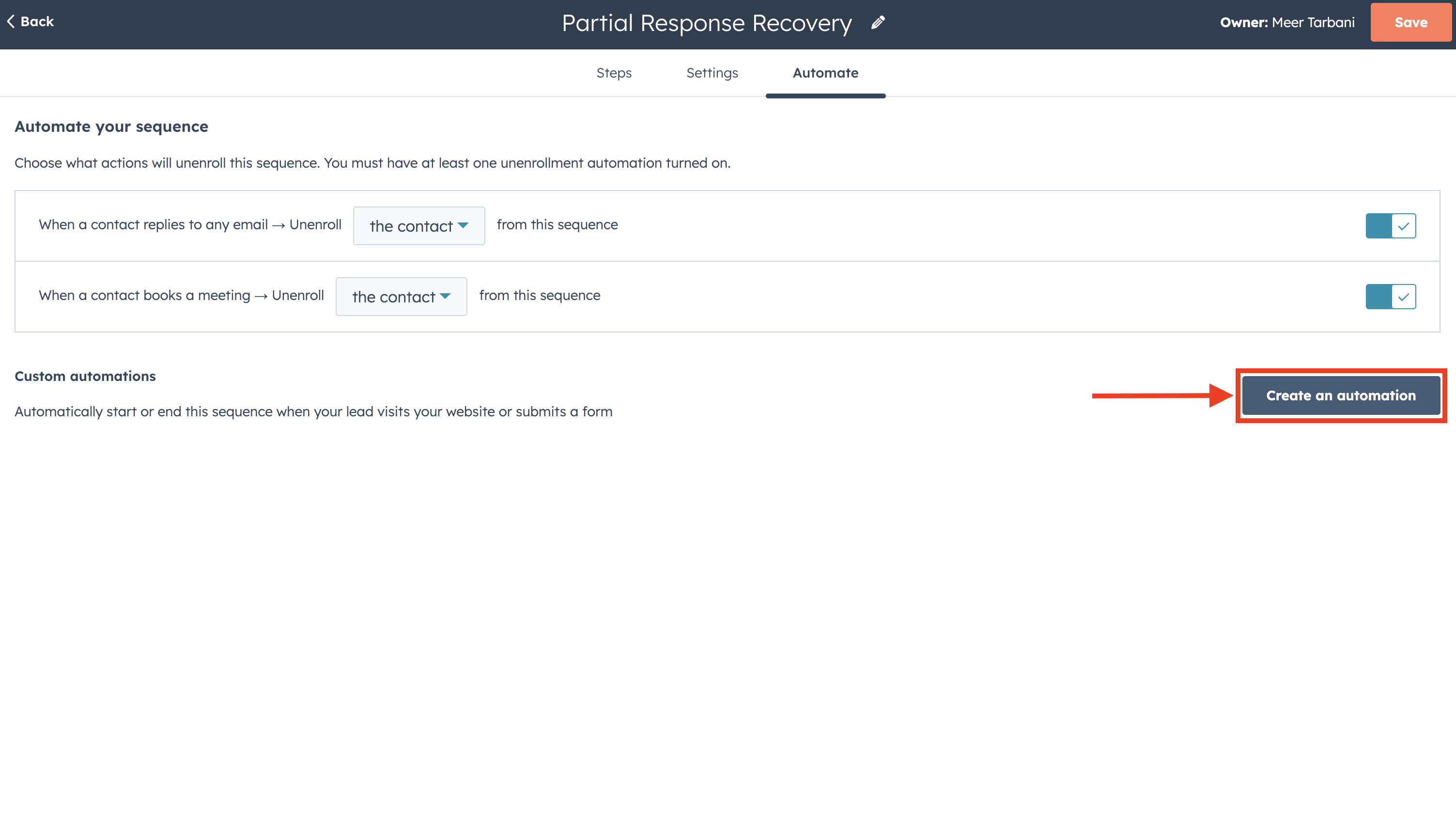
- In your sequence, open the Automate tab
- Click Create an automation
Set the Trigger: Form Submission
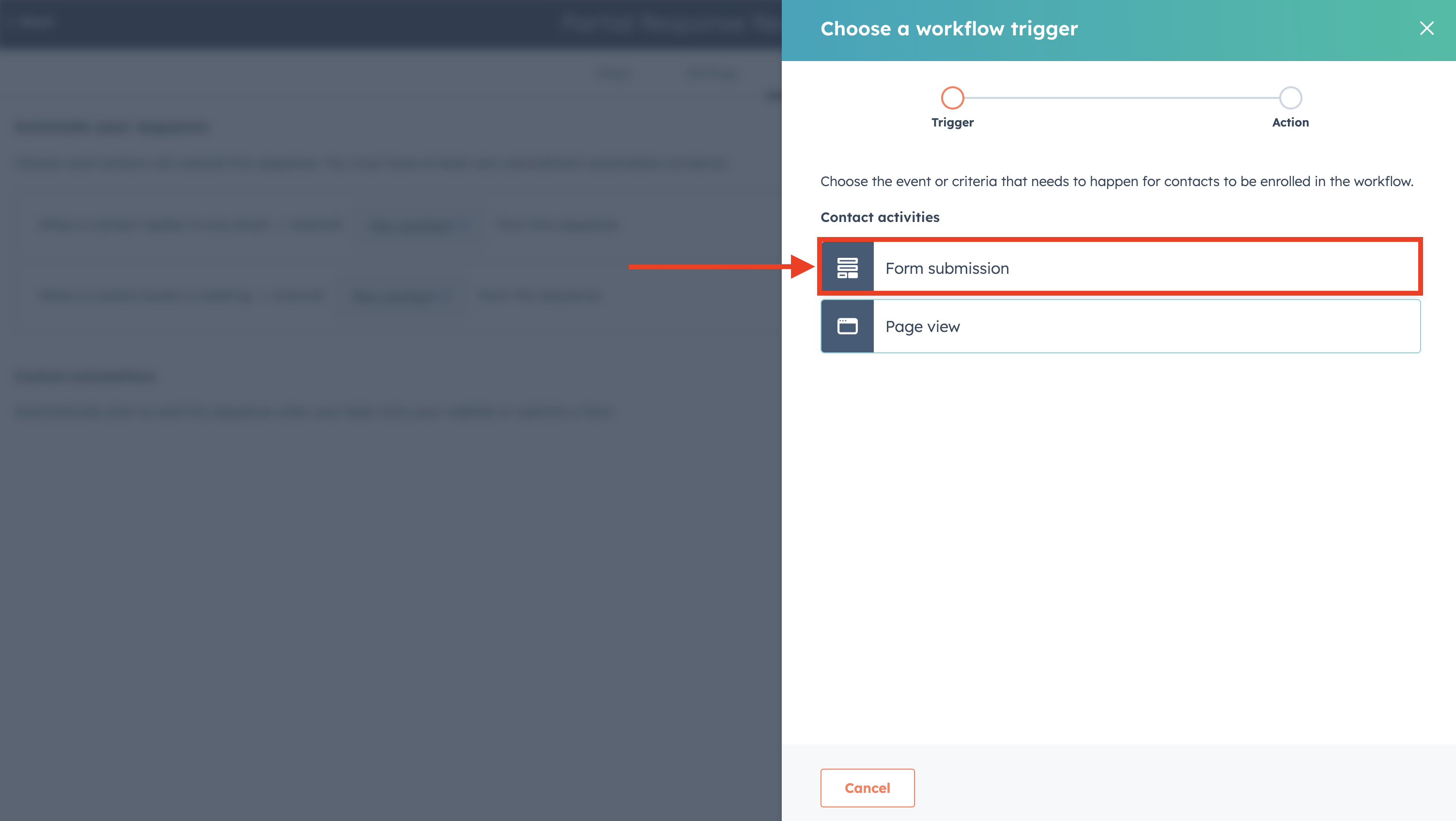
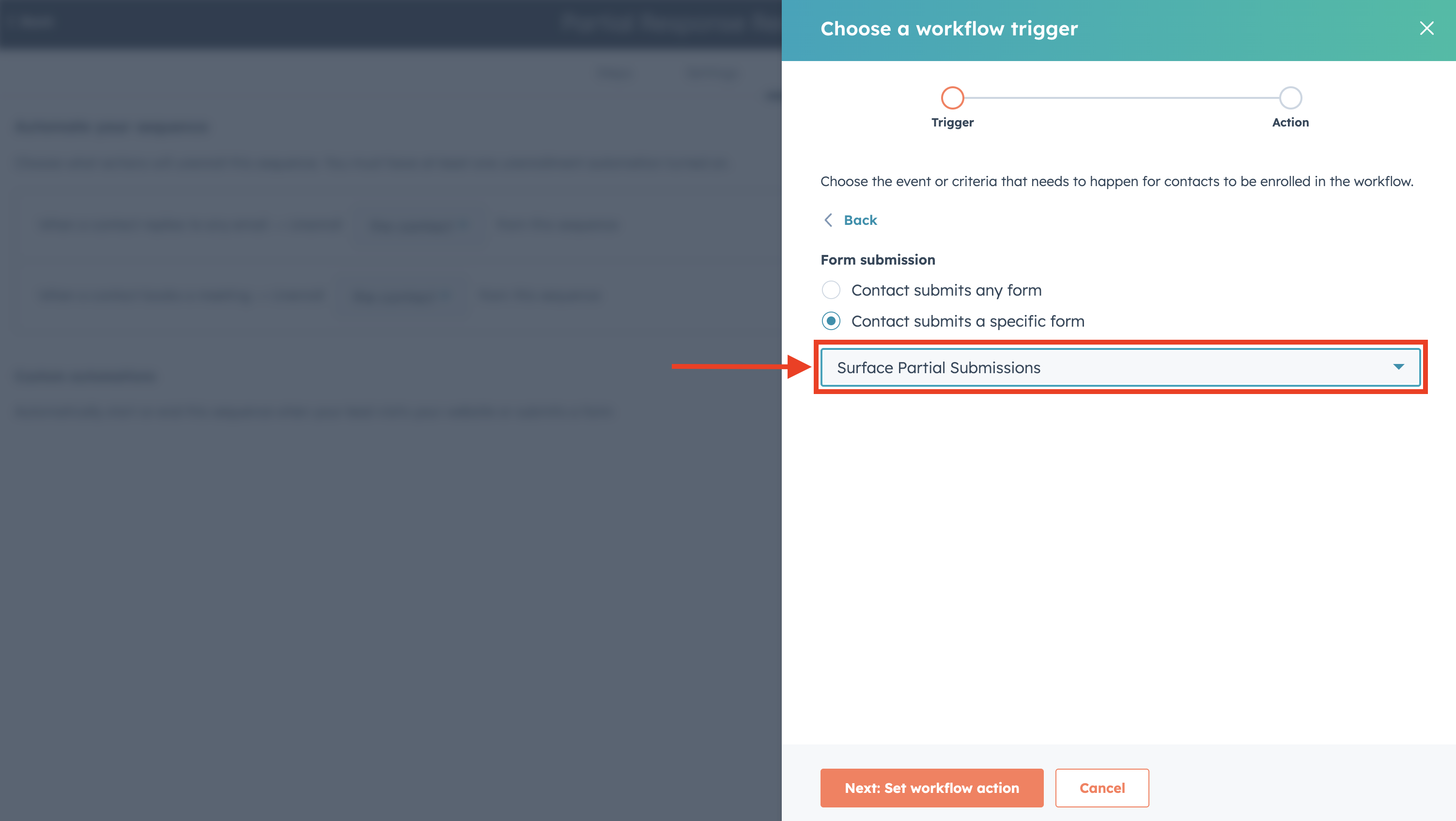
- Set the trigger to Form submission
- Choose Contact submits a specific form
- Select the HubSpot form you created in Step 1 (the same form your Surface workflow sends to via Create Form Response)
The form you select here must be the exact same form that your Surface workflow uses in the Create Form Response action. Otherwise, submissions from Surface won't trigger this automation.
Configure the Enrollment Action
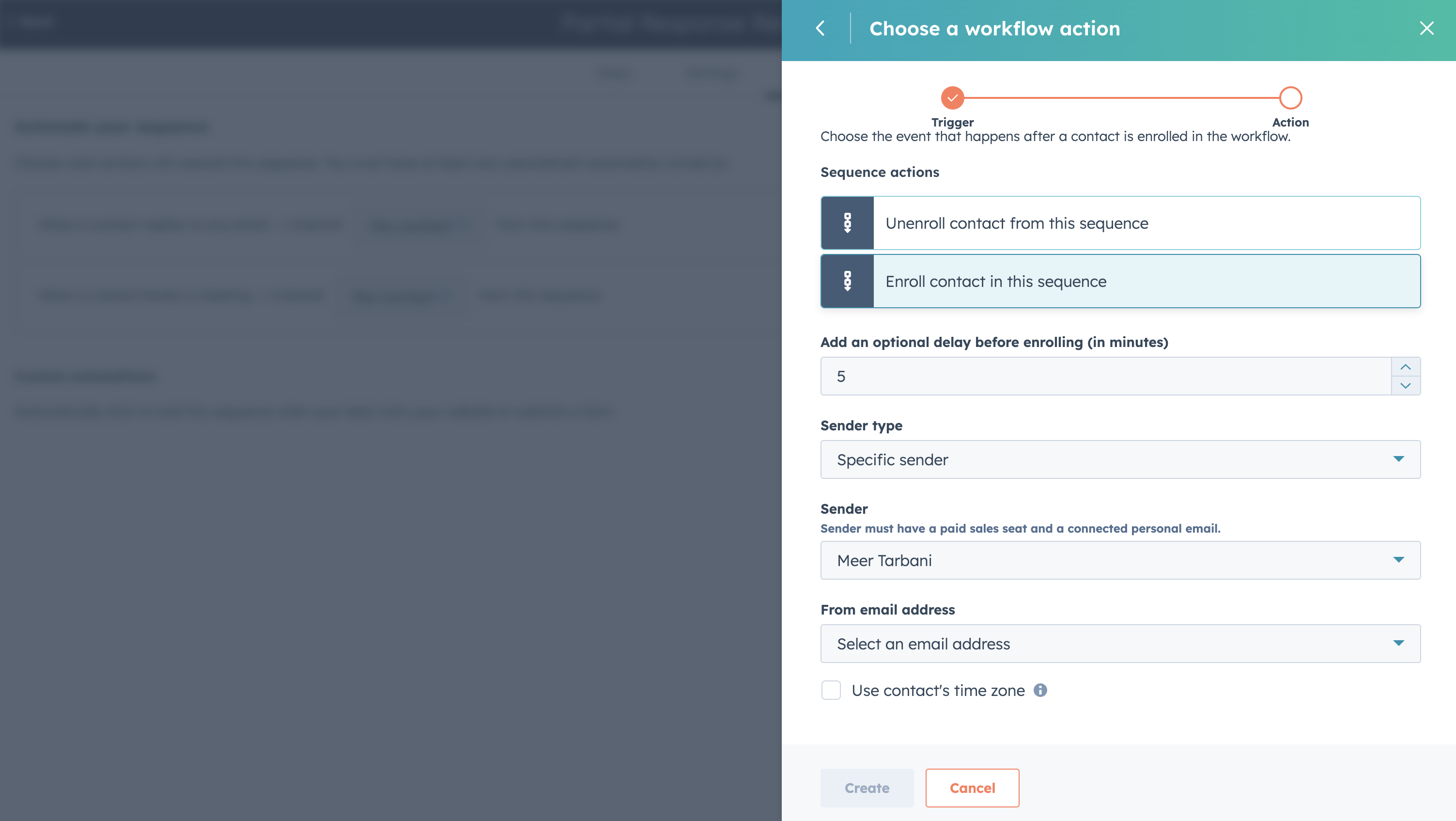
- Add an action and choose Enroll contact in this sequence (or the equivalent sequence enrollment action)
- Configure sender email and sender name so emails come from the right address and identity
- Review any other options (e.g., eligibility, max enrollments) if your HubSpot plan supports them
Create and Turn On the Automation
- Click Create (or Save) to create the automation
- Turn the automation on so it runs when the form is submitted
After this, any contact who submits that form—whether from a Surface Dropped Off or Form Submission workflow—will be enrolled in the sequence and receive your automated emails according to the steps and delays you configured.