
HubSpot Forms Configuration
One Click Setup
Create HubSpot forms from Surface and start syncing partial & complete submissions
The One Click Setup automatically creates HubSpot forms (both complete and partial) and starts sending form submissions to HubSpot.
Step 1: Authenticate with HubSpot
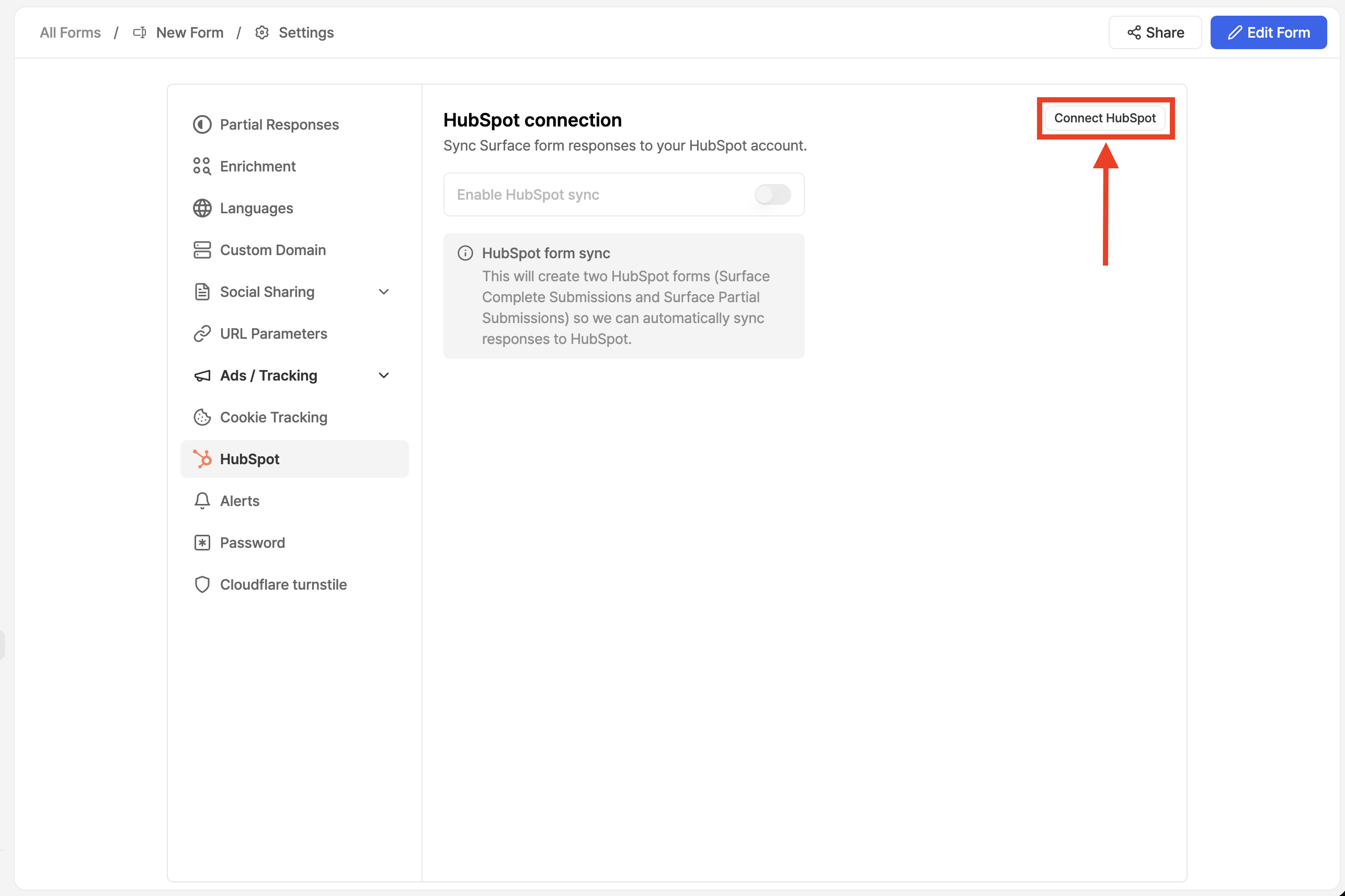
- Go to Form Settings → HubSpot
- Click on Connect HubSpot if you're not already authenticated
- Follow the on-screen instructions to authenticate
- Select your HubSpot organization when prompted
- Accept the necessary permissions to complete the connection
Step 2: Add Surface Domain to HubSpot
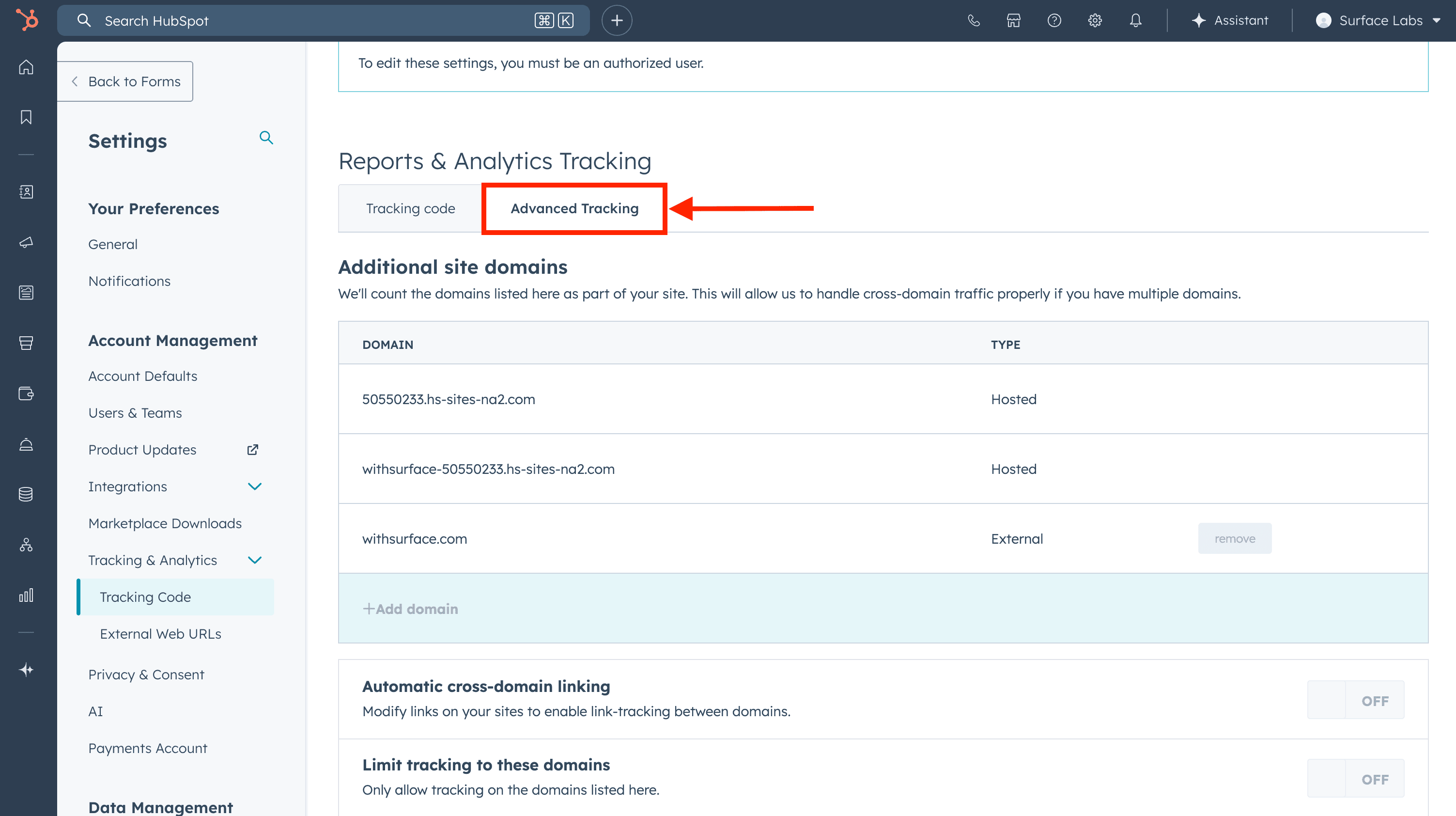
To enable proper tracking and form submissions, add the domain that serves your Surface form to your HubSpot account:
- In your HubSpot account, navigate to Settings → Tracking & Analytics → Tracking Code
- Click on the Advanced Tracking tab
- Under Additional site domains, click + Add domain
- Enter
forms.withsurface.com, or enter your verified custom domain if the form uses one - Click Save
Step 3: Enable HubSpot Sync
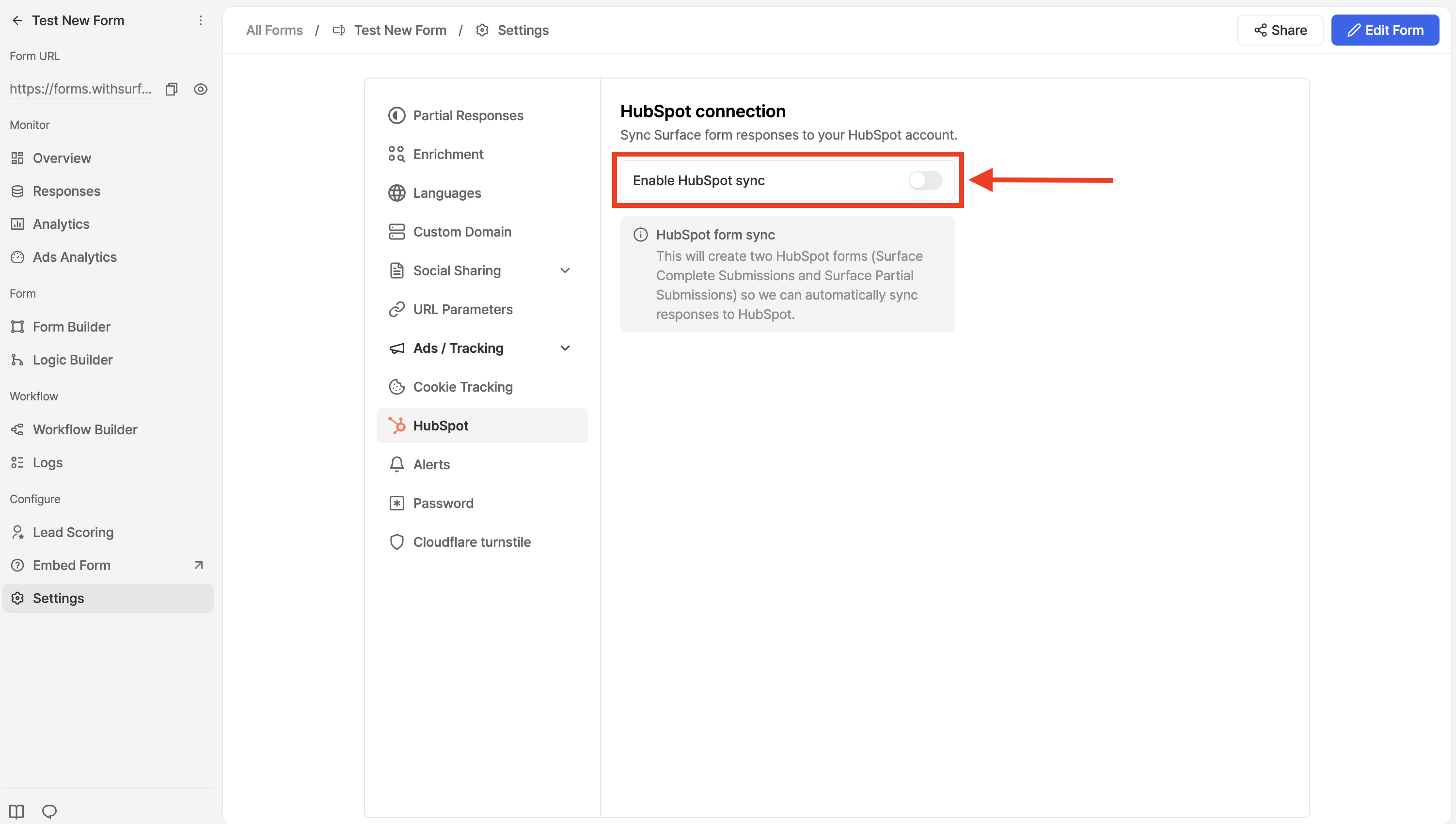
- Under HubSpot Connection, toggle on Enable HubSpot Sync
- Surface will automatically:
- Create a form in HubSpot for finished submissions
- Create a form in HubSpot for incomplete submissions
- Start syncing form submissions to HubSpot
What Happens Next?
Once enabled, Surface will:
- Automatically create forms in your HubSpot account
- Sync complete submissions to the complete form
- Sync partial submissions to the partial form
- Handle field mapping automatically
Next Steps
- HubSpot Tracking - Configure HubSpot tracking to properly track UTMs, first landing page, and lead sources