
Dynamic Lead Forms
Response Table
Your central hub for managing all form submissions with advanced filtering and lead insights
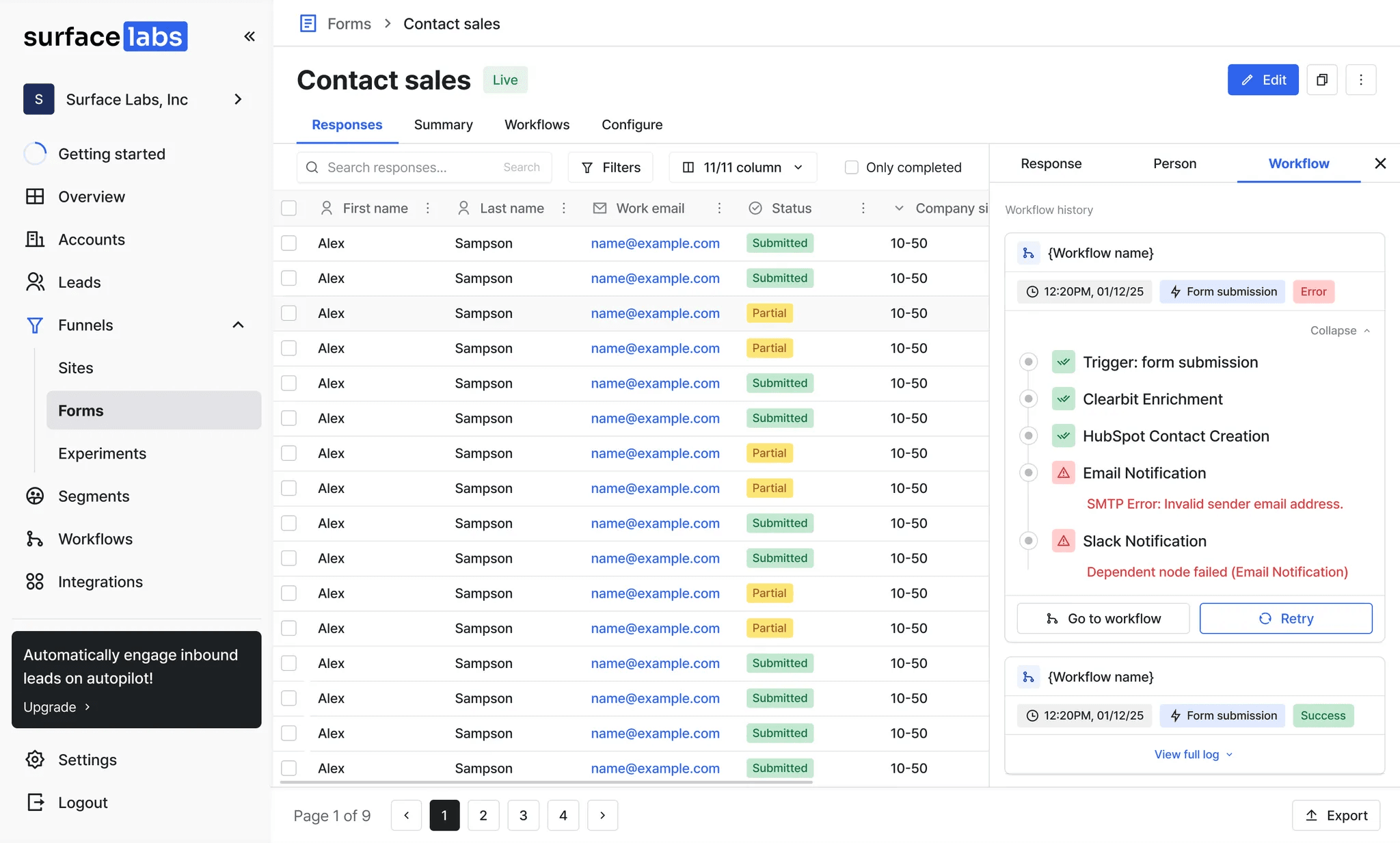
The Responses Table holds every form submission. Search, filter and export responses, and open any row to see the whole lead in the Lead Sidebar.
Advanced Filtering & Searching
Use the search bar, filters and sort to quickly find responses by name, email, company, or any form field.
Partial vs. Completed Responses
- Completed Responses (green) → The user fully submitted the form.
- Partial Responses (yellow) → The user started the form but did not complete it.
Exporting Responses
- Export all responses (completed + partial) into a CSV file.
- Exports respect your applied filters, so you can, for example, download only completed leads.
Lead Sidebar
Click any response in the table to open the Lead Sidebar.
1. Response Tab
- Shows the detailed information the lead submitted through the form.
- Includes all captured fields like First Name, Last Name, Email, Company, and other form fields.
2. Person Tab
- Provides enriched context about the lead:
- IP address
- Country / Geo-location
- Referrer URL (where they came from)
- Window URL (page where the form was filled)
- Origin (domain source)
3. Workflow Tab
- Displays the workflow history triggered by this response.
- Includes:
- Executed steps (e.g., Slack Notification, HubSpot Sync)
- Status logs (success/failure per step)
- Error details (for failed runs)