Zapier
Utilize Zapier to send Surface form submission data to various destinations and trigger actions.
1. Connect Zapier
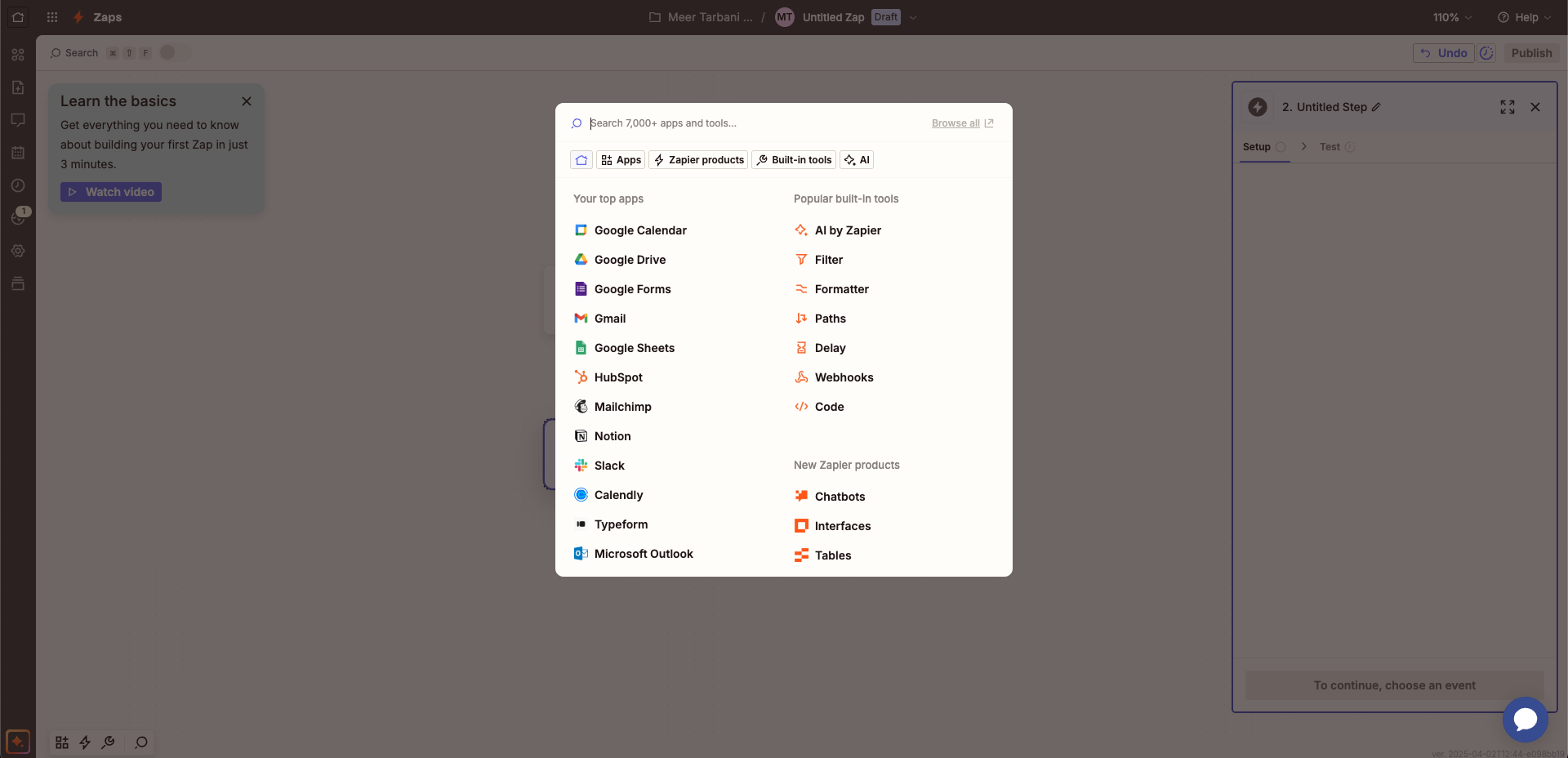
Navigate to the Integrations tab in the Surface App and connect Zapier. Ensure you have a Zapier account.
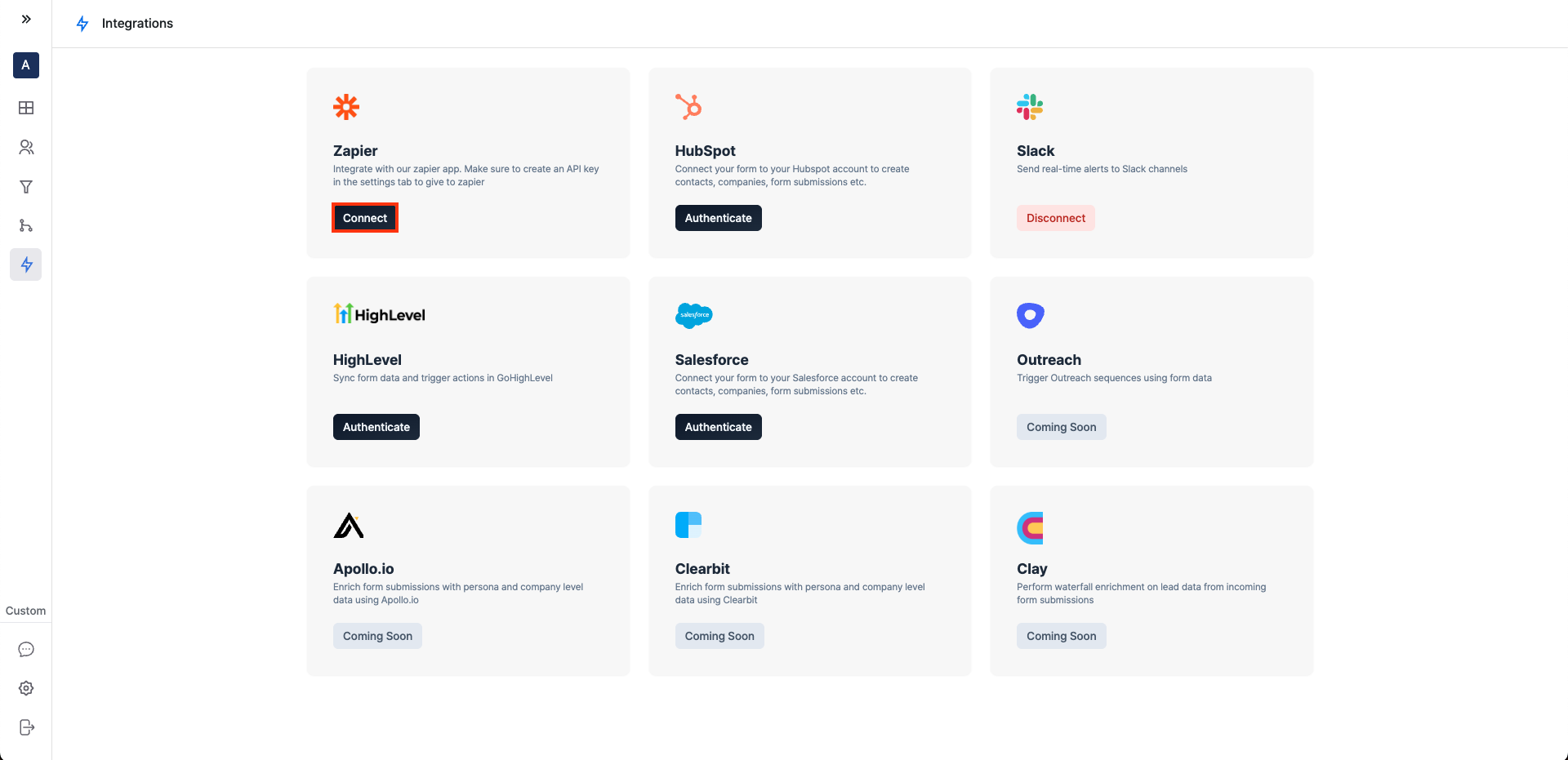
Accept the invitation to get started.
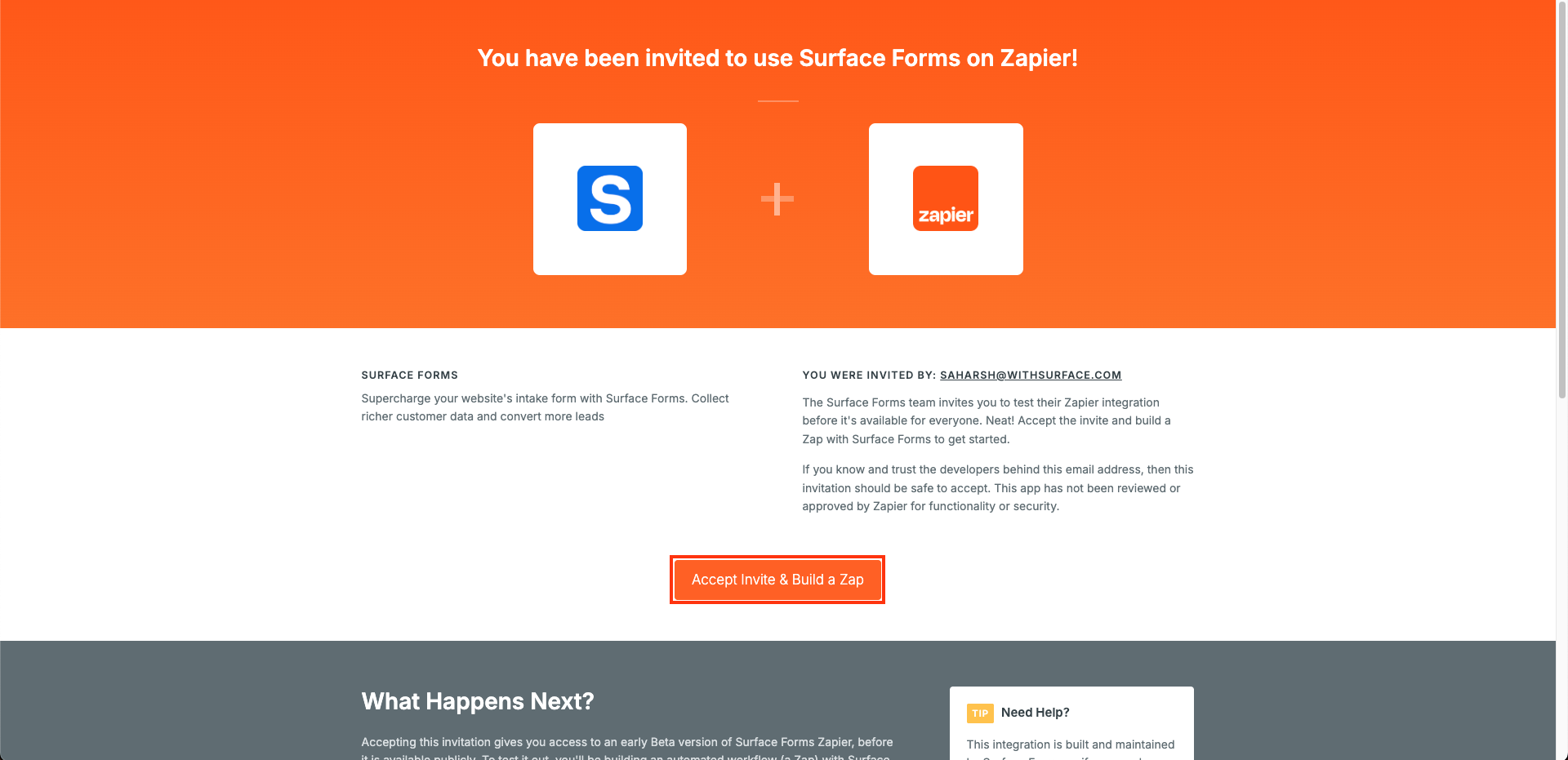
2. Create a New Zap
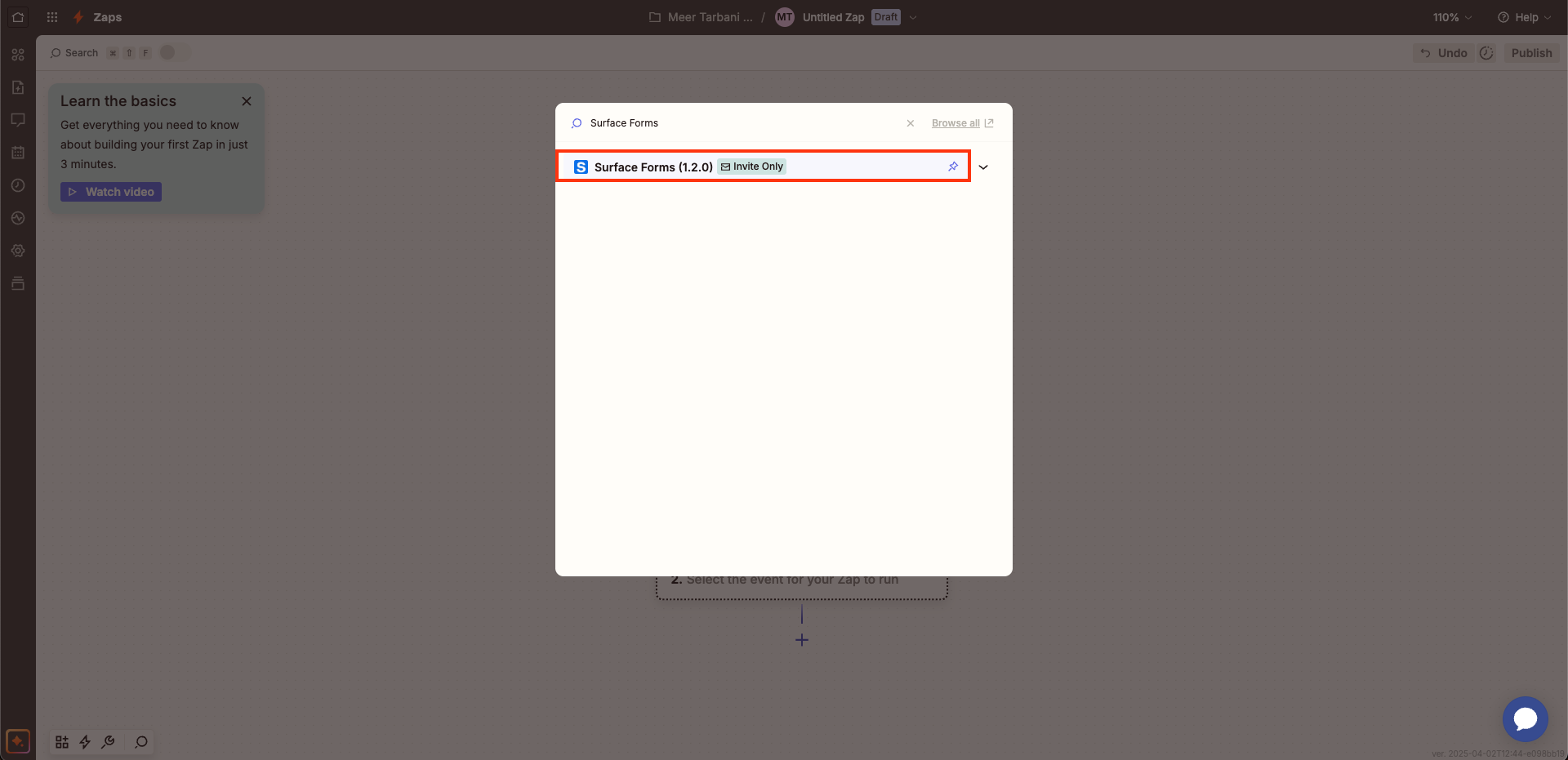
Create a new Zap and search for Surface Forms.
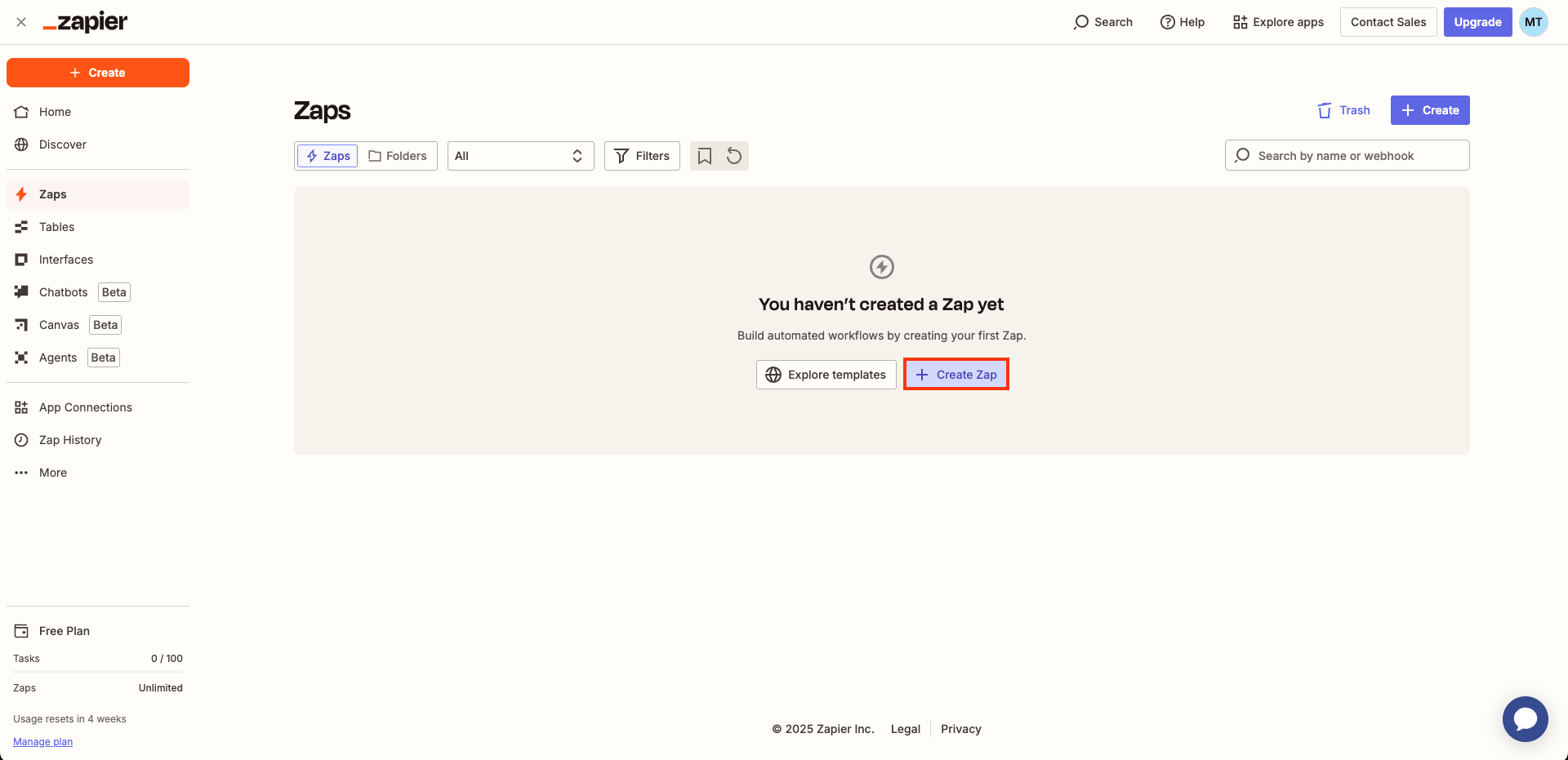
Select the latest version of Surface Forms as the trigger.
Choose a trigger event for the Zap.
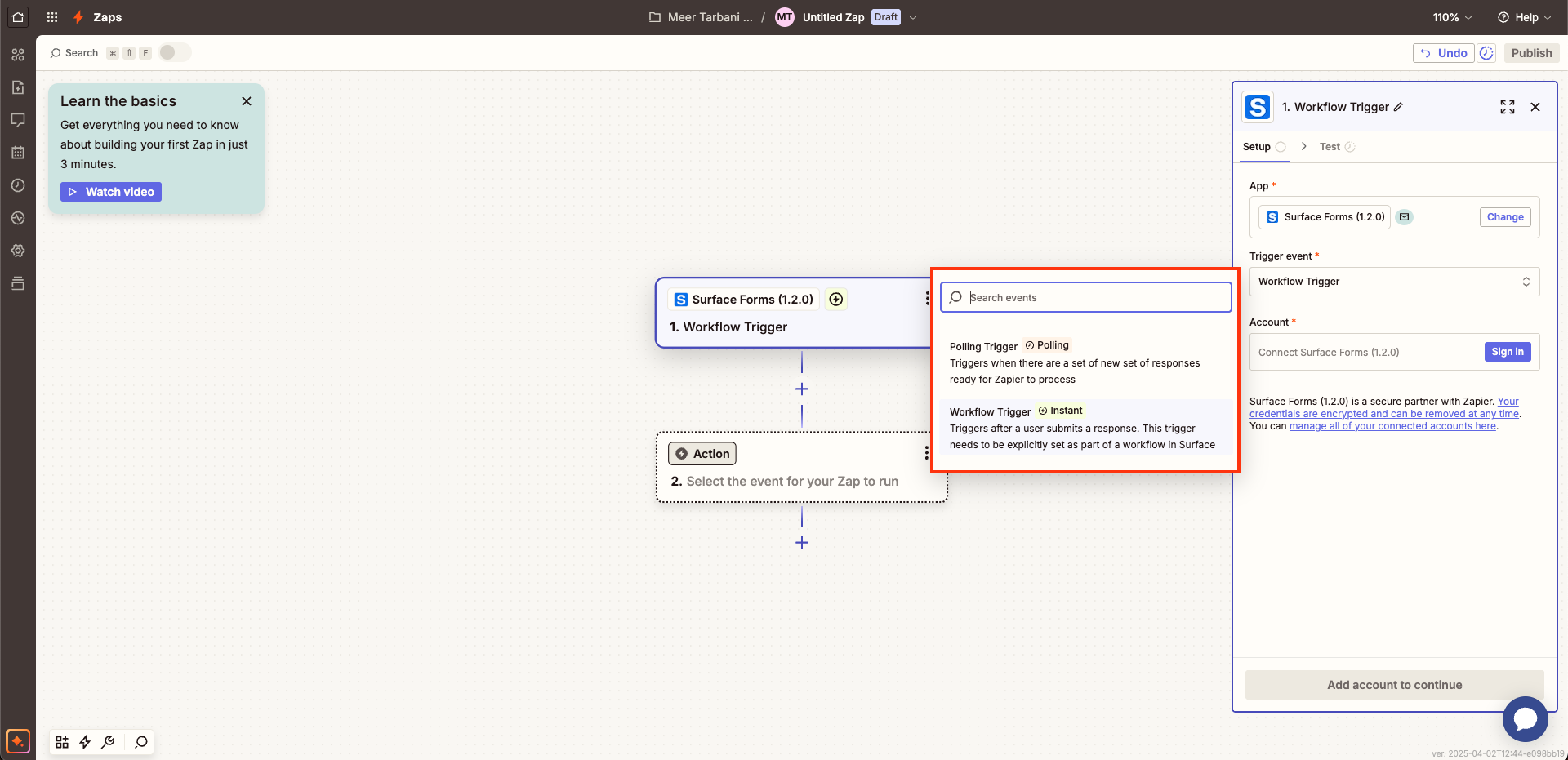
3. Connect a Surface Account
Under Account, click on Sign In and connect your account. You should see the following screen:
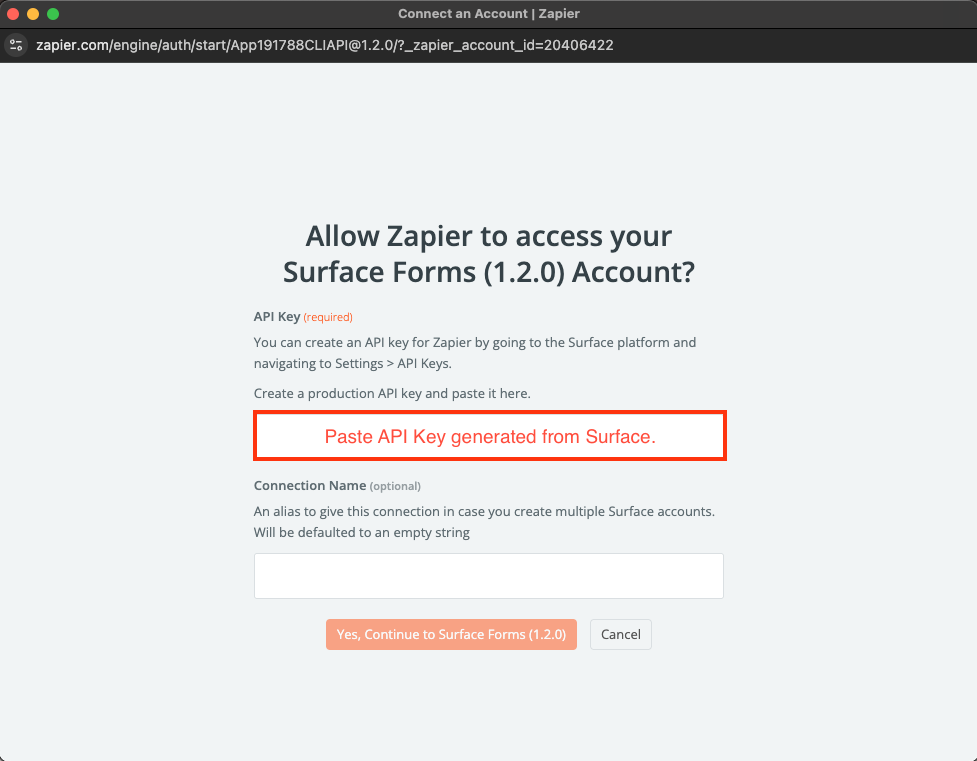
4. Create an API Key
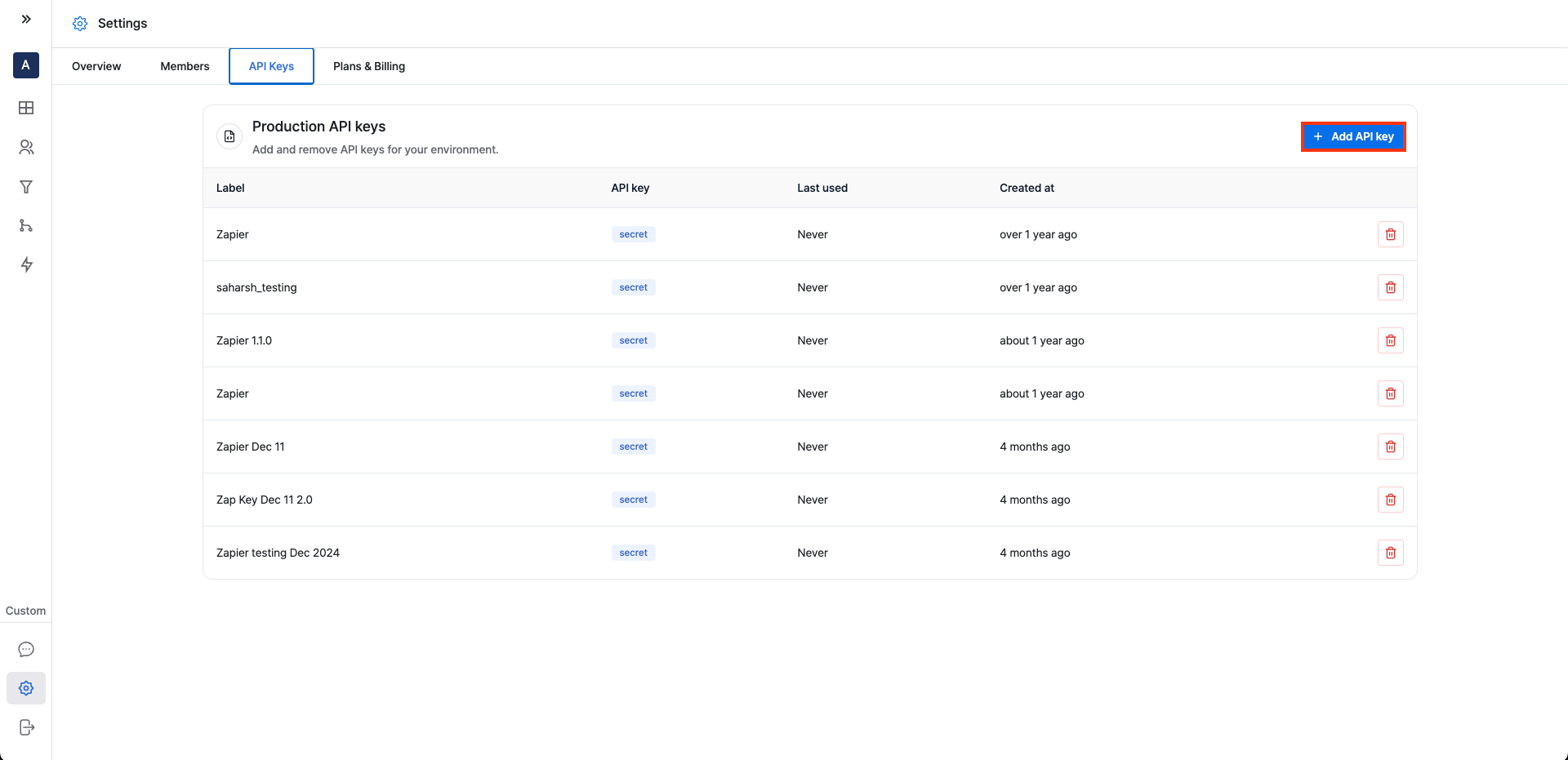
To obtain the API key, create a new production key in the Surface app.
Navigate to Settings > API Keys > + Add API Key in the Surface app and add a new Production Key (use any label for the API Key).
Copy the API Key and paste it into the API Key field from Step 3.
5. Add the Form ID to Zapier
To find the Form ID, navigate to the form in the Surface app and click on the share icon (to the left of the Edit button). The value that appears after https://forms.withsurface.com/s/... is the Form ID.
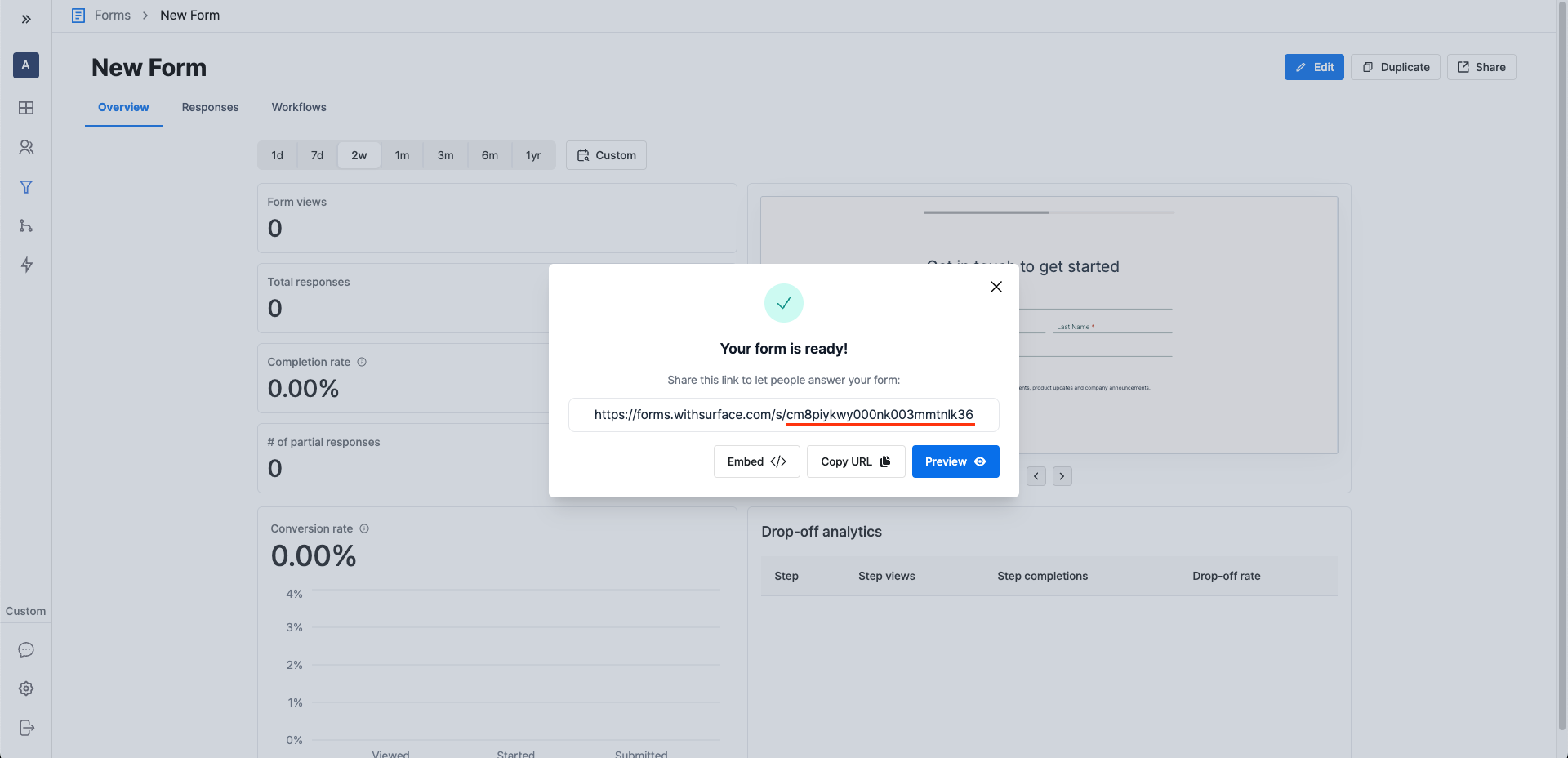
Paste this value into the Form ID field in the Zapier Trigger tab.
For "Process Partial Responses," select either Yes or No depending on whether you want to trigger the Zap on partial form responses.

6. Test the Trigger
Test the trigger to ensure you can view Surface form responses.
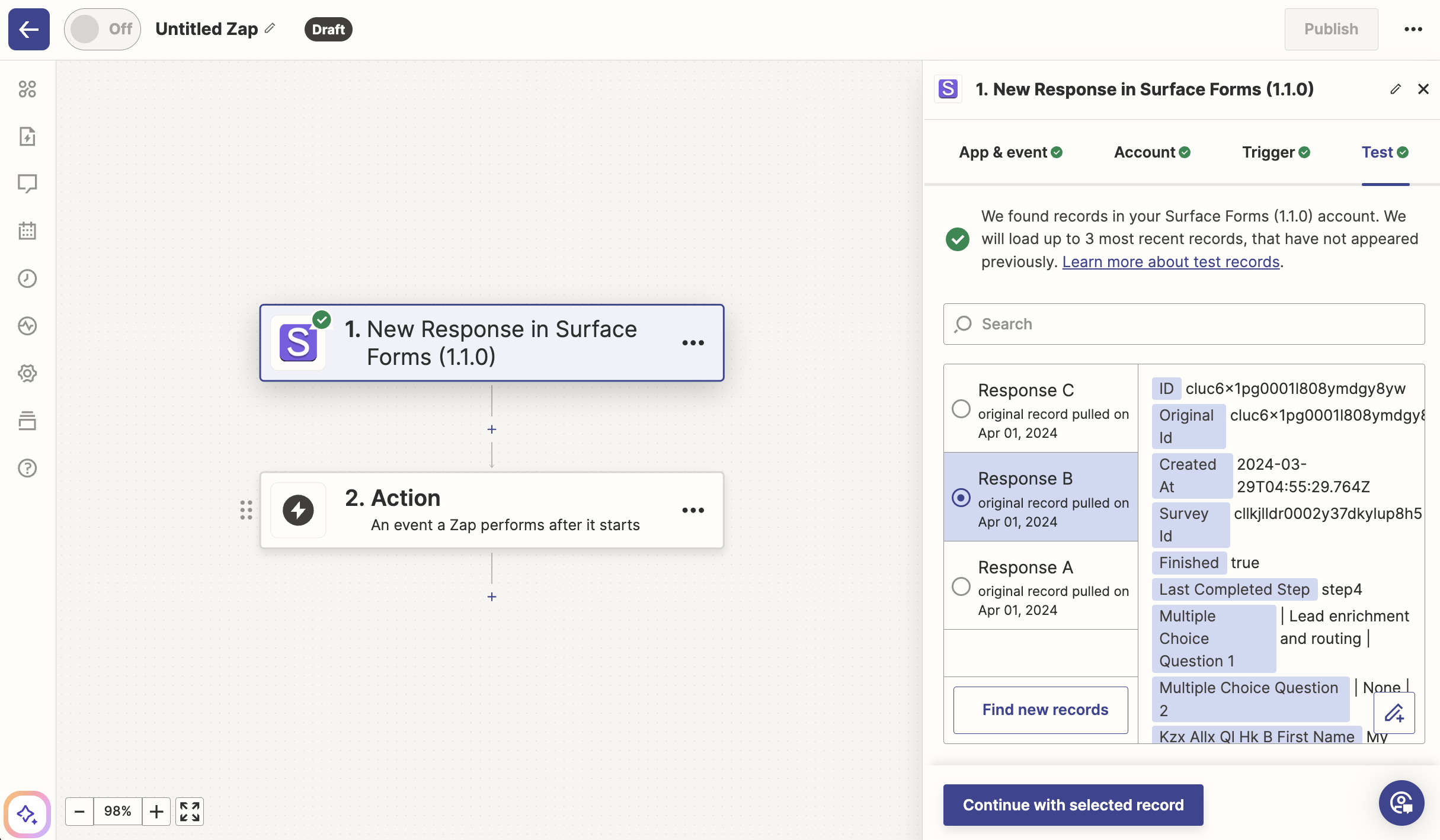
7. Connect an Action
Finally, connect an action to complete the setup.