
Claude OAuth Setup
Connect Surface to Claude via OAuth using the Connectors feature. No API key required
Claude connects to MCP servers over OAuth through its Connectors feature. You sign in with your Surface account, so there are no API keys to manage.
Setup
Open the Connectors page
Go to claude.ai/customize/connectors. Click the + button at the top and choose Add custom connector.
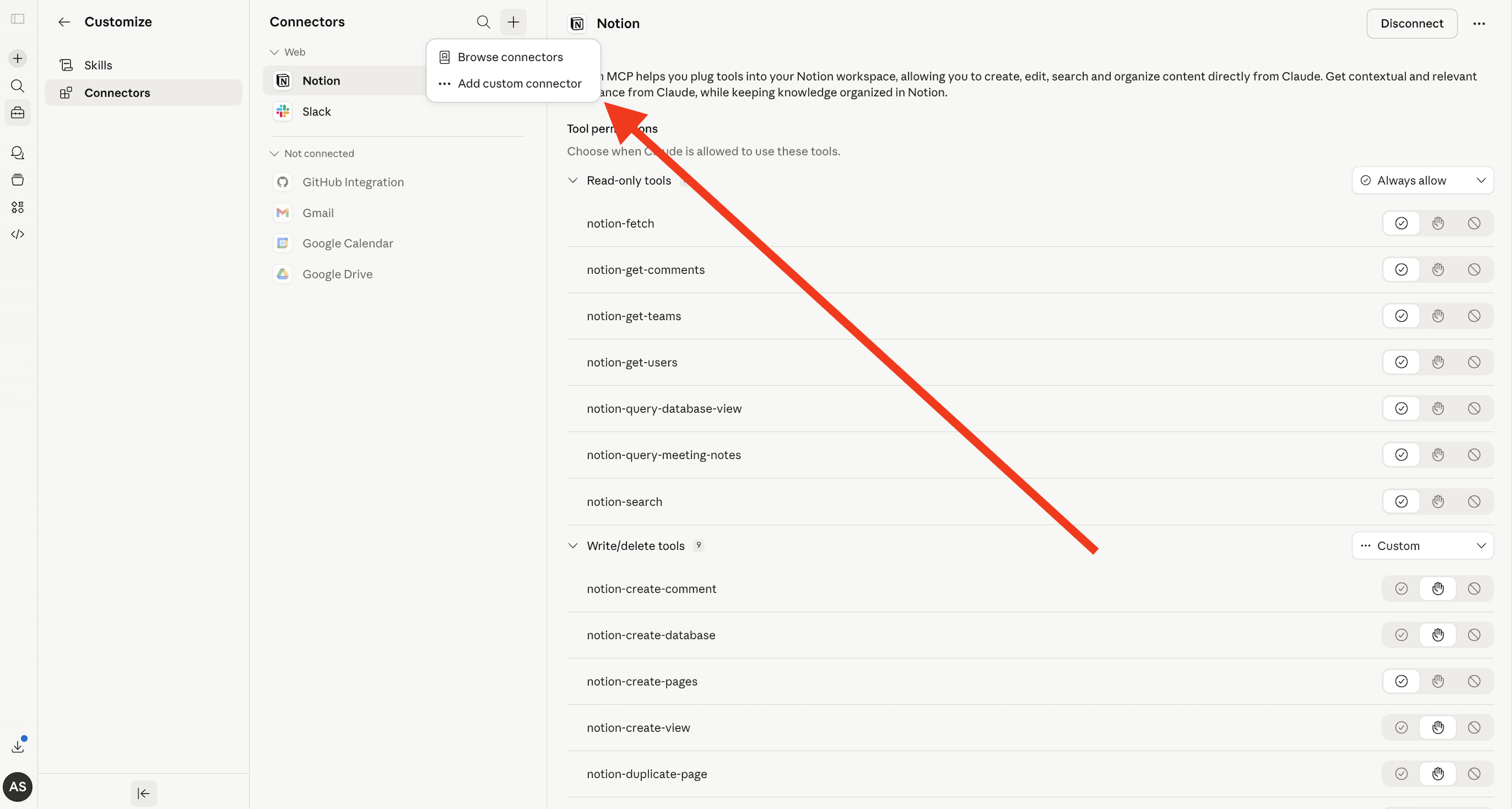
Configure the connector
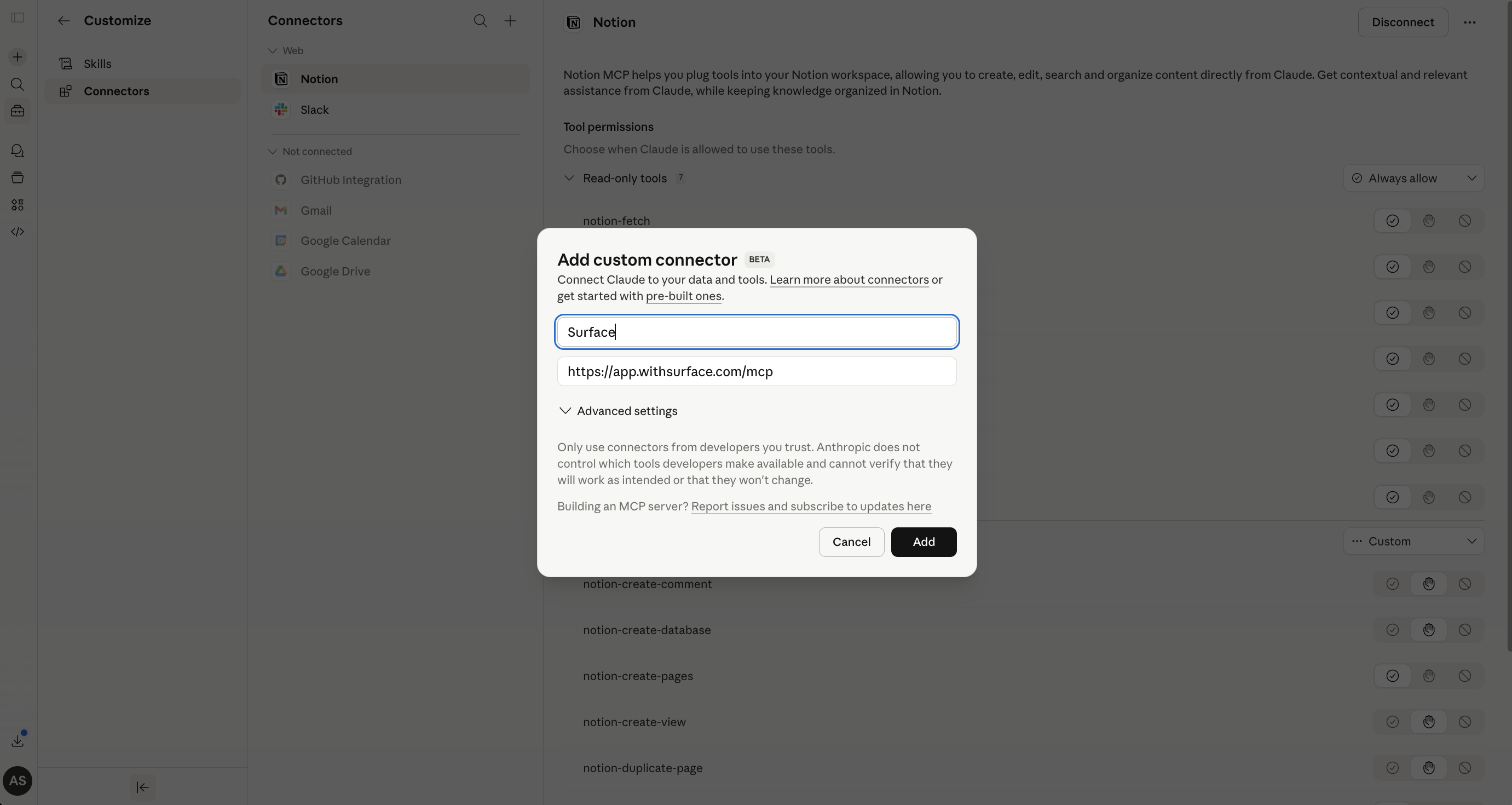
In the modal that appears, fill in the following:
- Name:
Surface - Remote MCP server URL:
https://app.withsurface.com/mcp
Then click Add.
Connect your account
After adding the connector, click the Connect button to authenticate with your Surface account via OAuth.
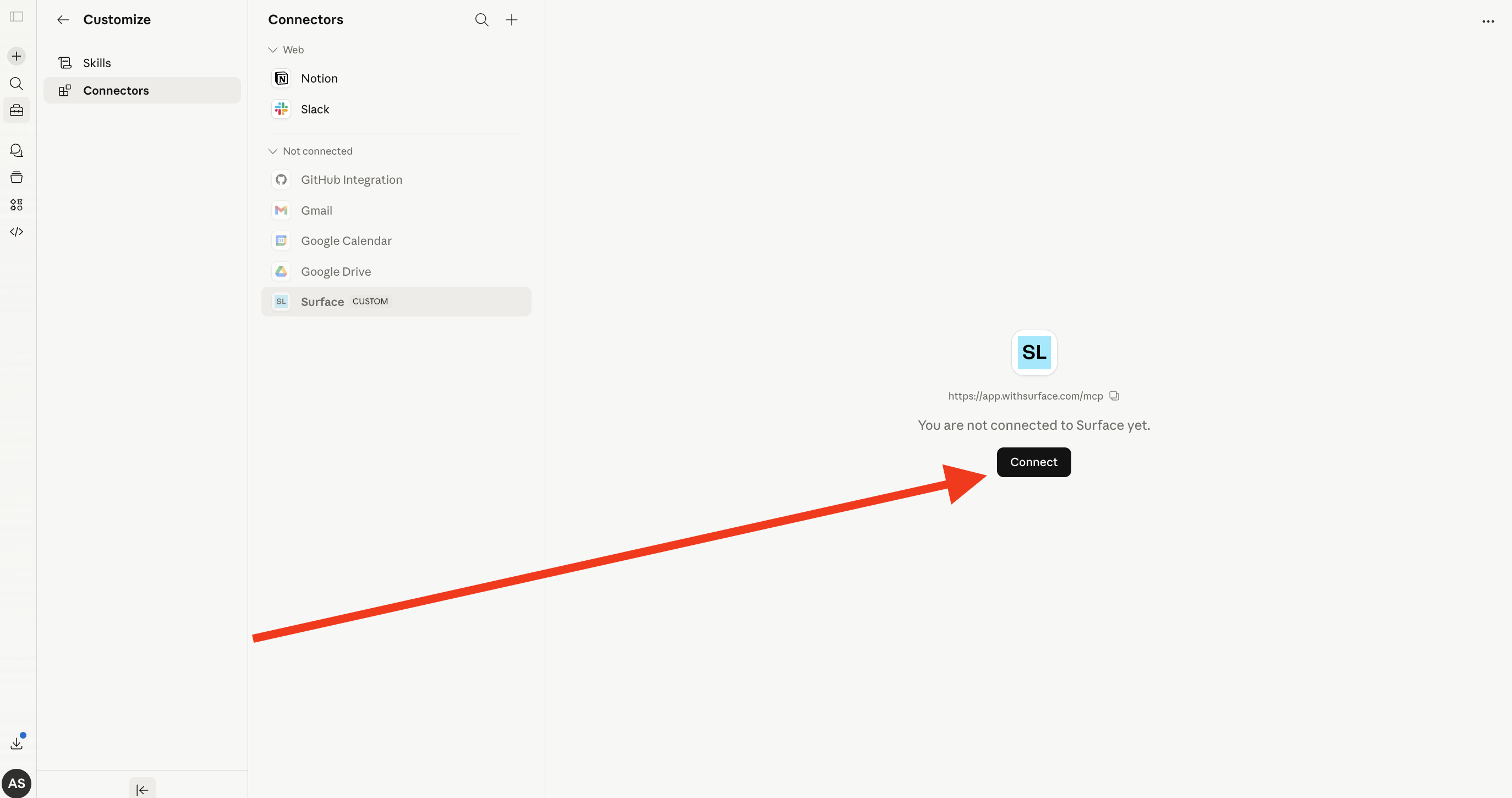
Choose your environment and complete the connection. Surface now appears as a connector in Claude.
Start using Surface in Claude
Turn the Surface connector on in any Claude chat via the + menu and Connectors. A connector added with the bare URL above loads the default 45 of 128 tools, the forms and vault bundles, which covers forms, responses, AI scores and the Vault. To load a different set, add ?tools= to the connector URL: see Tool Bundles.
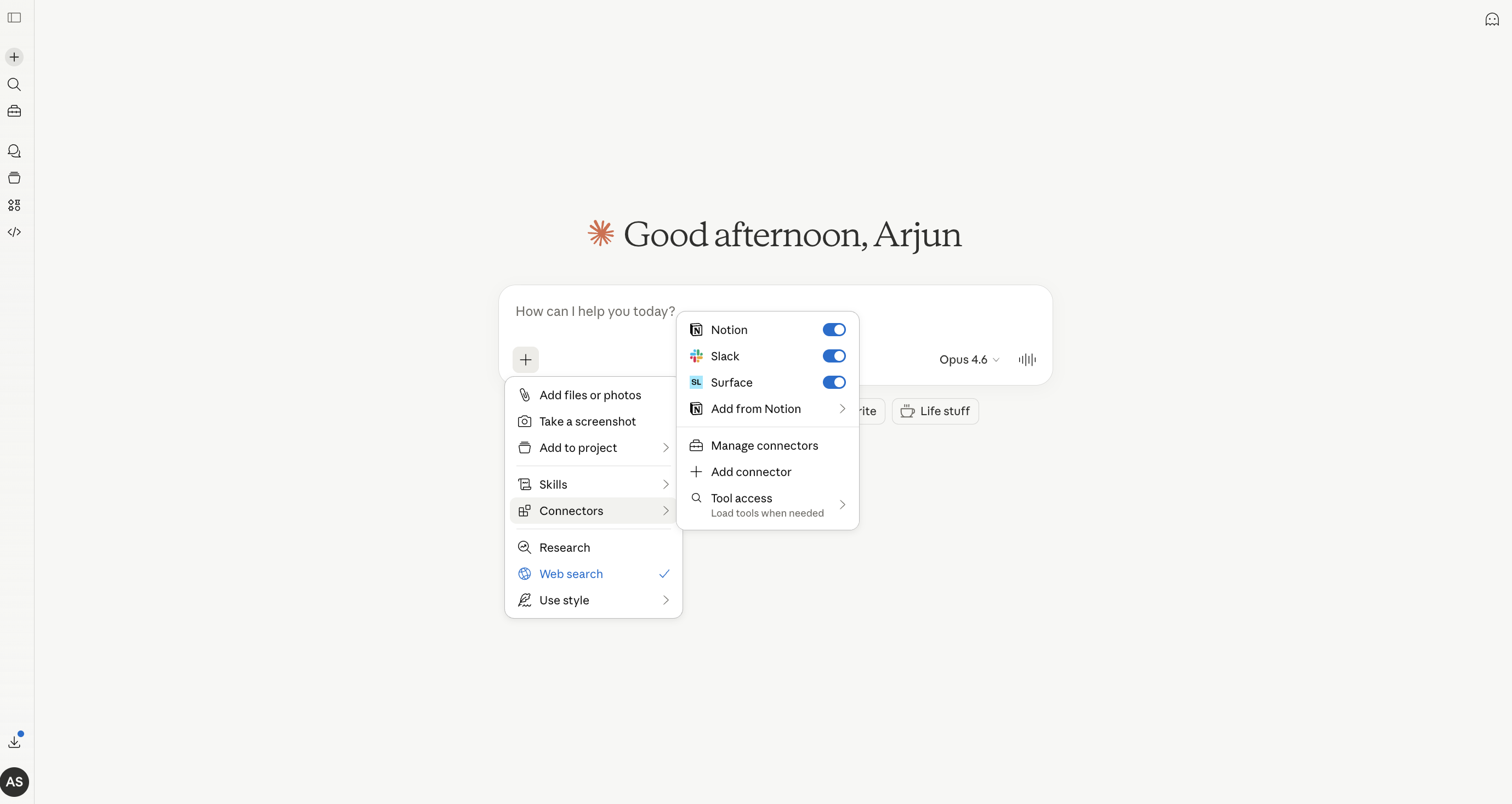
The OAuth connection is tied to your Surface account and environment, so there is no API key to rotate.