
Google Tag Manager Integration
A step-by-step guide to connect Surface Form events to Google Tag Manager (GTM)
Surface forms push events to your website's data layer, so you can track interactions and conversions in Google Tag Manager (GTM).
Learn more about Surface events in our events documentation.
Overview of Surface Form Events
Surface Forms push three key events to the data layer:
| Event Name | When Fired | Metadata |
|---|---|---|
SurfaceFormStarted | When the form is started | (None) |
SurfaceFormStepSubmitted | When a step is submitted (e.g., email entered) | emailProvided, meetingBooked , url and urlParams |
SurfaceFormSubmitEvent | When the entire form is submitted | (None) |
1. Set Up Data Layer Variables in GTM
To capture metadata from SurfaceFormStepSubmitted, create the following Data Layer Variables in GTM:
| Variable Name | Variable Type | Data Layer Variable Name |
|---|---|---|
| dlv - emailProvided | Data Layer Variable | emailProvided |
| dlv - meetingBooked | Data Layer Variable | meetingBooked |
| dlv - urlParam | Data Layer Variable (Object) | urlParam |
| dlv - url | Data Layer Variable | url |
Steps:
-
In GTM, go to Variables.
-
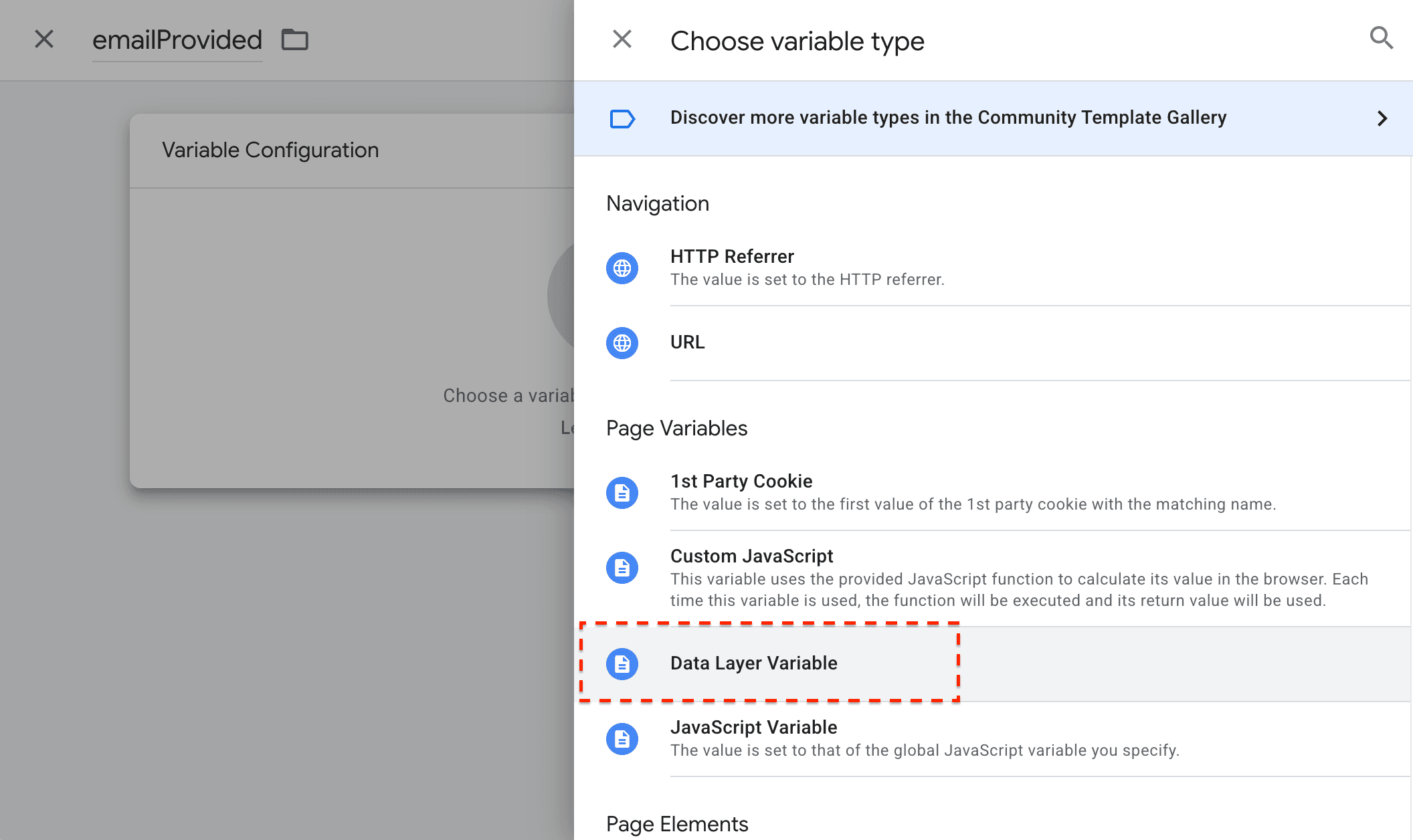
Click New → Choose Data Layer Variable.
-
Enter the exact name (e.g.,
dlv - emailProvided) and set the Data Layer Variable Name toemailProvided. Make sure to capitalize the p inemailProvided!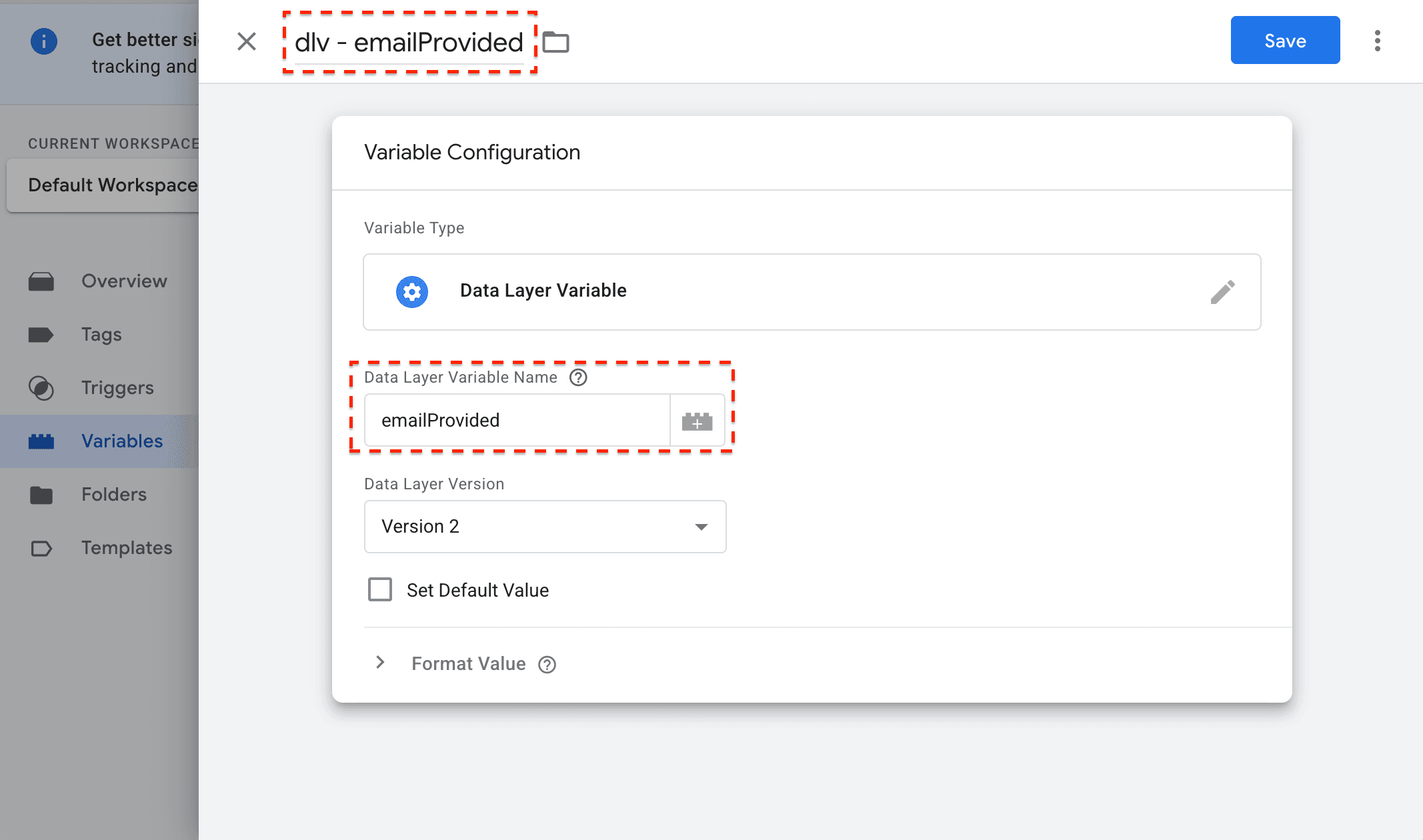
-
Repeat for
meetingBooked,urlandurlParams.urlParamsis an object, we need to use dot notation e.g.{{ urlParams.medium }}to get the data.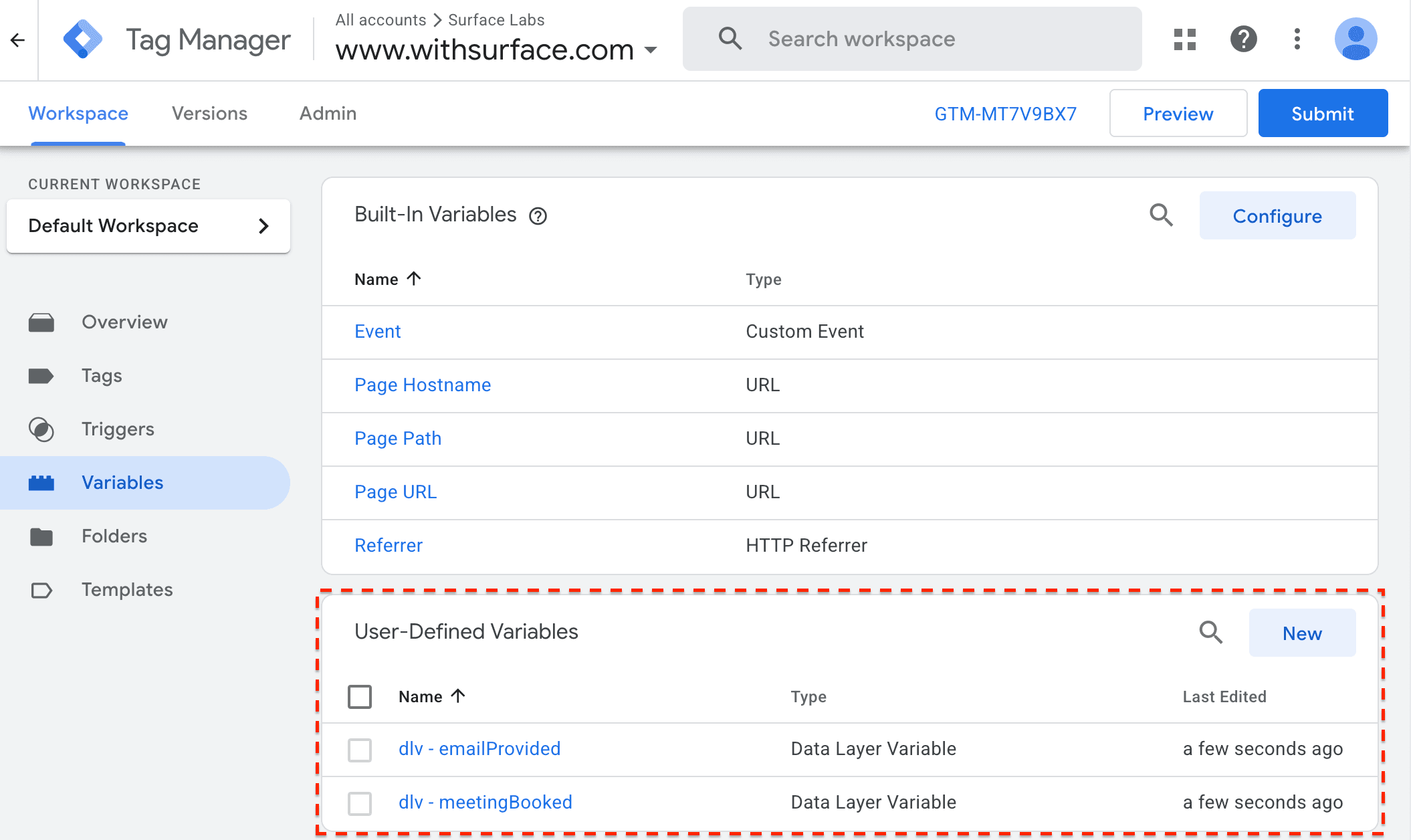
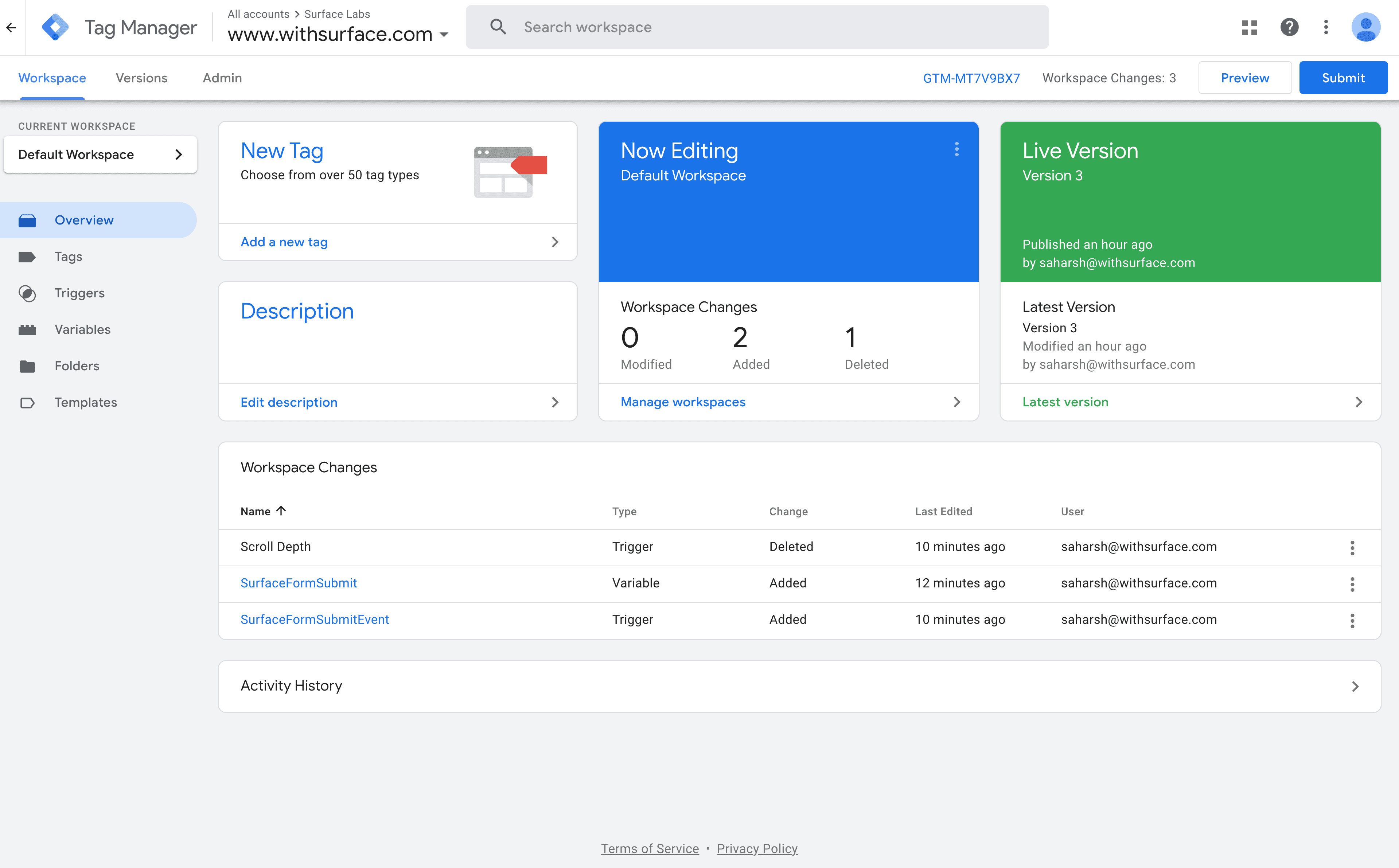
2. Create Triggers Based on Events
Now create triggers that reference those variables.
| Trigger Name | Trigger Type | Event Name | Additional Condition |
|---|---|---|---|
| Trigger - Email Submitted | Custom Event | SurfaceFormStepSubmitted | dlv - emailProvided equals true |
| Trigger - Meeting Booked | Custom Event | SurfaceFormStepSubmitted | dlv - meetingBooked equals true |
| Trigger - URL | Custom Event | SurfaceFormStepSubmitted | Any |
| Trigger - urlParam | Custom Event | SurfaceFormStepSubmitted | Any |
3. Set Up Google Ads Conversion Tags
To send conversion data to an analytics or ads platform (Google, Meta, LinkedIn, and so on), create a tag that references the triggers you just made. The example below is a Google Ads Conversion Tag, which sends each conversion point to the right conversion action in Google Ads.
| Tag Name | Conversion Action (in Ads) | Firing Trigger |
|---|---|---|
| GAds - Form Started | Form Started | Trigger - Form Started |
| GAds - Email Submitted | Email Submitted | Trigger - Email Submitted |
| GAds - Meeting Booked | Meeting Booked | Trigger - Meeting Booked |
| GAds - Form Completed | Form Completed | Trigger - Form Completed |
For more details on how to setup Google Ads Conversion Tags, please refer to our Google Ads Tracking Guide.
Tip: Make sure your Google Ads account has conversion actions that match these names or your chosen naming convention.
Need Help?
Email us at support@withsurface.com.