URL: /choose-your-path
# Choose Your Path
Same product, three different first weeks. Pick your job below.
Goal: more of the traffic you already have turning into pipeline, and
campaign work off your plate.
Install the tag and publish one form. About ten minutes.
[Quickstart](/quickstart)
Your positioning, proof and voice. This is the step that decides
whether the agents write like you.
[Load your Vault](/guides/load-your-vault)
Scan what ChatGPT, Claude, Gemini and Perplexity say when a buyer asks
about your category.
[AI Visibility](/platform/ai-visibility/overview)
Numbers, drafts and publishing from Slack, on a schedule.
[SAM](/platform/sam/overview)
After four weeks: forms live, a Vault the agents read, a visibility
baseline, and a Monday digest you did not have to ask for.
Goal: one clean record per buyer, routed and booked without a handoff.
One row per buyer: identity, firmographics, behaviour, score.
[Lead Data Layer](/platform/leads)
Enrichment, signals and scoring run on every record as it lands.
[Lead Agents](/platform/lead-agents/overview)
HubSpot, Salesforce and Zoho, without a sync project.
[System Agents](/platform/system-agents/overview)
Qualify on the form, then put the right rep's calendar on the screen.
[Routing rules](/platform/scheduling/routing)
After four weeks: no manual enrichment, no round-robin spreadsheet, and a
funnel you can show in a QBR.
Goal: the contract. Pick the interface that matches what you are building.
| If you want to | Go to |
| -------------------------------------------------------------- | ------------------------------------------------------- |
| Render Surface forms inside your own React or Next app | [Forms SDK](/build/forms-sdk/overview) |
| Drive a workspace from Claude, Codex, Cursor or your own agent | [Surface MCP](/mcp-server/overview) |
| Wire up one specific AI client | [Your AI agents](/build/agents/overview) |
| Post an existing HTML form into Surface | [Webhooks and external forms](/build/webhooks/overview) |
| Read forms and responses over HTTP | [API reference](/build/api-reference/api-keys) |
| Fire browser events into GTM, GA4, Google Ads or Meta | [Events](/build/events/form-events) |
Building with an AI assistant? Point it at
[`/llms-full.txt`](https://docs.withsurface.com/llms-full.txt), which is the
whole site as one Markdown file, then connect it with
[Surface MCP](/mcp-server/setup). It can read the docs and call the API in
the same session.
---
URL: /concepts
# Core Concepts
## Environment [#environment]
The boundary everything else sits inside. A workspace can hold several
environments (`production`, `staging`, one per brand or region), and
**everything else belongs to exactly one of them**: leads, forms, the Vault,
integrations, API keys.
An API key or OAuth connection belongs to one environment, so an MCP tool call
can never reach another one. `?tools=` changes which tools your assistant
*loads*, never which data it may *touch*. See
[Tool bundles](/mcp-server/tool-bundles).
## Lead [#lead]
One person, one record, in the [Lead Data Layer](/platform/leads). Surface
creates it the first time it can attach an identity to activity: a form
completion, a webhook, an import. Later activity adds to
the record instead of replacing it.
A **response** is one submission of one form, and a lead may have many.
Completion rate counts responses; pipeline counts leads.
## Vault [#vault]
The environment's private Markdown knowledge base: positioning, product facts,
customer proof, competitor notes, voice. Agents read it before they write. One
crawl of your website starts a [Vault](/platform/vault/overview).
## Agent [#agent]
A named worker with a job, a trigger, and something it writes to. Surface has
four families:
| Family | Reads | Writes | Runs when |
| ----------------------------------------------------- | ------------------------------------------------------------------------------------------------------------------ | ------------------------------------------------------------------------- | ------------------------------ |
| [Lead Agents](/platform/lead-agents/overview) | Lead record, web | Lead fields, score | On capture, and on demand |
| [Campaign Agents](/platform/campaign-agents/overview) | Vault, leads, CRM, web | Drafts, artifacts, CMS entries | On demand, on a schedule |
| [System Agents](/platform/system-agents/overview) | Lead record, CRM | Your CRM and MAP | On change |
| [SAM](/platform/sam/overview) | Forms, responses, leads, analytics, workflows, scores, the Vault, and whatever else its enabled capabilities cover | Content and drafts, behind an Approve card. Background jobs are read-only | When you ask, or on a schedule |
## Agent Action [#agent-action]
**The metered unit of agent work.** Your plan is sized in agent actions.
| | |
| -------------------------- | ------------------------------------------------------------------------ |
| Included per month | 15,000 on Agentic Marketing Operations. Custom above that, none on Basic |
| Beyond the included volume | $0.20 per action |
The [pricing page](https://www.withsurface.com/pricing) has the current
numbers.
What counts as one action is decided per agent. Check your usage in the app, or
ask us, before you plan around a specific number.
## Artifact [#artifact]
Something an agent produced that a person can review, edit, approve and
publish: a draft post, a comparison page, a generated image. Artifacts keep
version history.
## Segment [#segment]
A saved, live query over leads: *"ICP fit ≥ 70, visited pricing in the last 14
days, no meeting booked"*. Campaigns target segments and agents run against
them. Membership updates as records change, so a segment is never a frozen
list.
## Profile [#profile]
What an [AI Visibility](/platform/ai-visibility/overview) scan runs against:
one domain, its positioning, its competitor set, and the prompts you track
against it. Scores, cited sources and per-model breakdowns attach to the
profile.
Two words these docs avoid: **"contact"** (your CRM's object, which Surface
syncs to rather than owns) and **"campaign"** meaning a channel. A Surface
campaign is a plan with an audience, an outcome and measurement, see
[Campaign Agents](/platform/campaign-agents/overview).
---
URL: /
# Surface Documentation
Surface captures the demand already on your site, keeps one current record per
buyer, and points agents at that record to research, score, route, schedule,
write and publish.
Tag installed and a first lead captured, in about ten minutes.
Environment, Lead, Vault, Agent, Agent action, Artifact.
Marketer, GTM engineer, developer.
## Where to Start [#where-to-start]
Everything you'd open the app to do, done from Slack. **Beta.**
Your positioning, proof and voice, in Markdown. Agents read it before they
write.
Where you show up when a buyer asks ChatGPT, Claude, Gemini or Perplexity.
Branching forms, qualification, routing, and six ways to embed them.
One record per buyer: identity, firmographics, behaviour, score.
128 tools. Point Claude, Codex, Cursor or your own agent at your workspace.
## If You Are an AI Agent [#if-you-are-an-ai-agent]
Every page has a Markdown copy at `.md`. The page tree is indexed at
[`/llms.txt`](https://docs.withsurface.com/llms.txt), and every page in one file
is at [`/llms-full.txt`](https://docs.withsurface.com/llms-full.txt). To *act*
on a workspace, start at [Surface MCP](/mcp-server/overview).
Or start with [What is Surface?](/what-is-surface)
---
URL: /quickstart
# Quickstart
You need a Surface environment and admin access to your site's ``.
One script in ``, on every page. Traffic, funnel, attribution and AI
referral data all come from it.
```html
```
Your site ID is in **Settings → Overview**. Per-platform instructions for
Webflow, Framer, WordPress, Next.js, React and Unbounce are on
[Surface Tag](/platform/traffic/surface-tag).
Serve the tag from [your own domain](/platform/traffic/custom-domains) so ad
blockers and Safari's cookie policy stop treating it as third-party.
**Forms → New form**. Ask for an email and one qualifying question, nothing
else. Publish. The [Form builder](/platform/forms/builder) covers steps,
question types and logic.
Pick a mode and paste the snippet. Inline is the default. Popup and
slideover open from a button. The input-field trigger turns an email box you
already have into the first step of a Surface form.
```html
```
Every mode is on [Embedding](/platform/forms/embedding).
Fill your own form once with a real work email. It appears under **Leads**
with company, industry and headcount filled in, and an AI lead score.
Row there but enrichment empty? The email was a free provider.
[Enrichment](/platform/leads/enrichment) resolves companies, not inboxes.
Add one workflow: post to Slack, create a HubSpot contact, or fire a
webhook.
[Workflows](/platform/forms/workflows) · [Integrations](/platform/integrations)
## You Now Have [#you-now-have]
* Every visit and AI referral in
[Traffic analytics](/platform/traffic/analytics).
* One enriched, scored row per person in the
[Lead Data Layer](/platform/leads).
* Page views → form views → starts → completions → qualified → meetings in
the [Conversion funnel](/platform/traffic/conversion-funnel).
## Next Steps [#next-steps]
Crawl your own site to fill the knowledge base agents write from.
Leads land where your reps already work.
Find out what ChatGPT says about you today.
---
URL: /what-is-surface
# What Is Surface?
Surface is a marketing system with two halves that feed each other.
**The infrastructure half** sits on your website and captures demand: a tag
that records who arrives and where from, forms that branch on the answers,
scheduling that books the qualified ones, and a lead record that keeps what all
of it learned.
**The agent half** reads that record and does the work: researching and scoring
leads, keeping your CRM current, finding the questions buyers ask AI engines,
and writing the campaigns that answer them.
## What It Replaces [#what-it-replaces]
| You probably run | Surface does it as |
| ---------------------------- | ------------------------------------------------------------------------------------------------------------------------------ |
| Typeform / HubSpot forms | [Dynamic Lead Forms](/platform/forms/builder) |
| Chili Piper / Calendly | [Intelligent Scheduling](/platform/scheduling/overview), with no per-seat pricing |
| Manual enrichment runs | [Lead Agents](/platform/lead-agents/overview). You can also [connect the provider you already pay for](/platform/integrations) |
| An AEO/GEO monitoring tool | [AI Visibility](/platform/ai-visibility/overview) |
| A content agency retainer | [Campaign Agents](/platform/campaign-agents/overview) |
| GA4 dashboards nobody trusts | [Traffic Intelligence](/platform/traffic/analytics) |
Most teams start with the tag or forms, then add agents.
## Where the Intelligence Comes From [#where-the-intelligence-comes-from]
The [Surface Tag](/platform/traffic/surface-tag) records who arrives, from
where, and what they do. Visitors who came from an answer engine are
reported that way instead of as "direct".
Every capture becomes one record in the [Lead Data Layer](/platform/leads):
enriched, scored, stamped with the journey that produced it. Outcomes
(meetings, closed deals) come back to that record.
The [Vault](/platform/vault/overview) is your own words: positioning, proof,
objections, voice. Agents read it before they write.
## What "Agentic" Means Here [#what-agentic-means-here]
Agents in Surface:
* **run without being asked**: enrichment and scoring fire on capture, and the
competitor agent checks on its own timer.
* **write to real systems**: the lead record, your CRM, the CMS, your calendar.
* **stop for a human before they publish or change anything**. See
[SAM's approval gate](/platform/sam/limits).
* **are metered**: an *agent action* is the unit your plan is sized in, see
[Core concepts](/concepts#agent-action).
We'll run a traffic audit and an AI visibility scan on your domain before the
call.
---
URL: /whats-new
# What's New
Every release, newest first, with screenshots.
The longer pieces: agentic GTM, AI search, lead quality.
## Recently Added to These Docs [#recently-added-to-these-docs]
| Section | Status |
| ------------------------------------------------------------------------------------------------- | ------------------------------------------------------ |
| [SAM](/platform/sam/overview) | Beta, documented in full |
| [Vault](/platform/vault/overview) | Beta, new section |
| [Campaign Agents](/platform/campaign-agents/overview) | New section |
| [AI Visibility](/platform/ai-visibility/overview) | New section |
| [Lead Agents](/platform/lead-agents/overview) · [System Agents](/platform/system-agents/overview) | New sections |
| [Intelligent Scheduling](/platform/scheduling/overview) | New section |
| [Your AI agents](/build/agents/overview) | New section: Claude, Codex, Grok, and any MCP client |
| [Embedding](/platform/forms/embedding) | 56 per-platform pages collapsed onto one page per mode |
## Following Along in Your Tools [#following-along-in-your-tools]
* **In Slack**: [SAM](/platform/sam/schedules) can post a weekly digest of your
own numbers into a channel.
* **In an agent**: the docs publish
[`/llms.txt`](https://docs.withsurface.com/llms.txt) and per-page Markdown at
`.md`, so an assistant reads current behaviour instead of guessing
from training data.
---
URL: /build
# Build on Surface
Three ways in, depending on what you are building. For the MCP server, see the
[MCP](/mcp-server/overview) tab.
Claude, Codex, Grok, Cursor, Windsurf, and anything else that speaks MCP.
Render a Surface form from your own markup and styles.
Post any HTML form into Surface, and push Surface data anywhere else.
## Reference [#reference]
Keys, forms and responses over HTTP.
Browser events for GTM, GA4, Google Ads and Meta Ads.
## Which One Do I Want? [#which-one-do-i-want]
| Goal | Use |
| ------------------------------------------------------- | ------------------------------------------------------ |
| "My assistant should answer questions about our funnel" | [MCP, read-only](/mcp-server/tool-bundles) |
| "My assistant should build and publish forms" | [MCP, forms bundle](/mcp-server/overview) |
| "The form must be part of my React app, not an iframe" | [Forms SDK](/build/forms-sdk/quickstart) |
| "I have an existing HTML form I can't replace" | [External forms](/build/webhooks/create-external-form) |
| "Send every submission to our own service" | [Webhooks](/build/webhooks/overview) |
| "Fire a conversion event into Google Ads" | [Events](/build/events/google-ads-tracking) |
| "Read responses from a cron job" | [API reference](/build/api-reference/api-keys) |
Tool access is scoped to the credential's environment. Add `?readonly=1` and an
agent cannot write. See [Tool bundles](/mcp-server/tool-bundles).
---
URL: /embedding/website-editors
# Embed Surface Forms in Your Website Builder or Framework
Pick your website builder or framework. Each one has the same six steps:
install the Surface Tag, then embed the form in whichever mode you want.
For the modes themselves, and for hosts not listed here, see
[Embedding a Surface Form](/platform/forms/embedding).
Add Surface Forms to your Framer site with custom code components
Integrate forms into your Webflow site using custom embeds
Embed forms on your WordPress site with a plugin or custom code
Embed Surface Forms in your React.js applications
Add Surface Forms to your Next.js applications
Integrate forms with your Unbounce landing pages
Use raw HTML/JavaScript for any website or platform
## Don't See Your Platform Listed? [#dont-see-your-platform-listed]
Surface Forms can be integrated with any website that supports custom HTML/JavaScript. Check out our [Inline Embedding](/platform/forms/embedding/inline) guide for general integration instructions.
All integrations require the [Surface Tag](/platform/traffic/surface-tag) to be installed first.
---
URL: /guides/build-an-sdk-form
# Build a Form with the Forms SDK
You will build a demo-booking form on a page you host: two question steps, a branch that disqualifies small companies, a scheduler step, and a thank-you screen. The form record on Surface is the data model, your HTML is the presentation, and the SDK binds the two ([overview](/build/forms-sdk/overview)).
## Prerequisites [#prerequisites]
* A Surface environment.
* The [SDK package](https://www.npmjs.com/package/@surface-labs/forms-sdk) installed: `npm install @surface-labs/forms-sdk`.
* Ideally the [Surface MCP server](/mcp-server/setup) connected to your AI assistant; without it, copy IDs from the dashboard.
## Step 1: Create the Form Record [#step-1-create-the-form-record]
Ask your assistant, or call the tools yourself:
```
create_form with sdk: true
name: "Demo booking"
steps:
1. "About you": IdentityInfo (first name, last name, work email)
2. "Company": MultipleOptionsQuestion "How large is your team?"
options: "1-10", "11-50", "51-200", "200+"
3. "Book a time": CalendlyScreen (your Surface scheduler)
4. "Thanks" (endStepKind: thank_you): Header "You're booked!"
5. "Not a fit" (endStepKind: disqualified): Header "Thanks for your interest"
```
* Give every question real question text; the responses table uses it as the column label.
* Ending steps need at least one component; a `Header` is fine.
* Link the scheduler's prefill to the identity step (`linkNameToStep`, `linkEmailToStep`).
* Save the `formId` and `previewToken` from the reply.
The dashboard builds the same record by hand: Forms, Create New Form, Build SDK form.
## Step 2: Get the Binding Map [#step-2-get-the-binding-map]
```
get_sdk_binding_map formId:
```
The reply lists every step and question with `questionId`, `componentType`, `fieldNames`, option keys, and `answerShape`, plus `environmentId`, `apiBaseUrl`, and a ready-to-paste `init` snippet. Never retype IDs from memory.
## Step 3: Write the Page [#step-3-write-the-page]
```html
You're booked!
Thanks for your interest
```
Replace every `STEP_*` and `Q_*` placeholder with real IDs from the binding map, and keep the radio `value` attributes byte-identical to the record's option keys. Every container after the first is `hidden`. The choice question binds as a group (no `data-field-name` on options), the scheduler question has no binding, and both endings have their own container.
## Step 4: Boot, Branch, and Mount the Scheduler [#step-4-boot-branch-and-mount-the-scheduler]
```js
import { SurfaceForms, mountScheduler } from "@surface-labs/forms-sdk";
const form = await SurfaceForms.init({
environmentId: "ENV_ID",
formId: "FORM_ID",
apiBaseUrl: "API_BASE_URL", // from get_sdk_binding_map
container: document.querySelector("#demo-form"),
emailValidation: true, // annotate deliverability; never blocks
preview: true, // remove before deploying
previewToken: "PREVIEW_TOKEN",
});
document.querySelector("#demo-form").hidden = false;
// The branch: small teams get the disqualified ending.
document.querySelector("#company-continue").addEventListener("click", () => {
const answer = form.state().answers["STEP_COMPANY"]?.["Q_SIZE"];
const picked = answer?.choices?.find((c) => c.value)?.key;
if (!picked) return; // require an answer
if (picked === "1-10") form.disqualify();
else form.next();
});
// Mount once, into the still-hidden step container.
mountScheduler({
form,
container: document.querySelector("#booking"),
onEvent(e) {
if (e.type === "booking_confirmed") form.submit();
},
});
```
The branch is code-driven, so add `data-surface-nav="js"` to the ``. Everything else (answer capture, partial saves, booking persistence, identity, journey tracking, busy state) is the SDK's job.
## Step 5: Validate the Markup [#step-5-validate-the-markup]
```
validate_form_html
formId:
html:
containerSelector: "#demo-form"
```
Fetch the page exactly as a visitor receives it; for a framework page, curl the dev server output. Fix every blocker and re-run until clean.
## Step 6: Walk It in Preview [#step-6-walk-it-in-preview]
With `preview: true` and the `previewToken`, the page serves the draft record and writes nothing: walk both branches, book a synthetic meeting, confirm both endings render.
## Step 7: Publish and Deploy [#step-7-publish-and-deploy]
```
publish_form formId:
```
Remove `preview: true` and `previewToken`, then deploy.
## Step 8: Verify End to End [#step-8-verify-end-to-end]
Submit one real test response on the deployed page, then read it back:
```
list_responses formId:
get_response responseId:
```
Confirm every answer landed, the choice answer carries the structured list, the booking has `eventScheduled: true`, and the metadata shows `surfaceTagStatus: "sdk"`.
## Where to Go Next [#where-to-go-next]
Every attribute and inference rule.
Render the form from your components.
The rules that keep SDK forms correct.
Symptom to cause to check.
---
URL: /guides/control-form-logic-based-on-api
# API Based Conditional Logic
Use **External API Data** in the **Logic** tab to create branching form flows based on your own API response (for example: auth checks, eligibility checks, plan gating, or enrichment).
New to conditional logic? Start with [Conditional Logic](/platform/forms/conditional-logic).
## Step 1: Open the Logic Tab [#step-1-open-the-logic-tab]
1. Open your form in the Surface editor.
2. Click **Logic** at the top.
3. Select the step where you want to evaluate routing (this is typically the step where the user clicks “Next”).
## Step 2: Add an HTTP Request [#step-2-add-an-http-request]
1. With your step selected, click **+ HTTP Request**.
2. Configure the request:
* **URL**: your endpoint (for example, `https://api.yourdomain.com/eligibility`)
* **Method**: `GET` or `POST` depending on your API
* **Params / Headers**: add any required values
* **Body (POST)**: send JSON, using form variables if needed
You can use form variables in the URL, Params, Headers, and Body.
## Step 3: Map Fields from the API Response [#step-3-map-fields-from-the-api-response]
Map values from the JSON response so they are available as **External API Data**.
### Automatically Configure the API Response [#automatically-configure-the-api-response]
1. Click on "Configure automatically" button.
2. Surface reads the API response and suggests fields you can map.
3. Select the fields you want to map and click on "Save" button.
### Manually Configure the API Response [#manually-configure-the-api-response]
1. Click on "Configure manually" button.
2. You select the fields to extract from the JSON response yourself.
## Step 4: Create an Advanced Routing Rule Using External API Data [#step-4-create-an-advanced-routing-rule-using-external-api-data]
1. Open **Advanced Routing** for the step.
2. Set **Jump to step** to the step you want to send the user to when the condition is met.
3. Under **IF**, set:
* **Source**: `External API Data`
* **Condition**: choose the field you mapped (for example, `isPriorityLead`) and compare it to the expected value (for example, `true`)
### Example: Only Proceed If isPriorityLead Is True [#example-only-proceed-if-isprioritylead-is-true]
* **IF**: `External API Data.isPriorityLead` equals `true`
* **THEN**: Jump to `Step: 1 (Book a Demo)`
* **ELSE**: Keep default routing to next step (or jump to a “Not eligible” / “Invalid” step)
## Step 5: Publish and Test [#step-5-publish-and-test]
1. Publish your form.
2. Submit test entries that should pass and fail the condition.
3. Confirm respondents are routed to the right step in both cases.
---
URL: /guides/enable-cloudflare-turnstile
# Enable Cloudflare Turnstile
## Step 1: Navigate to Cloudflare Turnstile [#step-1-navigate-to-cloudflare-turnstile]
1. Login to [Cloudflare Dashboard](https://dash.cloudflare.com/)
2. Navigate to **Protect & Connect > Application security > Turnstile**
## Step 2: Add New Widget [#step-2-add-new-widget]
Click on **Add new widget** to create a new Turnstile widget.
## Step 3: Configure Widget Settings [#step-3-configure-widget-settings]
1. Set up the widget configurations
2. In the **Hostnames** field, add `forms.withsurface.com` or the [verified custom domain](/platform/traffic/custom-domains) used by your form
3. Click `Add` button to add the host
## Step 4: Create Widget and Copy Keys [#step-4-create-widget-and-copy-keys]
1. Click **Create** to create the widget
2. After creating the widget, copy the **Site Key** and **Secret Key**
## Step 5: Configure Turnstile in Surface Form Settings [#step-5-configure-turnstile-in-surface-form-settings]
1. Navigate to your Surface Form settings page
2. Go to **Cloudflare Turnstile** section
3. Paste the **Site Key** and **Secret Key** that you copied in Step 4
4. Click **Save** to save the settings
## Step 6: Add Turnstile Widget to Your Form [#step-6-add-turnstile-widget-to-your-form]
1. In the Form Builder, navigate to the step where you want to add the Turnstile widget
2. Click **+ Add component** or **Copy existing component**
3. Select the **Turnstile** widget component from the component list
4. The widget now appears in your form and is checked when someone submits it
---
URL: /guides/first-form
# Creating Your First Surface Form
## 1. Login to Surface Labs [#1-login-to-surface-labs]
Navigate to the [Surface Dashboard](https://app.withsurface.com/) and log in with your credentials.
## 2. Create a New Form [#2-create-a-new-form]
Go to the `Forms` tab and press `Create New Form` in the navigation bar.
### Start from Scratch or Choose a Template [#start-from-scratch-or-choose-a-template]
## 3. Select a Layout [#3-select-a-layout]
Choose a layout:
* **Single Pane**: A simple form layout with a single column
* **Dual Pane**: A form layout with two columns, ideal for marketing purposes
## 4. Build the Form [#4-build-the-form]
### Overview [#overview]
Surface Forms gives you a starting template. Edit it, or build your own.
### Form Steps [#form-steps]
Form steps are listed on the left side of the form builder under the `Steps` section.
#### Add New Steps [#add-new-steps]
To add a new step, click on the `+ Add step` button or copy an existing step by clicking on the `Copy step` button.
### Edit the Step [#edit-the-step]
#### Add New Components [#add-new-components]
To add a new component, click on the `+ Add component` button or copy an existing component from the form by clicking on the `Copy existing component` button.
#### Question Pane and Marketing Pane [#question-pane-and-marketing-pane]
Each step is divided into two tabs: `Questions` and `Marketing`.
* The `Questions` tab is used to add questions such as text fields, dropdowns, multiple choice questions, etc to the form.
* The `Marketing` tab is for adding marketing components such as a logo, background image, etc to the form.
### Customize Layout [#customize-layout]
#### Question Pane Layout Customization [#question-pane-layout-customization]
Both the `Questions` and `Marketing` panels have layout options, including:
* `Horizontal Padding`
* `Maximum Width of the Pane`
#### Marketing Pane Layout Customization [#marketing-pane-layout-customization]
The marketing pane has extra options:
1. Customize the `Marketing Pane` width
2. Add a `Background Image`
3. Add a `Logo` in the header:
* Expand the `Add Component` dropdown and select the `Image` component to add a logo in the marketing header
### Edit a Component [#edit-a-component]
To edit a component, either click on the component directly from the form preview or click on the component from the components list in the right side panel.
### Style a Component [#style-a-component]
Each component has a `Style` panel. The options vary by component, and include:
* `Background Color`
* `Text Color`
* `Border Color`
* `Border Width`
* `Border Radius`
* `Box Shadow`
### Advanced Features [#advanced-features]
#### Customize Marketing Pane Globally [#customize-marketing-pane-globally]
To customize the marketing pane globally, go to the `Marketing` under `Design` section.
Options include:
* `Fill`: Choose from a range of options like gradient, solid color, image, etc for the background of the marketing pane.
* `Corner Radius`: Control the corner radius of the marketing pane.
* `Logo`: Add a logo to the marketing pane.
#### Delete Marketing Pane for a Particular Step [#delete-marketing-pane-for-a-particular-step]
To delete the marketing pane for a particular step, go to the `Marketing` under `Layout` section and click on the `Delete Marketing Section` button.
## 5. Save and Share [#5-save-and-share]
Change the form name in the navigation bar and save the form by clicking on the `Save` button.
Share the form using the `Share` button in the navigation bar.
* You can share the form using the `Share Link` or `Embed Code` to embed the form on your website.
Read more about how to [embed a Surface Form](/platform/forms/embedding) on your site.
---
URL: /guides
# Guides
[Platform](/platform) and [Build](/build) cover each product on its own. Each
guide below gets one job done, usually across several of them.
## Start Here [#start-here]
Build it, publish it, and get your first lead.
Host the markup yourself; Surface stores every response.
About an hour of work that improves every agent's output.
## Campaigns and Visibility [#campaigns-and-visibility]
Baseline, publish against the gaps, re-measure.
A weekly cadence for SAM.
## HubSpot, End to End [#hubspot-end-to-end]
One-click setup, or custom field mapping.
Trigger a sequence from a Surface submission.
Sequences that exit when a meeting is booked.
## Send Data Anywhere [#send-data-anywhere]
Submissions into contacts and companies via a workflow.
Push leads into Clay's waterfall enrichment.
Rows in a base.
Custom webhooks, any endpoint.
## Form Features [#form-features]
Branching flows based on what someone answered.
Route on a live response from your own service.
Invisible bot protection, no puzzles.
## Embedding [#embedding]
Every embed mode is covered on one page, with a switcher for Webflow, Framer,
WordPress, Next.js, React, Unbounce and plain HTML.
Decision table, plus which mode converts best.
Required for every triggered embed mode.
---
URL: /guides/load-your-vault
# Load Your Vault and Get Your First Agent Draft
Every agent reads the Vault before it drafts anything, so what is in it decides
whether you edit the output or delete it. Loading it takes about an hour.
You need a Surface environment. Vault is in the default MCP connection, so no
`?tools=` change is needed from an assistant.
## 1. Create the Vault from Your Website [#1-create-the-vault-from-your-website]
The Vault Setup panel walks you through it, starting with **Site scanned**.
```
create_vault { "websiteUrl": "https://www.yourcompany.com" }
```
The scan builds the tree from your marketing site, so parts of it will be wrong.
## 2. Fix the Three Worst Claims [#2-fix-the-three-worst-claims]
Open `product/positioning.md` first. Find the three claims you could not defend
on a sales call and rewrite them into ones you could. Every agent reads this
file.
## 3. Add What Your Website Does Not Say [#3-add-what-your-website-does-not-say]
Four documents, 200 words each. Do not polish them.
```markdown
# sales/objections.md
The five things buyers push back on, and the answer that actually lands.
Written the way you would say it out loud, not the way a battlecard says it.
# brand/voice.md
Rules, not adjectives. "Never open on an industry statement."
"Banned: solution, leverage, seamless." "Name the customer or cut the claim."
# customers/proof.md
Named customers, real numbers, quotable lines. Nextiva: 37% more users
converted. Not "leading companies see results."
# product/icp.md
Who you sell to. And explicitly who you do not: agencies, students,
competitors doing research.
```
Keep to things that are true, useful, and nowhere on your public site. More
ways to add documents: [getting docs in](/platform/vault/getting-docs-in).
## 4. Ask for a Draft [#4-ask-for-a-draft]
Pick something real that you would otherwise write this week.
@SAM draft the intro for our comparison page against \[competitor], using
product/positioning.md and sales/objections.md
From any MCP client: *"Read `product/positioning.md` and `sales/objections.md`
from the Vault, then draft the intro for a comparison page against
\[competitor]."*
## 5. Correct the Vault, Not the Draft [#5-correct-the-vault-not-the-draft]
The draft will be wrong in one or two specific ways. Do not edit it.
"It opened with a generic industry statement and used 'solution' twice."
Write the rule, not the fix.
If it still breaks the rule, the rule was ambiguous. Make it more literal.
Two or three rounds is usually enough:
[writing in your voice](/platform/vault/voice).
## What You Have Now [#what-you-have-now]
Every agent reads these files first:
[content](/platform/campaign-agents/content-agent),
[competitor](/platform/campaign-agents/competitor-agent),
[SAM](/platform/vault/sam).
Bring the Vault you built and one draft you did not like. Most fixes are three
lines in `brand/voice.md`.
---
URL: /guides/run-your-week-with-sam
# Run Your Week from Slack with SAM
[SAM](/platform/sam/overview) works best on a fixed weekly rhythm rather than
whenever you remember to try it.
**Beta.** SAM is enabled per workspace. [Book 15 minutes](https://app.withsurface.com/book/saharsh-agrawal-scheduler)
and we will switch it on. Setup is in [Install and connect](/platform/sam/setup).
## Monday: The Digest [#monday-the-digest]
Schedule one post into `#marketing`, 08:30:
> Last week vs the week before: leads, by source. Meetings booked. The one
> funnel step that moved most, and which pages drove it.
Scheduled jobs are read-only, so the digest can never change anything. See
[Scheduled posts](/platform/sam/schedules).
## Tuesday: Chase the Leak [#tuesday-chase-the-leak]
Ask the follow-up in the thread:
> @SAM which landing pages lost the most qualified traffic last week, and where
> in the form did people stop?
That is [conversion funnel](/platform/traffic/conversion-funnel) plus
[form analytics](/platform/forms/analytics) in one question.
## Wednesday: Write Something [#wednesday-write-something]
> @SAM draft a LinkedIn post about the \[customer] result, using brand/voice.md
Drafts are exempt from SAM's brevity limit, so you get the full text back. If it
comes back generic, add a rule to the [Vault](/platform/vault/voice) instead of
writing a longer prompt. Publishing waits behind an Approve card.
## Thursday: Check AI Visibility [#thursday-check-ai-visibility]
> @SAM did our visibility change on the pricing prompts this week? Anything new
> in cited sources?
Check [AI Visibility](/platform/ai-visibility/overview) weekly, not daily. A
single scan is one sample.
## Friday: Clear the Queue [#friday-clear-the-queue]
> @SAM what's waiting on review?
Approve, or send back with a reason. Feedback is stored on the draft and read on
the next pass, so "the 37% is Nextiva's, not Galley's" beats an edit.
[Review and publish](/platform/campaign-agents/review-and-publish).
## What to Stop Opening the App For [#what-to-stop-opening-the-app-for]
| Was | Now |
| ---------------------------------- | ----------------------------- |
| Pulling weekly lead numbers | The Monday digest |
| "Did that campaign do anything?" | One question in the thread |
| Checking where a form loses people | One question, names the field |
| First-draft social and email copy | Ask, then edit |
| Chasing who owes a review | Friday's queue check |
## What to Keep Opening the App For [#what-to-keep-opening-the-app-for]
Building a form from scratch, changing routing rules, and anything else that
needs the whole object on screen.
## What It Costs [#what-it-costs]
SAM answers up to 200 questions per workspace per rolling 24 hours, and each one
has a spend ceiling. A weekly cadence like this uses a small fraction of that,
so ask follow-ups freely. The full budget table is in
[Limits and guardrails](/platform/sam/limits).
[Prompt library](/platform/sam/prompts) ·
[Limits and guardrails](/platform/sam/limits) ·
[Troubleshooting](/platform/sam/troubleshooting)
---
URL: /guides/send-data-to-airtable
# Send Data to Airtable
Connect your Surface form to Airtable with a webhook, so every submission creates a new record in your base.
## Prerequisites [#prerequisites]
You need:
* A Surface Forms account with a form created
* An Airtable account and base set up
* Admin access to both platforms
## Step 1: Create Your Form and Airtable Project [#step-1-create-your-form-and-airtable-project]
1. In Surface Forms, create your form if you haven't already
2. In Airtable, create a new base or use an existing one
3. Set up your table with columns that match the data you want to receive from your form
Make sure your Airtable column names are clearly defined, as you'll need to reference them later in the webhook payload.
## Step 2: Set Up Airtable Automation [#step-2-set-up-airtable-automation]
1. In your Airtable base, click on the **Automations** tab
2. Click **Create Automation**
3. Select **When webhook received** as your trigger
4. Add a second action step by clicking the **+** button
5. Choose **Create Record** as your action
6. Configure the Create Record action:
* Select your target table
* Map the incoming webhook fields to your table columns
7. Save the automation and copy the webhook URL
You can also use the [Airtable API](https://airtable.com/developers/web/api) to create records programmatically.
Keep your webhook URL secure - anyone with this URL can send data to your Airtable base.
## Step 3: Configure Surface Forms Workflow [#step-3-configure-surface-forms-workflow]
1. Open the Surface Forms Workflow Builder
2. Create a new workflow:
### Workflow Trigger Options [#workflow-trigger-options]
You can configure when the webhook sends data:
* On form submission
* When visitor drops off
* While form is in progress
### Configure the Webhook Action [#configure-the-webhook-action]
1. Click the **+** button to add a new node
2. Select **HTTP Request** from the actions menu
3. In the sidebar configuration:
* Set **Request URL** to your Airtable webhook URL
* Change **HTTP Method** to `POST`
* Under **Body**, add your JSON mapping. Where the object key is the Airtable column name and the value is the form variable.
Use the `@` symbol in the workflow builder to access form variables. Press `@` and start typing to see available fields from your form.
## Step 4: Test Your Integration [#step-4-test-your-integration]
1. Submit a test entry through your Surface Form
2. Check your Airtable base for the new record
3. Verify that all fields are mapping correctly
If you don't see data appearing in Airtable:
* Check your webhook URL is correct
* Verify your JSON payload structure matches your Airtable columns
* Review the workflow logs in Surface Forms
## Need Help? [#need-help]
* Email [support@withsurface.com](mailto:support@withsurface.com)
* Book a [consultation](mailto:founders@withsurface.com) with our team
---
URL: /guides/send-data-to-clay
# Send Data to Clay
## Step 1: Create a Webhook Table in Clay [#step-1-create-a-webhook-table-in-clay]
1. In Clay, create a new table
2. Add **Webhook** as the data source for the table
## Step 2: Copy the Webhook URL and Set Response Format [#step-2-copy-the-webhook-url-and-set-response-format]
1. In the Webhook source configuration, find the **Webhook URL**
2. Copy the Webhook URL. You'll paste this into Surface in a later step
3. Set `Send response as` to `JSON` so Clay expects and parses JSON payloads
## Step 3: Add an HTTP Request Action in Surface Workflow Builder [#step-3-add-an-http-request-action-in-surface-workflow-builder]
1. Open the **Workflow Builder** in the Surface Platform for your form
2. Add a new action to your workflow
3. Select **HTTP Request** from the available actions
## Step 4: Configure the HTTP Request Action [#step-4-configure-the-http-request-action]
Configure the HTTP Request action:
1. **Request URL**: Paste the Webhook URL you copied from Clay
2. **HTTP Method**: Set to **POST**
3. **Body**: Add a JSON object where each key is the field name Clay expects and each value is the form data. Use the `@` symbol in the workflow builder to insert form variables (e.g. `@email`, `@name`).
Press `@` in the workflow builder and start typing to see available form
fields you can use in the JSON body.
## Step 5: Verify Data in Clay [#step-5-verify-data-in-clay]
1. Save your Surface workflow
2. Submit a test response through your Surface Form
3. In Clay, check your webhook table. You should see the new row with the data sent from Surface
## Troubleshooting [#troubleshooting]
If data isn't appearing in Clay:
* Confirm the Webhook URL in the HTTP Request action matches the URL from Clay exactly
* Ensure `Send response as` is set to `JSON` in Clay and your request body is valid JSON
* Check that the JSON keys in the body match the columns or fields Clay expects
* Review workflow logs in Surface to see if the request was sent and whether Clay returned any errors
---
URL: /guides/send-data-to-hubspot
# Send Data to HubSpot
Send Surface form submissions to **HubSpot** with the built-in HubSpot action: create or update contacts, companies, deals, and more.
## Prerequisites [#prerequisites]
You need:
* A **Surface** account
* A **HubSpot** account with the right permissions
* Admin access to connect HubSpot to Surface
## Step 1: Connect HubSpot to Surface Forms [#step-1-connect-hubspot-to-surface-forms]
1. Open the **Workflow Builder**.
2. Click the **+** button to add a new action node.
3. From the integrations list, choose **HubSpot**.
## Step 2: Choose a HubSpot Action [#step-2-choose-a-hubspot-action]
The HubSpot integration supports multiple actions:
* **Create Contact** → Add a new contact in HubSpot
* **Create or Update Contact** → Add a new contact or update existing ones
* **Create Company** → Create a company record
* **Create Form Response** → Push a form submission directly into HubSpot
* **Create Deal** → Add a new deal in HubSpot
* **Get Owner** → Fetch a HubSpot owner by email
* **HubSpot AI Agent** → Use AI to manage contacts and deals automatically
## Step 3: Configure the HubSpot Action [#step-3-configure-the-hubspot-action]
1. After selecting an action, configure the settings in the right-hand panel.
2. Choose the HubSpot object (e.g., Form, Contact, Company, Deal).
3. Map your Surface Form fields to HubSpot properties:
* Example: email → Email from Form Submission or Lead
* Example: firstName → First Name from Form Submission or Lead
## Using the HubSpot AI Agent [#using-the-hubspot-ai-agent]
Instead of configuring individual actions one by one (create a contact, then a deal), give the AI Agent **instructions in plain English** and it manages contacts, companies, and deals in HubSpot for you.
### Write Instructions for the Agent [#write-instructions-for-the-agent]
In the configuration panel, describe what you want in the **Instructions** text area. For example:
```
Check HubSpot to see if the company exists.
If the company doesn't exist, create a new company.
If a contact with the new lead's email doesn't exist, create one.
Associate the contact with the company.
If there are no open deals in the "Sales" pipeline, create a new deal and assign it to the company owner.
```
You can be as detailed as you need - the AI Agent interprets and executes based on HubSpot's API.
---
URL: /guides/send-data-to-surface
# Send Data to Surface Using Webhooks
Send data into Surface with a webhook. This example uses Framer Forms.
## Step 1: Configure Webhooks in Surface [#step-1-configure-webhooks-in-surface]
1. Log in to your Surface account
2. Navigate to Leads Hub from the side navigation bar
3. Click on the "Webhooks" tab
### Configure Fields [#configure-fields]
Click on `+ Add fields` and select the fields you want to receive from webhooks from the dropdown.
### Copy Webhook URL [#copy-webhook-url]
Copy the webhook URL provided in the snippets section (available for CURL, NodeJS, and Python).
## Step 2: Set Up Framer Form [#step-2-set-up-framer-form]
1. Open your Framer project
2. Add a Form Component from the Component Selector
### Configure Form Component [#configure-form-component]
Select the Form Component and go to the right-side config sidebar, under the "Form" section:
* Select "Webhook" as the Send To option
* Paste the webhook URL you copied from Surface
### Configure Form Fields [#configure-form-fields]
1. Select each input field in your form
2. In the config sidebar for each field:
* Set the appropriate Type (text, email, phone, etc.)
* The `Name` field should match the fields you configured in Surface
## Step 3: Test and Verify [#step-3-test-and-verify]
1. Publish your website
2. Test the form by submitting sample data
3. Check your Surface Leads Hub to verify that:
* The data is received correctly
* The lead information is properly enriched
## Troubleshooting [#troubleshooting]
If you're not seeing the data in Surface Leads Hub:
1. Verify the webhook URL is correct
2. Check that the field names in your form match the configured fields in Surface
3. Check the network tab in your browser's developer tools for any errors when submitting the form
---
URL: /guides/track-ai-visibility
# Track Your AI Visibility for a Launch
This measures whether an answer engine names you when a buyer asks about the
problem you launched into. Take the baseline before you ship, or you will not
know afterwards whether the launch moved anything.
## 1. Two Weeks Before Launch: Write the Prompts [#1-two-weeks-before-launch-write-the-prompts]
Write prompts the way a buyer would type them, covering the ground the launch
is aimed at. The kinds below are a checklist for your own coverage, not a
feature in the product:
| Kind of question | Write |
| ---------------- | ------------------------------------------------------------------------- |
| **Category** | "What tools do X?" Tests whether you are in the consideration set at all. |
| **Problem** | "How do I stop Y happening?" Catches buyers who do not know the category. |
| **Comparison** | "A vs B", "alternatives to C". Highest intent. |
| **Evaluation** | "How long does X take to set up?" Where wrong answers cost deals. |
| **Pricing** | "Which X tools do not charge per seat?" Often clearly yours. |
Take the phrasing from sales calls. One prompt copied word for word from a
first call is worth more than five you invented:
[tracked prompts](/platform/ai-visibility/tracked-prompts).
## 2. Scan, and Write the Baseline Down [#2-scan-and-write-the-baseline-down]
```
trigger_scan { "profileId": "..." }
```
Record three numbers before anything ships: visibility score, content coverage,
and the competitor at the top.
## 3. Read the Gaps as a Brief [#3-read-the-gaps-as-a-brief]
The prompts where a competitor is cited and you are not are your publishing
plan. Rank by decision impact, not distance behind:
[acting on gaps](/platform/ai-visibility/acting-on-gaps).
Then pull the [cited sources](/platform/ai-visibility/cited-sources) for the
ones you picked: what the models have already absorbed about the category, and
which directories or review sites you are absent from. That second list is the
part you can edit yourself, so start there.
## 4. Publish Against Them [#4-publish-against-them]
Brief the [content agent](/platform/campaign-agents/content-agent) with three
things:
* the exact prompt text,
* the competitors currently cited for it,
* the domains those answers pulled from.
Write the claim plainly and near the top. Answer engines quote sentences, and a
buried one does not get quoted.
## 5. Re-scan, Twice [#5-re-scan-twice]
Pick the re-scan dates before you publish, and use more than one: models do not
all move at the same time, and a single scan is a single sample. Compare each
against the step 2 baseline, per model.
We do not publish an absorption timeline, so do not promise your team one.
Measure it on your own prompt set over a few scans.
Read the trend, not one scan:
[reading the score](/platform/ai-visibility/reading-the-score).
## 6. Join It to Pipeline [#6-join-it-to-pipeline]
Visibility is a leading indicator. Pair it with the AI traffic breakdown in
[traffic analytics](/platform/traffic/analytics) and the meetings those landing
pages produced in the
[conversion funnel](/platform/traffic/conversion-funnel).
[SAM](/platform/sam/schedules) can keep the loop visible between launches: ask it
weekly whether you are showing up in AI answers for the prompts the launch
targeted.
---
URL: /mcp-server/claude-oauth-setup
# Claude OAuth Setup
Claude connects to MCP servers over OAuth through its **Connectors** feature. You sign in with your Surface account, so there are no API keys to manage.
## Setup [#setup]
Go to [claude.ai/customize/connectors](https://claude.ai/customize/connectors). Click the **+** button at the top and choose **Add custom connector**.
In the modal that appears, fill in the following:
* **Name:** `Surface`
* **Remote MCP server URL:** `https://app.withsurface.com/mcp`
Then click **Add**.
After adding the connector, click the **Connect** button to authenticate with your Surface account via OAuth.
Choose your environment and complete the connection. Surface now appears as a connector in Claude.
Turn the Surface connector on in any Claude chat via the **+** menu and **Connectors**. A connector added with the bare URL above loads the default 45 of 128 tools, the forms and vault bundles, which covers forms, responses, AI scores and the Vault. To load a different set, add `?tools=` to the connector URL: see [Tool Bundles](/mcp-server/tool-bundles).
The OAuth connection is tied to your Surface account and environment, so there is no API key to rotate.
---
URL: /mcp-server/overview
# MCP Server
Connect any [MCP-compatible](https://modelcontextprotocol.io/) AI assistant (Claude, Cursor, Windsurf, and more) to your Surface environment. Ask it about your forms, responses, leads, analytics, workflows, and AI scores in plain English. It can also build a whole form for you: steps and components, conditional routing, styling, the marketing pane, and publishing.
The MCP server exposes **128 tools** in 16 tool families. A new connection loads the **forms and vault bundles** (45 tools) by default, so your assistant is not flooded with definitions it does not need. See [Tool Bundles](/mcp-server/tool-bundles).
## What Can You Do? [#what-can-you-do]
Create forms from a plain-English spec: steps, questions, identity fields, schedulers, conditional routing. Edit any existing form component by component.
Restyle forms with typed design tokens, per-component styles, or whole-form themes. Write and edit the marketing (story) pane: headlines, testimonials, logos, FAQs.
Search and filter responses, track completion status, browse qualified leads, get counts broken down by source or funnel stage.
Completion rates, dropoff analysis, daily trends, landing page performance, UTM breakdowns, conversion funnels.
Top-scored leads, score distributions, form comparisons, full-text response search.
List workflow runs, filter by status, inspect per-step execution details and errors.
AEO/GEO answer-engine visibility: reports, tracked prompts, per-model scores, cited sources, scans.
Content analytics and AI traffic sources, the blog review pipeline, and a full headless CMS: content types, entries, and assets.
Create self-hosted [Forms SDK](/build/forms-sdk/overview) forms, hand your coding agent the exact HTML binding contract, and statically validate the markup before it ships.
Browse and edit the environment's Markdown knowledge Vault, and read connected HubSpot contacts, companies, deals, owners, and properties.
## Prerequisites [#prerequisites]
You need a **Surface API key** to connect, or [OAuth via Claude Connectors](/mcp-server/claude-oauth-setup) with no key at all. The credential decides which environment the MCP server can reach, and every tool call is scoped to it.
Go to **Settings > API Keys** in your Surface dashboard and click **+ Add API Key**. Copy the key straight away, it is not shown again.
Follow the [setup guide](/mcp-server/setup) for your specific client (Claude Desktop, Cursor, Claude Code, etc.).
The default connection loads the forms and vault bundles. Add `?tools=` to the server URL to load a different [bundle, family, or exact tool list](/mcp-server/tool-bundles).
Ask your AI assistant about your Surface data, or ask it to build something, in plain English.
## Example Prompts [#example-prompts]
* "Create a new demo booking form with name, email, company fields and a scheduler step"
* "Build a form in our brand colors that skips the demo step for companies under 10 people"
* "Create an SDK form for our signup flow and give me the binding map for the page"
* "Validate this rendered HTML against the signup form's record before I deploy it"
* "Update the headline and testimonial on the demo form's marketing pane"
* "Restyle my contact form to match our latest landing page, then publish it"
* "Set the SEO title and GA4 id on my contact form"
* "Show me the latest 10 responses for my Contact Us form"
* "What's the completion rate for our pricing survey?"
* "Which question has the highest dropoff in the onboarding form?"
* "Give me the top 5 leads by AI score"
* "Show me the conversion funnel for the last 7 days"
* "How many leads came from each source in Q1?"
* "Show me failed workflow runs from this week"
* "List my completed AEO/GEO visibility reports and give me the PDF links"
* "What pages are getting the most AI-driven traffic?"
* "Paste this markdown as a new blog draft and assign it to the pricing cluster"
* "Create a new blog post entry in the CMS and publish it"
How the 128 tools are organized, what loads by default, and how to select more.
Every available tool with its key parameters and use cases.
---
URL: /mcp-server/setup
# API Setup
Every connection on this page needs your **Surface API key**, which scopes
each tool call to one environment. Claude can connect without one, over OAuth:
see [Claude OAuth Setup](/mcp-server/claude-oauth-setup).
Don't have an API key yet? Create one in **Settings > API Keys** in your [Surface dashboard](https://app.withsurface.com). The key is only shown once, so save it securely.
A new connection loads the default **forms and vault bundles** (45 of 128 tools). To load a different set, add `?tools=` to the server URL in any of the configs below, e.g. `https://app.withsurface.com/mcp?tools=all`. See [Tool Bundles](/mcp-server/tool-bundles).
## Claude Desktop [#claude-desktop]
In Claude Desktop, go to **Settings > Developer > Edit Config** to open your `claude_desktop_config.json`.
Add the following to your config file, replacing `` with your actual API key:
```json
{
"mcpServers": {
"surface-forms": {
"url": "https://app.withsurface.com/mcp",
"headers": { "Authorization": "Bearer " }
}
}
}
```
Restart Claude Desktop and look for the MCP icon in the chat input to confirm the server is connected.
## Cursor [#cursor]
Go to **Cursor Settings > MCP** and click **Add new MCP server**.
* **Type:** `HTTP`
* **Name:** `surface-forms`
* **URL:** `https://app.withsurface.com/mcp`
* **Headers:** `Authorization: Bearer `
Add the following to your project's `.cursor/mcp.json`:
```json
{
"mcpServers": {
"surface-forms": {
"url": "https://app.withsurface.com/mcp",
"headers": { "Authorization": "Bearer " }
}
}
}
```
## Claude Code [#claude-code]
Run the following command in your terminal:
```bash
claude mcp add --transport http surface-forms https://app.withsurface.com/mcp \
--header "Authorization: Bearer "
```
Verify the server is configured:
```bash
claude mcp list
```
## Windsurf [#windsurf]
Go to **Windsurf Settings > Cascade > Model Context Protocol (MCP)** and click **Add Server** or edit your `~/.codeium/windsurf/mcp_config.json`.
```json
{
"mcpServers": {
"surface-forms": {
"serverUrl": "https://app.withsurface.com/mcp",
"headers": { "Authorization": "Bearer " }
}
}
}
```
Refresh the MCP panel and check that `surface-forms` shows as connected.
## Other Editors [#other-editors]
Any editor that supports [Streamable HTTP](https://modelcontextprotocol.io/docs/concepts/transports#streamable-http) can connect to the Surface MCP server. Use this configuration:
```json
{
"mcpServers": {
"surface-forms": {
"url": "https://app.withsurface.com/mcp",
"headers": { "Authorization": "Bearer " }
}
}
}
```
The Surface MCP server uses the **Streamable HTTP** transport, so there is no local process or Docker container to run.
## Read-only Connections [#read-only-connections]
API keys are full-access, so the connection can create, edit, and publish. To hand a key to an agent that should only read, add `?readonly=1` to the URL:
```
https://app.withsurface.com/mcp?readonly=1
```
This drops every write and admin tool from the connection, whatever the credential allows. It combines with `?tools=`; see [Tool Bundles](/mcp-server/tool-bundles#read-only-connections).
## Troubleshooting [#troubleshooting]
* Double-check that your API key is correct and hasn't been revoked.
* Make sure the `Authorization` header uses the `Bearer` prefix.
* Confirm your editor supports the Streamable HTTP transport.
* The default connection loads the forms and vault bundles. Add `?tools=all` (or the [bundle or family](/mcp-server/tool-bundles) you need) to the server URL.
* On a `?readonly=1` connection, write tools are deliberately absent.
* A `?tools=` selection containing a typo falls back to every tool rather than silently narrowing the set.
* Your API key is scoped to a specific environment. Make sure the environment has forms, responses, or leads to query.
* Form edits save a draft. Visitors only see them after `publish_form` promotes the draft to live.
* The MCP server runs on the same infrastructure as the Surface app. If a call times out, try again in a moment.
* For large datasets, use pagination parameters (`page`, `limit`) to fetch data in smaller chunks.
---
URL: /mcp-server/tool-bundles
# Tool Bundles
The Surface MCP server exposes 128 tools. Loading every definition at once fills up an assistant's context, so a connection that asks for nothing specific gets the **forms and vault bundles**: the core form-building tools plus responses, AI scores, and the environment's knowledge Vault. To load anything else, name a bundle, a tool family, or an exact list of tool names.
## Bundles [#bundles]
A bundle is a set of tool families for one kind of session:
| Bundle | Focus | Families | Tools |
| ---------- | ----------------------------------------------------------- | -------------------------------------------------- | ----- |
| `forms` | Building forms and reading their results (in the default) | forms, responses, scoring | 41 |
| `vault` | The environment's Markdown knowledge Vault (in the default) | vault | 4 |
| `content` | CMS, blogs, content analytics, AI visibility | cms, contentReview, contentAnalytics, aiVisibility | 55 |
| `insights` | Responses, leads, analytics, scores, workflow runs | analytics, scoring, leads, responses, workflows | 20 |
| `admin` | Team, members, environments, feedback | team, members, environments, feedback | 4 |
| `all` | Everything | all 16 families | 128 |
An unconfigured connection combines the `forms` and `vault` bundles (45 tools).
## Families [#families]
Families are the smaller unit inside a bundle. You can select any of them directly:
| Family | What it covers | Tools |
| ------------------ | ----------------------------------------------------------------------------------------------------------- | ----- |
| `forms` | Create, edit, style, route, and publish forms, including SDK form authoring (binding maps, HTML validation) | 33 |
| `responses` | Read form submissions | 2 |
| `leads` | Qualified leads and lead counts, lead import | 3 |
| `analytics` | Form, funnel, landing page, and environment analytics | 7 |
| `workflows` | Workflow run logs and per-step details | 2 |
| `scoring` | AI lead scores, response search, form comparisons | 6 |
| `vault` | The environment's Markdown knowledge Vault | 4 |
| `hubspot` | Read connected HubSpot contacts, companies, deals, owners, and properties | 12 |
| `cms` | Headless CMS content types, entries, and assets | 25 |
| `contentReview` | The blog review pipeline | 12 |
| `contentAnalytics` | Content performance and AI traffic sources | 7 |
| `aiVisibility` | AEO/GEO answer-engine visibility reports, prompts, and scans | 11 |
| `team` | Team, subscription, and billing info | 1 |
| `members` | Member invitations | 1 |
| `environments` | Environment creation | 1 |
| `feedback` | Product feedback to the Surface team | 1 |
## Choosing What Loads [#choosing-what-loads]
Selection goes on the `?tools=` query parameter of the one `/mcp` endpoint, so it works in every client that accepts a URL. The value is a comma-separated list of bundles, family names, and individual tool names:
```
https://app.withsurface.com/mcp default forms + vault bundles
https://app.withsurface.com/mcp?tools=all full surface
https://app.withsurface.com/mcp?tools=content one bundle
https://app.withsurface.com/mcp?tools=responses,leads families
https://app.withsurface.com/mcp?tools=forms,cms bundle + family
https://app.withsurface.com/mcp?tools=list_forms,get_form_analytics individual tools
```
Three rules:
* `forms` names the bundle, not the bare family, so `?tools=forms` also carries the responses and scoring tools.
* A selection containing any unknown name falls back to everything, so a typo cannot produce a zero-tool server or silently narrow the set.
* A known tool name your connection's credential excludes (a write tool on a read-only connection) is skipped, not treated as a typo.
### Header Alternative [#header-alternative]
For clients that configure headers but not URLs, the `X-Surface-Tool-Families` header takes the same comma-separated list. `?tools=` wins when both are present:
```json
{
"headers": {
"Authorization": "Bearer ",
"X-Surface-Tool-Families": "content"
}
}
```
### Per-client Recipes [#per-client-recipes]
Claude Code
Cursor
Claude Desktop
```sh
# The default forms + vault bundles need no selection
claude mcp add --transport http surface-forms "https://app.withsurface.com/mcp" \
--header "Authorization: Bearer "
# An insights session
claude mcp add --transport http surface-insights "https://app.withsurface.com/mcp?tools=insights" \
--header "Authorization: Bearer "
```
```json
// .cursor/mcp.json: an insights session
{
"mcpServers": {
"surface-forms": {
"url": "https://app.withsurface.com/mcp?tools=insights",
"headers": { "Authorization": "Bearer " }
}
}
}
```
```json
// claude_desktop_config.json: everything
{
"mcpServers": {
"surface-forms": {
"url": "https://app.withsurface.com/mcp?tools=all",
"headers": { "Authorization": "Bearer " }
}
}
}
```
## Read-only Connections [#read-only-connections]
Add `?readonly=1` to get a connection with no write or admin tools, whatever the credential can otherwise do. It combines with `?tools=`:
```
https://app.withsurface.com/mcp?readonly=1 reads of the default bundles
https://app.withsurface.com/mcp?tools=all&readonly=1 every read tool
https://app.withsurface.com/mcp?tools=content&readonly=1 content reads only
```
API keys are full-access by design, so `?readonly=1` is how you hand a key to an agent that should only read. OAuth connections without the write scope get the same read-only set either way. CMS tools are included: a read-only connection cannot see `cms_delete_entry` or any other CMS write.
Whatever you select, every tool call stays scoped to the environment your API key or OAuth connection belongs to. Tool selection changes which definitions your assistant loads, never what it is allowed to touch.
---
URL: /mcp-server/tools
# Tool Reference
The Surface MCP server exposes **128 tools** in 16 families. Every tool is scoped to your environment by your API key or OAuth connection.
A new connection loads the default **forms and vault bundles** (the Forms, Responses, AI Lead Scoring, and Vault tools below). Add `?tools=` to the server URL to load other families; see [Tool Bundles](/mcp-server/tool-bundles).
Three things to know about the write tools:
* **Form edits save a draft.** Nothing a visitor sees changes until `publish_form` promotes the draft to live.
* **Schemas are discoverable at runtime.** `list_component_types` and `describe_component_type` document every component you can build, and `get_tool_schema` returns the full JSON Schema for the heavy authoring tools, so your assistant never has to guess a payload shape.
* **SDK forms are data contracts.** A form created with `sdk: true` is rendered by the customer's own page through the [Forms SDK](/build/forms-sdk/overview), so styling, marketing, and routing tools refuse on it by design. `get_sdk_binding_map` and `validate_form_html` cover the SDK authoring loop instead.
## Forms [#forms]
Create, edit, style, route, and publish forms, including the [Forms SDK](/build/forms-sdk/building-with-ai) authoring loop for self-hosted forms.
| Use Case | Tool | Key Parameters |
| ---------------------------------------------------------------------------------------------------------------- | -------------------------------- | ------------------------------------------------------------------------------------------------------------------------------------------------------------------------------------------------------------------------------------------------------------------------------------------------------------------------------------------------------------------------------------------------------------- |
| List all my forms with response counts | `list_forms` | `page`, `limit`, `search`, `sortBy`, `sortOrder`, `dateRange` |
| View a specific form's full configuration, questions, and styles | `get_form` | `formId`, `source: "draft" \| "live"` (default draft) |
| Discover which components can go on a form step | `list_component_types` | None |
| Learn a component type's exact params (JSON schema + example) | `describe_component_type` | `type` |
| See a form's step/component outline with edit addresses | `get_form_structure` | `formId`, `source: "draft" \| "live"`, `include: ["params"]` for full component content |
| Get a plain-English narrative of a form to relay to the user verbatim | `summarize_form` | `formId`, `source: "draft" \| "live"` (default draft) |
| Get the full JSON Schema for the heavy authoring tools | `get_tool_schema` | `tool` |
| Add a component to a step of an existing form | `add_component` | `formId`, `stepId`, `type`, `params`, `placement` |
| Change a component's question, choices, or required flag | `update_component` | `formId`, `stepId`, `row`, `column`, `params`, `required` |
| Remove a component from a step | `remove_component` | `formId`, `stepId`, `row`, `column` |
| Move or reorder a component (same step or across steps) | `move_component` | `formId`, `from`, `to` |
| Add a step (page) to a form, optionally with components | `add_step` | `formId`, `name`, `index`, `endStepKind`, `components` |
| Rename a step, mark it as thank-you/disqualified, or set a redirect | `update_step` | `formId`, `stepId`, `name`, `endStepKind`, `redirection` |
| Remove a step from a form | `remove_step` | `formId`, `stepId` |
| Reorder a form's steps | `move_step` | `formId`, `stepId`, `toIndex` |
| Browse Surface form templates (styling sources for create\_form) | `list_form_templates` | `kind`, `search` |
| Find a Surface scheduler's id/booking link for a scheduler step | `list_schedulers` | `includeInactive` (default: bookable only), `includeAvailability` for each scheduler's `nextAvailableDate` |
| Restyle a form with typed tokens (page fill, panes, layout, progress bar) | `update_form_styles` | `formId`, `tokens` |
| Restyle one component type (button colors, input borders, option styles) | `update_component_styles` | `formId`, `componentType`, `styles` |
| Style the WHOLE form in one call (palette, template, or another form's look) | `apply_form_theme` | `formId`, one of `palette` / `templateId` / `sourceFormId` |
| Branch a step on an answer, URL param, or known-lead signal | `set_step_routing` | `formId`, `stepId`, `routing` (null clears) |
| Apply several edits atomically in ONE call (all-or-nothing) | `batch_edit` | `formId`, `operations` (ordered `{ op, ...params }` array) |
| Discover marketing (story) pane component types | `list_marketing_component_types` | None |
| Set the marketing pane's headline, bullets, testimonial, logos, FAQ | `update_marketing_pane` | `formId`, `stepId` (optional), `components`, `replace` |
| Edit ONE marketing component's text in place, keeping its styling | `update_marketing_component` | `formId`, `stepId` (optional), `index`, `params`, `expectedType` |
| Update a form's SEO metadata, tracking ids, language, or partial tracking | `update_form_settings` | `formId`, `settings`, `confirm` |
| Check a form is valid: references, dead ends, reachability, routing graph | `validate_form` | `formId` (draft/live) or `config` |
| Get the SDK binding contract: question/step ids, answer shapes, `apiBaseUrl`, and a ready-to-paste init snippet | `get_sdk_binding_map` | `formId`, `source: "draft" \| "live"` (default draft) |
| Statically check self-hosted SDK form HTML against the record (blockers break data capture, warnings degrade it) | `validate_form_html` | `formId`, `html` (the rendered markup that ships), `containerSelector`, `source` |
| Dry-run a visitor's answers and see the exact path and ending they reach | `simulate_response` | `formId`, `answers: { questionId: value }`, `source: "draft" \| "live"` |
| Critique a form blueprint before building (gaps, open questions, readiness) | `plan_form` | `request`, `styleIntent`, `steps` (`{ purpose, components?, routingIntent?, routing? }`); loop until `readyForCreate`; `sdk: true` when planning an SDK form (routing stays prose, styling questions are skipped) |
| Create a new form with steps, routing, and a styling source | `create_form` | `name`, `steps` (components as `{ type, params }`), optional styling source (`sourceFormId` / `templateId`, `designTokens` alone or as overrides on either; omit for the stock theme), `copyMarketing` (default true), `confirmed` (first call echoes the plan; true creates, as a draft unless `publishImmediately: true`); `sdk: true` creates a self-hosted SDK form record (no styling or routing params) |
| Publish a form so visitors see the latest draft | `publish_form` | `formId` |
## Responses [#responses]
| Use Case | Tool | Key Parameters |
| ------------------------------------------------------------------------ | ---------------- | ------------------------------------------------------------ |
| Get latest responses for a specific form | `list_responses` | `formId`, `limit` |
| Get responses for form X in a date range | `list_responses` | `formId`, `dateRange: { from, to }` |
| Get only completed (or only partial/abandoned) responses | `list_responses` | `formId`, `finished: true \| false` |
| Filter responses by answer value (e.g. contains "enterprise") | `list_responses` | `formId`, `filter: [{ type, filter, operator: "contains" }]` |
| Full-text search across response data | `list_responses` | `formId`, `search: [{ type, value }]` |
| Get a single response with all answer data, notes, tags, and person info | `get_response` | `responseId` |
## Leads [#leads]
| Use Case | Tool | Key Parameters |
| ------------------------------------------------------------------------------------- | ----------------- | --------------------------------------------------------------- |
| List all qualified leads with attributes (email, name, company) | `list_leads` | `page`, `limit`, `search`, `dateRange` |
| Filter leads by source | `list_leads` | `source: "surfaceForm" \| "htmlForm" \| "website" \| "webhook"` |
| Get total count of qualified leads | `get_leads_count` | None |
| Break down lead count by source | `get_leads_count` | `bySource: true` |
| Break down lead count by funnel stage (visited, submitted, completed, meeting booked) | `get_leads_count` | `byEventType: true` |
| Import leads into the environment | `import_leads` | `leads` |
## Analytics [#analytics]
| Use Case | Tool | Key Parameters |
| --------------------------------------------------------------------------------------------------------------------- | ---------------------------- | ------------------------------------------------- |
| Get completion rate, dropoff analysis, email open rates, and top referrers for a form | `get_form_analytics` | `formId`, optionally `dateRange` |
| Get day-by-day response counts for a form | `get_daily_form_stats` | `formId`, optionally `dateRange` |
| Get daily environment-level metrics (visitors, leads, responses, workflow runs) | `get_daily_stats` | optionally `dateRange` (defaults to last 30 days) |
| See landing page performance (visitors, form starts, completions, meetings, conversion rate) | `get_lead_source_analytics` | `page`, `limit`, `search`, `urls`, `dateRange` |
| Get UTM and traffic source breakdown for a form (source, medium, campaign, AI referrers, click IDs) | `get_user_journey_analytics` | `formId`, optionally `dateRange` |
| Get per-URL conversion funnel (form starts → completed/partial → qualified/disqualified → meetings booked/not booked) | `get_conversion_funnel` | optionally `dateRange`, `page`, `limit`, `url` |
| Get a high-level overview of the environment (total forms, leads, responses, workflows) | `get_environment_overview` | None |
## AI Lead Scoring [#ai-lead-scoring]
| Use Case | Tool | Key Parameters |
| ---------------------------------------------------------------------- | ------------------------------ | ------------------------------------------ |
| Get the top (or bottom) responses and leads ranked by AI lead score | `get_top_ai_scores` | `limit`, `order`, `formId`, `minScore` |
| Get AI score statistics (average, min, max, distribution buckets) | `get_ai_score_stats` | optionally `formId` |
| Get responses for a form sorted by AI score | `get_responses_with_ai_scores` | `formId`, `sortBy: "score"`, `finished` |
| Get leads ranked by AI score | `get_leads_with_ai_scores` | `sortBy: "score"`, `minScore`, `maxScore` |
| Find responses containing a specific email, name, or answer text | `search_responses` | `searchTerm`, optionally `formId` |
| Compare forms by response count, completion rate, and average AI score | `compare_forms` | optionally `formIds` (omit to compare all) |
## Workflows [#workflows]
| Use Case | Tool | Key Parameters |
| ----------------------------------------------------------------------------- | -------------------- | ----------------------------------------------------------------------------- |
| List recent workflow runs, filtered by response, lead, workflow, or success | `list_workflow_runs` | `page`, `limit`, `sortOrder`, `responseId`, `leadId`, `workflowId`, `success` |
| Get full details of a workflow run (per-step tasks, payloads, errors, timing) | `get_workflow_run` | `runId` |
## AI Visibility [#ai-visibility]
| Use Case | Tool | Key Parameters |
| ---------------------------------------------------------------------------------- | ------------------------------ | -------------------------------------------------------- |
| List AEO/GEO answer-engine visibility reports (with PDF/DOCX links) | `list_ai_visibility_reports` | `status`, `limit` |
| Get a single visibility report's status and download links | `get_ai_visibility_report` | `reportId` |
| List all site profiles being tracked | `list_ai_visibility_profiles` | None |
| Get profile context, positioning, competitors, topics, and latest per-model scores | `get_ai_visibility_profile` | `profileId` |
| List tracked prompts with per-prompt visibility stats | `list_tracked_prompts` | `profileId`, `category`, `topicClusterId` |
| Audit longitudinal prompt/model/competitor evidence | `get_tracked_prompt_history` | `profileId`, optional prompt/category/model/date filters |
| Get daily visibility/coverage, model scores, and raw competitor mention rates | `get_prompt_visibility_scores` | `profileId`, `startDate`, `endDate` |
| See which domains AI models cite when answering prompts | `list_cited_sources` | `profileId` |
| Check if a scan is running, queued, or idle | `get_scan_status` | `profileId` |
| Trigger a new AI visibility scan | `trigger_scan` | `profileId` |
| Add a custom tracked prompt to a profile | `create_tracked_prompt` | `profileId`, `text`, `categoryId` |
## Content Analytics [#content-analytics]
| Use Case | Tool | Key Parameters |
| --------------------------------------------------------------- | --------------------------- | ----------------------------- |
| List all tracked URL patterns | `list_content_patterns` | None |
| Get content performance dashboard with metrics and deltas | `get_content_analytics` | `dateRange`, `compare` |
| See AI traffic source breakdown (ChatGPT, Gemini, Claude, etc.) | `get_ai_traffic_sources` | `dateRange` |
| Add a URL pattern to track | `create_content_pattern` | `pattern` |
| Bulk import URL patterns (up to 500) | `bulk_import_patterns` | `patterns` |
| Auto-discover sub-pages from a prefix via sitemap crawl | `discover_content_patterns` | `pattern` (must end with `*`) |
| Remove a tracked pattern | `delete_content_pattern` | `patternId` |
## Content Review [#content-review]
| Use Case | Tool | Key Parameters |
| ------------------------------------------------------- | -------------------------- | ---------------------------------- |
| List blogs with optional state/search filtering | `list_blogs` | `state`, `search`, `page`, `limit` |
| Get full blog details (title, state, author, blocks) | `get_blog` | `blogId` |
| List all version summaries for a blog | `get_blog_versions` | `blogId` |
| Get the rendered markdown content of a specific version | `get_blog_version_content` | `blogId`, `versionId` |
| List all content reviewers in the environment | `list_reviewers` | None |
| Create a new blog from pasted markdown | `paste_blog` | `title`, `markdown` |
| Update a blog's title | `update_blog_title` | `blogId`, `title` |
| Assign or clear a strategy cluster for a blog | `assign_blog_cluster` | `blogId`, `clusterId` |
| Quick-approve a blog's latest version | `quick_approve_blog` | `blogId` |
| Request changes on a blog (must be IN\_REVIEW) | `request_blog_changes` | `blogId`, `feedback` |
| Publish or unpublish an approved blog | `toggle_blog_publish` | `blogId` |
| Archive or unarchive a blog (soft-delete) | `archive_blog` | `blogId` |
## CMS [#cms]
| Use Case | Tool | Key Parameters |
| --------------------------------------------------- | ----------------------------- | ------------------------------------------------- |
| List all content types with fields and entry counts | `cms_list_content_types` | None |
| Get a single content type by id or apiName | `cms_get_content_type` | `contentTypeId` or `apiName` |
| List entries with optional filters | `cms_list_entries` | `contentTypeId`, `status`, `search` |
| Get a single entry with draft and published data | `cms_get_entry` | `entryId` |
| Get an entry by content type and slug | `cms_get_entry_by_slug` | `apiName`, `slug` |
| List revision history for an entry | `cms_list_entry_revisions` | `entryId` |
| List uploaded assets (images/files) | `cms_list_assets` | `page`, `limit` |
| Get a single asset with signed download URL | `cms_get_asset` | `assetId` |
| Get a presigned upload URL (step 1 of upload) | `cms_create_asset_upload_url` | `filename`, `mimeType`, `sizeBytes` |
| Confirm an asset upload (step 2 of upload) | `cms_confirm_asset_upload` | `storageKey`, `filename`, `mimeType`, `sizeBytes` |
| Create a new content type | `cms_create_content_type` | `displayName`, `apiName`, `kind` |
| Update a content type's metadata | `cms_update_content_type` | `contentTypeId`, `displayName` |
| Delete a content type and all entries | `cms_delete_content_type` | `contentTypeId`, `confirm` |
| Add a field to a content type | `cms_add_field` | `contentTypeId`, `displayName`, `type` |
| Update a field's properties | `cms_update_field` | `contentTypeId`, `fieldId` |
| Remove a field from a content type | `cms_remove_field` | `contentTypeId`, `fieldId`, `confirm` |
| Reorder fields in a content type | `cms_reorder_fields` | `contentTypeId`, `fieldIds` |
| Create a new CMS entry | `cms_create_entry` | `contentTypeId`, `data` |
| Update an entry's data or slug | `cms_update_entry` | `entryId`, `data` |
| Publish an entry | `cms_publish_entry` | `entryId` |
| Unpublish an entry (back to draft) | `cms_unpublish_entry` | `entryId` |
| Archive an entry | `cms_archive_entry` | `entryId` |
| Delete an entry and its revision history | `cms_delete_entry` | `entryId`, `confirm` |
| Schedule an entry to auto-publish at a future time | `cms_schedule_entry` | `entryId`, `scheduledFor` |
| Cancel a scheduled publish (back to draft) | `cms_unschedule_entry` | `entryId` |
## Vault [#vault]
The environment's private Markdown knowledge base. Part of the default connection.
| Use Case | Tool | Key Parameters |
| ----------------------------------------------------------------- | ---------------------- | --------------------------------------------------------------------- |
| List or search Vault documents (paths, titles, and body snippets) | `browse_vault` | `query`, `pathPrefix`, `cursor`, `limit` |
| Read up to 10 documents, with the revision needed before editing | `read_vault_documents` | `documents: [{ path, offset?, maxChars? }]` |
| Create the environment's first Vault from a public website | `create_vault` | `websiteUrl` |
| Atomically create, update, move, or delete up to 20 documents | `apply_vault_changes` | `commitMessage`, `operations` (each edit needs the latest `revision`) |
## HubSpot [#hubspot]
Read-only lookups against the connected HubSpot account. Load with `?tools=hubspot`.
| Use Case | Tool | Key Parameters |
| ----------------------------------------------------- | ------------------------------------------------------------------- | --------------------------------------- |
| Get a company by domain | `hubspot_get_company` | `domain`, `properties` |
| Get a contact by email | `hubspot_get_contact` | `email`, `properties` |
| List open deals for a company | `hubspot_list_open_deals` | `companyId`, `properties` |
| List deal pipelines and their stages | `hubspot_list_deal_pipelines` | None |
| List active owners | `hubspot_list_owners` | None |
| Look up an owner by email or by id | `hubspot_get_owner_by_email` / `hubspot_get_owner_by_id` | `email` / `ownerId` |
| Get recent notes, emails, calls, meetings, and tasks | `hubspot_get_contact_activities` / `hubspot_get_company_activities` | `contactId` / `companyId`, `limit` |
| List HubSpot forms with their fields | `hubspot_list_forms` | None |
| List email sequences | `hubspot_list_email_sequences` | None |
| Discover property internal names for the lookup tools | `hubspot_list_properties` | `objectType`, `search`, `page`, `limit` |
## Environment & Admin [#environment--admin]
| Use Case | Tool | Key Parameters |
| ------------------------------------------------- | ------------------------------- | ----------------- |
| Get team info, members, subscription, and billing | `get_team_info` | None |
| Create a new environment with a trial | `create_environment_with_trial` | `name` |
| Invite a new member by email | `invite_member` | `email`, `role` |
| Submit feedback about MCP tools | `submit_feedback` | `type`, `message` |
---
URL: /mcp-server/vault
# Vault over MCP
The [Vault](/platform/vault/overview) is part of the **default connection**, so
these four tools work without any `?tools=` selection.
| Tool | Does |
| ---------------------- | ------------------------------------------------------------------- |
| `browse_vault` | List or search documents. `query`, `pathPrefix`, `cursor`, `limit`. |
| `read_vault_documents` | Read up to 10 documents. Returns the `revision` an edit will need. |
| `create_vault` | Build the environment's first Vault from a public website URL. |
| `apply_vault_changes` | Create, update, move or delete up to 20 documents, atomically. |
## The Read-then-write Rule [#the-read-then-write-rule]
Every update operation must carry the `revision` returned by
`read_vault_documents`. If the document changed since you read it, the whole
call is rejected and nothing is partly applied.
```
read_vault_documents {
"documents": [{ "path": "brand/voice.md" }]
}
→ { "path": "brand/voice.md", "revision": "r_8f21…", "content": "# How we write\n…" }
apply_vault_changes {
"commitMessage": "Ban 'seamless'",
"operations": [{
"type": "update",
"path": "brand/voice.md",
"revision": "r_8f21…",
"content": "# How we write\n…\nseamless is banned.\n"
}]
}
```
## Reading Less [#reading-less]
`browse_vault` returns paths, titles and body snippets, enough to decide what is
relevant. To keep context small:
`browse_vault { "pathPrefix": "competitors/" }` rather than listing
everything. This is what
[folder structure](/platform/vault/structure) is for.
It takes up to 10, but 10 long documents is usually more context than the
task needs.
Both are per-document, so a 6,000-word file can be read in the region you
care about.
## Creating the First Vault [#creating-the-first-vault]
`create_vault` takes one `websiteUrl` and builds the environment's first Vault
from it: Surface crawls the public site and writes a first pass of what you do,
who it is for and how you talk, for you to correct. See
[getting docs in](/platform/vault/getting-docs-in).
## Batching Edits [#batching-edits]
`apply_vault_changes` is transactional across up to 20 operations, so a
restructure is one call rather than twenty:
```
apply_vault_changes {
"commitMessage": "Split the brand book",
"operations": [
{ "type": "move", "from": "brand-book.md", "to": "brand/voice.md", "revision": "r_1…" },
{ "type": "create", "path": "brand/boilerplate.md", "content": "…" },
{ "type": "delete", "path": "old/legacy-tone.md", "revision": "r_9…" }
]
}
```
Write a real `commitMessage`.
A read-only connection (`?readonly=1`) exposes `browse_vault` and
`read_vault_documents` only. That is how you let an agent read your positioning
without editing it.
[Vault overview](/platform/vault/overview) ·
[Tool reference](/mcp-server/tools#vault) ·
[Tool bundles](/mcp-server/tool-bundles)
---
URL: /platform
# The Surface Platform
## Agentic Marketer [#agentic-marketer]
**Beta.** Anything you would open the app to do, done from Slack. Numbers,
drafts, publishing, research, on a schedule.
## Campaign Engineering [#campaign-engineering]
**Beta.** Your positioning, proof and voice as Markdown, read by the
agents that draft, compare and qualify for you.
Research, a plan and drafts, delivered as artifacts for a human to review
before anything publishes.
Where you show up when a buyer asks an answer engine, and where you do not.
## Lead Intelligence [#lead-intelligence]
One current record per buyer: identity, firmographics, behaviour, score,
outcome.
Research, enrichment, signal and scoring agents on every record as it
lands.
HubSpot, Salesforce and Zoho kept current without a sync project.
## Infrastructure [#infrastructure]
The tag, custom domains, analytics and the conversion funnel.
Branching forms, qualification logic, workflows, analytics and six embed
modes.
Qualify, route and book in one path. No per-seat pricing, no booking caps.
## Connect [#connect]
CRM, communication, scheduling, ads and enrichment. What is live, and how
to connect it.
Building rather than configuring? MCP, the Forms SDK, webhooks, the REST API
and browser events live in [Build](/build).
---
URL: /build/agents/claude
# Claude
Claude is the only client with a documented OAuth path. Use it, and no
long-lived API key has to sit in a desktop app.
## Which Connection [#which-connection]
| You are using | Connect with |
| ------------------- | ----------------------------------------------------------- |
| **claude.ai** (web) | OAuth: [Claude OAuth setup](/mcp-server/claude-oauth-setup) |
| **Claude Desktop** | OAuth, or an API key in `claude_desktop_config.json` |
| **Claude Code** | `claude mcp add --transport http` with a header |
Configs for all three are in [API setup](/mcp-server/setup).
```bash
claude mcp add --transport http surface-forms https://app.withsurface.com/mcp \
--header "Authorization: Bearer "
```
## What It Is Good At [#what-it-is-good-at]
**Analysis over your funnel.** The `insights` bundle is the quickest way to
answer an ad hoc question: "which landing pages send high-scoring leads but
never produce meetings" is one turn.
```
https://app.withsurface.com/mcp?tools=insights&readonly=1
```
**Building forms end to end.** The `forms` bundle covers create, steps and
components, conditional routing, styling, the marketing pane, publish. Edits
save a draft; nothing a visitor sees changes until `publish_form` runs.
**Writing against the Vault.** The default connection includes the Vault tools,
so Claude reads your positioning and voice before drafting. See
[Vault over MCP](/mcp-server/vault).
## Choosing a Bundle [#choosing-a-bundle]
Loading all 128 tools in a long conversation fills the context with tool
definitions.
| Session | `?tools=` |
| ------------------------------------ | -------------------------- |
| "Answer questions about our numbers" | `insights` + `readonly=1` |
| "Build and publish this form" | *(default: forms + vault)* |
| "Draft and schedule content" | `content` |
| "Everything, I'm exploring" | `all` |
## Claude Code Specifically [#claude-code-specifically]
**Point it at the docs as well as the server.** `/llms-full.txt` is this whole
site in one file, so it can look a tool up instead of guessing.
**Give it a read-only server for exploration and a writable one for the task.**
That is a second `claude mcp add` under a second name:
```bash
claude mcp add --transport http surface-read \
"https://app.withsurface.com/mcp?tools=all&readonly=1" \
--header "Authorization: Bearer "
```
API keys are full-access by design. If a client should only read, add
`?readonly=1`. The key alone does not restrict anything.
## Claude as an Answer Engine [#claude-as-an-answer-engine]
Claude is one of the four models scored in
[AI Visibility](/platform/ai-visibility/reading-the-score), alongside ChatGPT,
Gemini and Perplexity. A human who clicks through from Claude arrives as an AI
referral in [traffic analytics](/platform/traffic/analytics), tagged by engine.
---
URL: /build/agents/codex
# OpenAI Codex
Codex connects like every other client: Streamable HTTP, one URL, an
`Authorization` header. There is no Surface-specific plugin to install.
```json
{
"mcpServers": {
"surface-forms": {
"url": "https://app.withsurface.com/mcp",
"headers": { "Authorization": "Bearer " }
}
}
}
```
That is the [generic MCP config](/mcp-server/setup#other-editors), not a
Codex-specific one, and Codex's own config format has changed more than once.
Translate the same three values into whatever shape your `codex` release
expects: the URL, `Authorization: Bearer `, and HTTP transport.
## What It Is Good At [#what-it-is-good-at]
Codex is best on jobs that span **your repo and your Surface workspace at
once**.
**Forms SDK work.** The form definition lives in Surface, the markup lives in
your repo, and the binding between them has to agree. The loop is `create_form`
with `sdk: true` → `get_sdk_binding_map` → write the markup →
`validate_form_html` → `publish_form`. See
[Forms SDK](/build/forms-sdk/overview).
**Webhook receivers.** Point it at
[the webhook payload shape](/build/webhooks/submit-form) and let it write the
handler, the types and the tests in your service.
**Event instrumentation.** [Form events](/build/events/form-events) into your
analytics layer, matching how your app already emits events.
**Migrations.** Moving off another form tool means reading an export, mapping
fields, and creating forms in bulk: a script plus MCP calls.
## Recommended Setup [#recommended-setup]
```
https://app.withsurface.com/mcp?tools=forms,vault,cms
```
The two default bundles plus the CMS family cover most build work. `?tools=`
loads a different set rather than adding to the default, so `vault` has to be
named. Add `?readonly=1` on a second entry for exploring.
If your Codex setup has broad filesystem and shell access, that is fine for your
repo and less fine for a live workspace. Start it read-only and switch to a
writable connection only for the step that needs it. Form writes save a
**draft** until `publish_form` runs.
## Discovering Schemas at Runtime [#discovering-schemas-at-runtime]
| Tool | Returns |
| ------------------------- | --------------------------------------------- |
| `list_component_types` | Every component a form can contain |
| `describe_component_type` | The full shape of one component |
| `get_tool_schema` | The JSON Schema for the heavy authoring tools |
Tell it those exist, so it reads the real shape instead of guessing a payload.
## Codex and OpenAI as an Answer Engine [#codex-and-openai-as-an-answer-engine]
ChatGPT is one of the four models scored in
[AI Visibility](/platform/ai-visibility/reading-the-score), and a human who
clicks through from ChatGPT arrives as an AI referral in
[traffic analytics](/platform/traffic/analytics), tagged by engine.
---
URL: /build/agents/grok
# Grok
Grok comes up in two ways: as an MCP client driving your workspace, and as a
reader of your website. Surface covers the first fully and the second only in
part.
## 1. Grok Driving Your Workspace [#1-grok-driving-your-workspace]
Surface's MCP server uses the standard transport: **Streamable HTTP, one URL, a
Bearer token**.
```
URL: https://app.withsurface.com/mcp
Header: Authorization: Bearer
```
xAI's MCP support differs between the Grok apps, the console and the API. Use
whatever MCP entry your Grok surface exposes and give it those two values. If it
takes a URL, `?tools=` and `?readonly=1` ride it. See
[Tool bundles](/mcp-server/tool-bundles).
If you are building against the xAI API, Surface is just an MCP server: use any
MCP client library, and every tool in the
[tool reference](/mcp-server/tools) is available.
**Start read-only.** One query parameter removes every write tool:
```
https://app.withsurface.com/mcp?tools=insights&readonly=1
```
## 2. Grok and Your Website [#2-grok-and-your-website]
This needs no setup beyond the
[Surface Tag](/platform/traffic/surface-tag). Two limits: Surface does not score
xAI, and Grok is not one of the engines the AI traffic breakdown is documented
to name.
**As an answer engine.** [AI Visibility](/platform/ai-visibility/overview) scores
your presence per model, and the four scored today are ChatGPT, Gemini,
Perplexity and Claude. **Grok is not one of them.** The prompt set, competitor
set and [cited sources](/platform/ai-visibility/cited-sources) are shared across
the models that are.
**As a referrer.** [Traffic analytics](/platform/traffic/analytics) splits AI
referrals out by engine, with an average lead score attached. The engines named
in those docs are ChatGPT, Perplexity, Claude and Gemini. Build an `ai-referrals`
[segment](/platform/leads/segments) and read what actually lands in it.
Whether a Grok click-through is broken out under its own engine, folded into
another bucket, or absent is not something these docs can tell you. Check the AI
traffic breakdown in your own workspace, or ask your Surface contact.
Blocking AI crawlers in `robots.txt` is right for some businesses and wrong for
most B2B ones. Check what yours does rather than inheriting it from a template.
---
URL: /build/agents/other-clients
# Other Clients
No client-specific code lives in Surface's MCP server. If your tool speaks
[Streamable HTTP MCP](https://modelcontextprotocol.io/docs/concepts/transports#streamable-http),
it connects with a URL and a header.
```json
{
"mcpServers": {
"surface-forms": {
"url": "https://app.withsurface.com/mcp",
"headers": { "Authorization": "Bearer " }
}
}
}
```
## Clients with a Written-up Config [#clients-with-a-written-up-config]
| Client | Notes |
| ------------------ | ---------------------------------------------------------------------------------------------- |
| **Cursor** | Settings UI or `.cursor/mcp.json`. [Config →](/mcp-server/setup#cursor) |
| **Windsurf** | `~/.codeium/windsurf/mcp_config.json`, `serverUrl` key. [Config →](/mcp-server/setup#windsurf) |
| **Your own agent** | Any MCP client library. Nothing here is Surface-specific |
Any other editor that supports Streamable HTTP takes the generic block above.
These are the two clients with a written-up config in
[API setup](/mcp-server/setup).
## Clients That Configure Headers but Not URLs [#clients-that-configure-headers-but-not-urls]
For hosts that set headers but not query strings:
```json
{
"headers": {
"Authorization": "Bearer ",
"X-Surface-Tool-Families": "content"
}
}
```
`?tools=` wins if both are present. Full rules in
[Tool bundles](/mcp-server/tool-bundles).
## Writing Your Own Client [#writing-your-own-client]
Three behaviours worth coding against:
**Schemas are discoverable.** `list_component_types`,
`describe_component_type` and `get_tool_schema` return the real shapes at
runtime, so you never hard-code a payload that a release can change.
**Unknown selections fail open.** A `?tools=` list with a typo falls back to
everything rather than producing a zero-tool server. A *known* tool your
credential excludes is silently skipped, so fewer tools than you expected is a
permissions problem, not a spelling one.
**Form writes are drafts.** `publish_form` is the only call that changes what a
visitor sees.
## When Something Does Not Work [#when-something-does-not-work]
A default connection loads 45 tools. Fewer usually means `?readonly=1` or a
restricted credential; 128 means `?tools=all`.
Streamable HTTP. There is no local process and no Docker container, so a
client that can only launch a stdio server needs a bridge.
`Authorization: Bearer `, with the word `Bearer`. This is the single
most common failure.
Every call is scoped to the credential's environment. A tool returning an
empty list is often a correct answer about the wrong environment.
More in [MCP troubleshooting](/mcp-server/setup#troubleshooting).
---
URL: /build/agents/overview
# Surface and Your AI Agents
Claude, Codex, Cursor, Windsurf, Grok, your own: any MCP client reads and
writes your workspace through one HTTP endpoint.
Answer engines are a traffic source. AI referrals arrive split out by
engine, with a lead score attached.
## Agents Driving Surface [#agents-driving-surface]
One endpoint, `https://app.withsurface.com/mcp`, Streamable HTTP, 128 tools. No
local process, no Docker, no per-client SDK.
| Client | Page |
| -------------------------------------- | -------------------------------------------- |
| Claude Desktop, Claude Code, claude.ai | [Claude](/build/agents/claude) |
| OpenAI Codex | [Codex](/build/agents/codex) |
| Grok | [Grok](/build/agents/grok) |
| Cursor, Windsurf, custom clients | [Other clients](/build/agents/other-clients) |
Exact config is in [API setup](/mcp-server/setup).
### Two Rules That Apply to Every Client [#two-rules-that-apply-to-every-client]
**Scope is the credential, not the client.** A key or OAuth connection belongs
to one [environment](/concepts#environment) and cannot reach another. `?tools=`
changes what your agent *loads*, never what it is *permitted* to touch.
**Read-only is one parameter.** `?readonly=1` strips every write and admin tool,
whatever the credential could otherwise do.
```
https://app.withsurface.com/mcp?tools=insights&readonly=1
```
## Agents Reading Your Site [#agents-reading-your-site]
* **[Traffic analytics](/platform/traffic/analytics)** breaks out AI
*referrals*: a human who clicked through from ChatGPT, Perplexity, Claude or
Gemini, tagged by engine with an average lead score attached.
* **[AI Visibility](/platform/ai-visibility/overview)** measures whether you
appear in the answers those engines give, per prompt and per model.
* **[Campaign Agents](/platform/campaign-agents/content-agent)** draft the
material that closes the gaps, as artifacts you review before they publish.
## Reading These Docs with an Agent [#reading-these-docs-with-an-agent]
| What | URL |
| -------------------------------- | -------------------------------------------------------------- |
| Index of every page, in Markdown | [`/llms.txt`](https://docs.withsurface.com/llms.txt) |
| The whole site as one file | [`/llms-full.txt`](https://docs.withsurface.com/llms-full.txt) |
| Any single page as Markdown | append `.md` to its URL |
Every page also links to its Markdown version with
``.
Point your agent at `/llms-full.txt` for the docs *and*
[Surface MCP](/mcp-server/setup) for the workspace.
---
URL: /build/api-reference/api-keys
# API Keys
Every request to the Surface API needs an API key. A key is scoped to one environment and can reach every resource in that environment.
## Creating an API Key [#creating-an-api-key]
1. Log in to your Surface account.
2. Go to **Settings** > **API Keys**.
3. Click on **+ Add API Key**.
4. Give your key a name and click **Create**.
5. **Copy and note down the API key** immediately, as it won't be shown again.
A key is shown once, when you create it. Store it somewhere secure. If you lose it, create a new one.
## Using Your API Key [#using-your-api-key]
Include your API key in the `x-api-key` header for all API requests:
cURL
```bash
curl -X GET 'https://forms.withsurface.com/api/v1/responses' \
-H 'x-api-key: your-api-key-here'
```
---
URL: /build/events/form-events
# Form Events
Surface forms emit events you can track in analytics platforms like Google Ads and Meta Ads.
## Available Events [#available-events]
Note: The `emailProvided` and `meetingBooked` events are only emitted when the respective fields (email input or scheduler) are present in the form.
Track when users begin filling out a form
Monitor individual step completions in multi-step forms
Track when users provide their email address
Track when users book a meeting through the form
Track when a form is successfully submitted
### Form Started Event [#form-started-event]
When a user starts filling out a form, the `SurfaceFormStarted` event is emitted.
### Step Completion Event [#step-completion-event]
Each time a user completes a step in a multi-step form, the `SurfaceFormStepSubmitted` event is emitted.
### Email Provided Event [#email-provided-event]
When a user provides their email address, the `SurfaceFormEmailProvided` event is emitted.
### Meeting Booked Event [#meeting-booked-event]
When a user books a meeting through the form, the `SurfaceFormMeetingBooked` event is emitted.
### Form Submission Event [#form-submission-event]
When a user submits a form, the `SurfaceFormSubmitEvent` event is emitted.
## Event Flow in Multi-Step Forms [#event-flow-in-multi-step-forms]
```mermaid
graph TD
A[Form Started] -->|SurfaceFormStarted| B[Step 1]
B -->|SurfaceFormStepSubmitted| C[Step 2]
C -->|SurfaceFormStepSubmitted| D[Step 3]
D -->|SurfaceFormSubmitEvent| E[Form Submitted]
B -->|emailProvided| F[Email Provided]
D -->|meetingBooked| G[Meeting Booked]
```
---
URL: /build/events/google-ads-tracking
# Google Ads Tracking
Make sure to implement [Google Tag Manager (GTM)](/build/events/google-tag-manager) first before setting up Google Ads tracking.
## 1. Create a New Conversion Action in Google Ads [#1-create-a-new-conversion-action-in-google-ads]
## 2. Keep Note of the Conversion ID and the Conversion Label [#2-keep-note-of-the-conversion-id-and-the-conversion-label]
## 3. Log into Google Tag Manager [#3-log-into-google-tag-manager]
## 4. Create Custom Event Trigger with Event Name Set to `SurfaceFormSubmitEvent` [#4-create-custom-event-trigger-with-event-name-set-to-surfaceformsubmitevent]
## 5. Configure the Following Tags in GTM: [#5-configure-the-following-tags-in-gtm]
1. Conversion Linker
2. Google Ads Conversion Tracking
## 6. Submit All Changes [#6-submit-all-changes]
---
URL: /build/events/google-analytics-tracking
# Google Analytics Tracking
Make sure to implement [Google Tag Manager
(GTM)](/build/events/google-tag-manager) first before setting up Google
Analytics tracking.
## 1. Create a New Data Stream in Google Analytics [#1-create-a-new-data-stream-in-google-analytics]
**Steps:**
1. Go to **Admin** → **Data Collection and Modification** → **Data Streams**
2. Click **Add stream** → **Web**
3. Enter your website URL and stream name
4. Click **Create stream**
## 2. Get the Google Analytics Measurement ID [#2-get-the-google-analytics-measurement-id]
**Steps:**
1. In the data stream settings, click on your newly created data stream
2. Copy the **Measurement ID** (starts with G-XXXXXXXXXX)
## 3. Create Custom Events in Google Analytics [#3-create-custom-events-in-google-analytics]
Do this before you set up the triggers in GTM.
**Steps:**
1. Go to **Admin** → **Data Display** → **Events**
2. Click **Create event**
3. Name the event **SurfaceFormSubmitEvent** (this should match the event name you'll use in GTM)
4. Scroll down and click **View more options**
5. Under **Matching conditions**, remove the `page_location` parameter
6. Click **Save**
## 4. Create Custom Event Triggers in GTM [#4-create-custom-event-triggers-in-gtm]
Create one trigger per Surface form event you want to track.
**Steps:**
1. In GTM, go to **Triggers**
2. Click **New** → **Trigger Configuration**
3. Select **Custom Event**
4. Enter the event name as **SurfaceFormSubmitEvent**
5. Click **Save**
## 5. Create Google Analytics GA4 Event Tags [#5-create-google-analytics-ga4-event-tags]
**Steps:**
1. In GTM, go to **Tags**
2. Click **New** → **Tag Configuration**
3. Select **Google Analytics: GA4 Event**
4. Enter your **Measurement ID** (from Step 2)
5. Set the **Event Name**
6. Under **Triggering**, select the trigger you created in Step 4
7. Click **Save**
## 6. Submit and Publish Changes [#6-submit-and-publish-changes]
1. Click **Submit** in GTM
2. Add a version name and description
3. Click **Publish**
## Testing Using Google Tag Assistant [#testing-using-google-tag-assistant]
1. Install the [Google Tag Assistant extension](https://tagassistant.google.com/) in your browser
2. Go to [tagassistant.google.com](https://tagassistant.google.com/)
3. Click **Add domain** and enter your website URL > Click **Connect** - this will open your website in a new tab
4. Fill out and submit a Surface Form to see the events being tracked
---
URL: /build/events/google-tag-manager
# Google Tag Manager Integration
Surface forms push events to your website's data layer, so you can track interactions and conversions in Google Tag Manager (GTM).
Learn more about Surface events in our [**events documentation**](/build/events/form-events).
## Overview of Surface Form Events [#overview-of-surface-form-events]
Surface Forms push three key events to the data layer:
| **Event Name** | **When Fired** | Metadata |
| ------------------------------ | ---------------------------------------------- | -------------------------------------------------------- |
| **`SurfaceFormStarted`** | When the form is started | (None) |
| **`SurfaceFormStepSubmitted`** | When a step is submitted (e.g., email entered) | `emailProvided`, `meetingBooked` , `url` and `urlParams` |
| **`SurfaceFormSubmitEvent`** | When the entire form is submitted | (None) |
## 1. Set Up Data Layer Variables in GTM [#1-set-up-data-layer-variables-in-gtm]
To capture metadata from `SurfaceFormStepSubmitted`, create the following `Data Layer Variables` in GTM:
| **Variable Name** | **Variable Type** | **Data Layer Variable Name** |
| ------------------- | ---------------------------- | ---------------------------- |
| dlv - emailProvided | Data Layer Variable | **`emailProvided`** |
| dlv - meetingBooked | Data Layer Variable | **`meetingBooked`** |
| dlv - urlParam | Data Layer Variable (Object) | `urlParam` |
| dlv - url | Data Layer Variable | `url` |
**Steps:**
1. In GTM, go to **Variables**.
2. Click **New** → Choose **Data Layer Variable**.
3. Enter the exact name (e.g., **`dlv - emailProvided`**) and set the Data Layer Variable Name to **`emailProvided`**. Make sure to capitalize the p in `emailProvided` !
4. Repeat for **`meetingBooked`, `url`** and **`urlParams`.**
`urlParams` is an object, we need to use dot notation e.g. `{{ urlParams.medium }}` to get the data.
## 2. Create Triggers Based on Events [#2-create-triggers-based-on-events]
Now create triggers that reference those variables.
| **Trigger Name** | **Trigger Type** | **Event Name** | **Additional Condition** |
| ------------------------- | ---------------- | ------------------------ | ------------------------------- |
| Trigger - Email Submitted | Custom Event | SurfaceFormStepSubmitted | dlv - emailProvided equals true |
| Trigger - Meeting Booked | Custom Event | SurfaceFormStepSubmitted | dlv - meetingBooked equals true |
| Trigger - URL | Custom Event | SurfaceFormStepSubmitted | Any |
| Trigger - urlParam | Custom Event | SurfaceFormStepSubmitted | Any |
## 3. Set Up Google Ads Conversion Tags [#3-set-up-google-ads-conversion-tags]
To send conversion data to an analytics or ads platform (Google, Meta, LinkedIn, and so on), create a tag that references the triggers you just made. The example below is a Google Ads Conversion Tag, which sends each conversion point to the right conversion action in Google Ads.
| **Tag Name** | **Conversion Action (in Ads)** | **Firing Trigger** |
| ---------------------- | ------------------------------ | ------------------------- |
| GAds - Form Started | Form Started | Trigger - Form Started |
| GAds - Email Submitted | Email Submitted | Trigger - Email Submitted |
| GAds - Meeting Booked | Meeting Booked | Trigger - Meeting Booked |
| GAds - Form Completed | Form Completed | Trigger - Form Completed |
For more details on how to setup Google Ads Conversion Tags, please refer to our [**Google Ads Tracking Guide**](/build/events/google-ads-tracking).
**Tip:** Make sure your Google Ads account has conversion actions that match these names or your chosen naming convention.
## Need Help? [#need-help]
Email us at [**support@withsurface.com**](mailto:support@withsurface.com).
---
URL: /build/events/meta-ads-tracking
# Meta Ads Tracking
## 1. Get Your Meta Pixel ID [#1-get-your-meta-pixel-id]
1. Log into [Meta Ads Manager](https://business.facebook.com/) and click on **Events Manager** from left sidebar
2. In **Datasets**, find your Pixel and copy the **ID**.
## 2. Add Meta Pixel ID to Your Surface Form [#2-add-meta-pixel-id-to-your-surface-form]
**Steps:**
1. In your Surface Form, go to **Settings** -> **Ads / Tracking** -> **Meta Ads**
2. Add your Meta Pixel ID to the **Meta Pixel** field
3. Click **Save**
## 3. Test the Tracking in Events Manager [#3-test-the-tracking-in-events-manager]
**Steps:**
1. In Events Manager, open your dataset and go to **Test events**
2. Under **Confirm your website's events are set up correctly**, enter your website URL and click **Test Events**
3. In a new tab, submit a Surface Form
4. Confirm you see a **Lead** event appear in **Test events**
---
URL: /build/forms-sdk/binding
# The Binding Contract
The binding layer discovers your inputs through four data attributes, captures answers as visitors type, and shows one step at a time. Exact IDs and answer shapes come from the `get_sdk_binding_map` MCP tool; never invent them.
## The Four Attributes [#the-four-attributes]
### `data-question-id` [#data-question-id]
Goes on the input itself or on a wrapper. Every `input`, `select`, and `textarea` inside a wrapper binds to that question, and a control inside a nested wrapper belongs to the inner question only. Bind every question that records an answer; the SDK warns in the console about unbound ones.
Schedulers (`CalendlyScreen`, `DynamicScheduler`) and `FileUploader` need no HTML binding; their answers are written in code, and `validate_form_html` skips them.
### `data-field-name` [#data-field-name]
Which key of the component's answer object this control writes. Resolution order: the wrapper's attribute, then the control's attribute, then inference (`"selected"` for a `
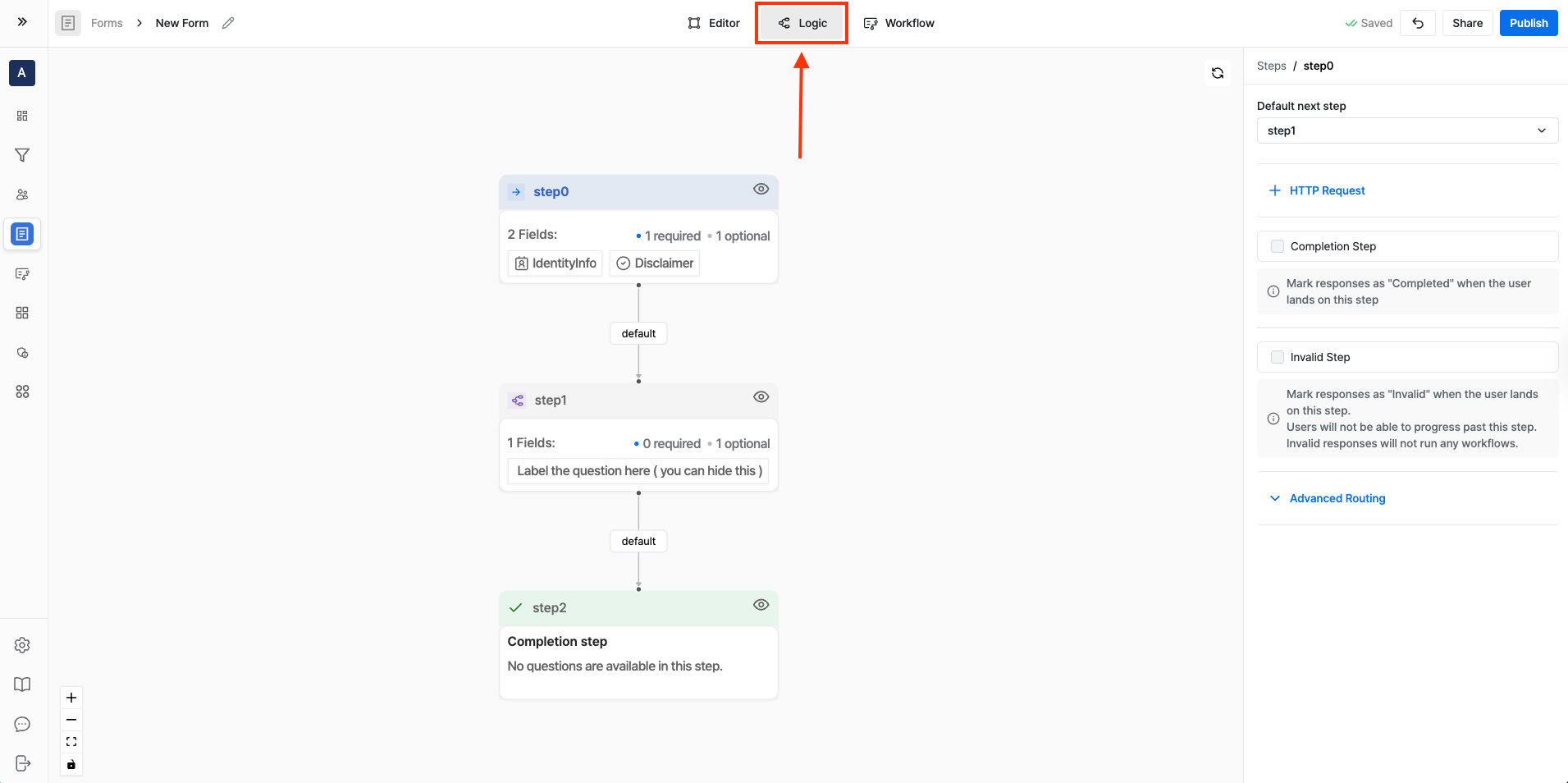 ## Step 2: Add an HTTP Request [#step-2-add-an-http-request]
1. With your step selected, click **+ HTTP Request**.
2. Configure the request:
* **URL**: your endpoint (for example, `https://api.yourdomain.com/eligibility`)
* **Method**: `GET` or `POST` depending on your API
* **Params / Headers**: add any required values
* **Body (POST)**: send JSON, using form variables if needed
## Step 2: Add an HTTP Request [#step-2-add-an-http-request]
1. With your step selected, click **+ HTTP Request**.
2. Configure the request:
* **URL**: your endpoint (for example, `https://api.yourdomain.com/eligibility`)
* **Method**: `GET` or `POST` depending on your API
* **Params / Headers**: add any required values
* **Body (POST)**: send JSON, using form variables if needed
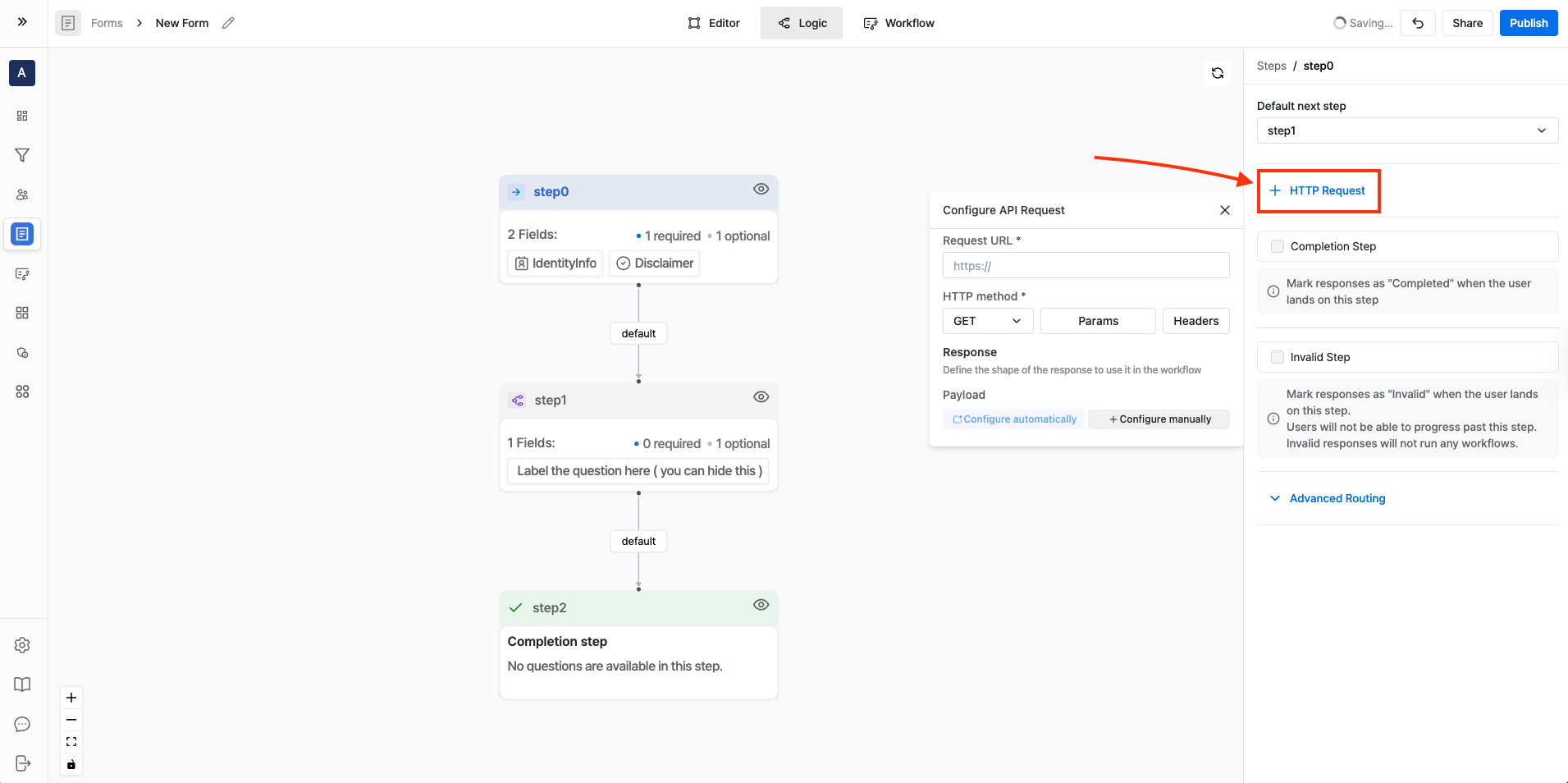
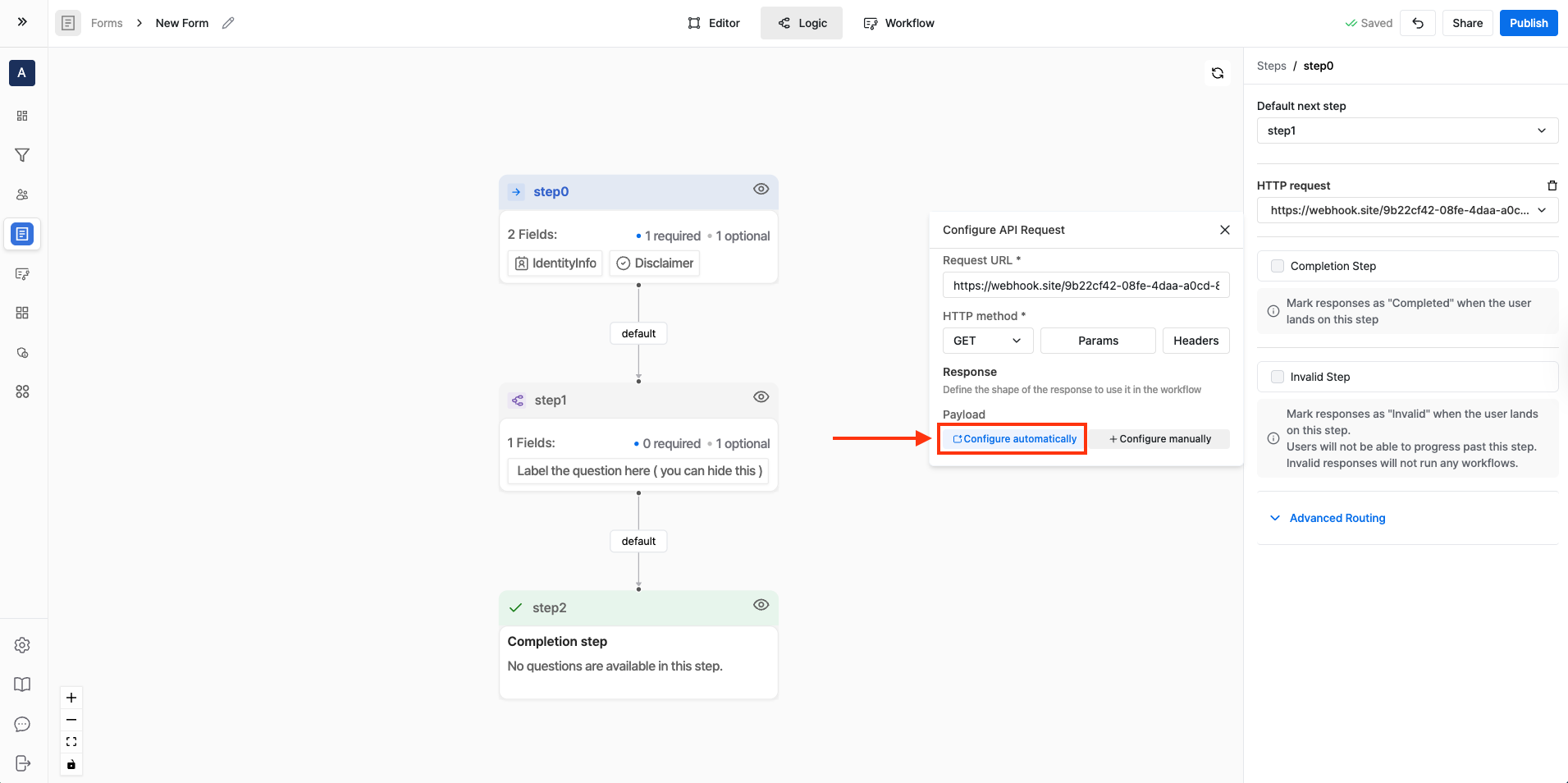 Map values from the JSON response so they are available as **External API Data**.
### Automatically Configure the API Response [#automatically-configure-the-api-response]
Map values from the JSON response so they are available as **External API Data**.
### Automatically Configure the API Response [#automatically-configure-the-api-response]
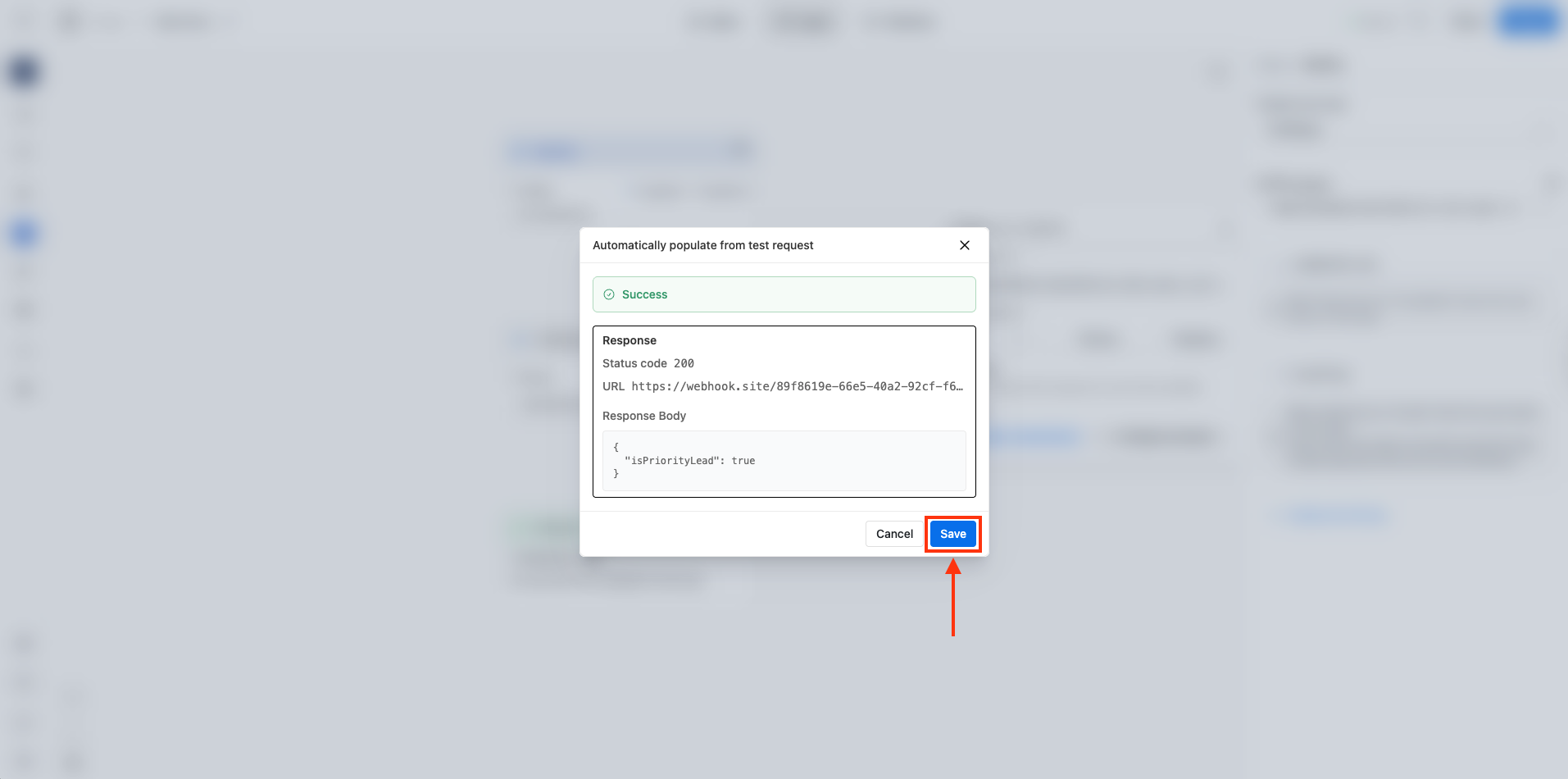 1. Click on "Configure automatically" button.
2. Surface reads the API response and suggests fields you can map.
3. Select the fields you want to map and click on "Save" button.
### Manually Configure the API Response [#manually-configure-the-api-response]
1. Click on "Configure automatically" button.
2. Surface reads the API response and suggests fields you can map.
3. Select the fields you want to map and click on "Save" button.
### Manually Configure the API Response [#manually-configure-the-api-response]
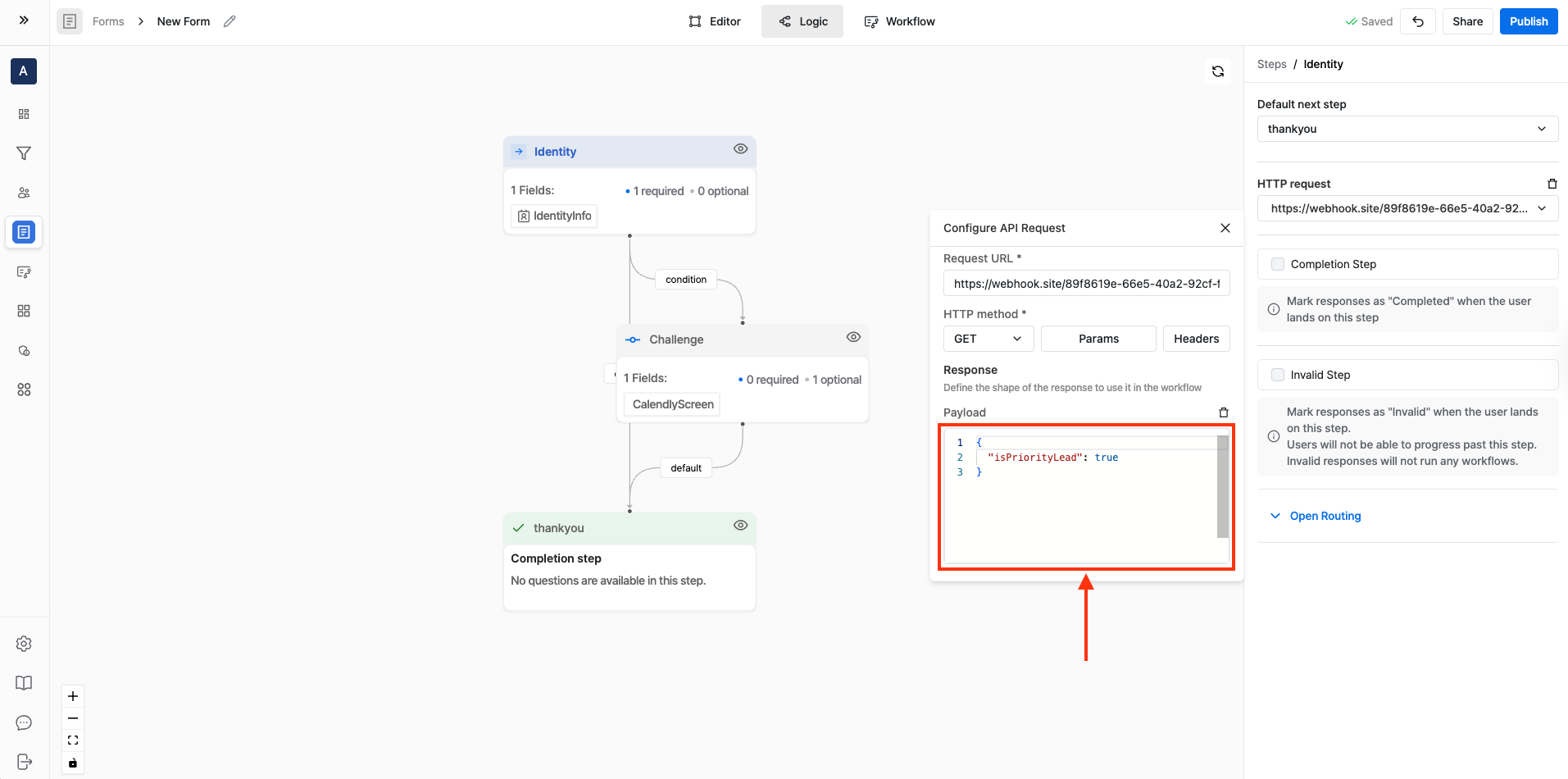 1. Click on "Configure manually" button.
2. You select the fields to extract from the JSON response yourself.
## Step 4: Create an Advanced Routing Rule Using External API Data [#step-4-create-an-advanced-routing-rule-using-external-api-data]
1. Click on "Configure manually" button.
2. You select the fields to extract from the JSON response yourself.
## Step 4: Create an Advanced Routing Rule Using External API Data [#step-4-create-an-advanced-routing-rule-using-external-api-data]
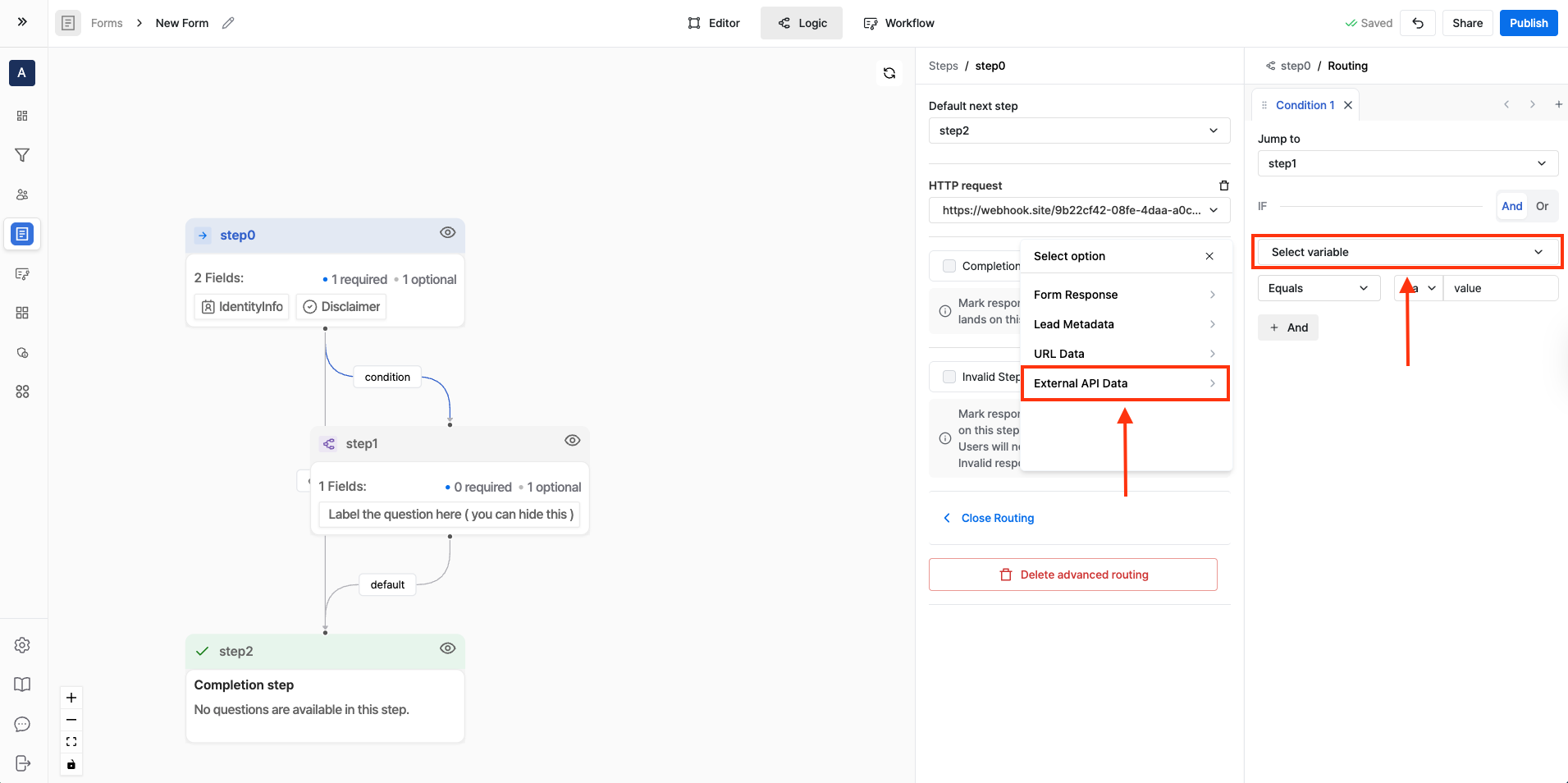 1. Open **Advanced Routing** for the step.
2. Set **Jump to step** to the step you want to send the user to when the condition is met.
3. Under **IF**, set:
* **Source**: `External API Data`
* **Condition**: choose the field you mapped (for example, `isPriorityLead`) and compare it to the expected value (for example, `true`)
### Example: Only Proceed If isPriorityLead Is True [#example-only-proceed-if-isprioritylead-is-true]
* **IF**: `External API Data.isPriorityLead` equals `true`
* **THEN**: Jump to `Step: 1 (Book a Demo)`
* **ELSE**: Keep default routing to next step (or jump to a “Not eligible” / “Invalid” step)
1. Open **Advanced Routing** for the step.
2. Set **Jump to step** to the step you want to send the user to when the condition is met.
3. Under **IF**, set:
* **Source**: `External API Data`
* **Condition**: choose the field you mapped (for example, `isPriorityLead`) and compare it to the expected value (for example, `true`)
### Example: Only Proceed If isPriorityLead Is True [#example-only-proceed-if-isprioritylead-is-true]
* **IF**: `External API Data.isPriorityLead` equals `true`
* **THEN**: Jump to `Step: 1 (Book a Demo)`
* **ELSE**: Keep default routing to next step (or jump to a “Not eligible” / “Invalid” step)
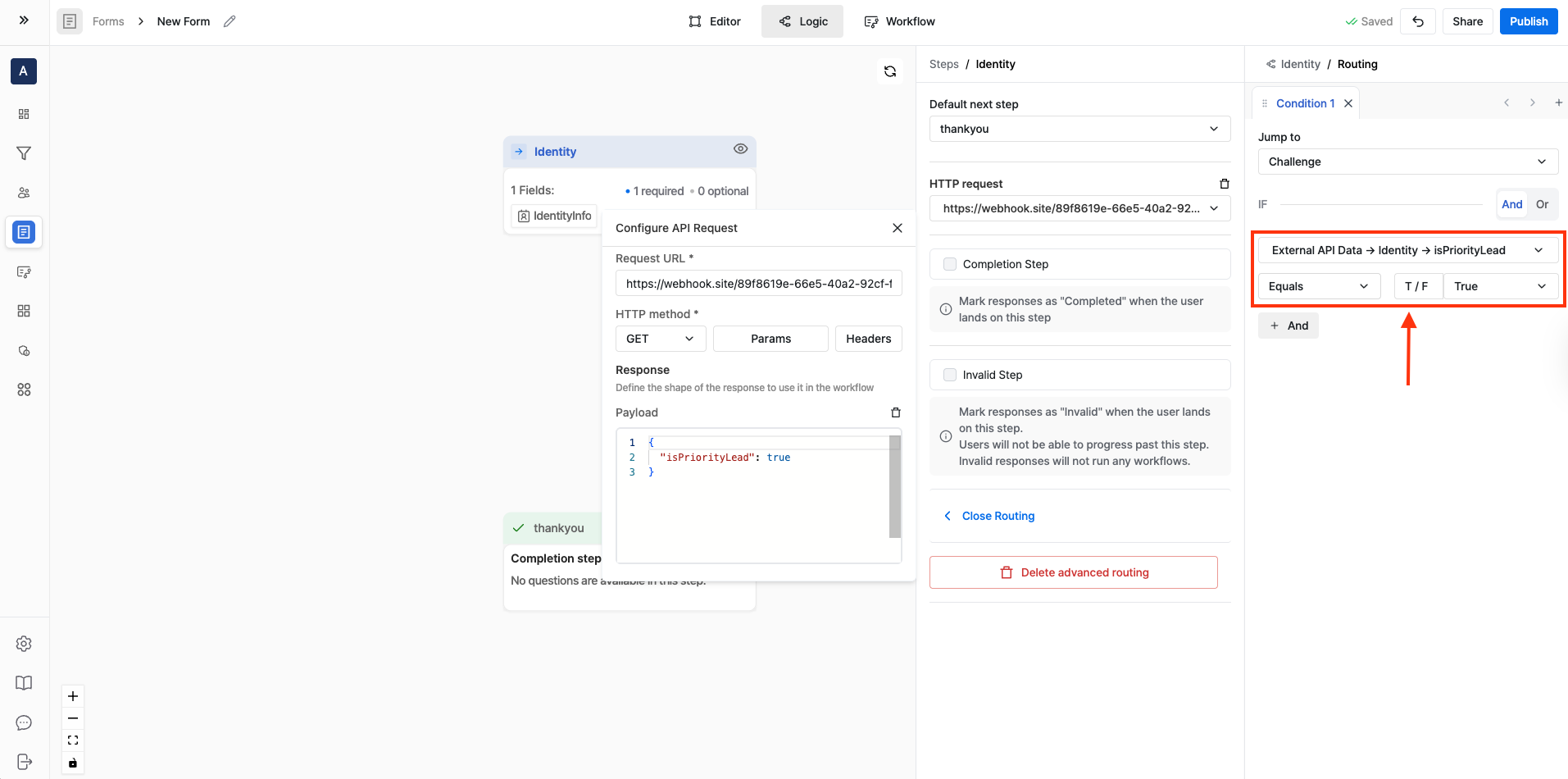 ## Step 5: Publish and Test [#step-5-publish-and-test]
1. Publish your form.
2. Submit test entries that should pass and fail the condition.
3. Confirm respondents are routed to the right step in both cases.
---
URL: /guides/enable-cloudflare-turnstile
# Enable Cloudflare Turnstile
## Step 1: Navigate to Cloudflare Turnstile [#step-1-navigate-to-cloudflare-turnstile]
## Step 5: Publish and Test [#step-5-publish-and-test]
1. Publish your form.
2. Submit test entries that should pass and fail the condition.
3. Confirm respondents are routed to the right step in both cases.
---
URL: /guides/enable-cloudflare-turnstile
# Enable Cloudflare Turnstile
## Step 1: Navigate to Cloudflare Turnstile [#step-1-navigate-to-cloudflare-turnstile]
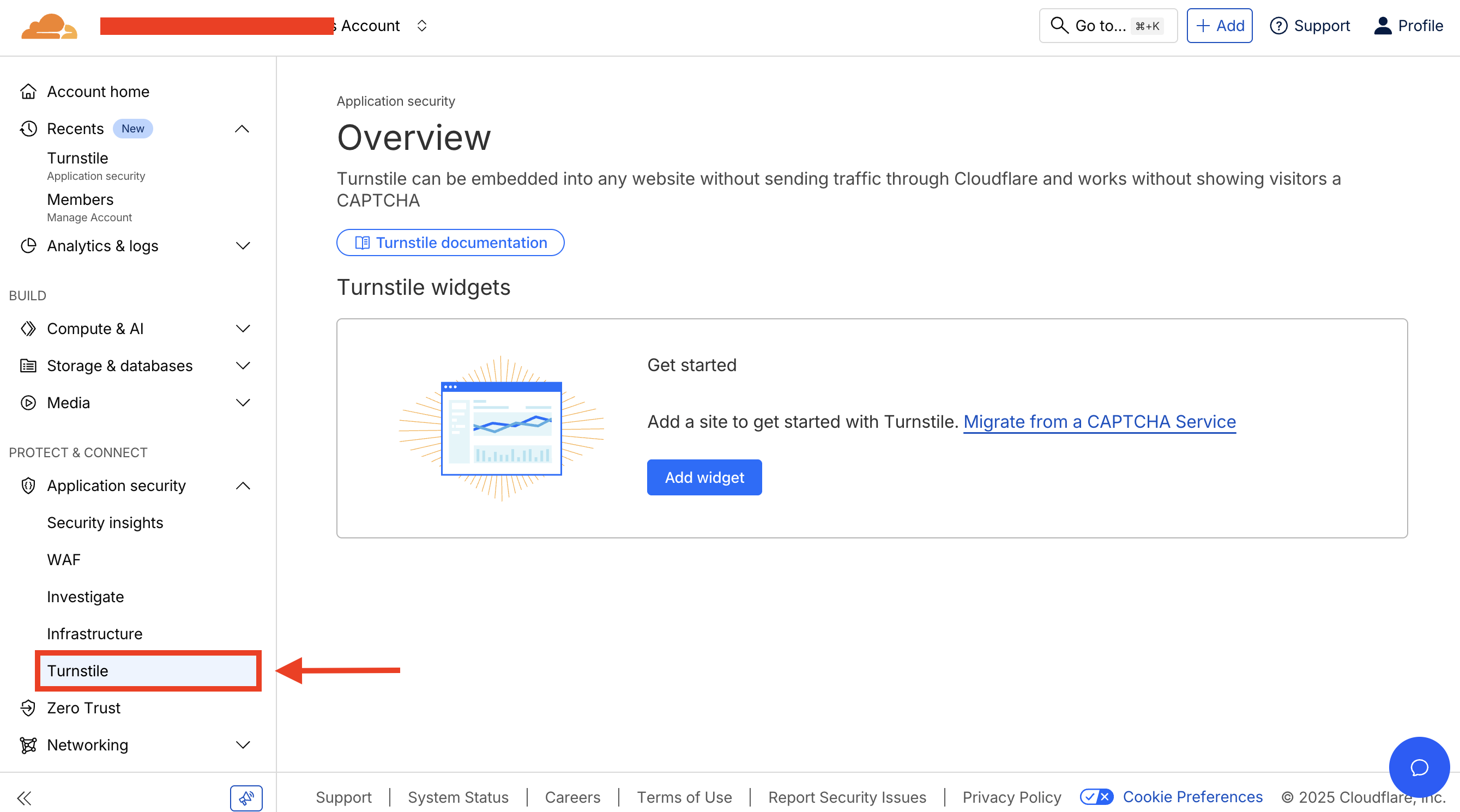 1. Login to [Cloudflare Dashboard](https://dash.cloudflare.com/)
2. Navigate to **Protect & Connect > Application security > Turnstile**
## Step 2: Add New Widget [#step-2-add-new-widget]
1. Login to [Cloudflare Dashboard](https://dash.cloudflare.com/)
2. Navigate to **Protect & Connect > Application security > Turnstile**
## Step 2: Add New Widget [#step-2-add-new-widget]
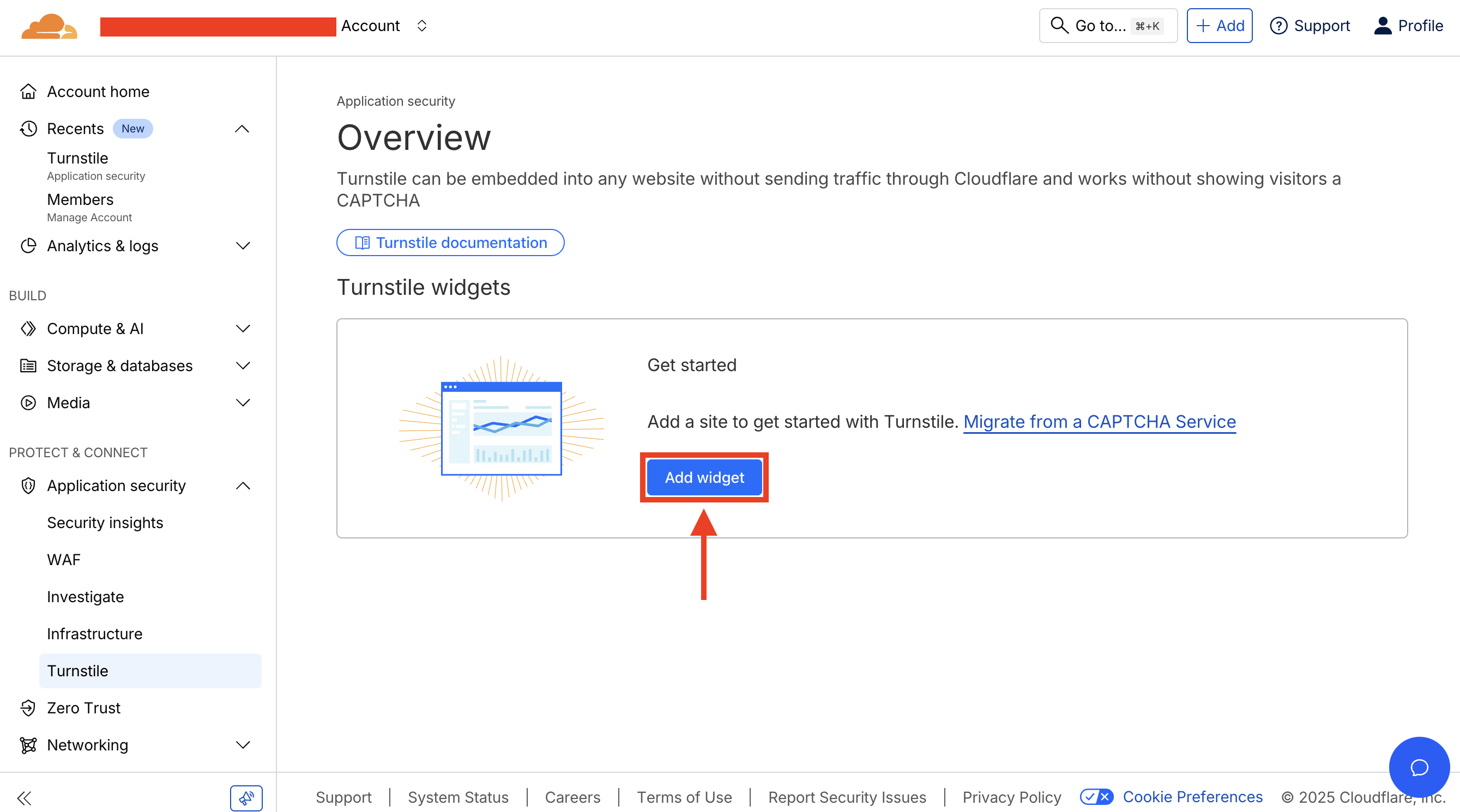 Click on **Add new widget** to create a new Turnstile widget.
## Step 3: Configure Widget Settings [#step-3-configure-widget-settings]
Click on **Add new widget** to create a new Turnstile widget.
## Step 3: Configure Widget Settings [#step-3-configure-widget-settings]
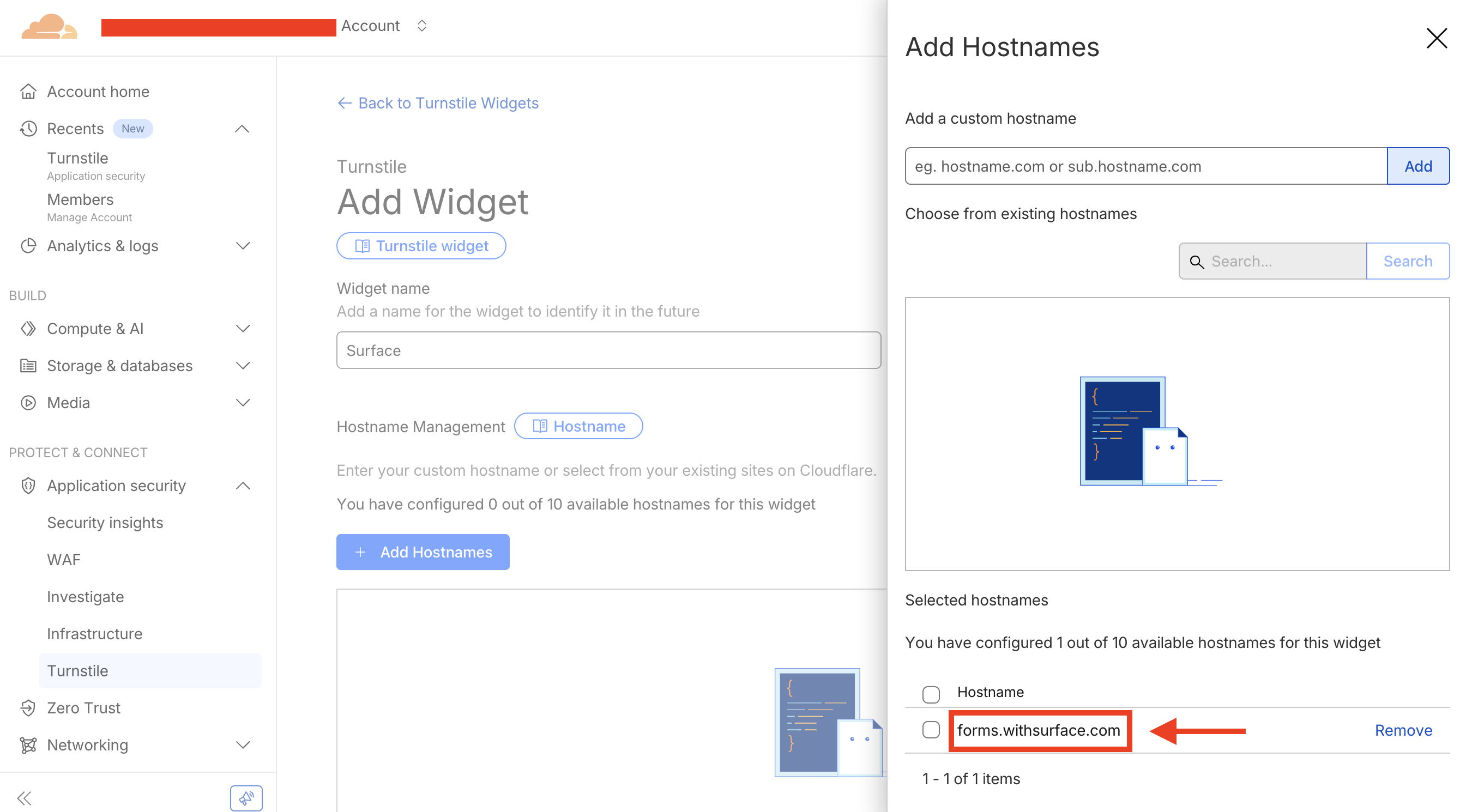 1. Set up the widget configurations
2. In the **Hostnames** field, add `forms.withsurface.com` or the [verified custom domain](/platform/traffic/custom-domains) used by your form
3. Click `Add` button to add the host
## Step 4: Create Widget and Copy Keys [#step-4-create-widget-and-copy-keys]
1. Set up the widget configurations
2. In the **Hostnames** field, add `forms.withsurface.com` or the [verified custom domain](/platform/traffic/custom-domains) used by your form
3. Click `Add` button to add the host
## Step 4: Create Widget and Copy Keys [#step-4-create-widget-and-copy-keys]
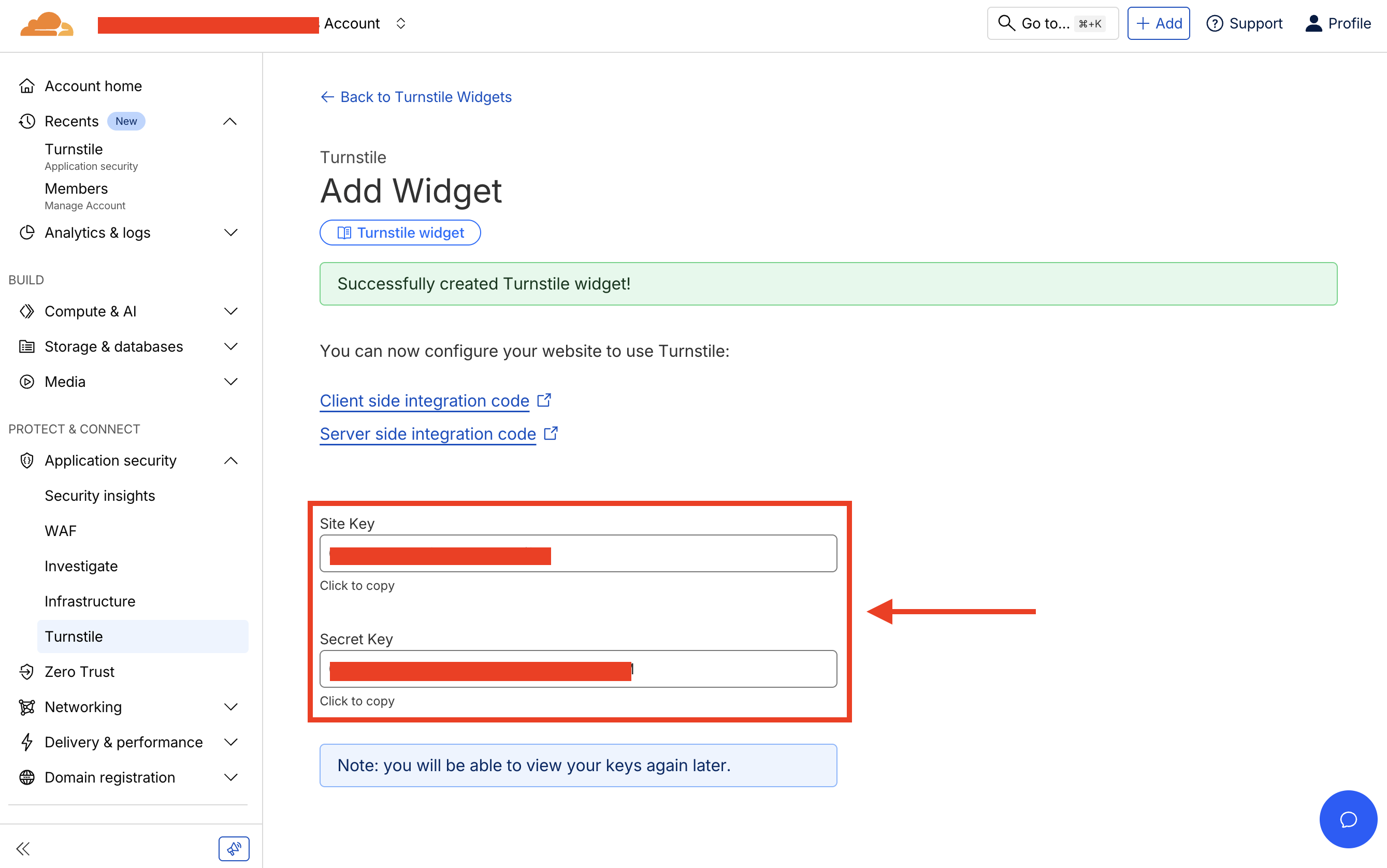 1. Click **Create** to create the widget
2. After creating the widget, copy the **Site Key** and **Secret Key**
## Step 5: Configure Turnstile in Surface Form Settings [#step-5-configure-turnstile-in-surface-form-settings]
1. Click **Create** to create the widget
2. After creating the widget, copy the **Site Key** and **Secret Key**
## Step 5: Configure Turnstile in Surface Form Settings [#step-5-configure-turnstile-in-surface-form-settings]
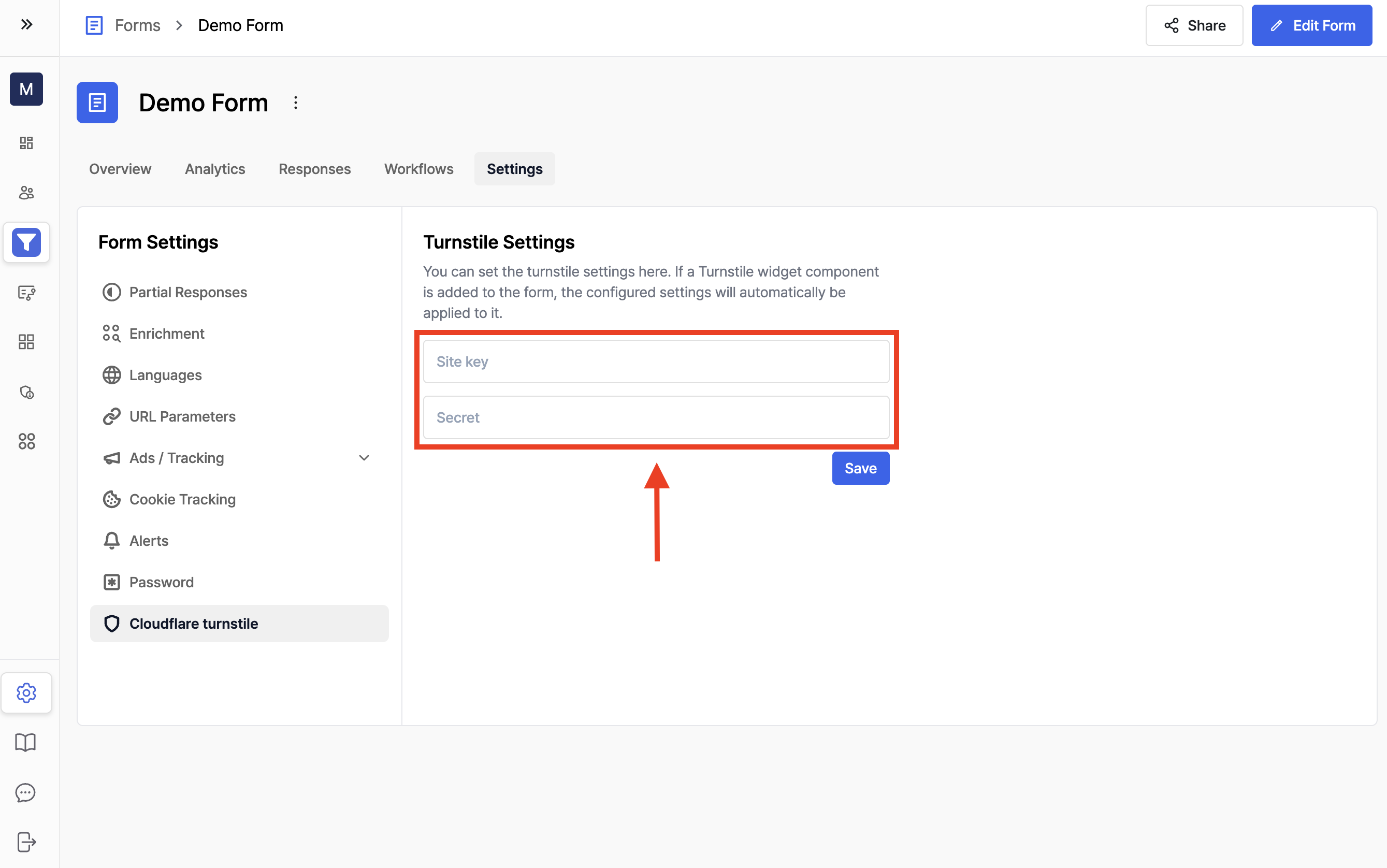 1. Navigate to your Surface Form settings page
2. Go to **Cloudflare Turnstile** section
3. Paste the **Site Key** and **Secret Key** that you copied in Step 4
4. Click **Save** to save the settings
## Step 6: Add Turnstile Widget to Your Form [#step-6-add-turnstile-widget-to-your-form]
1. Navigate to your Surface Form settings page
2. Go to **Cloudflare Turnstile** section
3. Paste the **Site Key** and **Secret Key** that you copied in Step 4
4. Click **Save** to save the settings
## Step 6: Add Turnstile Widget to Your Form [#step-6-add-turnstile-widget-to-your-form]
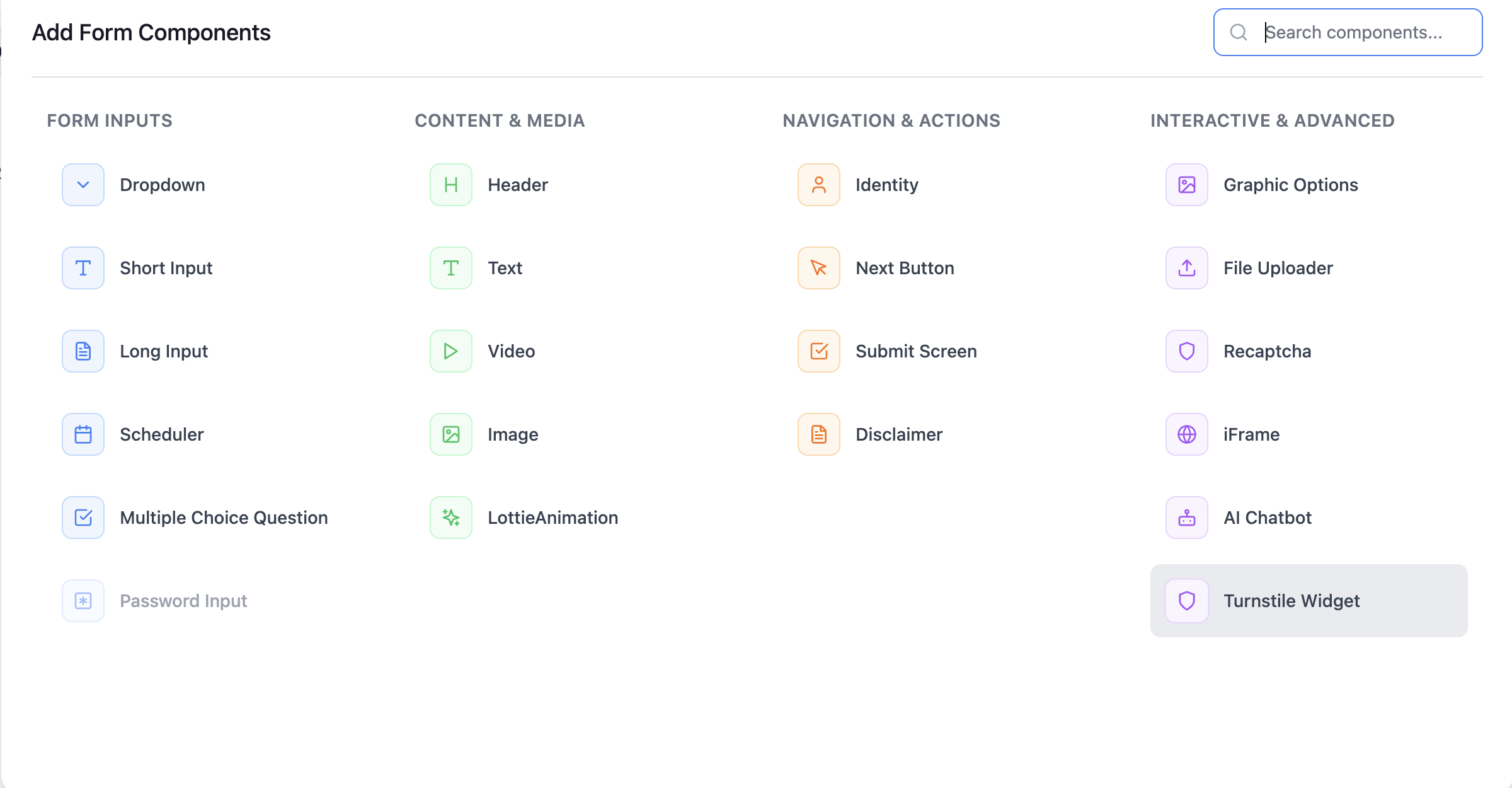 1. In the Form Builder, navigate to the step where you want to add the Turnstile widget
2. Click **+ Add component** or **Copy existing component**
3. Select the **Turnstile** widget component from the component list
4. The widget now appears in your form and is checked when someone submits it
---
URL: /guides/first-form
# Creating Your First Surface Form
## 1. Login to Surface Labs [#1-login-to-surface-labs]
Navigate to the [Surface Dashboard](https://app.withsurface.com/) and log in with your credentials.
## 2. Create a New Form [#2-create-a-new-form]
1. In the Form Builder, navigate to the step where you want to add the Turnstile widget
2. Click **+ Add component** or **Copy existing component**
3. Select the **Turnstile** widget component from the component list
4. The widget now appears in your form and is checked when someone submits it
---
URL: /guides/first-form
# Creating Your First Surface Form
## 1. Login to Surface Labs [#1-login-to-surface-labs]
Navigate to the [Surface Dashboard](https://app.withsurface.com/) and log in with your credentials.
## 2. Create a New Form [#2-create-a-new-form]
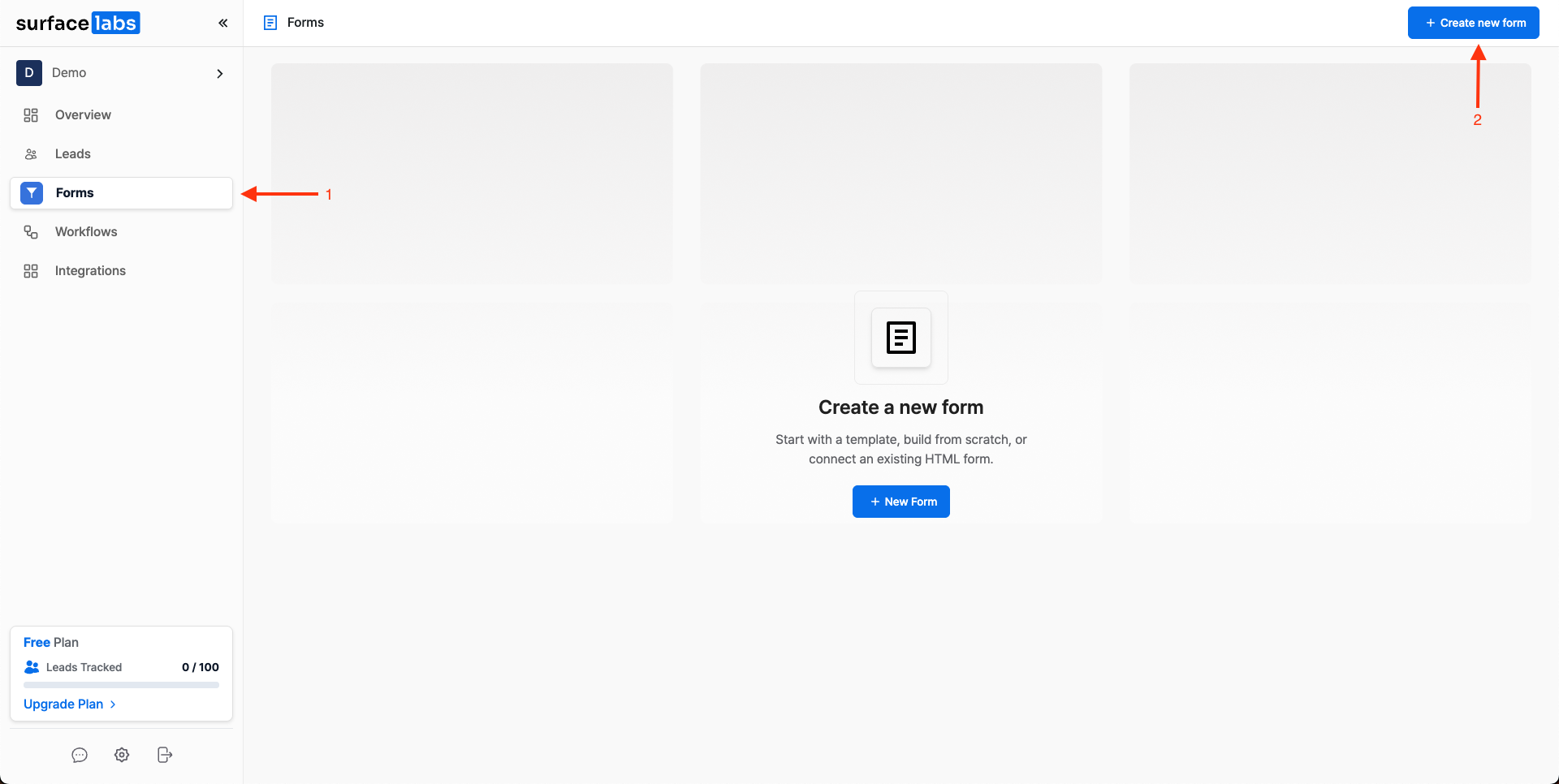 Go to the `Forms` tab and press `Create New Form` in the navigation bar.
### Start from Scratch or Choose a Template [#start-from-scratch-or-choose-a-template]
Go to the `Forms` tab and press `Create New Form` in the navigation bar.
### Start from Scratch or Choose a Template [#start-from-scratch-or-choose-a-template]
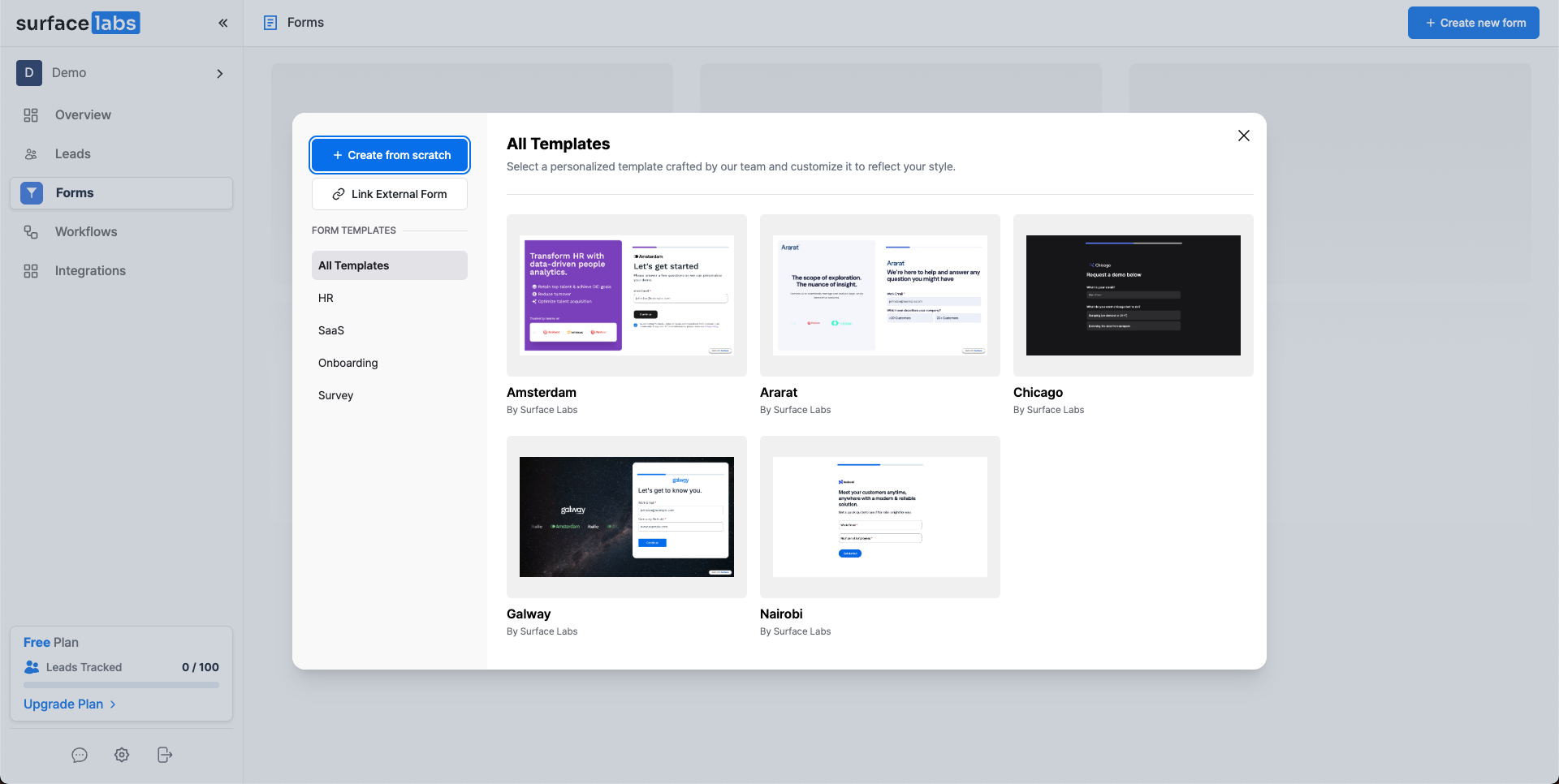 ## 3. Select a Layout [#3-select-a-layout]
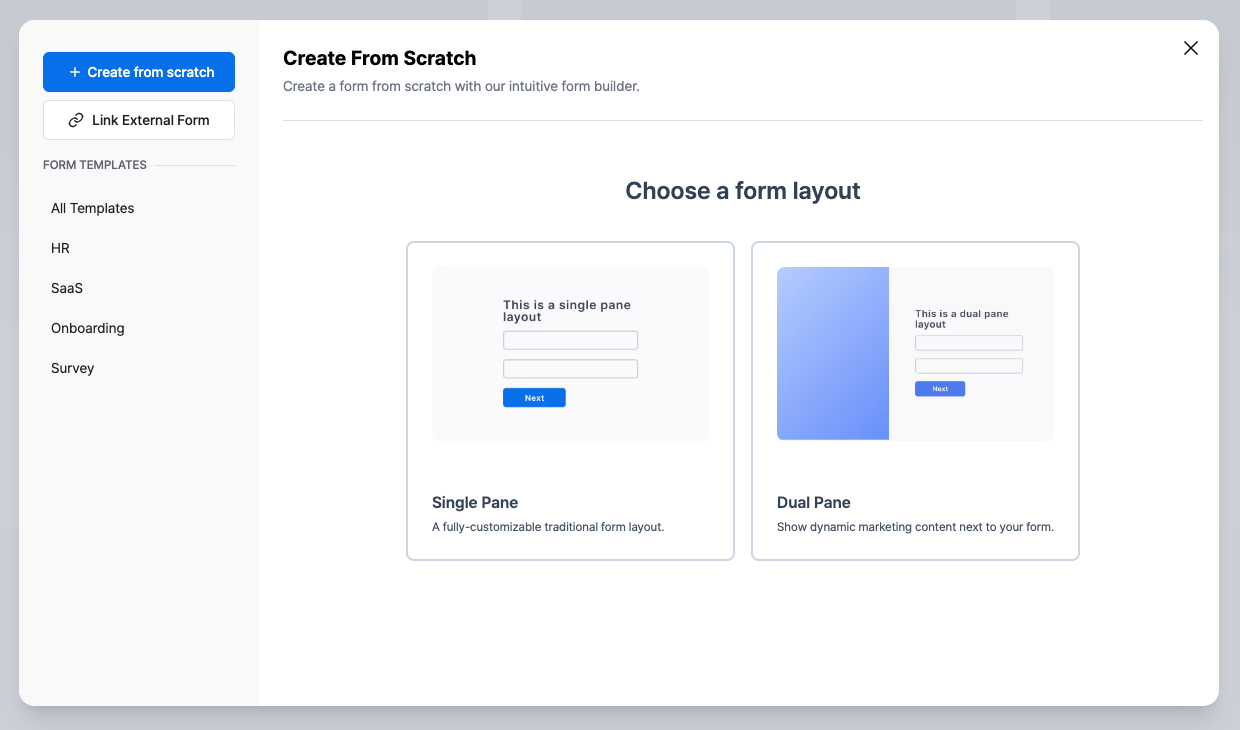 Choose a layout:
* **Single Pane**: A simple form layout with a single column
* **Dual Pane**: A form layout with two columns, ideal for marketing purposes
## 4. Build the Form [#4-build-the-form]
### Overview [#overview]
Choose a layout:
* **Single Pane**: A simple form layout with a single column
* **Dual Pane**: A form layout with two columns, ideal for marketing purposes
## 4. Build the Form [#4-build-the-form]
### Overview [#overview]
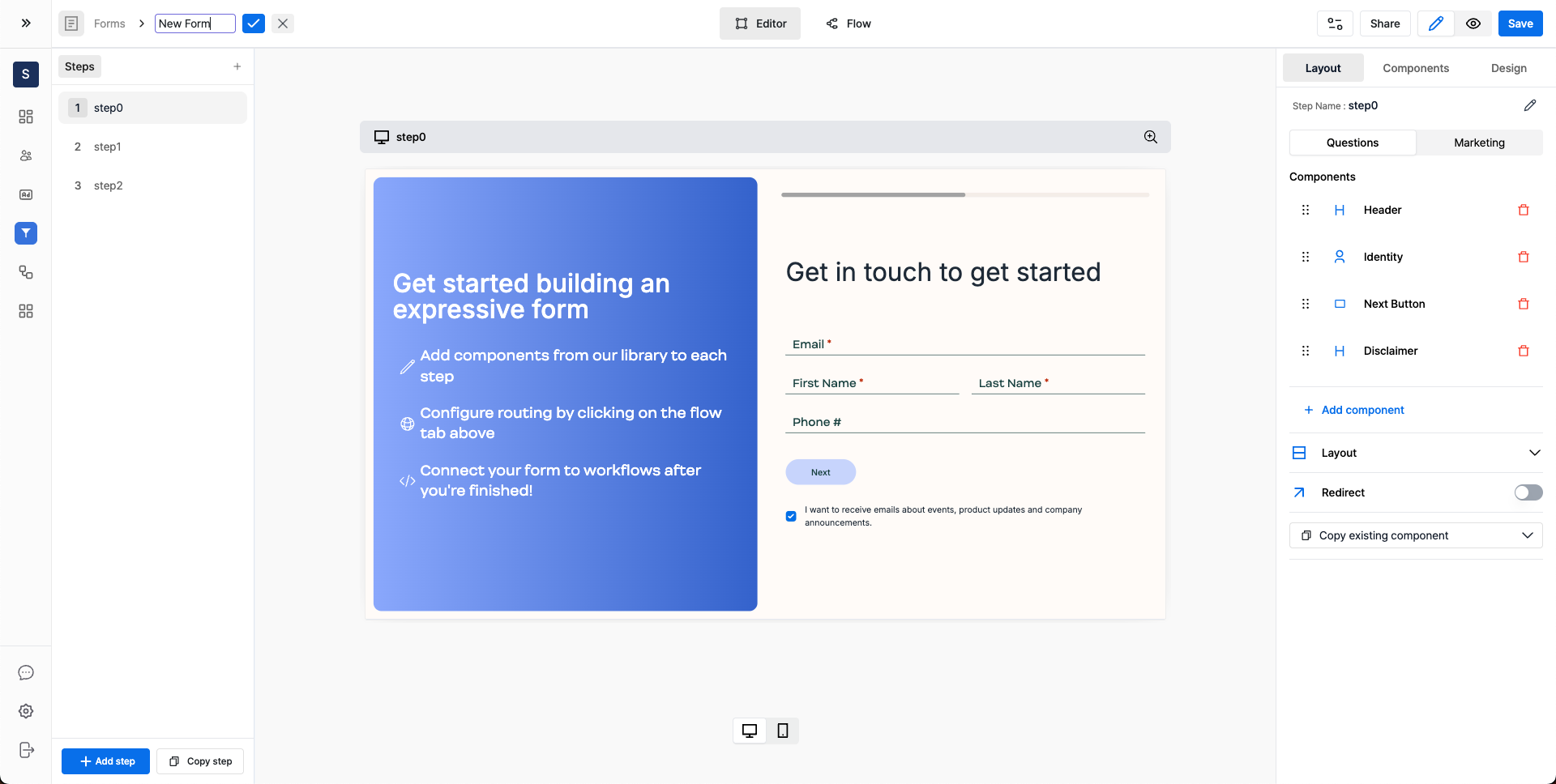 Surface Forms gives you a starting template. Edit it, or build your own.
### Form Steps [#form-steps]
Surface Forms gives you a starting template. Edit it, or build your own.
### Form Steps [#form-steps]
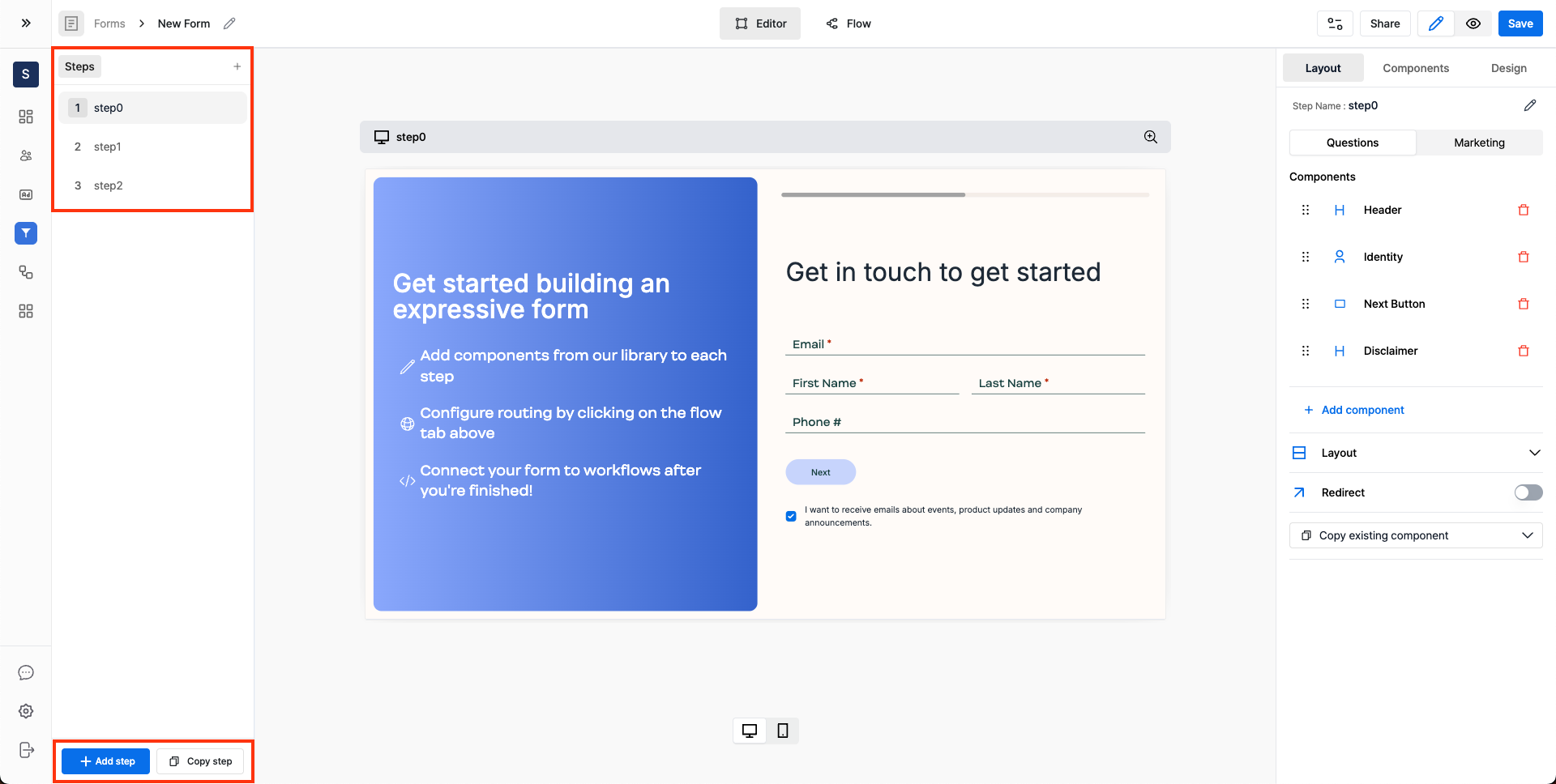 Form steps are listed on the left side of the form builder under the `Steps` section.
#### Add New Steps [#add-new-steps]
To add a new step, click on the `+ Add step` button or copy an existing step by clicking on the `Copy step` button.
### Edit the Step [#edit-the-step]
Form steps are listed on the left side of the form builder under the `Steps` section.
#### Add New Steps [#add-new-steps]
To add a new step, click on the `+ Add step` button or copy an existing step by clicking on the `Copy step` button.
### Edit the Step [#edit-the-step]
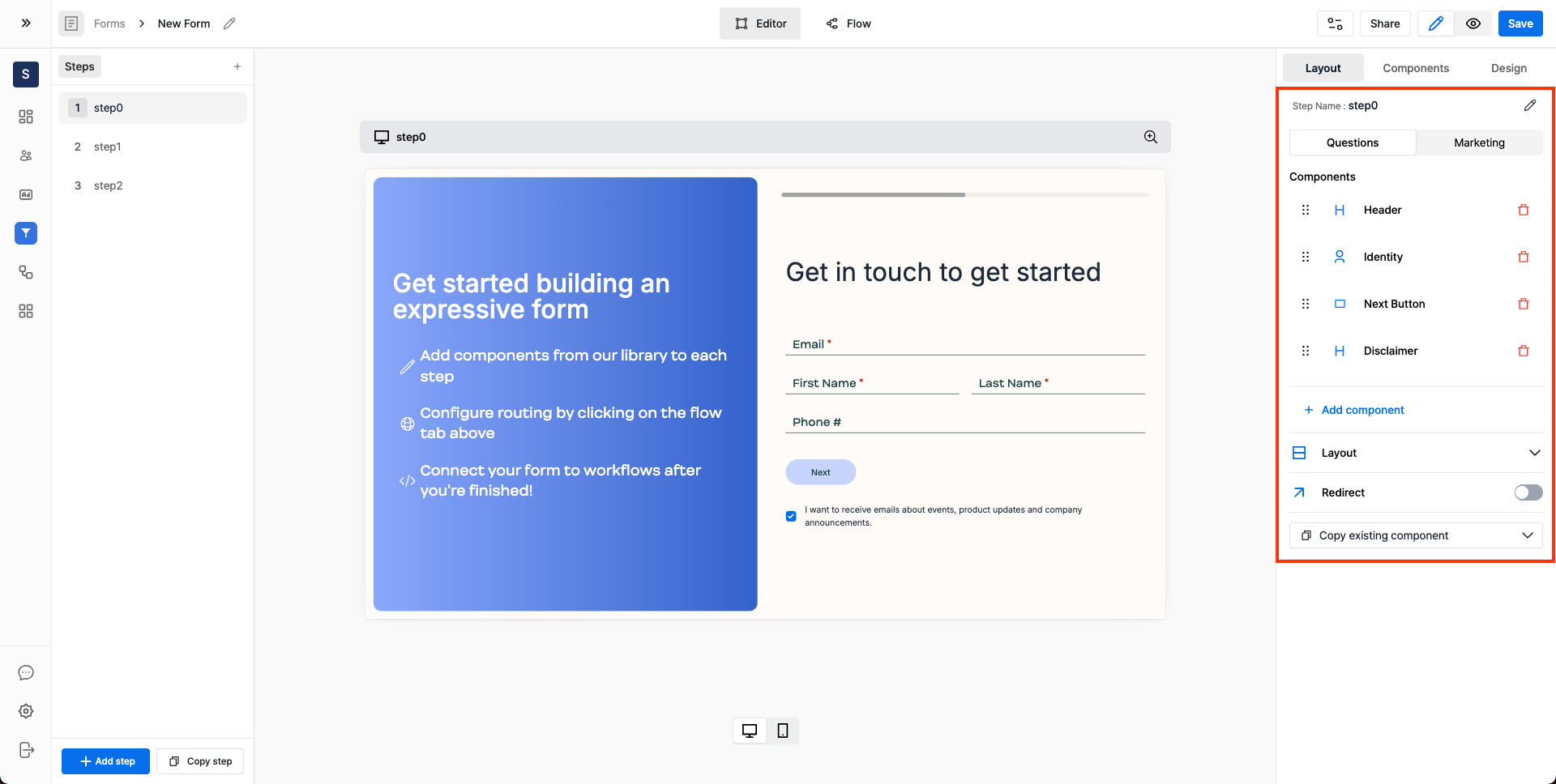 #### Add New Components [#add-new-components]
To add a new component, click on the `+ Add component` button or copy an existing component from the form by clicking on the `Copy existing component` button.
#### Question Pane and Marketing Pane [#question-pane-and-marketing-pane]
Each step is divided into two tabs: `Questions` and `Marketing`.
* The `Questions` tab is used to add questions such as text fields, dropdowns, multiple choice questions, etc to the form.
* The `Marketing` tab is for adding marketing components such as a logo, background image, etc to the form.
### Customize Layout [#customize-layout]
#### Question Pane Layout Customization [#question-pane-layout-customization]
#### Add New Components [#add-new-components]
To add a new component, click on the `+ Add component` button or copy an existing component from the form by clicking on the `Copy existing component` button.
#### Question Pane and Marketing Pane [#question-pane-and-marketing-pane]
Each step is divided into two tabs: `Questions` and `Marketing`.
* The `Questions` tab is used to add questions such as text fields, dropdowns, multiple choice questions, etc to the form.
* The `Marketing` tab is for adding marketing components such as a logo, background image, etc to the form.
### Customize Layout [#customize-layout]
#### Question Pane Layout Customization [#question-pane-layout-customization]
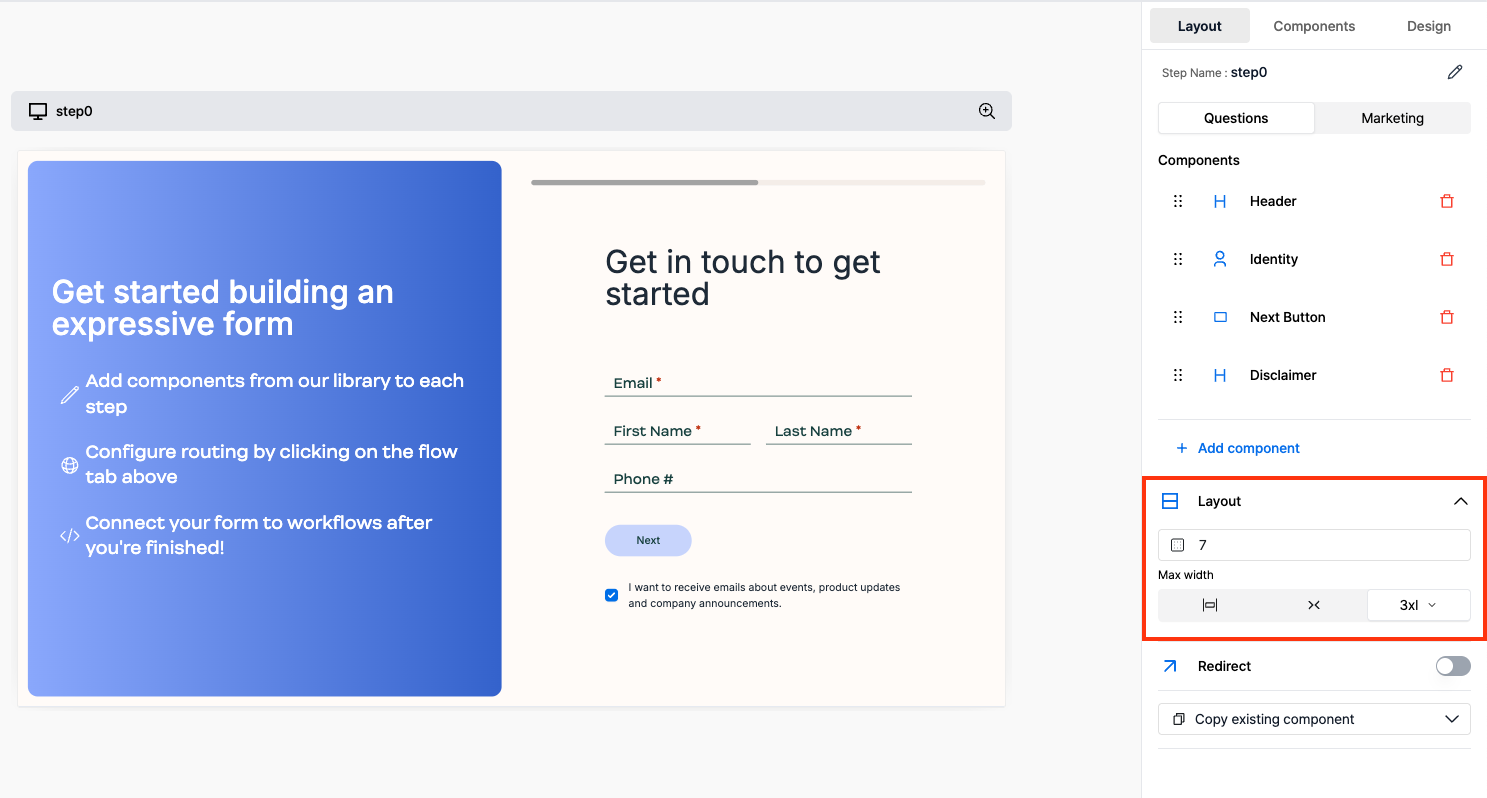 Both the `Questions` and `Marketing` panels have layout options, including:
* `Horizontal Padding`
* `Maximum Width of the Pane`
#### Marketing Pane Layout Customization [#marketing-pane-layout-customization]
Both the `Questions` and `Marketing` panels have layout options, including:
* `Horizontal Padding`
* `Maximum Width of the Pane`
#### Marketing Pane Layout Customization [#marketing-pane-layout-customization]
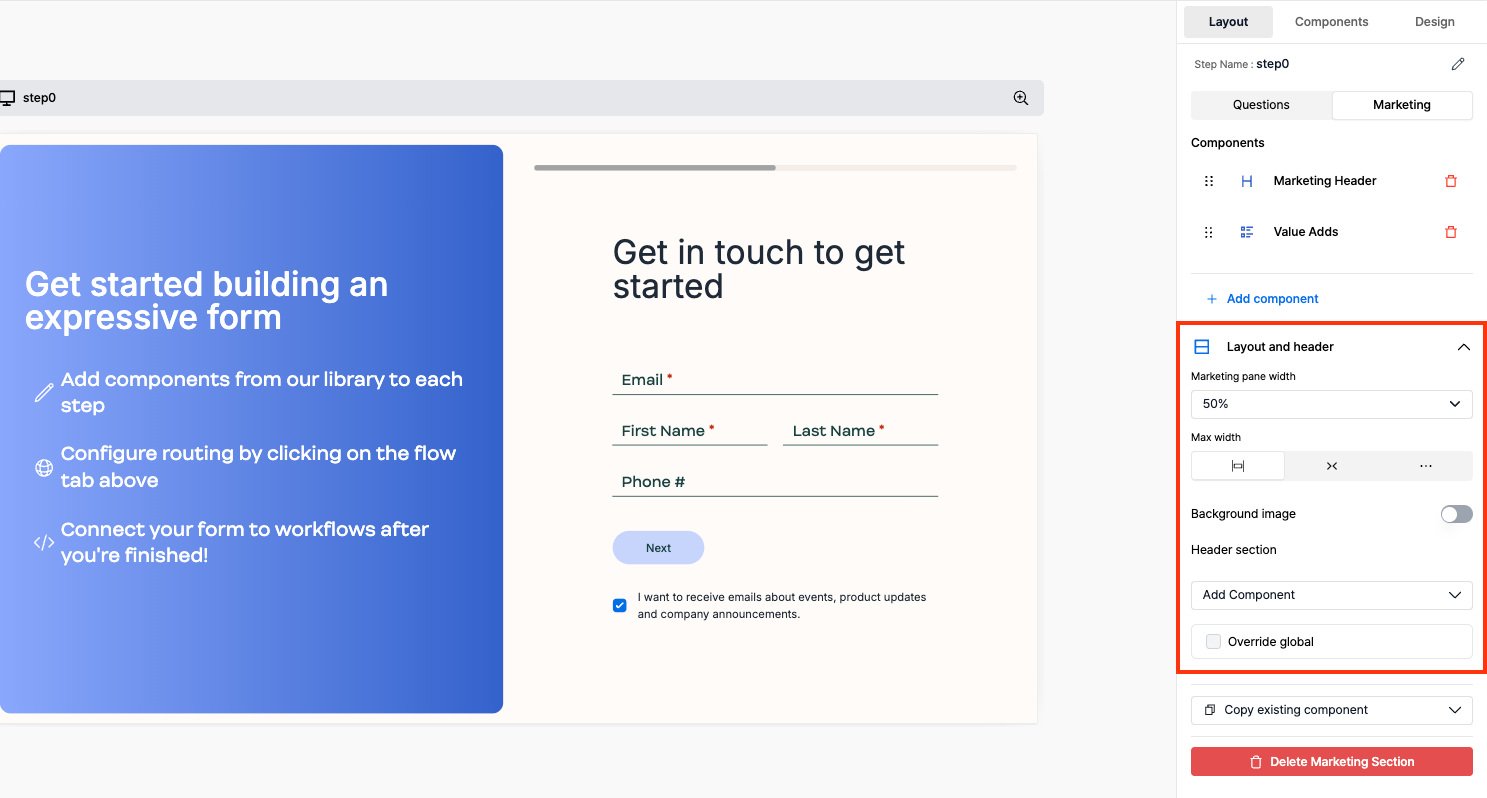 The marketing pane has extra options:
1. Customize the `Marketing Pane` width
2. Add a `Background Image`
3. Add a `Logo` in the header:
* Expand the `Add Component` dropdown and select the `Image` component to add a logo in the marketing header
### Edit a Component [#edit-a-component]
The marketing pane has extra options:
1. Customize the `Marketing Pane` width
2. Add a `Background Image`
3. Add a `Logo` in the header:
* Expand the `Add Component` dropdown and select the `Image` component to add a logo in the marketing header
### Edit a Component [#edit-a-component]
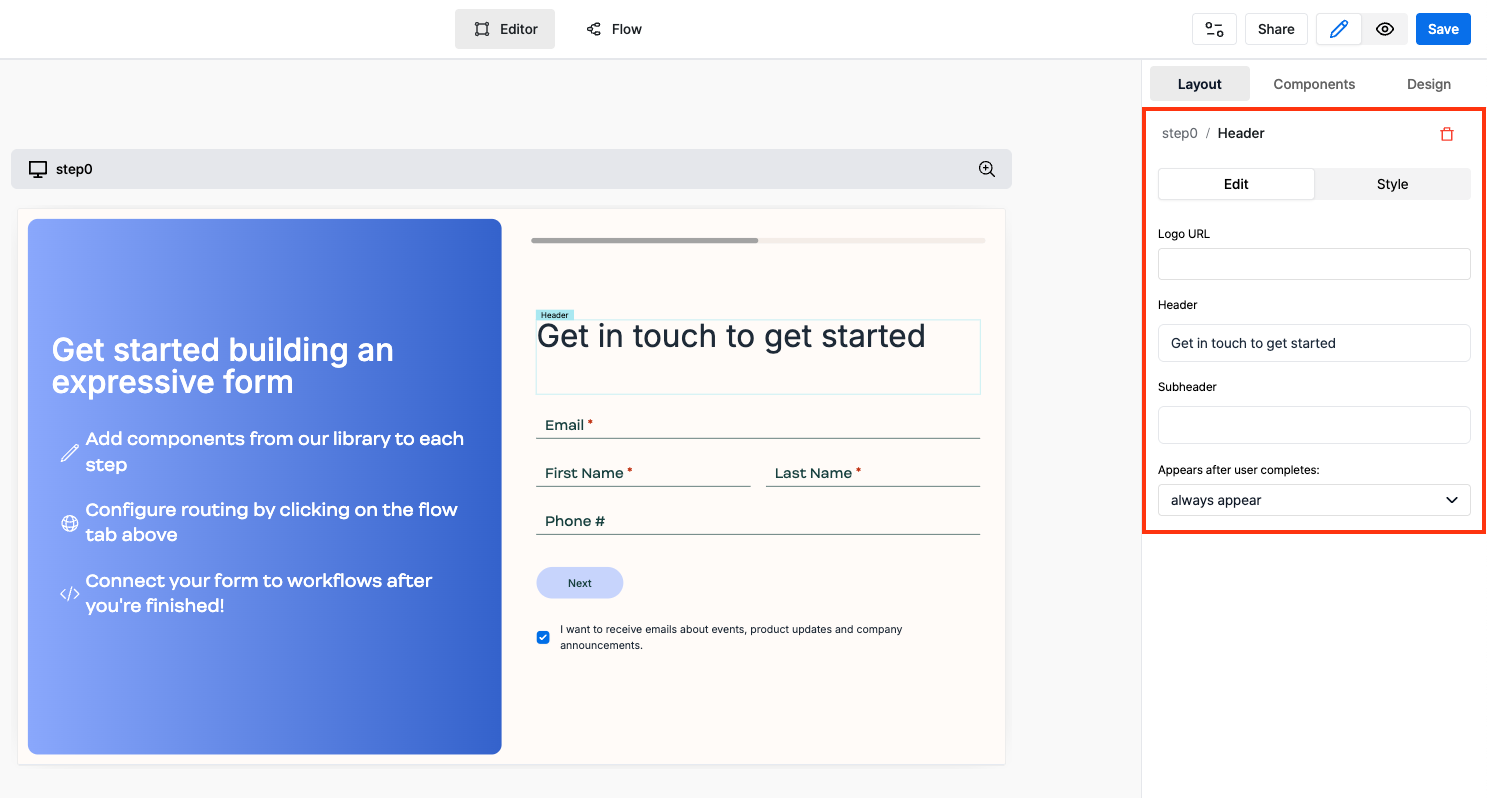 To edit a component, either click on the component directly from the form preview or click on the component from the components list in the right side panel.
### Style a Component [#style-a-component]
To edit a component, either click on the component directly from the form preview or click on the component from the components list in the right side panel.
### Style a Component [#style-a-component]
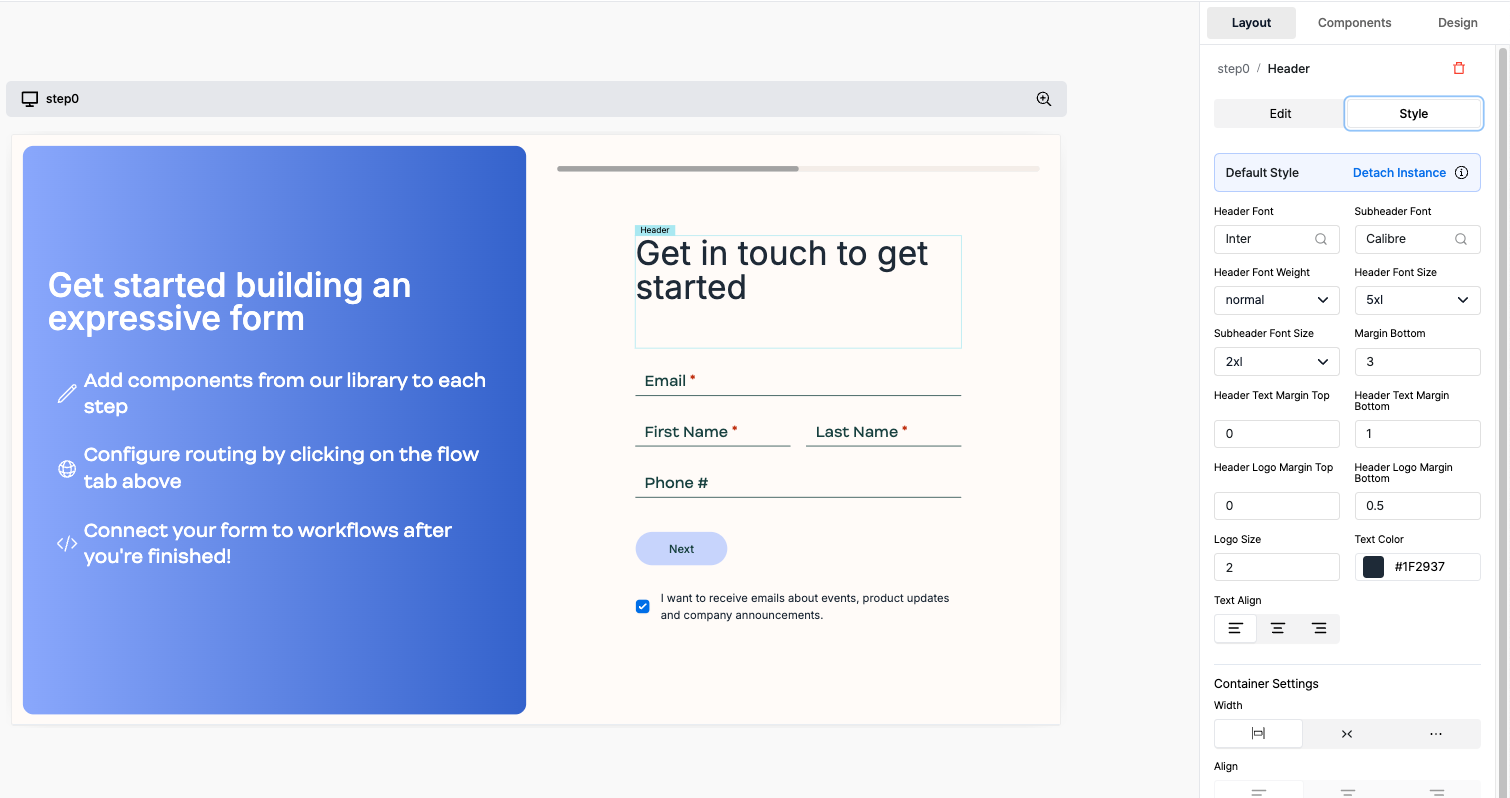 Each component has a `Style` panel. The options vary by component, and include:
* `Background Color`
* `Text Color`
* `Border Color`
* `Border Width`
* `Border Radius`
* `Box Shadow`
### Advanced Features [#advanced-features]
#### Customize Marketing Pane Globally [#customize-marketing-pane-globally]
Each component has a `Style` panel. The options vary by component, and include:
* `Background Color`
* `Text Color`
* `Border Color`
* `Border Width`
* `Border Radius`
* `Box Shadow`
### Advanced Features [#advanced-features]
#### Customize Marketing Pane Globally [#customize-marketing-pane-globally]
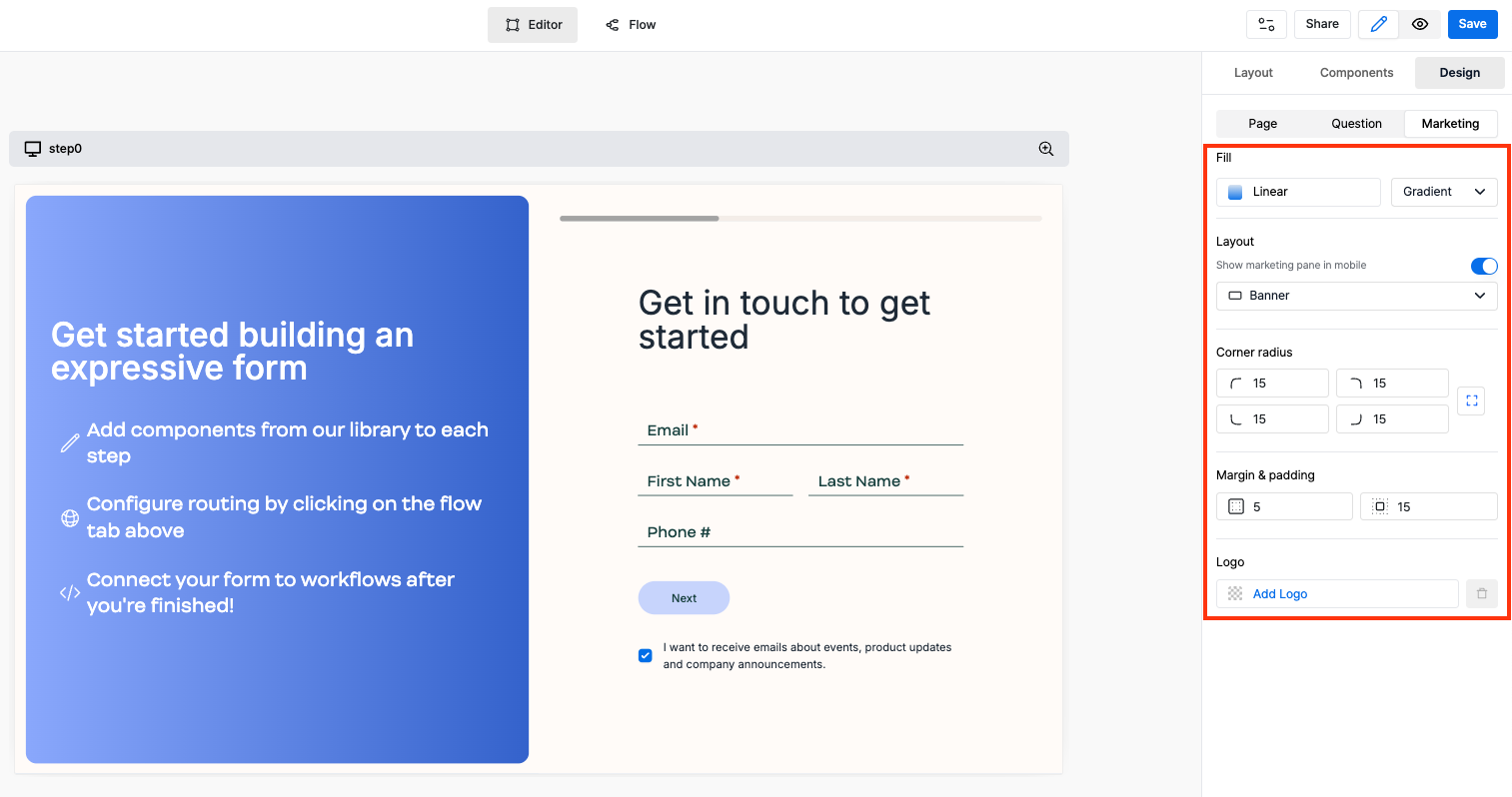 To customize the marketing pane globally, go to the `Marketing` under `Design` section.
Options include:
* `Fill`: Choose from a range of options like gradient, solid color, image, etc for the background of the marketing pane.
* `Corner Radius`: Control the corner radius of the marketing pane.
* `Logo`: Add a logo to the marketing pane.
#### Delete Marketing Pane for a Particular Step [#delete-marketing-pane-for-a-particular-step]
To customize the marketing pane globally, go to the `Marketing` under `Design` section.
Options include:
* `Fill`: Choose from a range of options like gradient, solid color, image, etc for the background of the marketing pane.
* `Corner Radius`: Control the corner radius of the marketing pane.
* `Logo`: Add a logo to the marketing pane.
#### Delete Marketing Pane for a Particular Step [#delete-marketing-pane-for-a-particular-step]
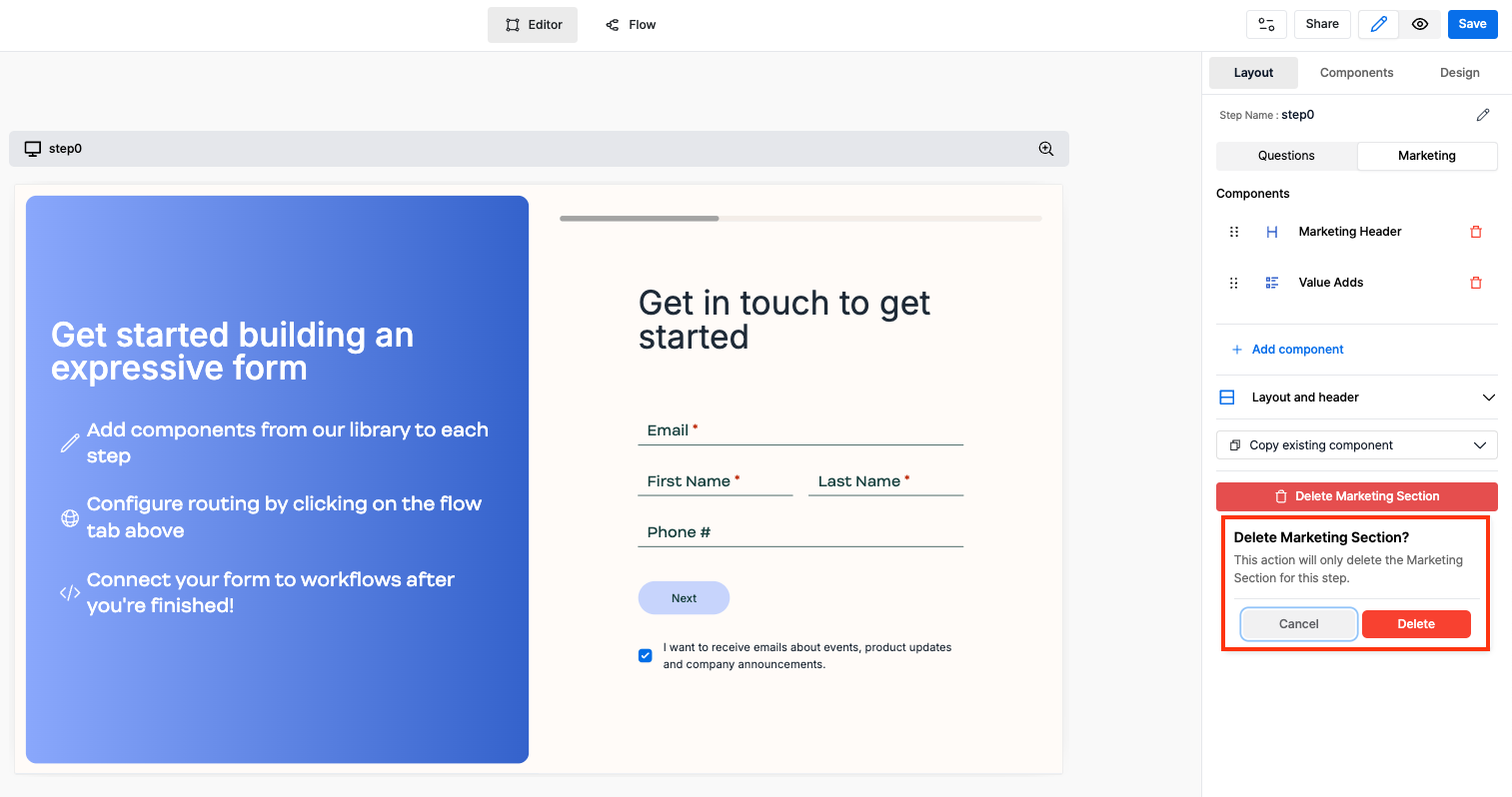 To delete the marketing pane for a particular step, go to the `Marketing` under `Layout` section and click on the `Delete Marketing Section` button.
## 5. Save and Share [#5-save-and-share]
Change the form name in the navigation bar and save the form by clicking on the `Save` button.
Share the form using the `Share` button in the navigation bar.
* You can share the form using the `Share Link` or `Embed Code` to embed the form on your website.
To delete the marketing pane for a particular step, go to the `Marketing` under `Layout` section and click on the `Delete Marketing Section` button.
## 5. Save and Share [#5-save-and-share]
Change the form name in the navigation bar and save the form by clicking on the `Save` button.
Share the form using the `Share` button in the navigation bar.
* You can share the form using the `Share Link` or `Embed Code` to embed the form on your website.
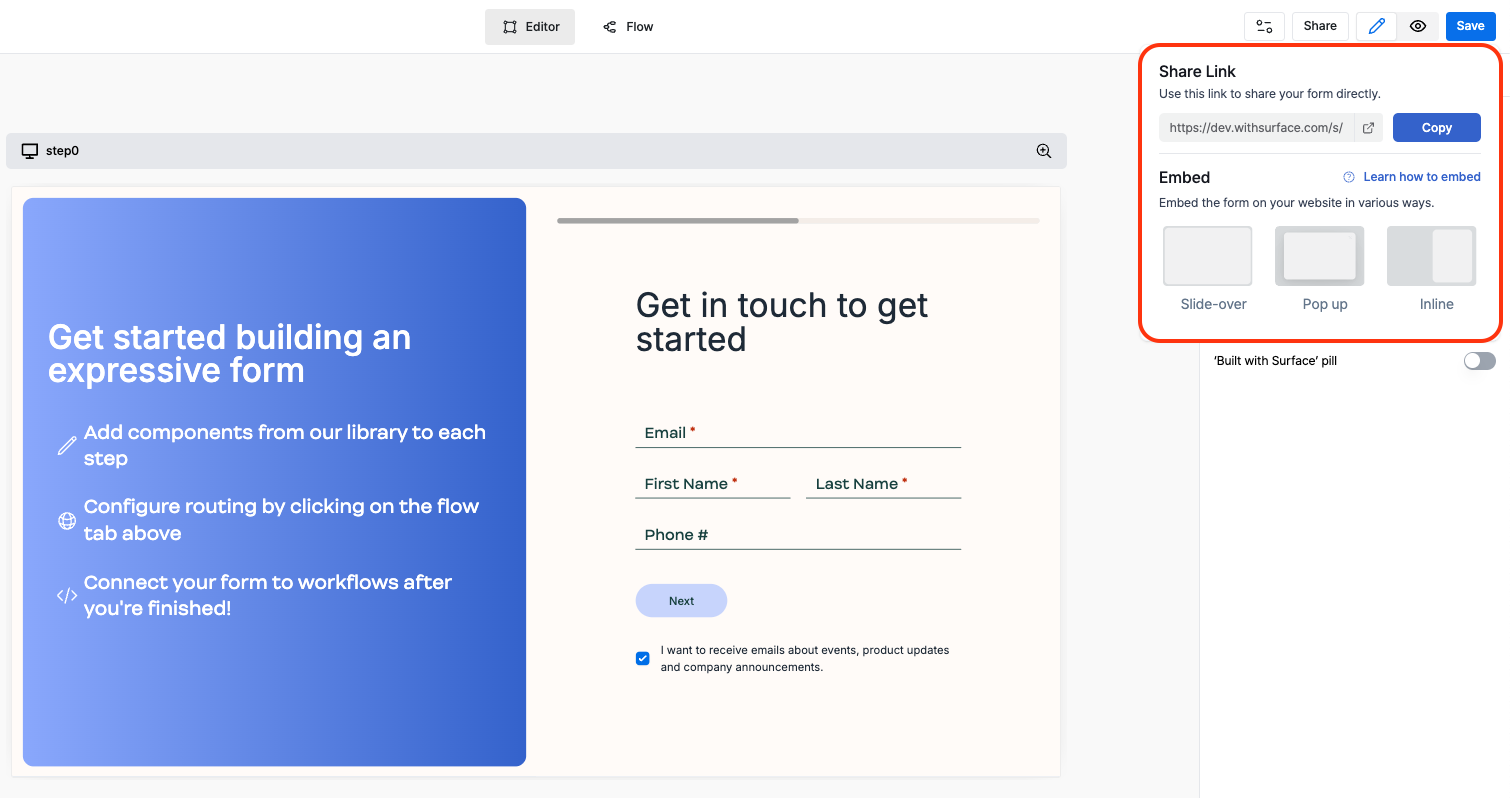 Read more about how to [embed a Surface Form](/platform/forms/embedding) on your site.
---
URL: /guides
# Guides
[Platform](/platform) and [Build](/build) cover each product on its own. Each
guide below gets one job done, usually across several of them.
## Start Here [#start-here]
Read more about how to [embed a Surface Form](/platform/forms/embedding) on your site.
---
URL: /guides
# Guides
[Platform](/platform) and [Build](/build) cover each product on its own. Each
guide below gets one job done, usually across several of them.
## Start Here [#start-here]
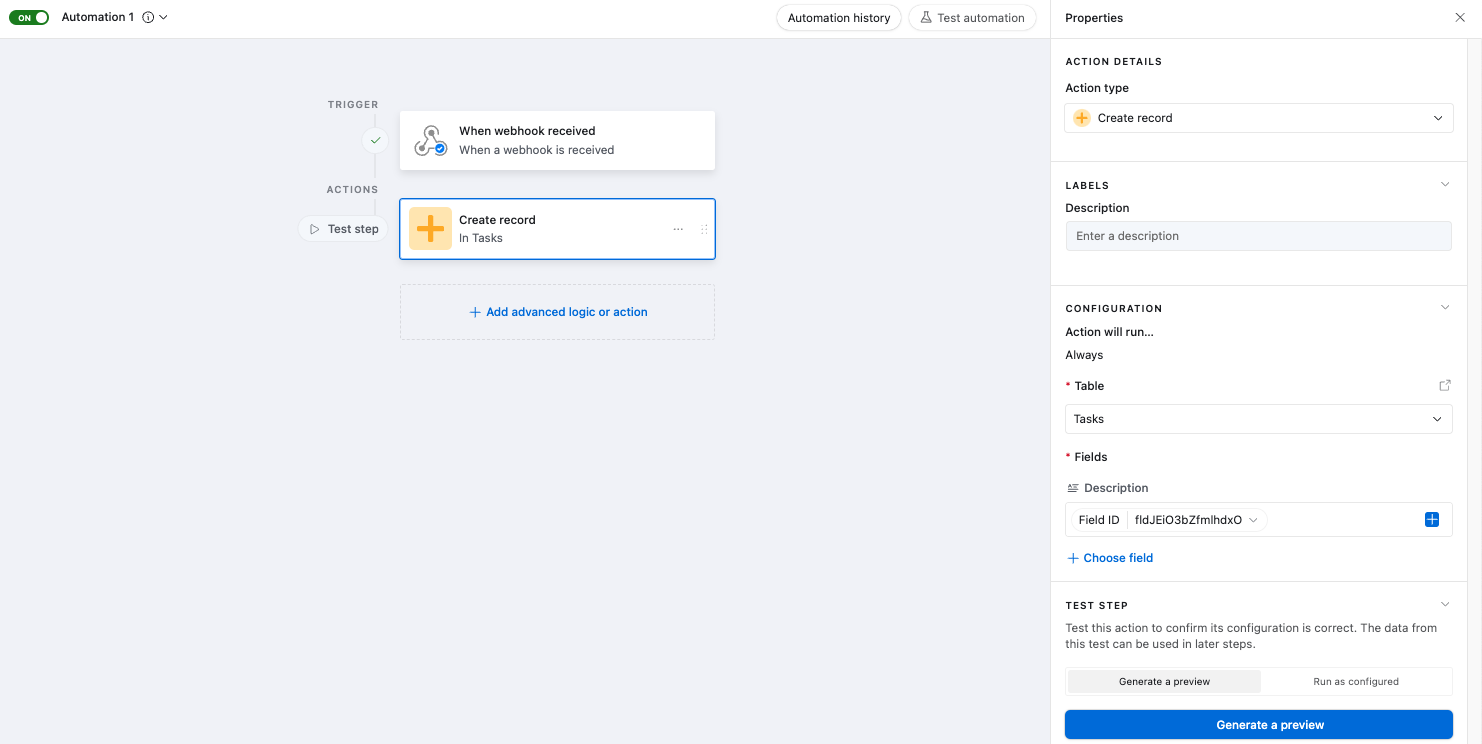
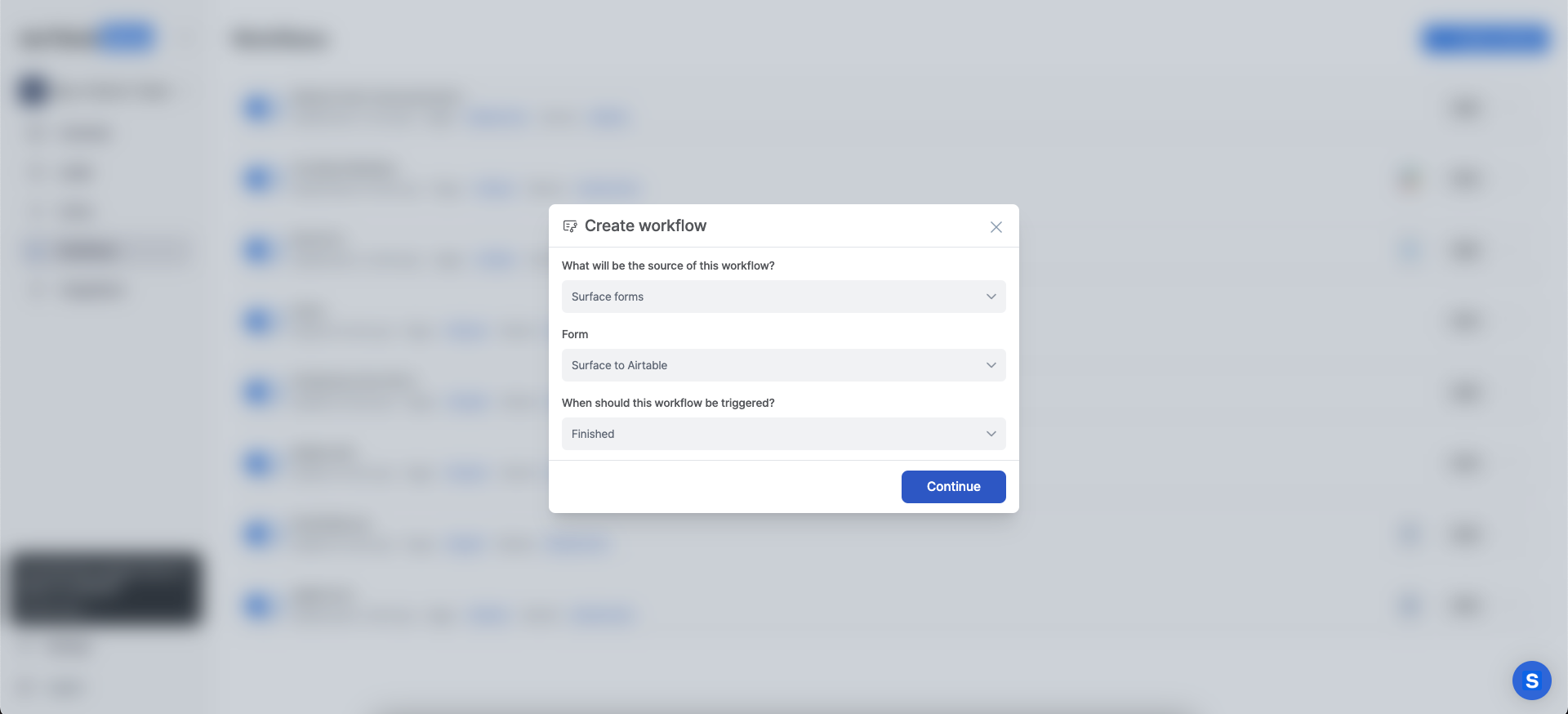 ### Workflow Trigger Options [#workflow-trigger-options]
You can configure when the webhook sends data:
* On form submission
* When visitor drops off
* While form is in progress
### Workflow Trigger Options [#workflow-trigger-options]
You can configure when the webhook sends data:
* On form submission
* When visitor drops off
* While form is in progress
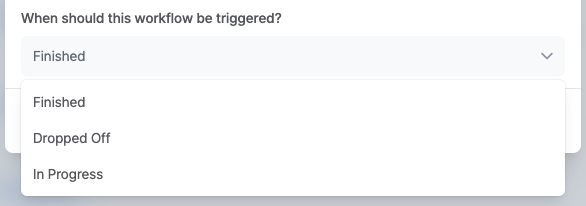 ### Configure the Webhook Action [#configure-the-webhook-action]
1. Click the **+** button to add a new node
2. Select **HTTP Request** from the actions menu
3. In the sidebar configuration:
* Set **Request URL** to your Airtable webhook URL
* Change **HTTP Method** to `POST`
* Under **Body**, add your JSON mapping. Where the object key is the Airtable column name and the value is the form variable.
### Configure the Webhook Action [#configure-the-webhook-action]
1. Click the **+** button to add a new node
2. Select **HTTP Request** from the actions menu
3. In the sidebar configuration:
* Set **Request URL** to your Airtable webhook URL
* Change **HTTP Method** to `POST`
* Under **Body**, add your JSON mapping. Where the object key is the Airtable column name and the value is the form variable.
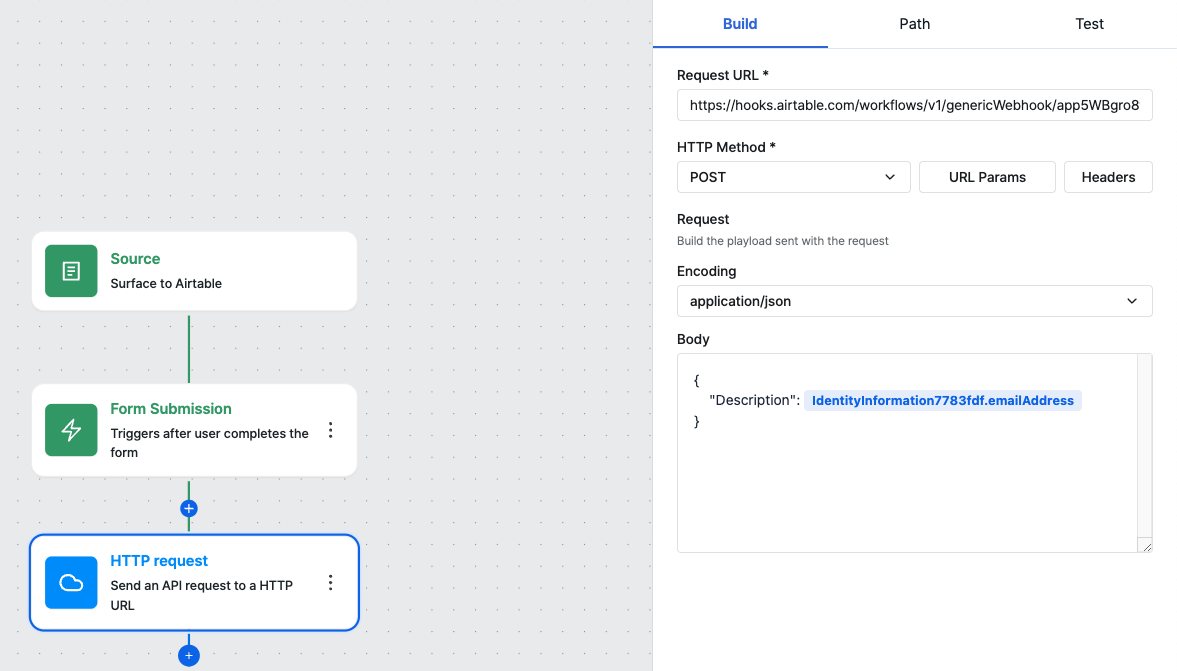
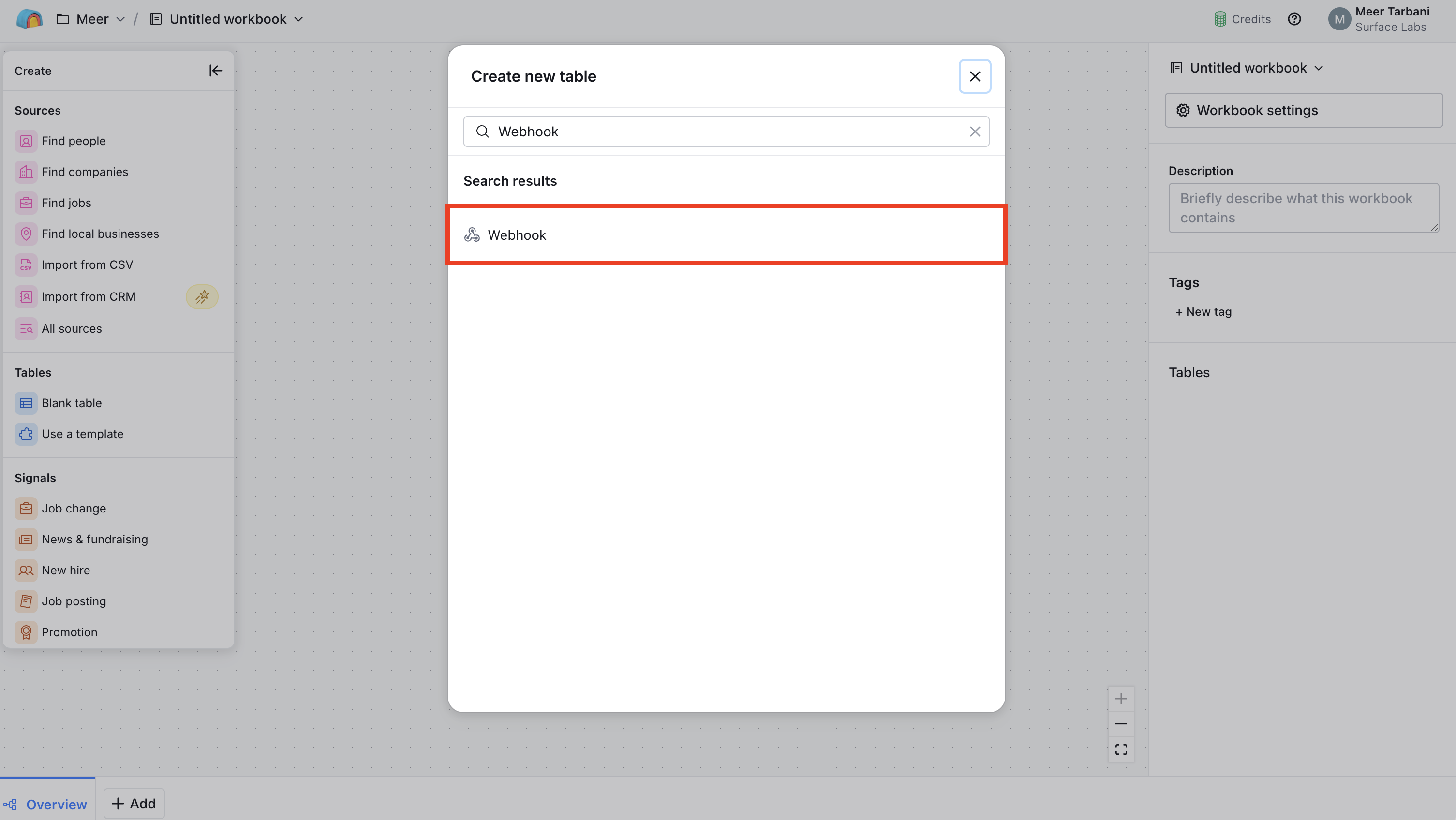 ## Step 2: Copy the Webhook URL and Set Response Format [#step-2-copy-the-webhook-url-and-set-response-format]
1. In the Webhook source configuration, find the **Webhook URL**
2. Copy the Webhook URL. You'll paste this into Surface in a later step
3. Set `Send response as` to `JSON` so Clay expects and parses JSON payloads
## Step 2: Copy the Webhook URL and Set Response Format [#step-2-copy-the-webhook-url-and-set-response-format]
1. In the Webhook source configuration, find the **Webhook URL**
2. Copy the Webhook URL. You'll paste this into Surface in a later step
3. Set `Send response as` to `JSON` so Clay expects and parses JSON payloads
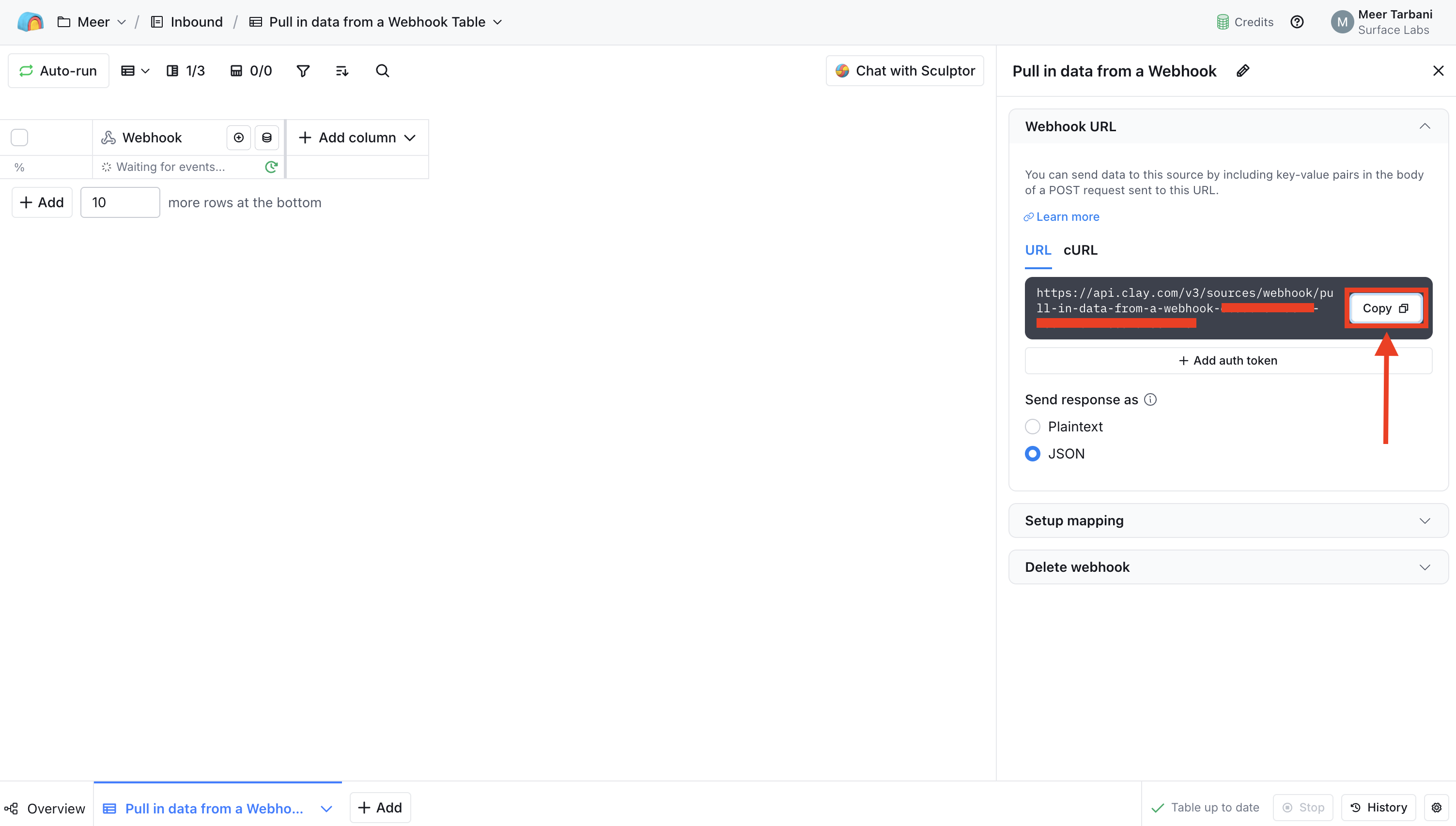 ## Step 3: Add an HTTP Request Action in Surface Workflow Builder [#step-3-add-an-http-request-action-in-surface-workflow-builder]
1. Open the **Workflow Builder** in the Surface Platform for your form
2. Add a new action to your workflow
3. Select **HTTP Request** from the available actions
## Step 3: Add an HTTP Request Action in Surface Workflow Builder [#step-3-add-an-http-request-action-in-surface-workflow-builder]
1. Open the **Workflow Builder** in the Surface Platform for your form
2. Add a new action to your workflow
3. Select **HTTP Request** from the available actions
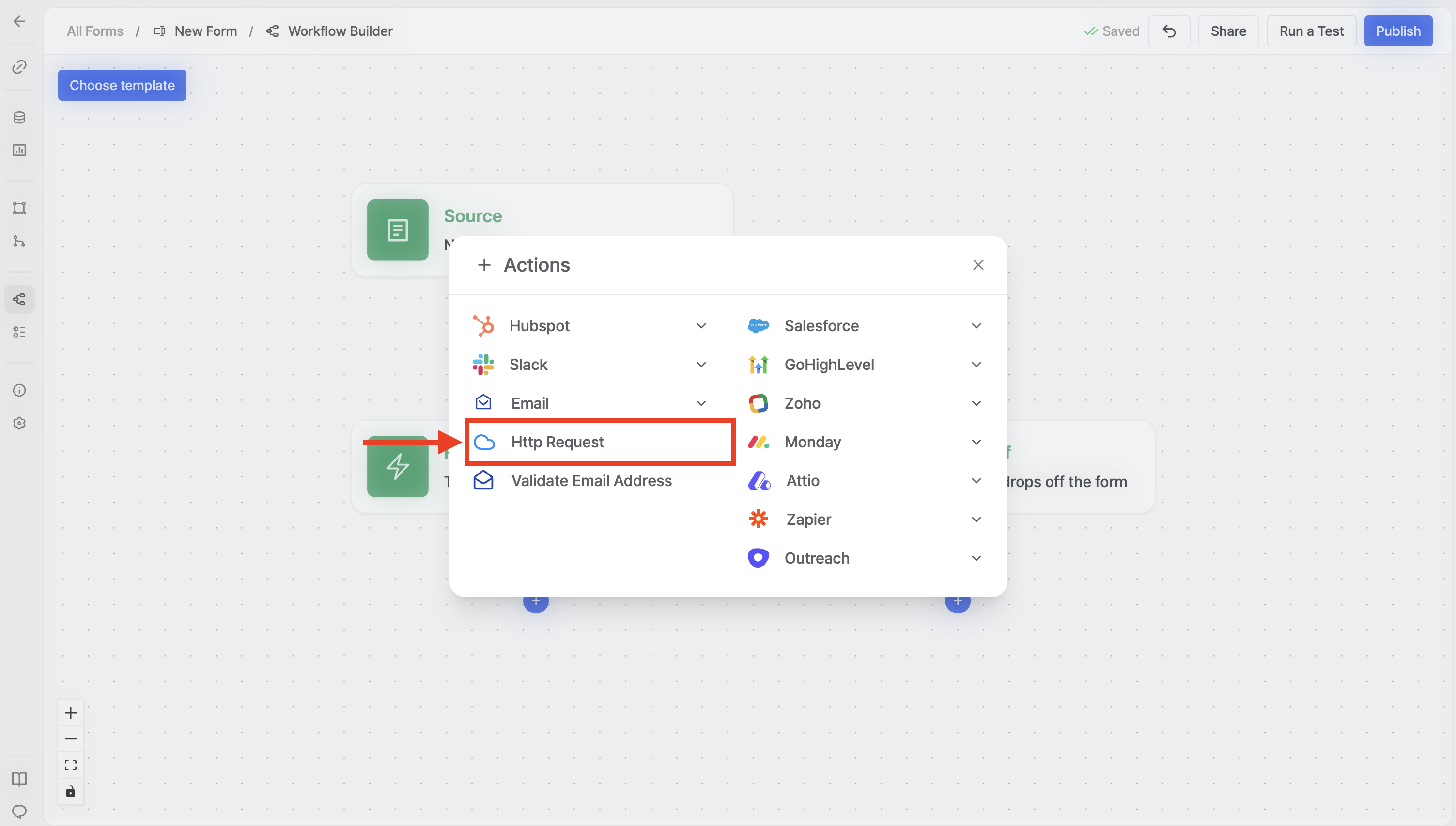 ## Step 4: Configure the HTTP Request Action [#step-4-configure-the-http-request-action]
Configure the HTTP Request action:
1. **Request URL**: Paste the Webhook URL you copied from Clay
2. **HTTP Method**: Set to **POST**
3. **Body**: Add a JSON object where each key is the field name Clay expects and each value is the form data. Use the `@` symbol in the workflow builder to insert form variables (e.g. `@email`, `@name`).
## Step 4: Configure the HTTP Request Action [#step-4-configure-the-http-request-action]
Configure the HTTP Request action:
1. **Request URL**: Paste the Webhook URL you copied from Clay
2. **HTTP Method**: Set to **POST**
3. **Body**: Add a JSON object where each key is the field name Clay expects and each value is the form data. Use the `@` symbol in the workflow builder to insert form variables (e.g. `@email`, `@name`).
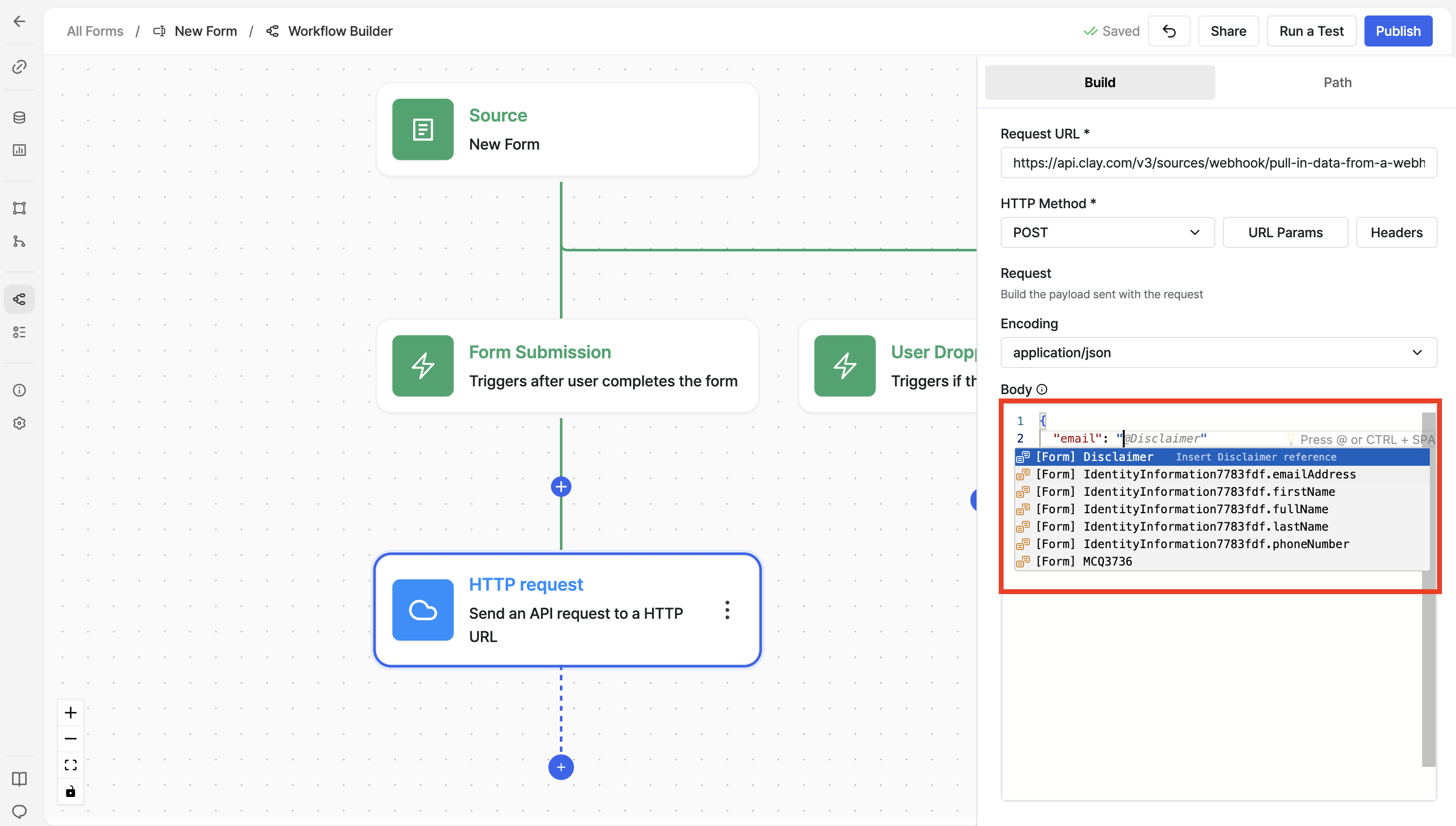
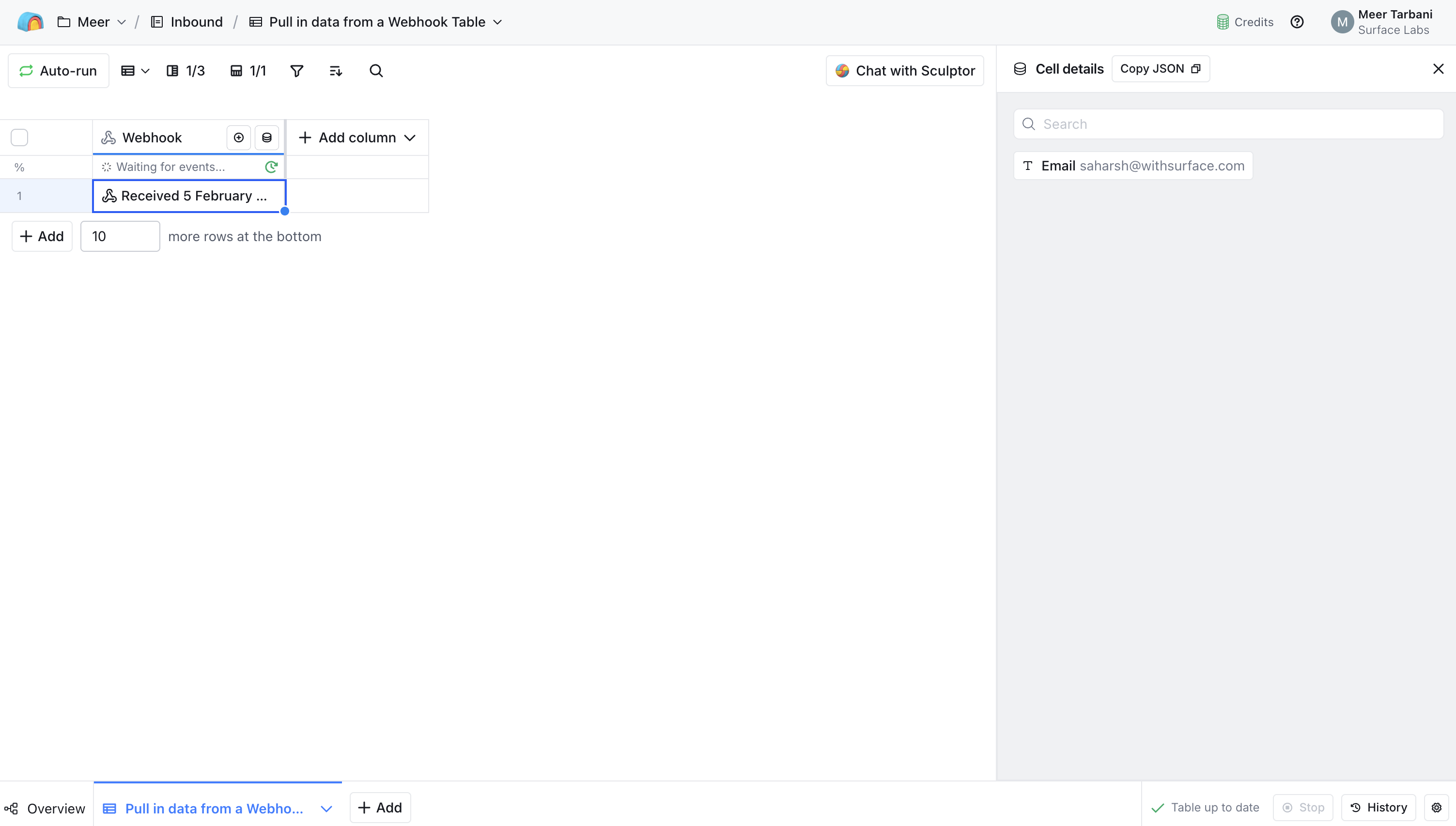 ## Troubleshooting [#troubleshooting]
If data isn't appearing in Clay:
* Confirm the Webhook URL in the HTTP Request action matches the URL from Clay exactly
* Ensure `Send response as` is set to `JSON` in Clay and your request body is valid JSON
* Check that the JSON keys in the body match the columns or fields Clay expects
* Review workflow logs in Surface to see if the request was sent and whether Clay returned any errors
---
URL: /guides/send-data-to-hubspot
# Send Data to HubSpot
Send Surface form submissions to **HubSpot** with the built-in HubSpot action: create or update contacts, companies, deals, and more.
## Prerequisites [#prerequisites]
You need:
* A **Surface** account
* A **HubSpot** account with the right permissions
* Admin access to connect HubSpot to Surface
## Step 1: Connect HubSpot to Surface Forms [#step-1-connect-hubspot-to-surface-forms]
## Troubleshooting [#troubleshooting]
If data isn't appearing in Clay:
* Confirm the Webhook URL in the HTTP Request action matches the URL from Clay exactly
* Ensure `Send response as` is set to `JSON` in Clay and your request body is valid JSON
* Check that the JSON keys in the body match the columns or fields Clay expects
* Review workflow logs in Surface to see if the request was sent and whether Clay returned any errors
---
URL: /guides/send-data-to-hubspot
# Send Data to HubSpot
Send Surface form submissions to **HubSpot** with the built-in HubSpot action: create or update contacts, companies, deals, and more.
## Prerequisites [#prerequisites]
You need:
* A **Surface** account
* A **HubSpot** account with the right permissions
* Admin access to connect HubSpot to Surface
## Step 1: Connect HubSpot to Surface Forms [#step-1-connect-hubspot-to-surface-forms]
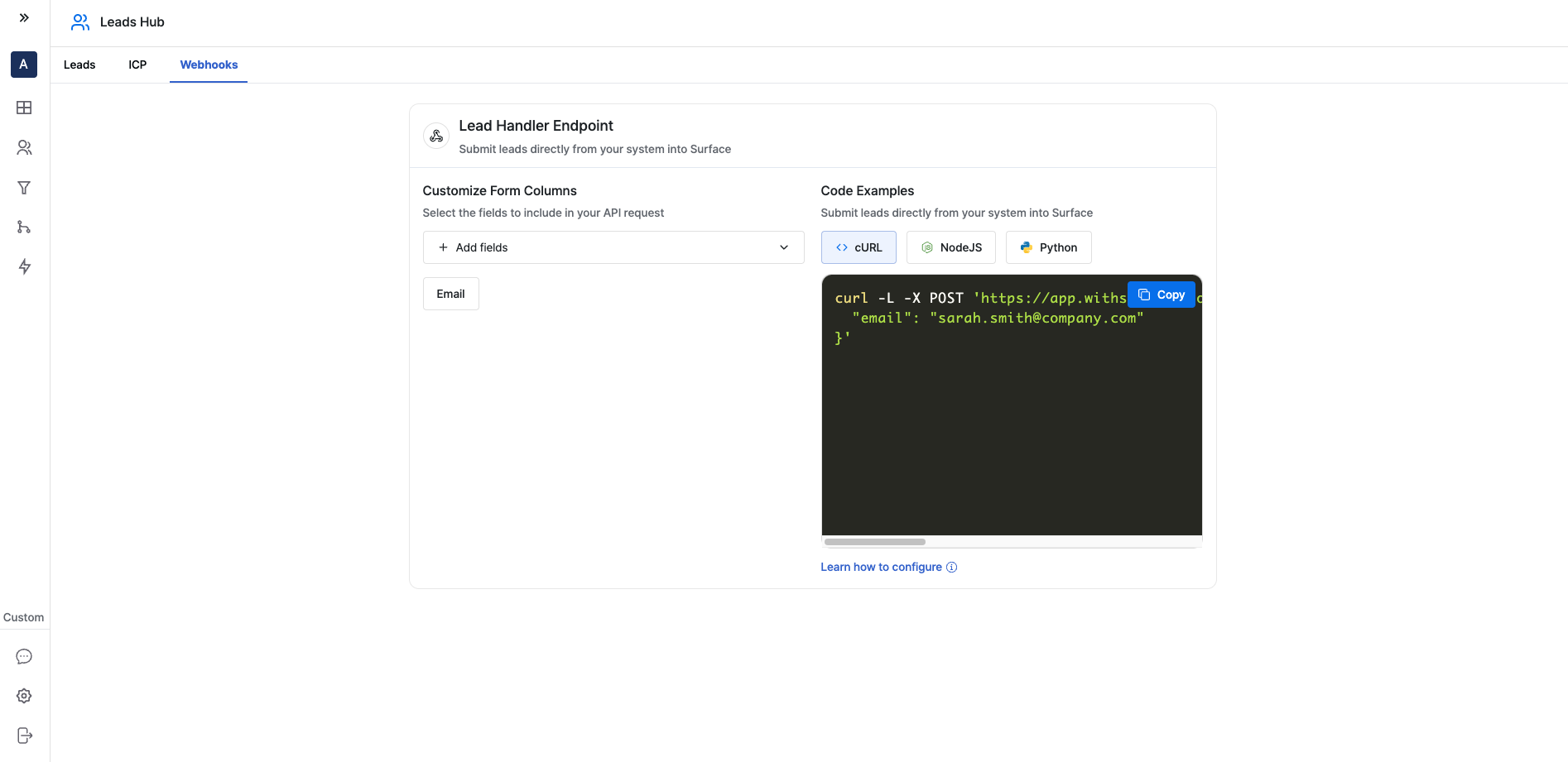 1. Log in to your Surface account
2. Navigate to Leads Hub from the side navigation bar
3. Click on the "Webhooks" tab
### Configure Fields [#configure-fields]
1. Log in to your Surface account
2. Navigate to Leads Hub from the side navigation bar
3. Click on the "Webhooks" tab
### Configure Fields [#configure-fields]
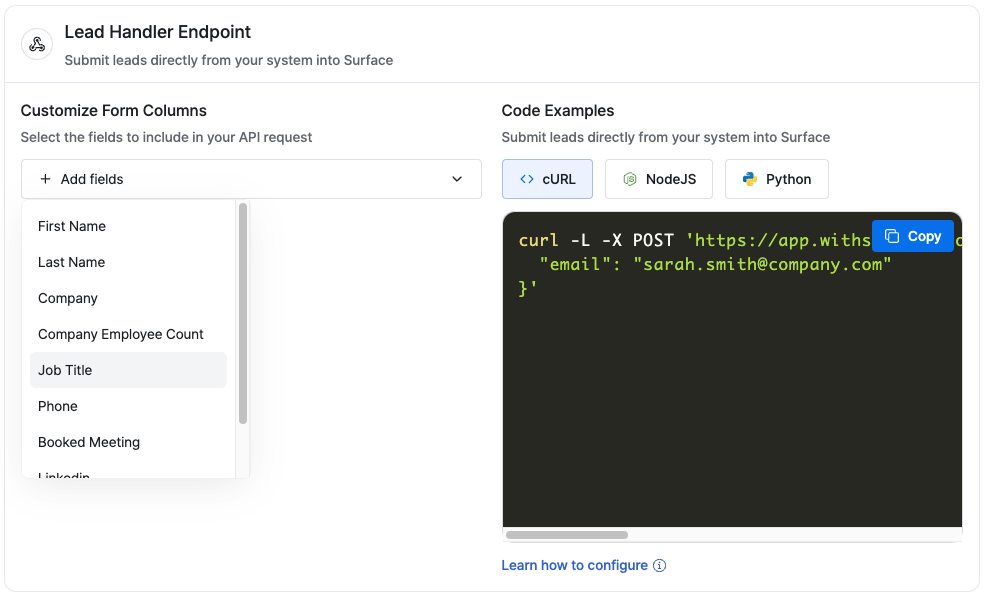 Click on `+ Add fields` and select the fields you want to receive from webhooks from the dropdown.
### Copy Webhook URL [#copy-webhook-url]
Click on `+ Add fields` and select the fields you want to receive from webhooks from the dropdown.
### Copy Webhook URL [#copy-webhook-url]
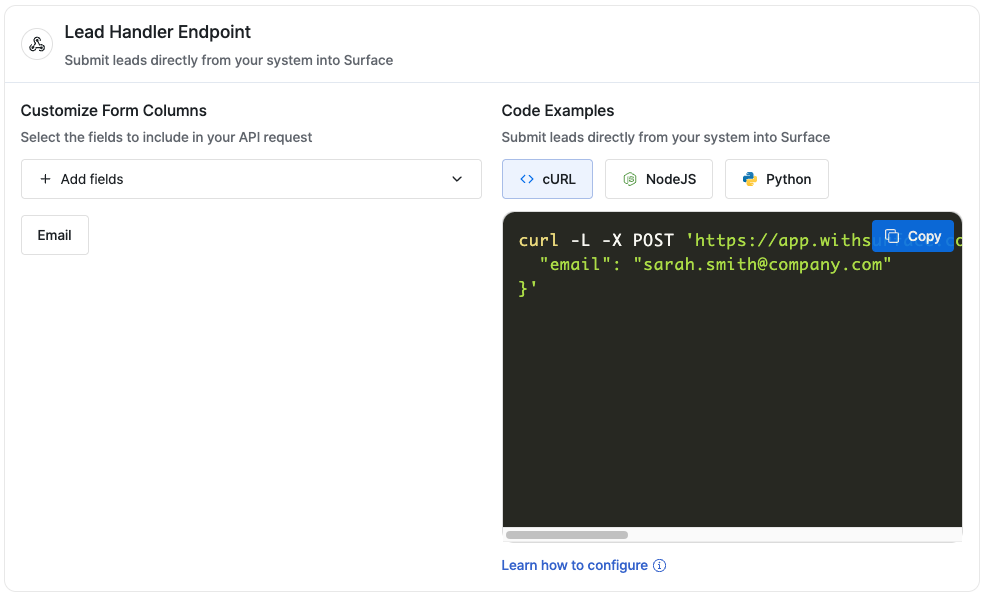 Copy the webhook URL provided in the snippets section (available for CURL, NodeJS, and Python).
## Step 2: Set Up Framer Form [#step-2-set-up-framer-form]
Copy the webhook URL provided in the snippets section (available for CURL, NodeJS, and Python).
## Step 2: Set Up Framer Form [#step-2-set-up-framer-form]
 1. Open your Framer project
2. Add a Form Component from the Component Selector
### Configure Form Component [#configure-form-component]
1. Open your Framer project
2. Add a Form Component from the Component Selector
### Configure Form Component [#configure-form-component]
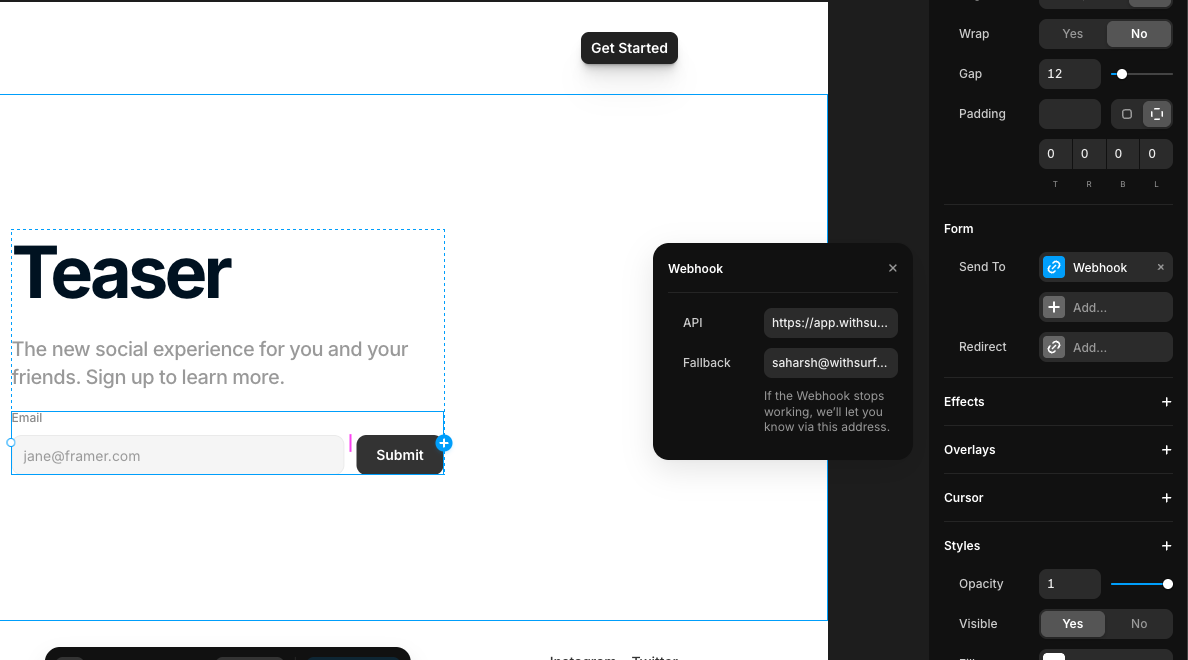 Select the Form Component and go to the right-side config sidebar, under the "Form" section:
* Select "Webhook" as the Send To option
* Paste the webhook URL you copied from Surface
### Configure Form Fields [#configure-form-fields]
Select the Form Component and go to the right-side config sidebar, under the "Form" section:
* Select "Webhook" as the Send To option
* Paste the webhook URL you copied from Surface
### Configure Form Fields [#configure-form-fields]
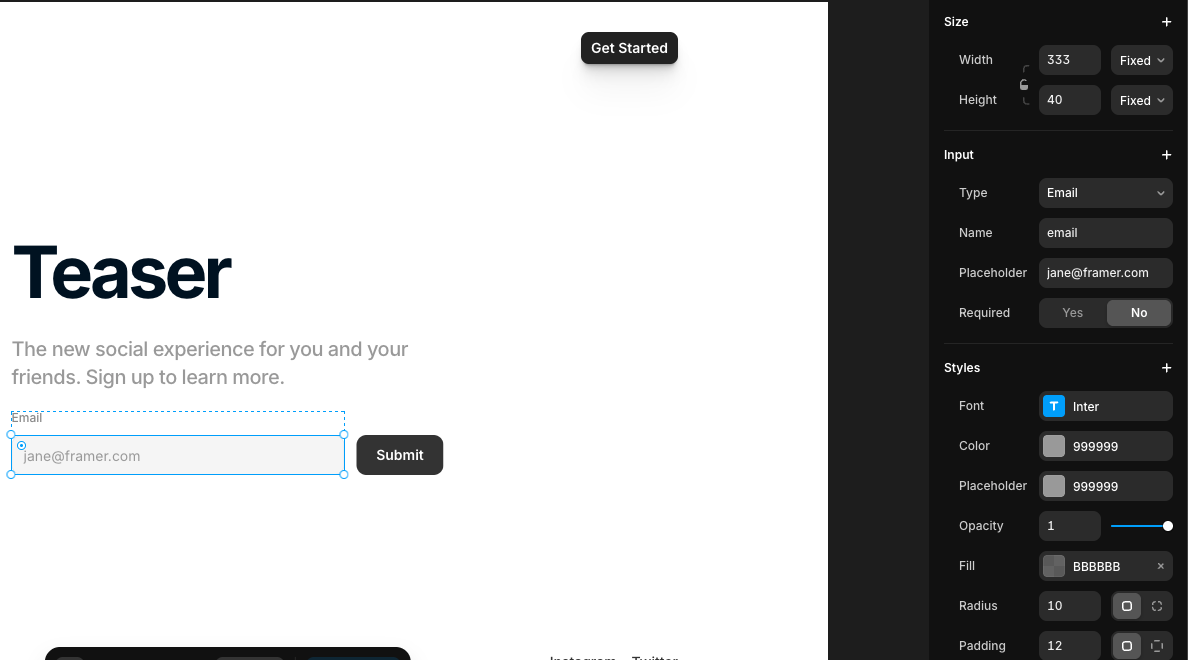 1. Select each input field in your form
2. In the config sidebar for each field:
* Set the appropriate Type (text, email, phone, etc.)
* The `Name` field should match the fields you configured in Surface
1. Select each input field in your form
2. In the config sidebar for each field:
* Set the appropriate Type (text, email, phone, etc.)
* The `Name` field should match the fields you configured in Surface
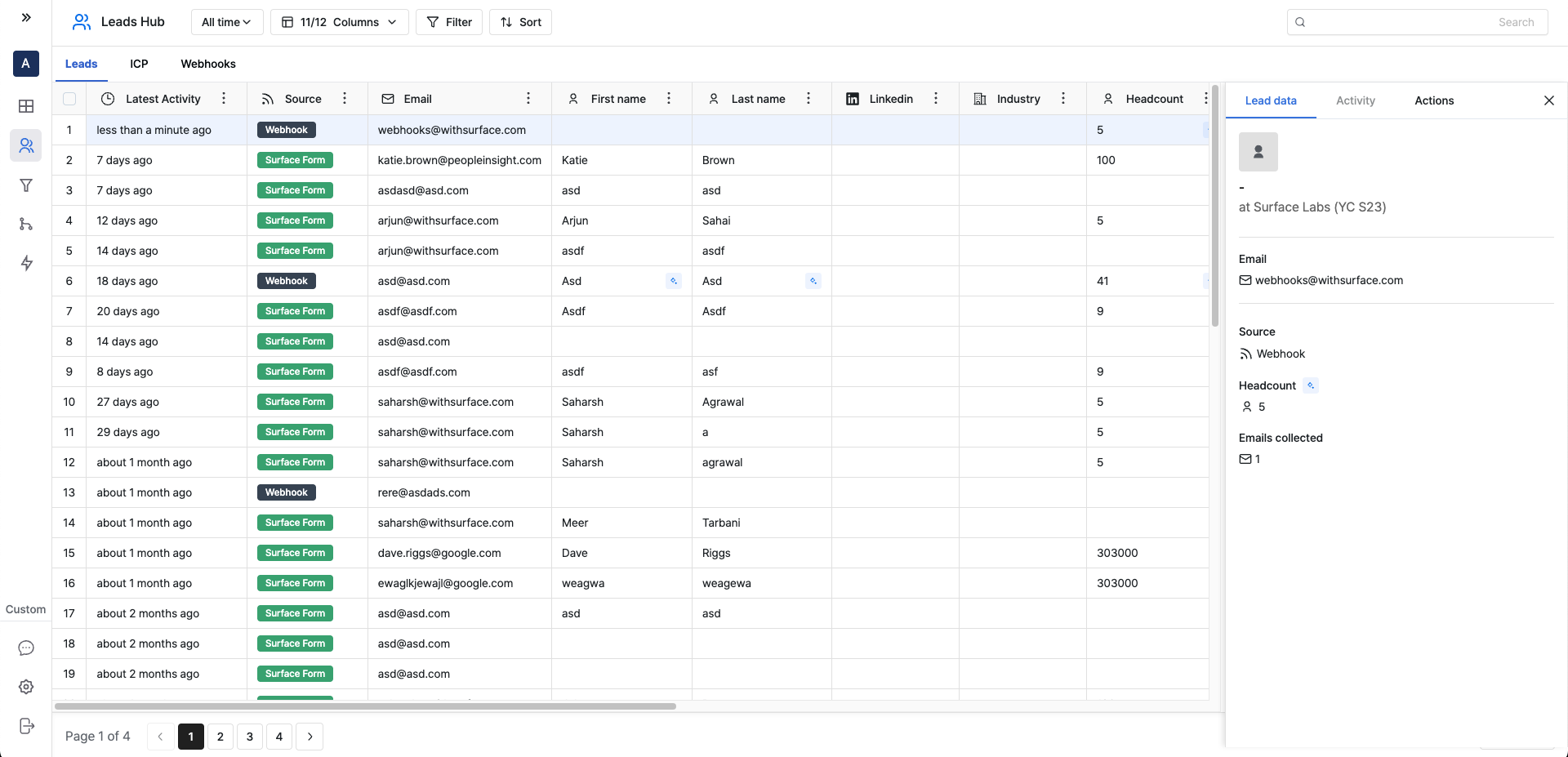 1. Publish your website
2. Test the form by submitting sample data
3. Check your Surface Leads Hub to verify that:
* The data is received correctly
* The lead information is properly enriched
## Troubleshooting [#troubleshooting]
If you're not seeing the data in Surface Leads Hub:
1. Verify the webhook URL is correct
2. Check that the field names in your form match the configured fields in Surface
3. Check the network tab in your browser's developer tools for any errors when submitting the form
---
URL: /guides/track-ai-visibility
# Track Your AI Visibility for a Launch
This measures whether an answer engine names you when a buyer asks about the
problem you launched into. Take the baseline before you ship, or you will not
know afterwards whether the launch moved anything.
## 1. Two Weeks Before Launch: Write the Prompts [#1-two-weeks-before-launch-write-the-prompts]
Write prompts the way a buyer would type them, covering the ground the launch
is aimed at. The kinds below are a checklist for your own coverage, not a
feature in the product:
| Kind of question | Write |
| ---------------- | ------------------------------------------------------------------------- |
| **Category** | "What tools do X?" Tests whether you are in the consideration set at all. |
| **Problem** | "How do I stop Y happening?" Catches buyers who do not know the category. |
| **Comparison** | "A vs B", "alternatives to C". Highest intent. |
| **Evaluation** | "How long does X take to set up?" Where wrong answers cost deals. |
| **Pricing** | "Which X tools do not charge per seat?" Often clearly yours. |
Take the phrasing from sales calls. One prompt copied word for word from a
first call is worth more than five you invented:
[tracked prompts](/platform/ai-visibility/tracked-prompts).
## 2. Scan, and Write the Baseline Down [#2-scan-and-write-the-baseline-down]
```
trigger_scan { "profileId": "..." }
```
Record three numbers before anything ships: visibility score, content coverage,
and the competitor at the top.
## 3. Read the Gaps as a Brief [#3-read-the-gaps-as-a-brief]
The prompts where a competitor is cited and you are not are your publishing
plan. Rank by decision impact, not distance behind:
[acting on gaps](/platform/ai-visibility/acting-on-gaps).
Then pull the [cited sources](/platform/ai-visibility/cited-sources) for the
ones you picked: what the models have already absorbed about the category, and
which directories or review sites you are absent from. That second list is the
part you can edit yourself, so start there.
## 4. Publish Against Them [#4-publish-against-them]
Brief the [content agent](/platform/campaign-agents/content-agent) with three
things:
* the exact prompt text,
* the competitors currently cited for it,
* the domains those answers pulled from.
Write the claim plainly and near the top. Answer engines quote sentences, and a
buried one does not get quoted.
## 5. Re-scan, Twice [#5-re-scan-twice]
Pick the re-scan dates before you publish, and use more than one: models do not
all move at the same time, and a single scan is a single sample. Compare each
against the step 2 baseline, per model.
1. Publish your website
2. Test the form by submitting sample data
3. Check your Surface Leads Hub to verify that:
* The data is received correctly
* The lead information is properly enriched
## Troubleshooting [#troubleshooting]
If you're not seeing the data in Surface Leads Hub:
1. Verify the webhook URL is correct
2. Check that the field names in your form match the configured fields in Surface
3. Check the network tab in your browser's developer tools for any errors when submitting the form
---
URL: /guides/track-ai-visibility
# Track Your AI Visibility for a Launch
This measures whether an answer engine names you when a buyer asks about the
problem you launched into. Take the baseline before you ship, or you will not
know afterwards whether the launch moved anything.
## 1. Two Weeks Before Launch: Write the Prompts [#1-two-weeks-before-launch-write-the-prompts]
Write prompts the way a buyer would type them, covering the ground the launch
is aimed at. The kinds below are a checklist for your own coverage, not a
feature in the product:
| Kind of question | Write |
| ---------------- | ------------------------------------------------------------------------- |
| **Category** | "What tools do X?" Tests whether you are in the consideration set at all. |
| **Problem** | "How do I stop Y happening?" Catches buyers who do not know the category. |
| **Comparison** | "A vs B", "alternatives to C". Highest intent. |
| **Evaluation** | "How long does X take to set up?" Where wrong answers cost deals. |
| **Pricing** | "Which X tools do not charge per seat?" Often clearly yours. |
Take the phrasing from sales calls. One prompt copied word for word from a
first call is worth more than five you invented:
[tracked prompts](/platform/ai-visibility/tracked-prompts).
## 2. Scan, and Write the Baseline Down [#2-scan-and-write-the-baseline-down]
```
trigger_scan { "profileId": "..." }
```
Record three numbers before anything ships: visibility score, content coverage,
and the competitor at the top.
## 3. Read the Gaps as a Brief [#3-read-the-gaps-as-a-brief]
The prompts where a competitor is cited and you are not are your publishing
plan. Rank by decision impact, not distance behind:
[acting on gaps](/platform/ai-visibility/acting-on-gaps).
Then pull the [cited sources](/platform/ai-visibility/cited-sources) for the
ones you picked: what the models have already absorbed about the category, and
which directories or review sites you are absent from. That second list is the
part you can edit yourself, so start there.
## 4. Publish Against Them [#4-publish-against-them]
Brief the [content agent](/platform/campaign-agents/content-agent) with three
things:
* the exact prompt text,
* the competitors currently cited for it,
* the domains those answers pulled from.
Write the claim plainly and near the top. Answer engines quote sentences, and a
buried one does not get quoted.
## 5. Re-scan, Twice [#5-re-scan-twice]
Pick the re-scan dates before you publish, and use more than one: models do not
all move at the same time, and a single scan is a single sample. Compare each
against the step 2 baseline, per model.
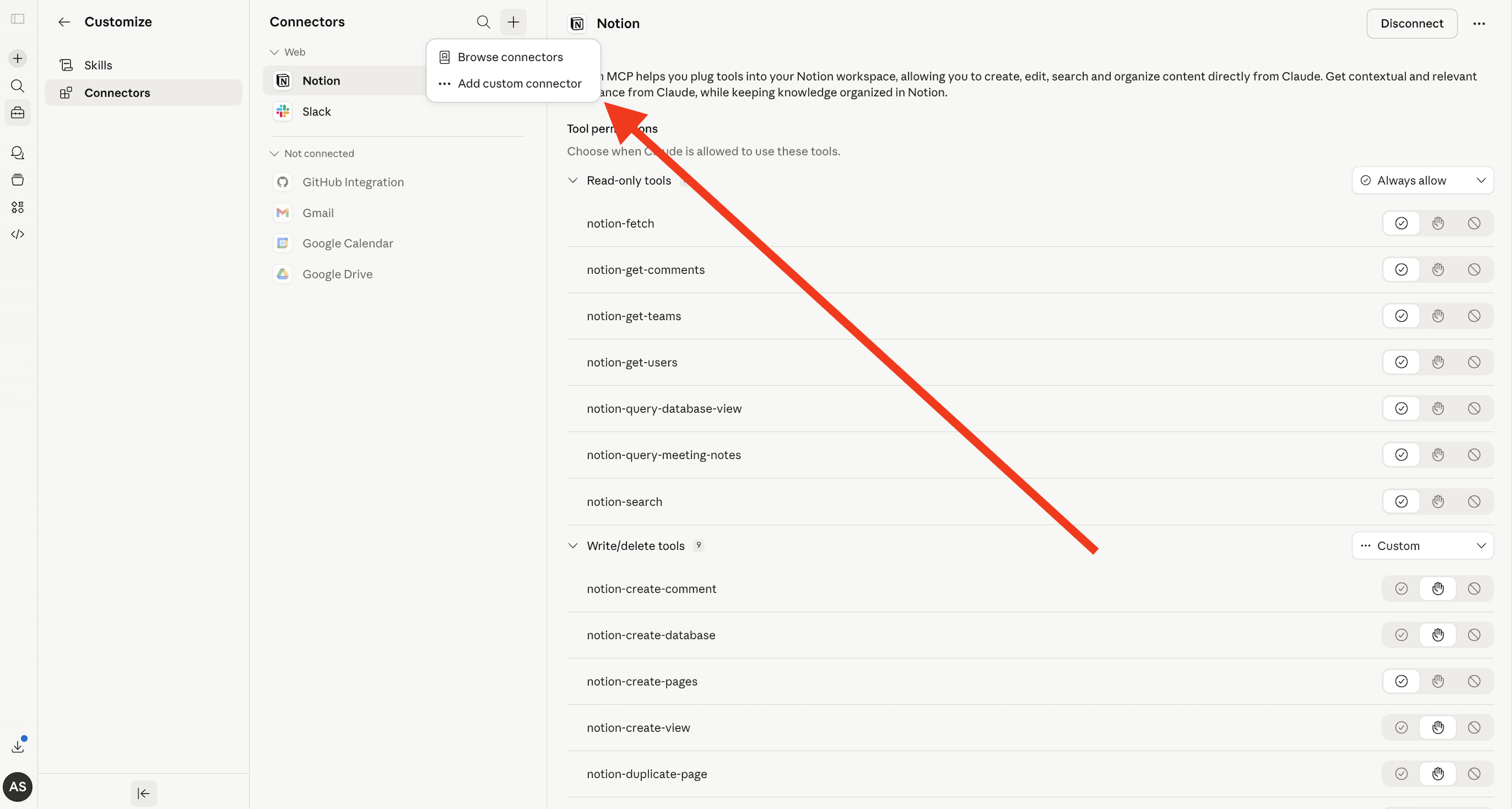
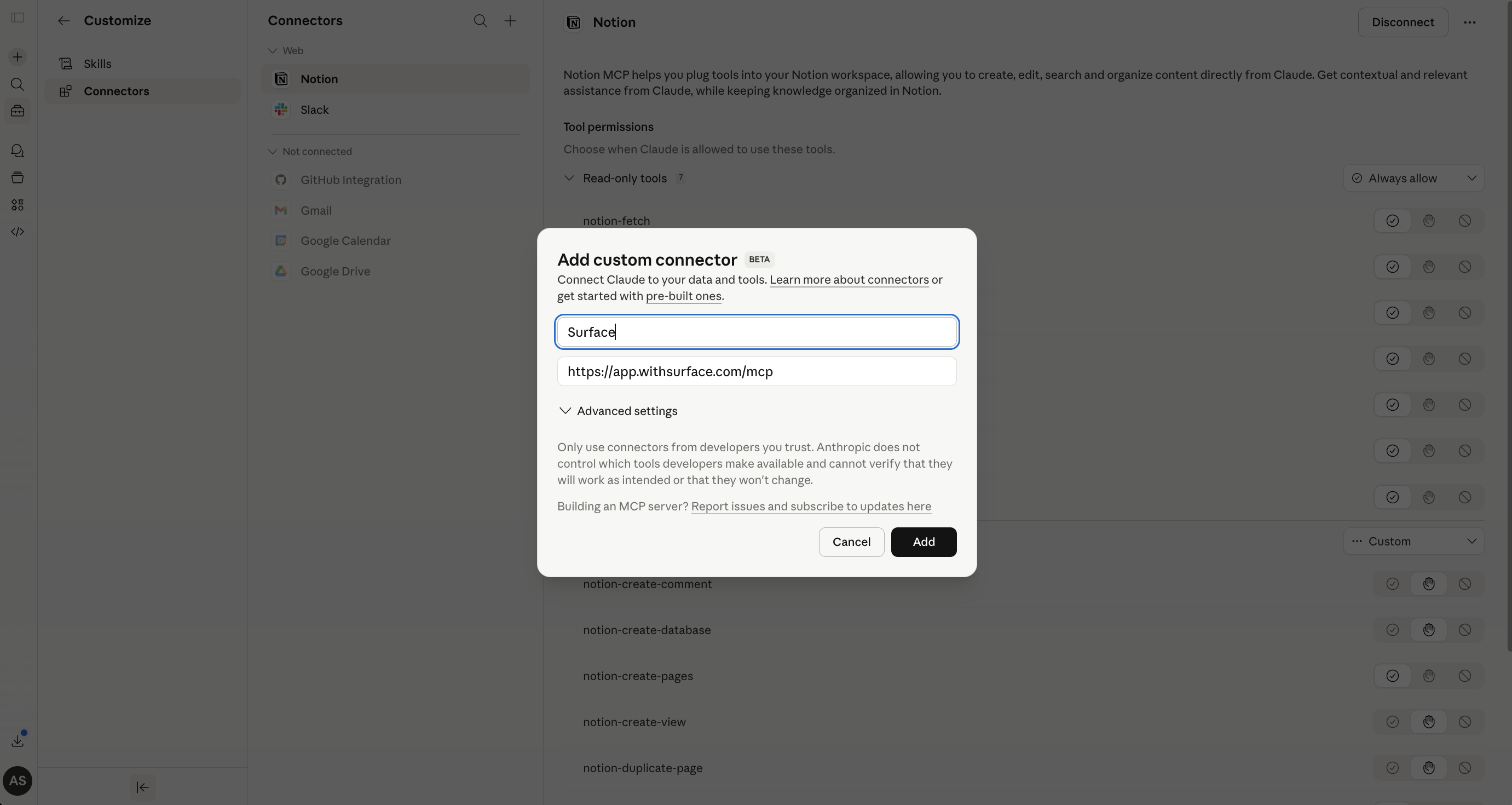
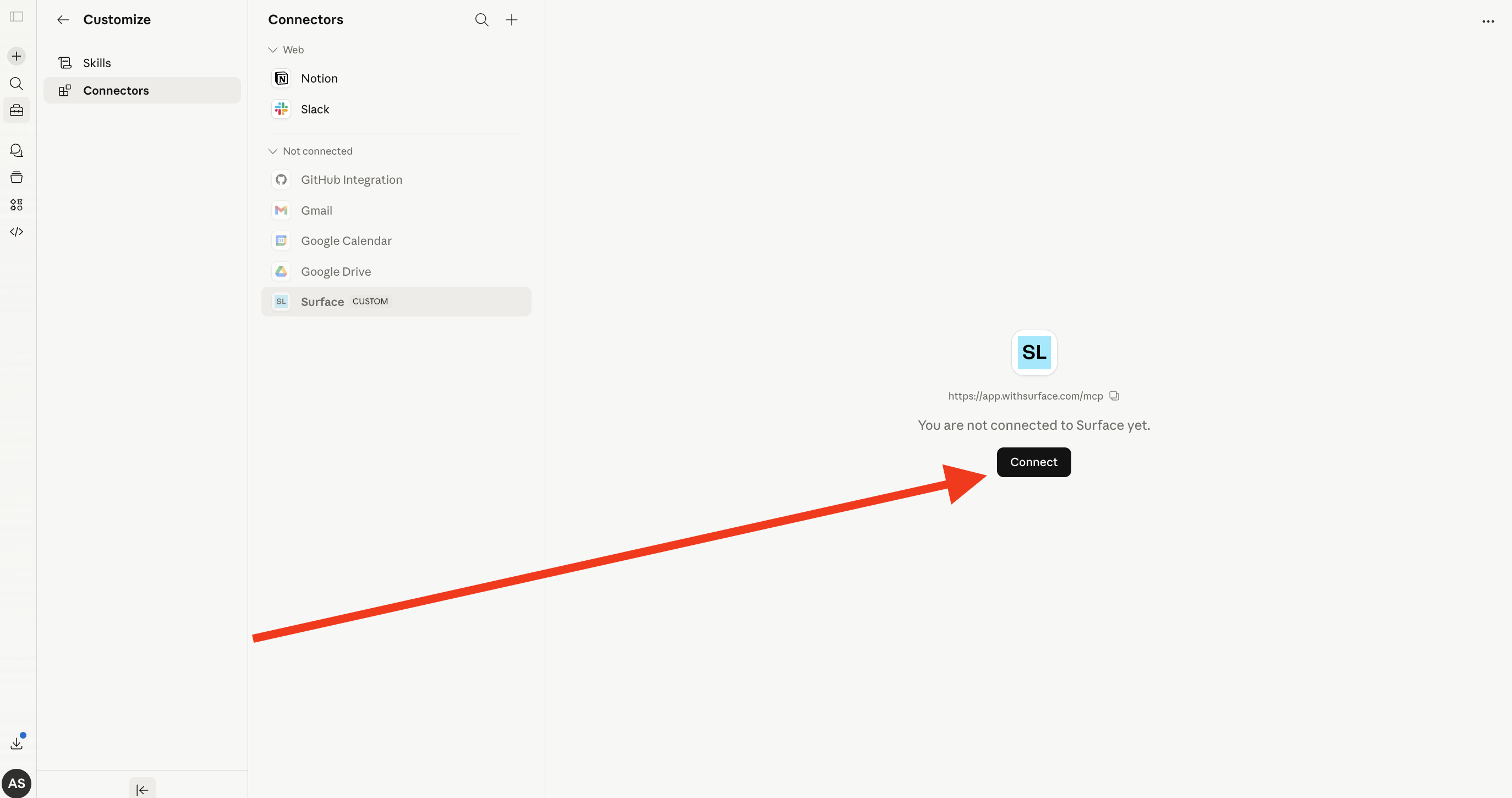 Choose your environment and complete the connection. Surface now appears as a connector in Claude.
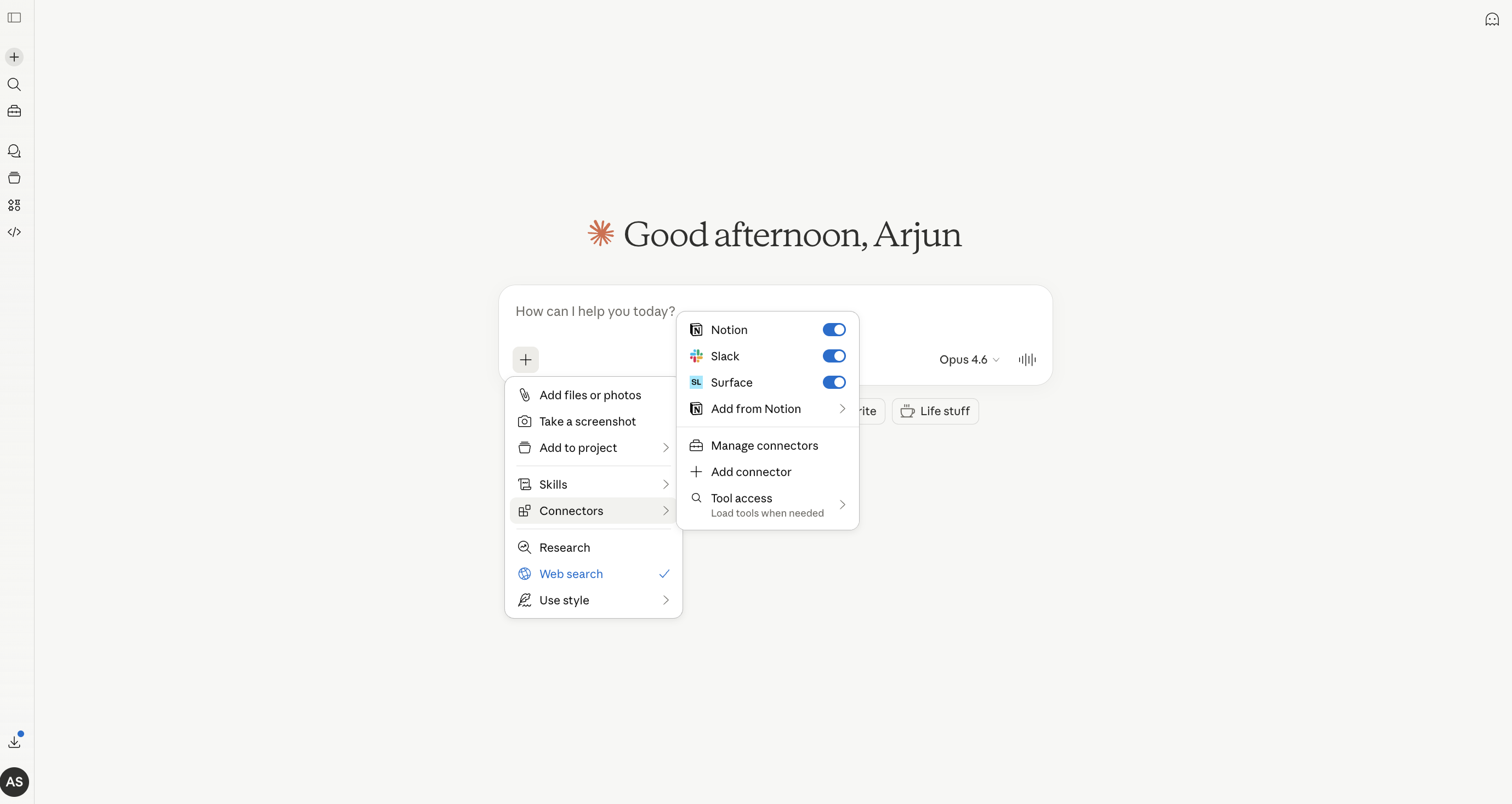
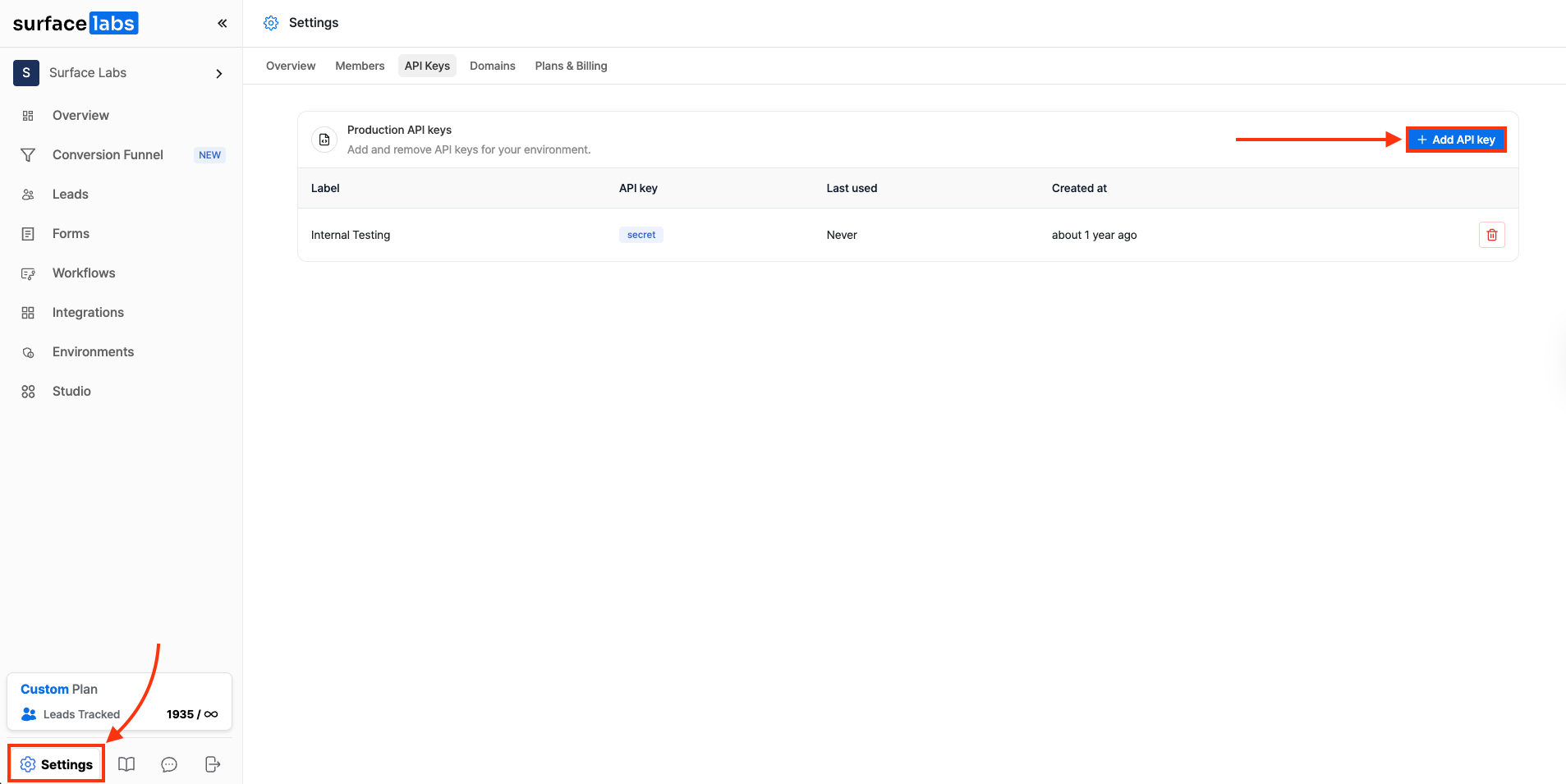 1. Log in to your Surface account.
2. Go to **Settings** > **API Keys**.
3. Click on **+ Add API Key**.
4. Give your key a name and click **Create**.
5. **Copy and note down the API key** immediately, as it won't be shown again.
1. Log in to your Surface account.
2. Go to **Settings** > **API Keys**.
3. Click on **+ Add API Key**.
4. Give your key a name and click **Create**.
5. **Copy and note down the API key** immediately, as it won't be shown again.
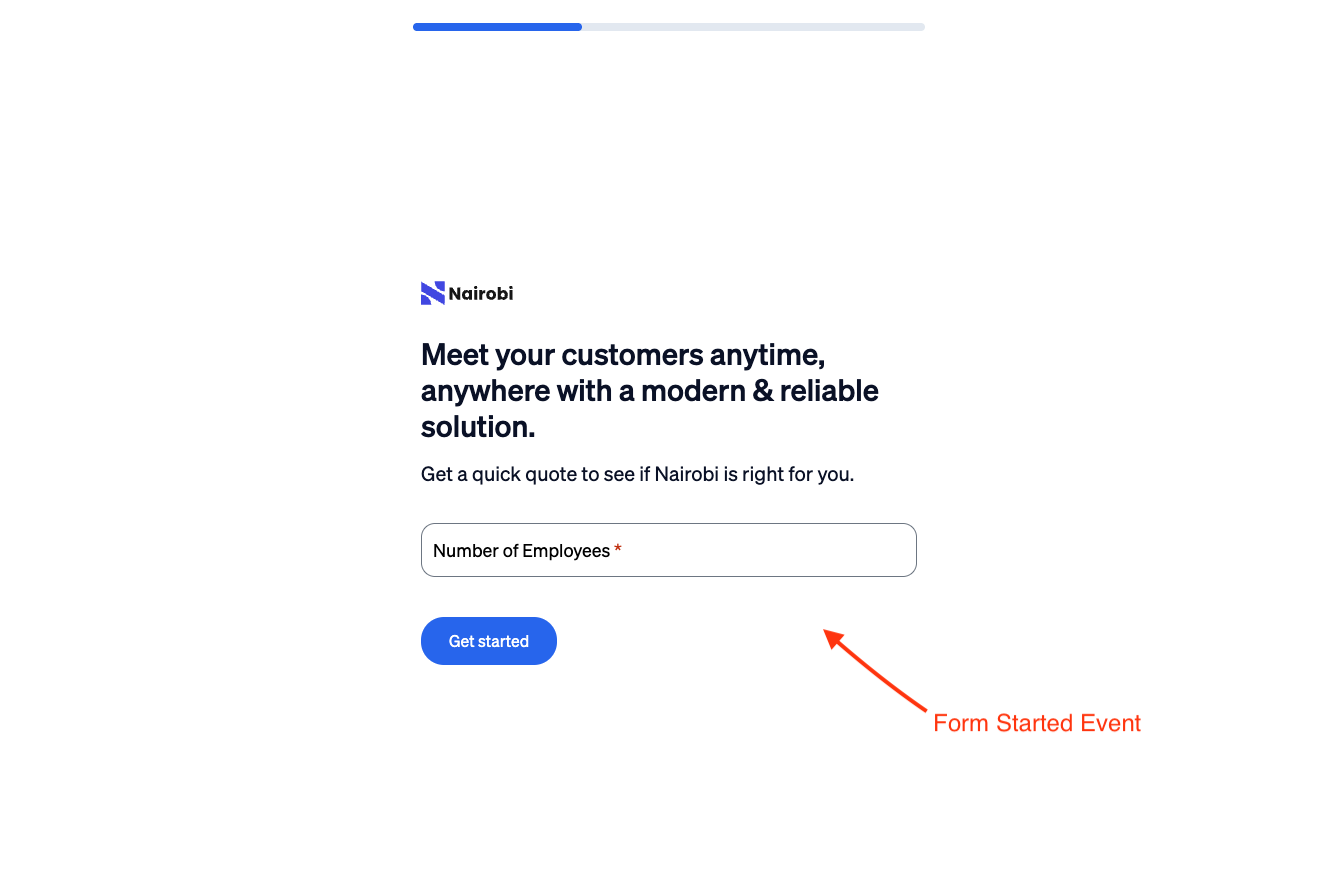 When a user starts filling out a form, the `SurfaceFormStarted` event is emitted.
### Step Completion Event [#step-completion-event]
When a user starts filling out a form, the `SurfaceFormStarted` event is emitted.
### Step Completion Event [#step-completion-event]
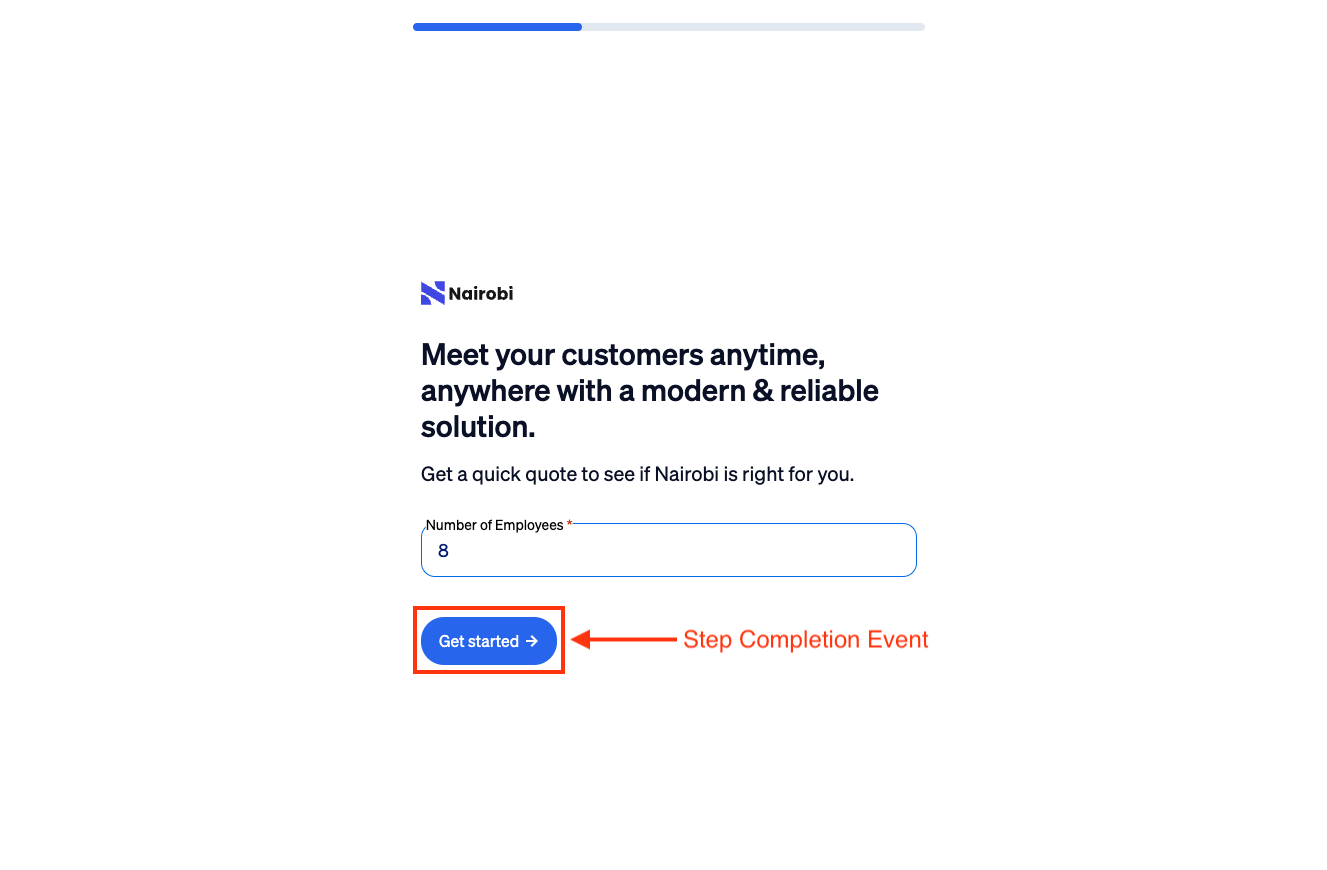 Each time a user completes a step in a multi-step form, the `SurfaceFormStepSubmitted` event is emitted.
### Email Provided Event [#email-provided-event]
Each time a user completes a step in a multi-step form, the `SurfaceFormStepSubmitted` event is emitted.
### Email Provided Event [#email-provided-event]
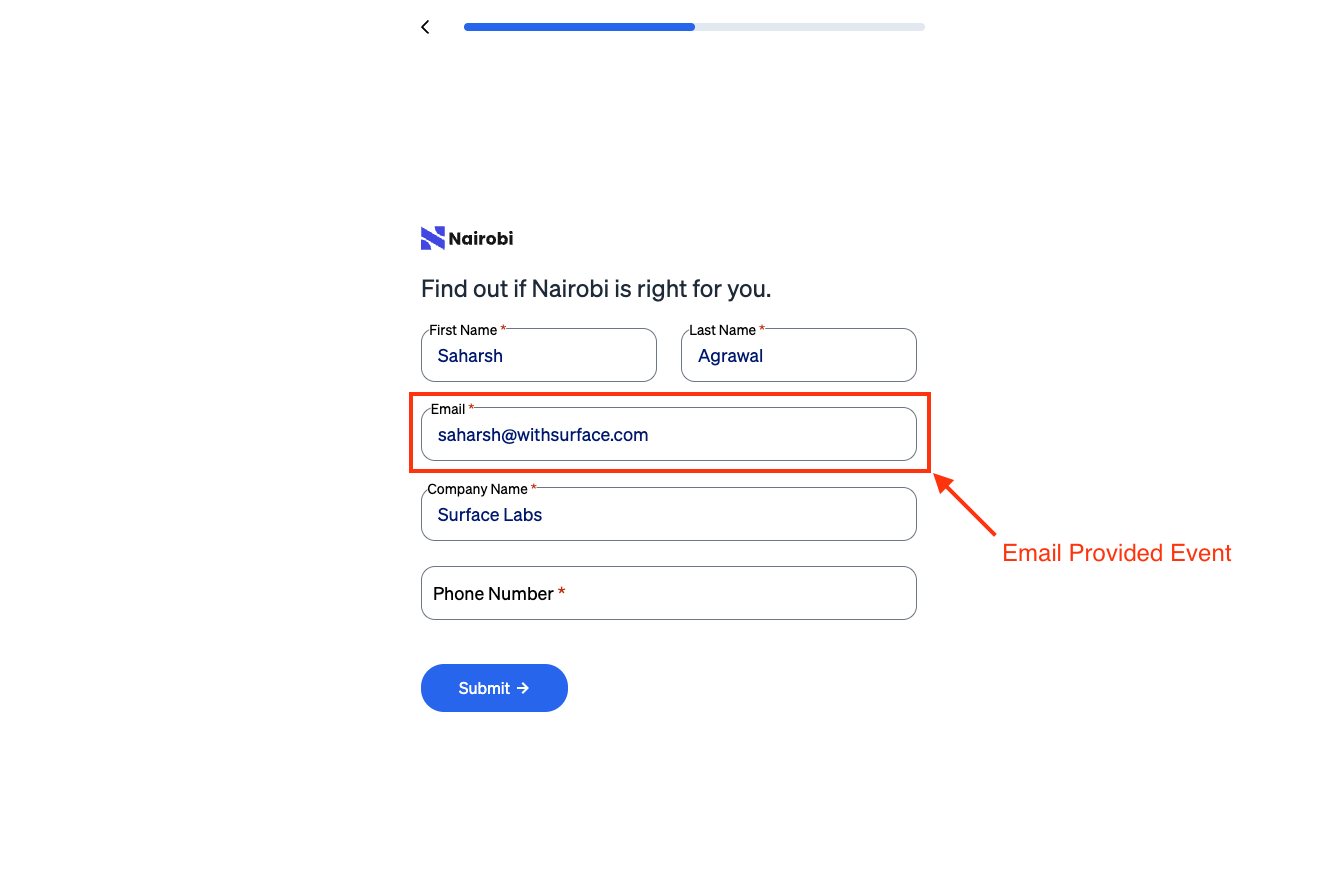 When a user provides their email address, the `SurfaceFormEmailProvided` event is emitted.
### Meeting Booked Event [#meeting-booked-event]
When a user provides their email address, the `SurfaceFormEmailProvided` event is emitted.
### Meeting Booked Event [#meeting-booked-event]
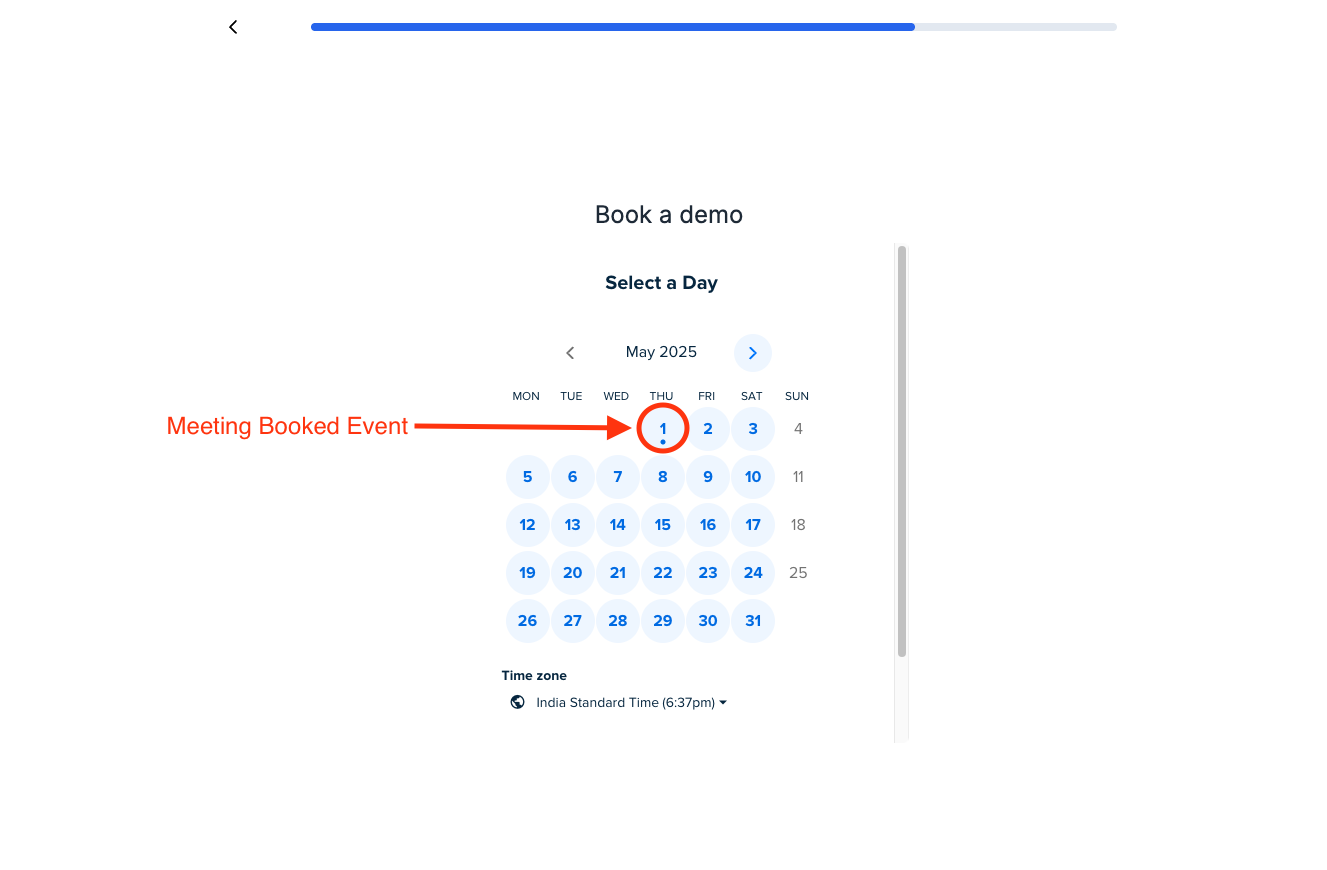 When a user books a meeting through the form, the `SurfaceFormMeetingBooked` event is emitted.
### Form Submission Event [#form-submission-event]
When a user books a meeting through the form, the `SurfaceFormMeetingBooked` event is emitted.
### Form Submission Event [#form-submission-event]
 When a user submits a form, the `SurfaceFormSubmitEvent` event is emitted.
## Event Flow in Multi-Step Forms [#event-flow-in-multi-step-forms]
```mermaid
graph TD
A[Form Started] -->|SurfaceFormStarted| B[Step 1]
B -->|SurfaceFormStepSubmitted| C[Step 2]
C -->|SurfaceFormStepSubmitted| D[Step 3]
D -->|SurfaceFormSubmitEvent| E[Form Submitted]
B -->|emailProvided| F[Email Provided]
D -->|meetingBooked| G[Meeting Booked]
```
---
URL: /build/events/google-ads-tracking
# Google Ads Tracking
When a user submits a form, the `SurfaceFormSubmitEvent` event is emitted.
## Event Flow in Multi-Step Forms [#event-flow-in-multi-step-forms]
```mermaid
graph TD
A[Form Started] -->|SurfaceFormStarted| B[Step 1]
B -->|SurfaceFormStepSubmitted| C[Step 2]
C -->|SurfaceFormStepSubmitted| D[Step 3]
D -->|SurfaceFormSubmitEvent| E[Form Submitted]
B -->|emailProvided| F[Email Provided]
D -->|meetingBooked| G[Meeting Booked]
```
---
URL: /build/events/google-ads-tracking
# Google Ads Tracking