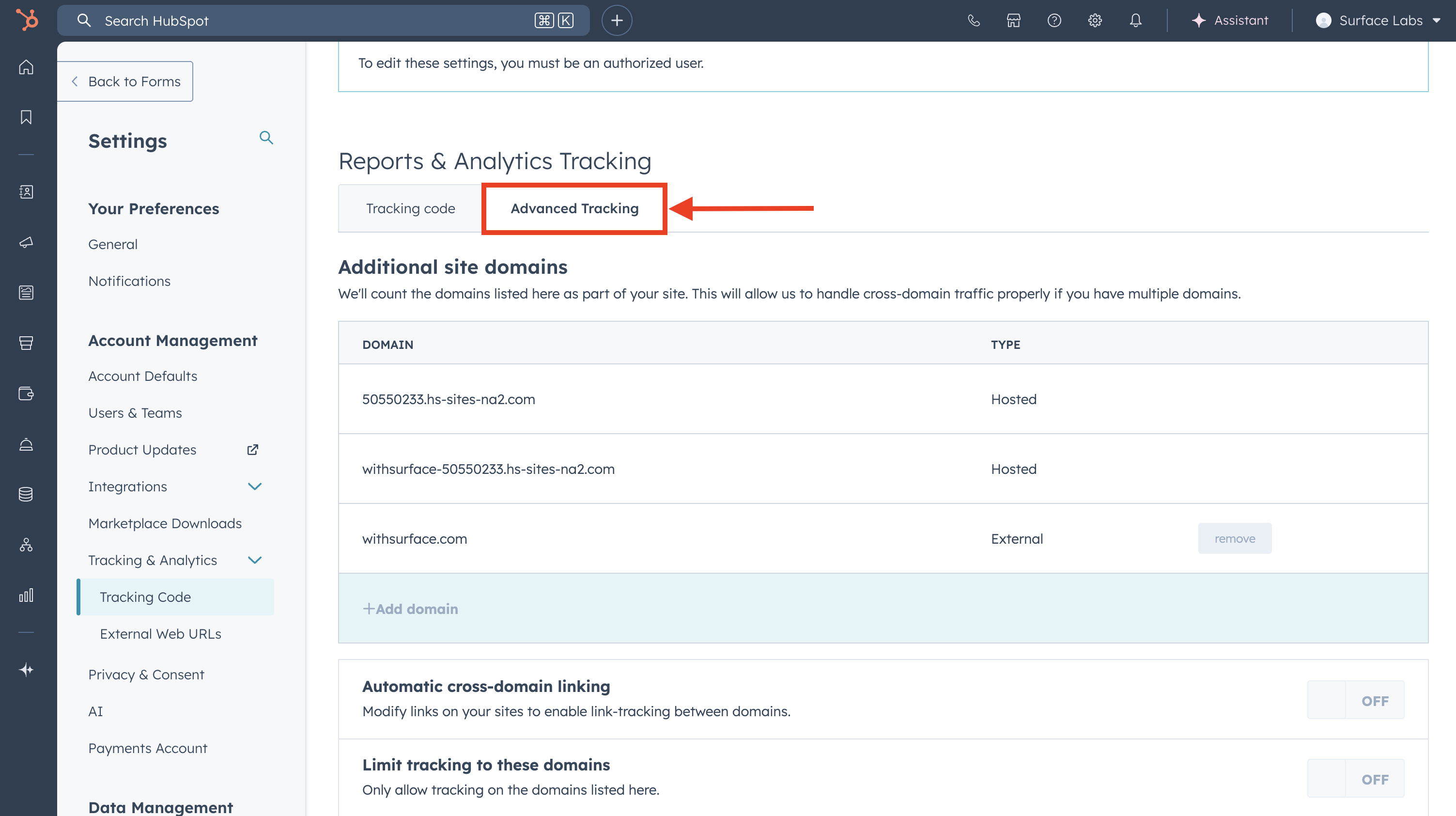
To enable proper tracking and form submissions, add Surface's domain to your HubSpot account:
forms.withsurface.com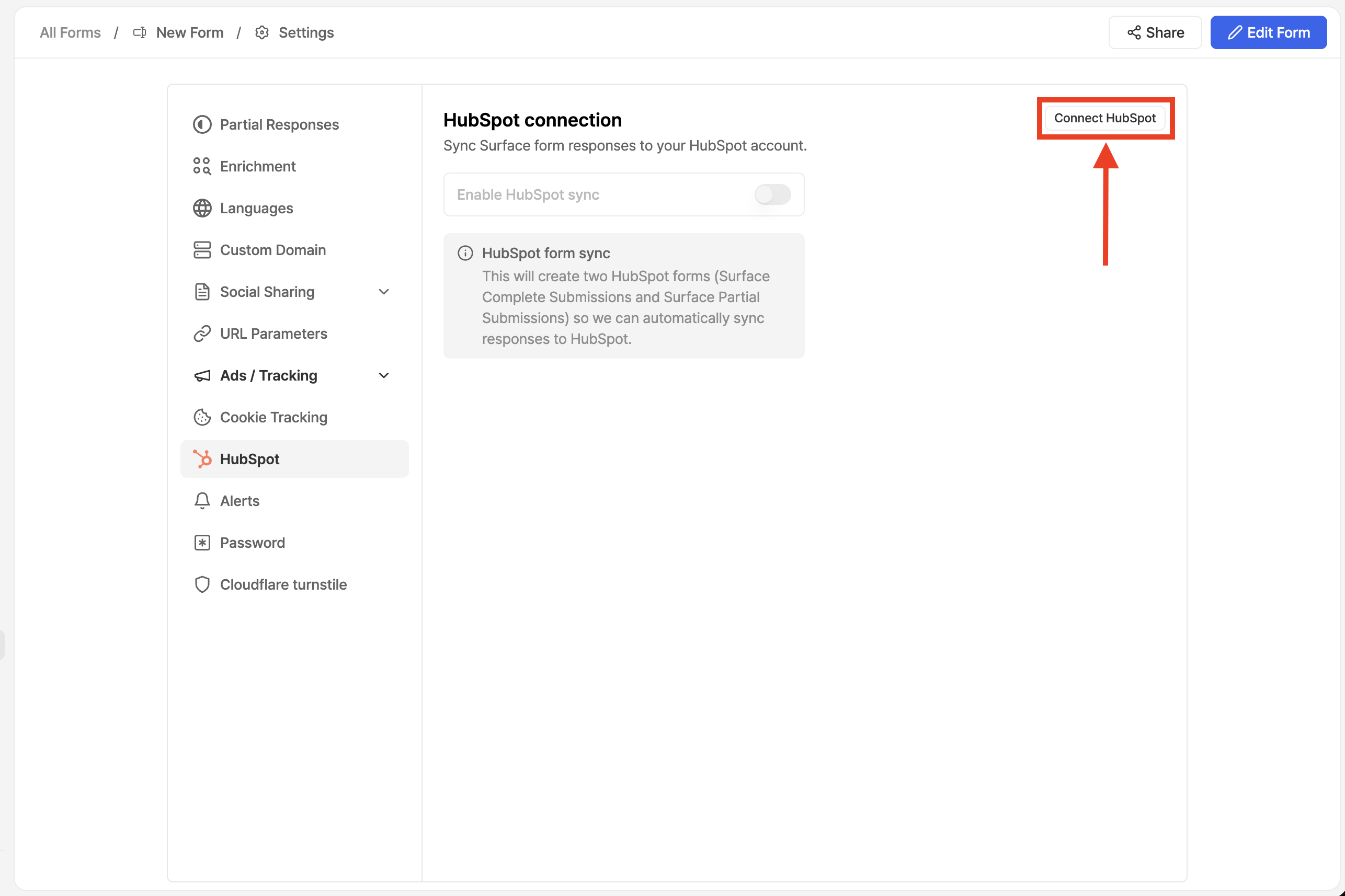 1. Go to **Form Settings** → **HubSpot**
2. Click on **Connect HubSpot** if you're not already authenticated
3. Follow the on-screen instructions to authenticate
4. Select your HubSpot organization when prompted
5. Accept the necessary permissions to complete the connection
## Step 2: Add Surface Domain to HubSpot
1. Go to **Form Settings** → **HubSpot**
2. Click on **Connect HubSpot** if you're not already authenticated
3. Follow the on-screen instructions to authenticate
4. Select your HubSpot organization when prompted
5. Accept the necessary permissions to complete the connection
## Step 2: Add Surface Domain to HubSpot
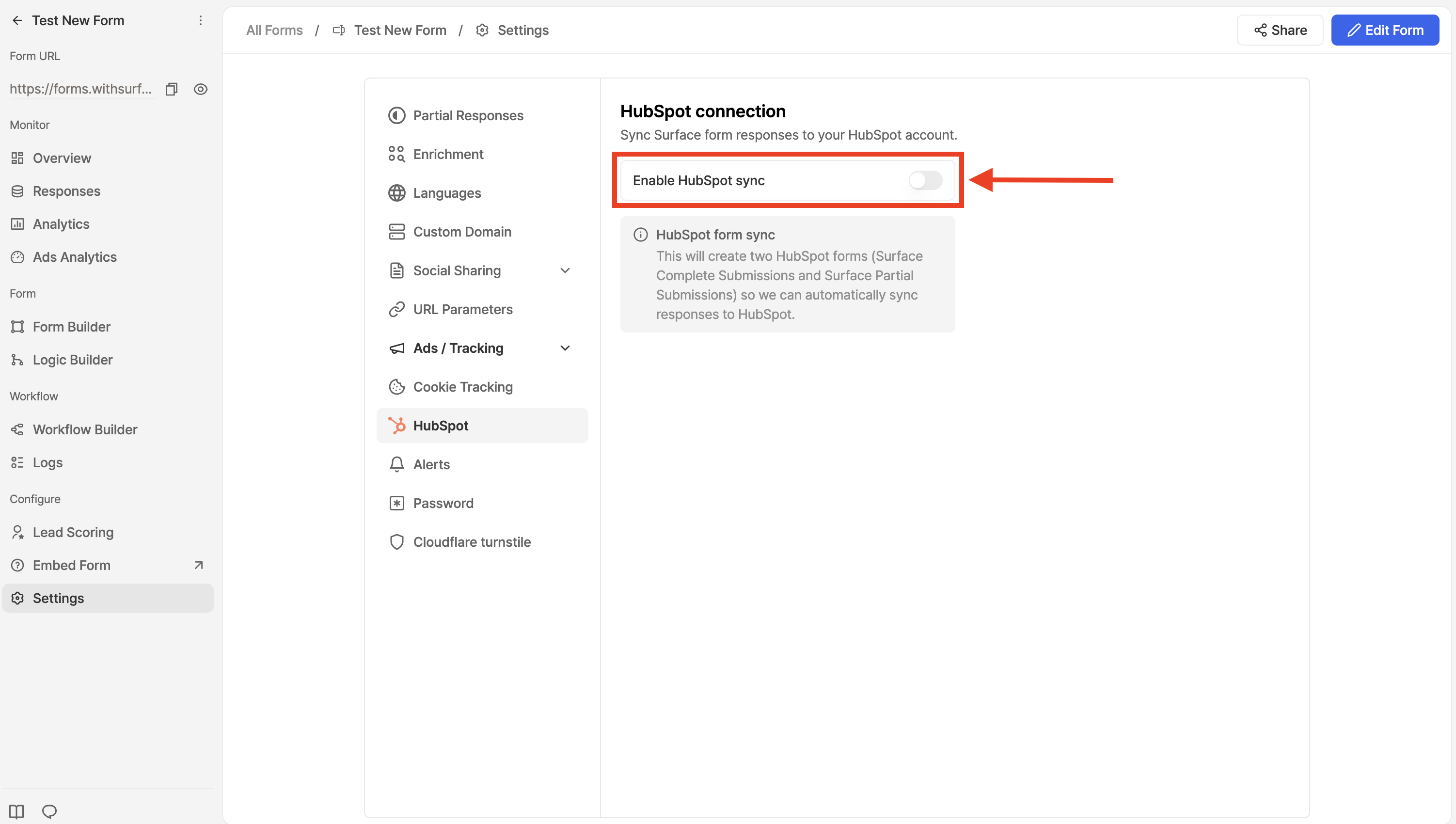 1. Under **HubSpot Connection**, toggle on **Enable HubSpot Sync**
2. Surface will automatically:
* Create a form in HubSpot for finished submissions
* Create a form in HubSpot for incomplete submissions
* Start syncing form submissions to HubSpot
## What Happens Next?
Once enabled, Surface will:
* **Automatically create forms** in your HubSpot account
* **Sync complete submissions** to the complete form
* **Sync partial submissions** to the partial form
* **Handle field mapping** automatically
## Next Steps
* [HubSpot Tracking](/guides/hubspot-forms/configure-tracking) - Configure HubSpot tracking to properly track UTMs, first landing page, and lead sources
1. Under **HubSpot Connection**, toggle on **Enable HubSpot Sync**
2. Surface will automatically:
* Create a form in HubSpot for finished submissions
* Create a form in HubSpot for incomplete submissions
* Start syncing form submissions to HubSpot
## What Happens Next?
Once enabled, Surface will:
* **Automatically create forms** in your HubSpot account
* **Sync complete submissions** to the complete form
* **Sync partial submissions** to the partial form
* **Handle field mapping** automatically
## Next Steps
* [HubSpot Tracking](/guides/hubspot-forms/configure-tracking) - Configure HubSpot tracking to properly track UTMs, first landing page, and lead sources