> ## Documentation Index
> Fetch the complete documentation index at: https://docs.withsurface.com/llms.txt
> Use this file to discover all available pages before exploring further.
# HubSpot Tracking
> Add HubSpot tracking script to your Surface form for enhanced analytics and visitor insights
Add HubSpot tracking to your Surface form to track visitor behavior, identify anonymous visitors, and gain insights into how users interact with your forms.
## Step 1: Get the HubSpot Tracking Script
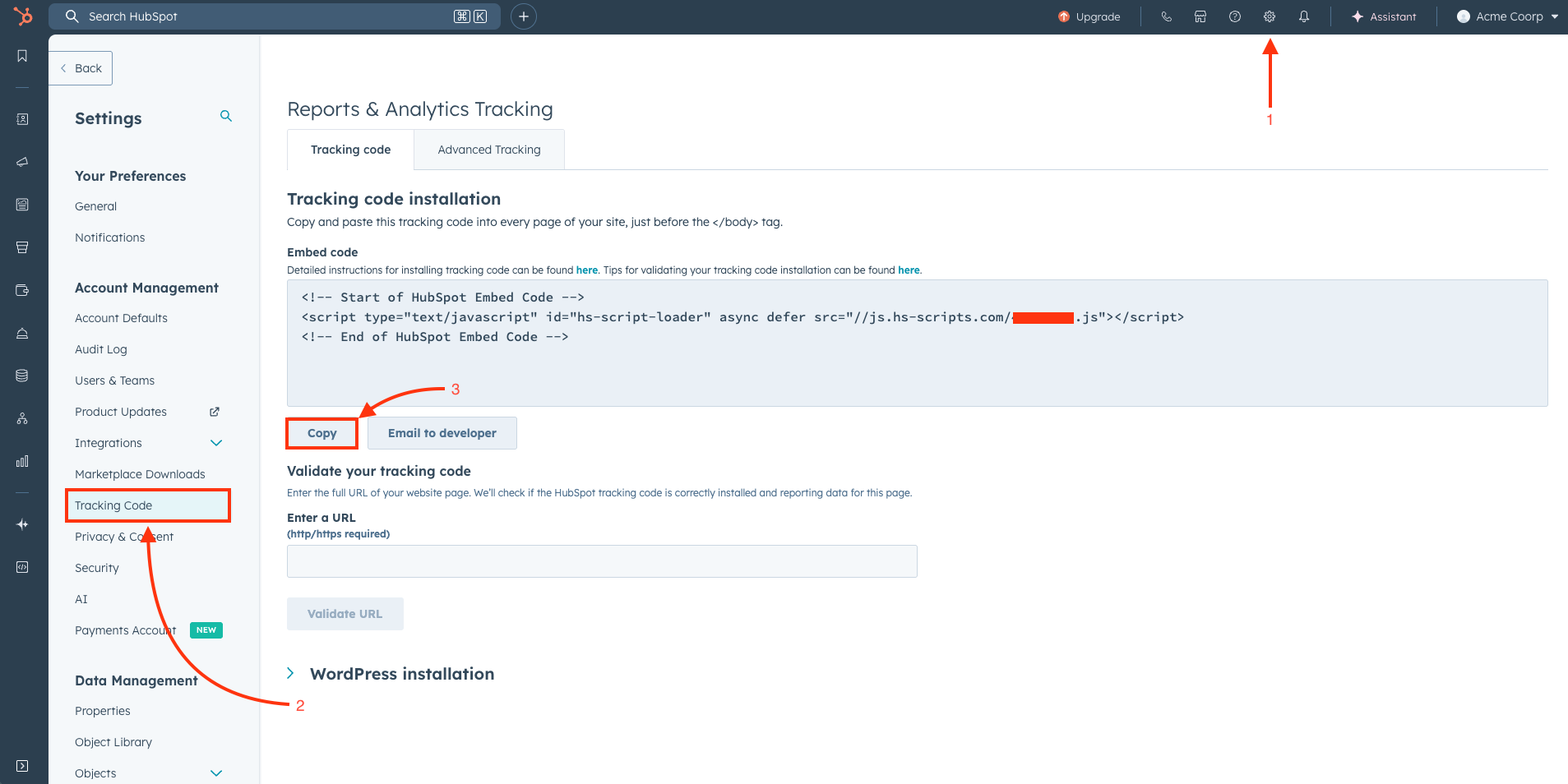 1. **Navigate to HubSpot Settings**
* In your HubSpot account, click the **settings** icon (⚙️) in the top navigation bar
2. **Access Tracking Code**
* In the left sidebar, look for **Account Management**
* Click on **Tracking Code** under the Account Management section
3. **Copy the Tracking Code**
* You'll see your HubSpot tracking code displayed in a text box
* Copy the entire tracking script code
* The code typically looks like:
```html theme={null}
```
## Step 2: Enable and Add HubSpot Tracking Script in Surface Form
1. **Open Form Settings**
* Go to your Surface form dashboard
* Navigate to the form you want to add HubSpot tracking to
* Click on **Settings**
2. **Toggle on Cookie Tracking**
1. **Navigate to HubSpot Settings**
* In your HubSpot account, click the **settings** icon (⚙️) in the top navigation bar
2. **Access Tracking Code**
* In the left sidebar, look for **Account Management**
* Click on **Tracking Code** under the Account Management section
3. **Copy the Tracking Code**
* You'll see your HubSpot tracking code displayed in a text box
* Copy the entire tracking script code
* The code typically looks like:
```html theme={null}
```
## Step 2: Enable and Add HubSpot Tracking Script in Surface Form
1. **Open Form Settings**
* Go to your Surface form dashboard
* Navigate to the form you want to add HubSpot tracking to
* Click on **Settings**
2. **Toggle on Cookie Tracking**
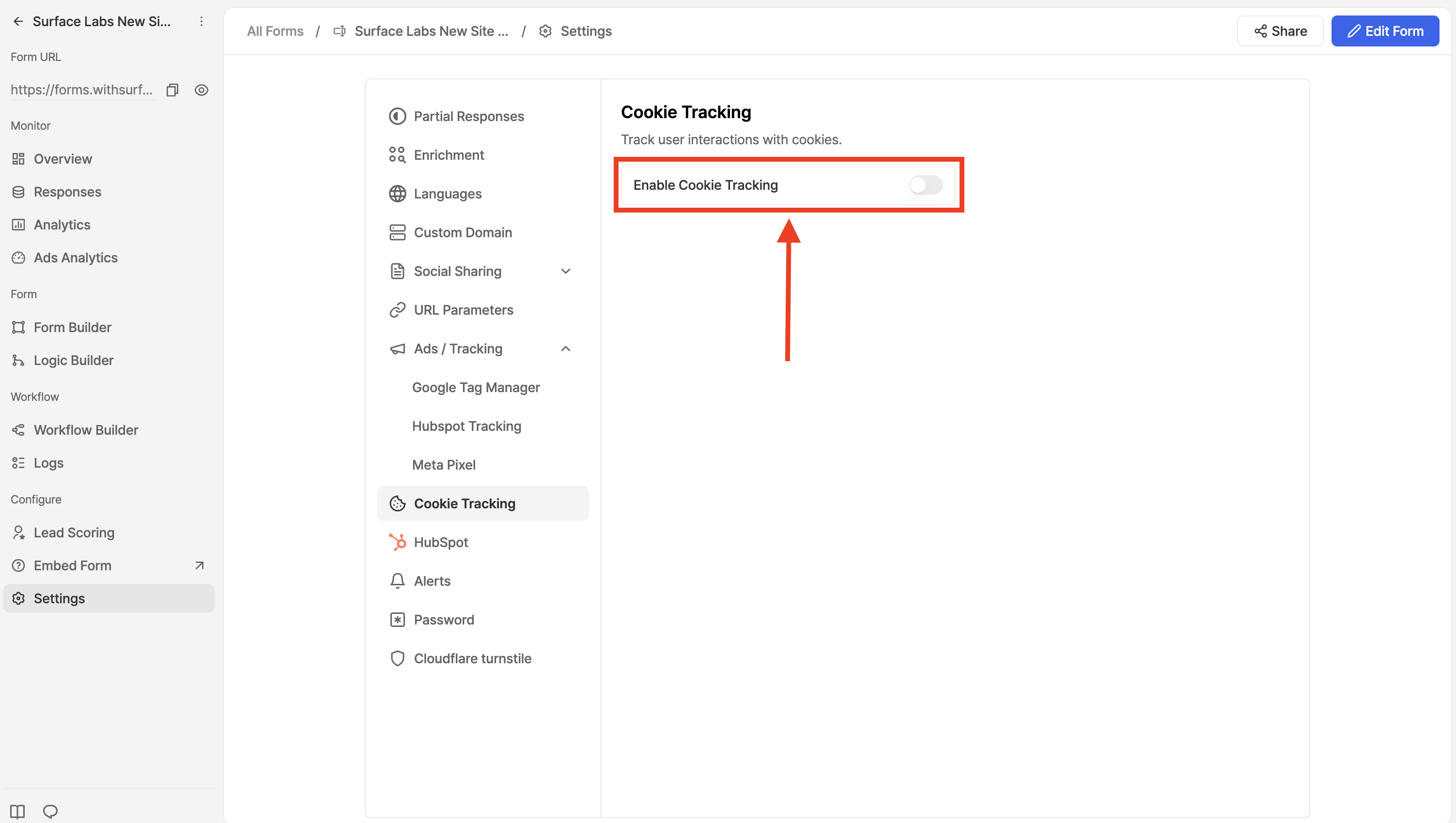 * In the form settings, look for **Cookie Tracking** section
* Toggle on **Enable Cookie Tracking** to track UTMs, first landing page, and lead sources
3. **Find HubSpot Tracking Option**
* In the form settings, look for **Ads / Tracking** section
* Click on **HubSpot Tracking**
4. **Enable and Configure Tracking**
* In the form settings, look for **Cookie Tracking** section
* Toggle on **Enable Cookie Tracking** to track UTMs, first landing page, and lead sources
3. **Find HubSpot Tracking Option**
* In the form settings, look for **Ads / Tracking** section
* Click on **HubSpot Tracking**
4. **Enable and Configure Tracking**
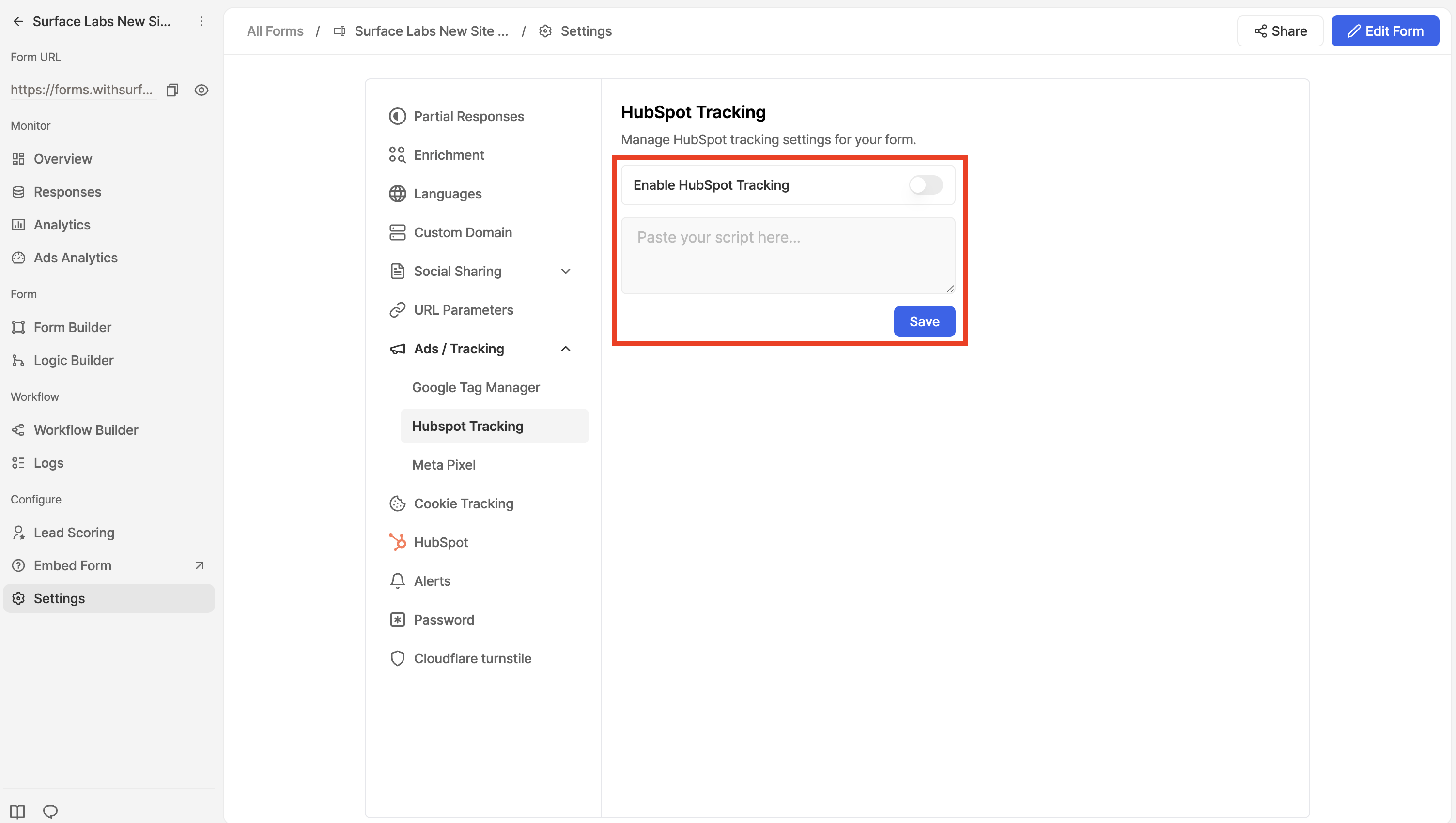 * Toggle the **Enable HubSpot tracking** switch to turn it on
* Paste the HubSpot tracking script you copied in Step 1 into the script field below
* Click **Save** to apply the changes
* Toggle the **Enable HubSpot tracking** switch to turn it on
* Paste the HubSpot tracking script you copied in Step 1 into the script field below
* Click **Save** to apply the changes