> ## Documentation Index
> Fetch the complete documentation index at: https://docs.withsurface.com/llms.txt
> Use this file to discover all available pages before exploring further.
# Step 4: Add Automation
> Create a HubSpot automation that enrolls contacts in your sequence when they submit the form
In this step, you'll create a **HubSpot automation** that triggers when a contact submits the HubSpot form you use with Surface. The automation will **enroll the contact in your sequence** so they receive the emails you set up in Steps 2 and 3.
## Create the Automation
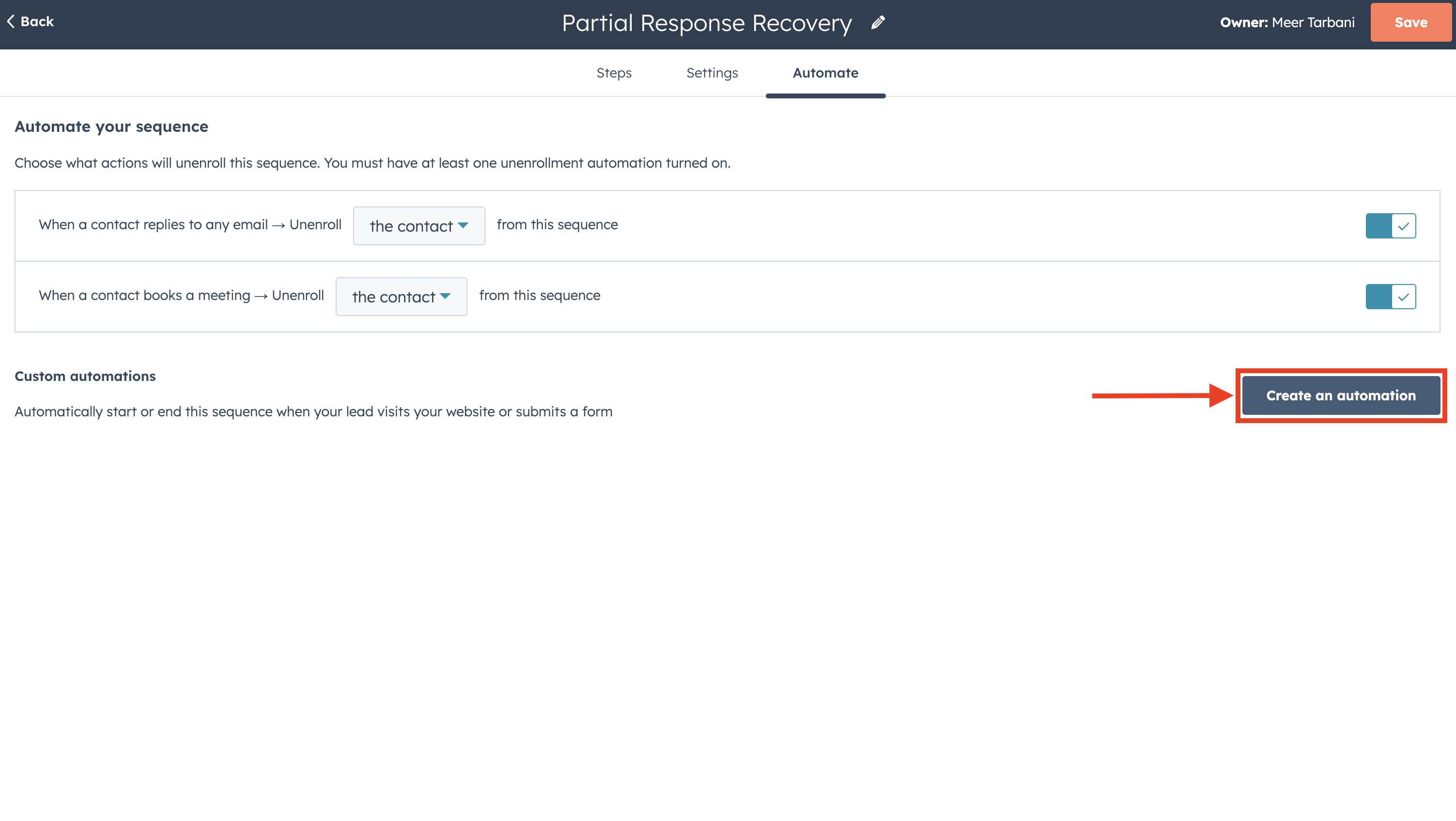 1. In your sequence, open the **Automate** tab
2. Click **Create an automation**
## Set the Trigger: Form Submission
1. In your sequence, open the **Automate** tab
2. Click **Create an automation**
## Set the Trigger: Form Submission
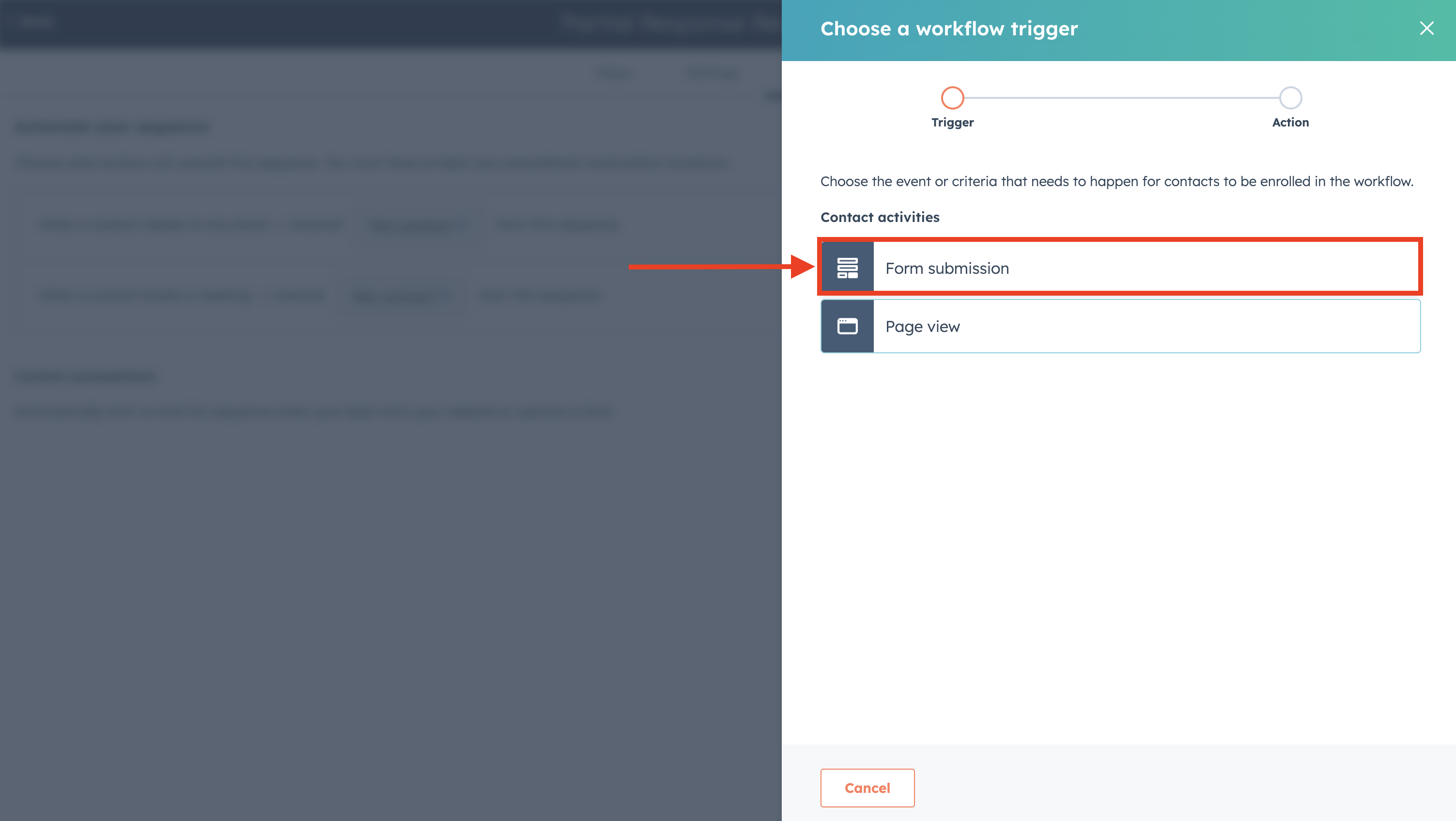
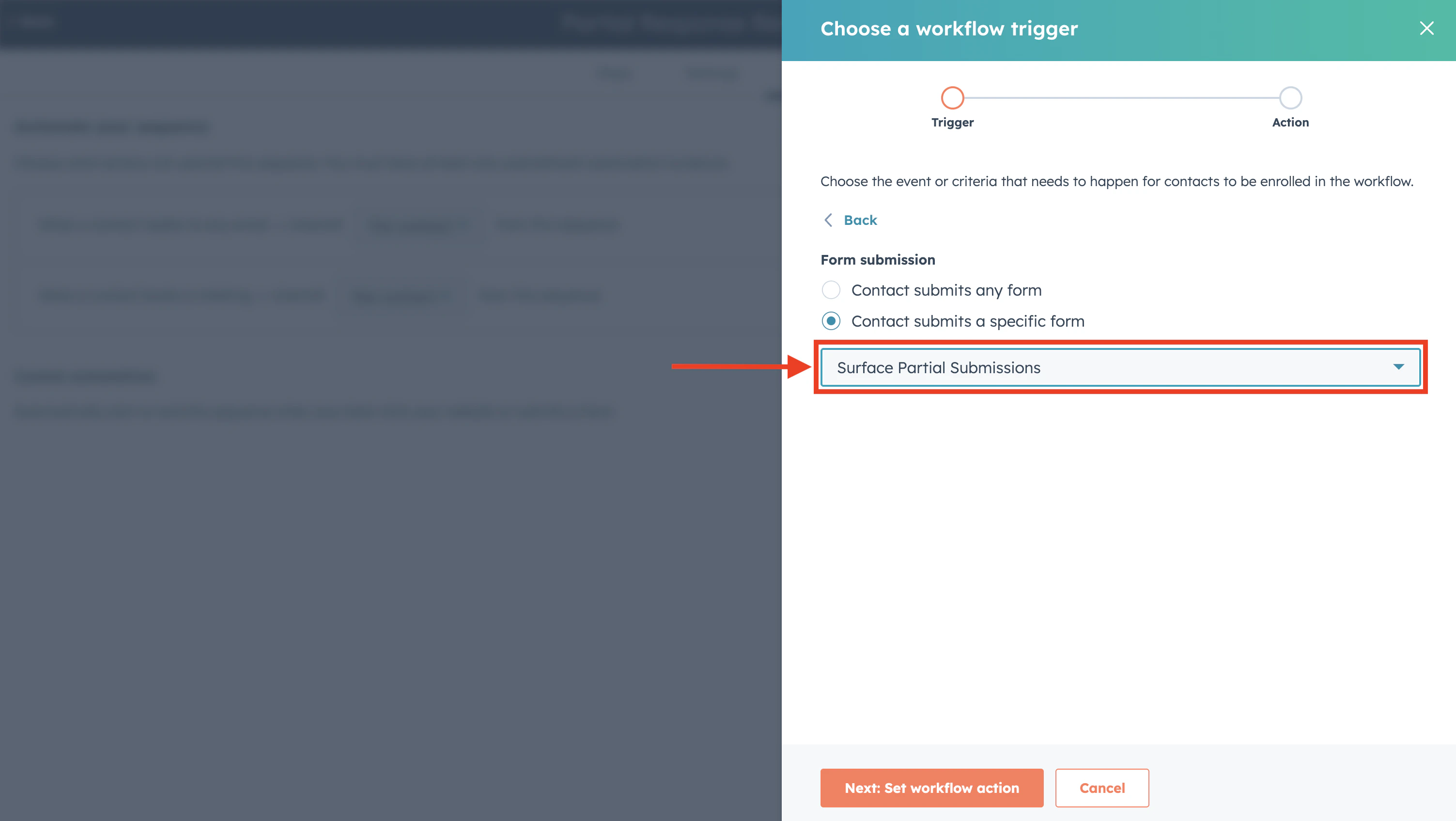 1. Set the trigger to **Form submission**
2. Choose **Contact submits a specific form**
3. Select the **HubSpot form** you created in [Step 1](/guides/email-sequences-hubspot/step-1-hubspot-form) (the same form your Surface workflow sends to via Create Form Response)
The form you select here must be the **exact same form** that your Surface workflow uses in the **Create Form Response** action. Otherwise, submissions from Surface won't trigger this automation.
## Configure the Enrollment Action
1. Set the trigger to **Form submission**
2. Choose **Contact submits a specific form**
3. Select the **HubSpot form** you created in [Step 1](/guides/email-sequences-hubspot/step-1-hubspot-form) (the same form your Surface workflow sends to via Create Form Response)
The form you select here must be the **exact same form** that your Surface workflow uses in the **Create Form Response** action. Otherwise, submissions from Surface won't trigger this automation.
## Configure the Enrollment Action
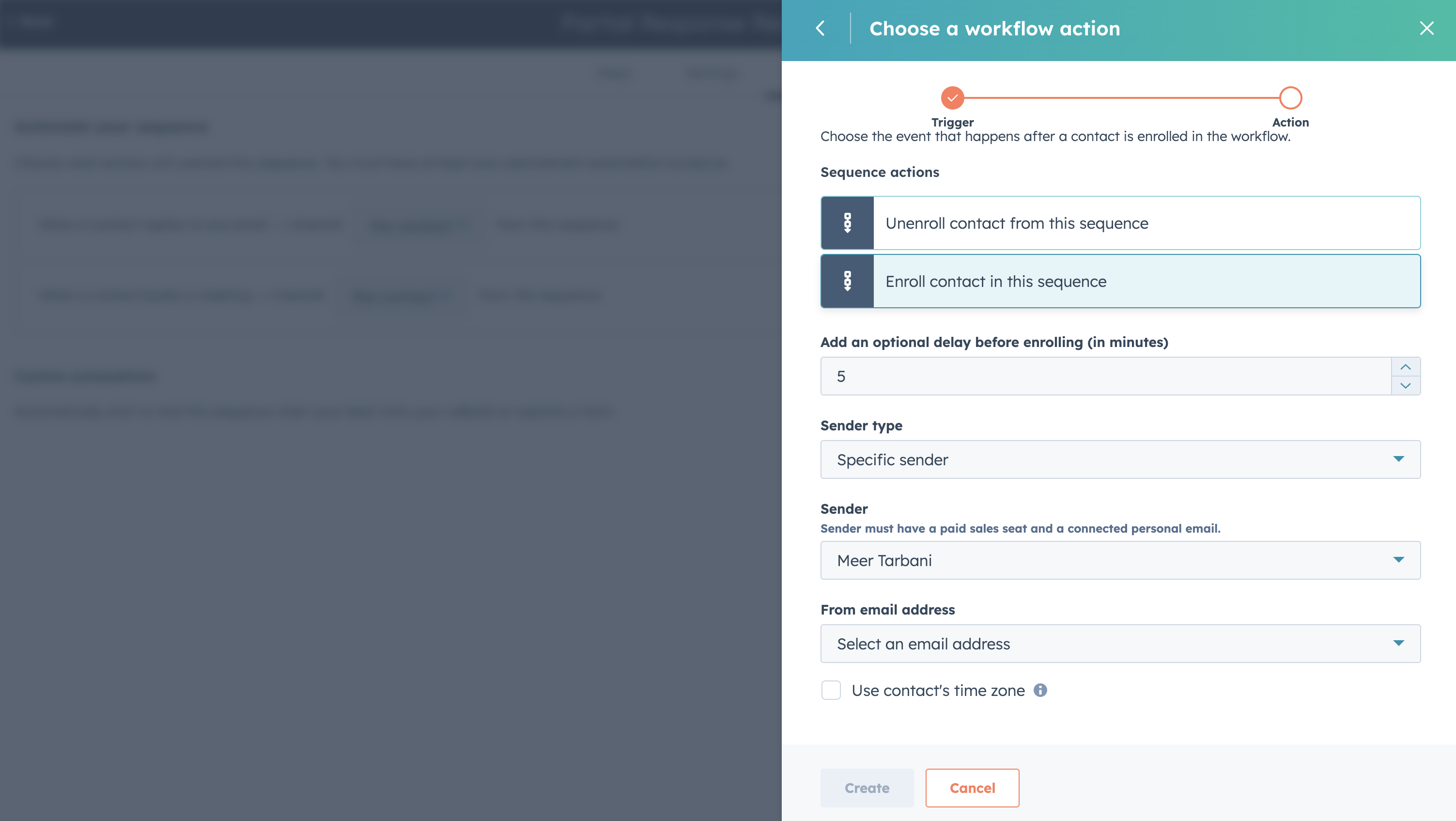 1. Add an action and choose **Enroll contact in this sequence** (or the equivalent sequence enrollment action)
2. Configure **sender email** and **sender name** so emails come from the right address and identity
3. Review any other options (e.g., eligibility, max enrollments) if your HubSpot plan supports them
## Create and Turn On the Automation
1. Click **Create** (or **Save**) to create the automation
2. Turn the automation **on** so it runs when the form is submitted
After this, any contact who submits that form—whether from a Surface **Dropped Off** or **Form Submission** workflow—will be enrolled in the sequence and receive your automated emails according to the steps and delays you configured.
1. Add an action and choose **Enroll contact in this sequence** (or the equivalent sequence enrollment action)
2. Configure **sender email** and **sender name** so emails come from the right address and identity
3. Review any other options (e.g., eligibility, max enrollments) if your HubSpot plan supports them
## Create and Turn On the Automation
1. Click **Create** (or **Save**) to create the automation
2. Turn the automation **on** so it runs when the form is submitted
After this, any contact who submits that form—whether from a Surface **Dropped Off** or **Form Submission** workflow—will be enrolled in the sequence and receive your automated emails according to the steps and delays you configured.