> ## Documentation Index
> Fetch the complete documentation index at: https://docs.withsurface.com/llms.txt
> Use this file to discover all available pages before exploring further.
# Step 2: Create HubSpot Sequence
> Create a HubSpot sequence with automated emails, personalization tokens, and meeting link
In this step, you'll create a **HubSpot sequence** (or use an existing one) and add the first automated email. You'll add **personalization tokens** from your form/contact fields and your **HubSpot meeting link** so emails feel tailored and include a clear call-to-action.
## Create a New Sequence
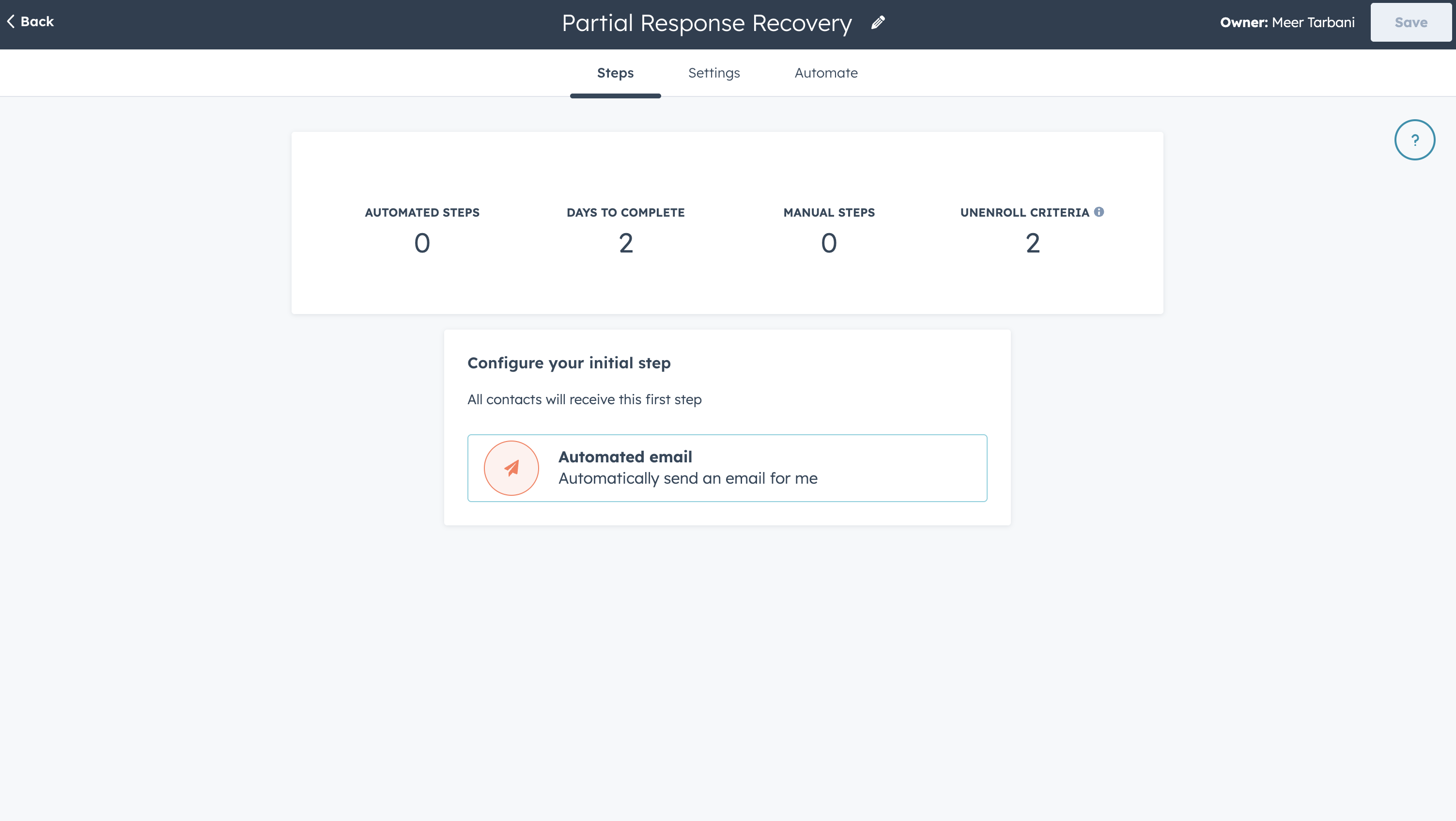 1. In HubSpot, go to **Sales** → **Sequences** → **Create sequence**
2. Name the sequence (e.g., "Surface form follow-up")
3. Under **Steps**, click **Automated emails** to add your first email
## Add or Choose an Email Template
1. In HubSpot, go to **Sales** → **Sequences** → **Create sequence**
2. Name the sequence (e.g., "Surface form follow-up")
3. Under **Steps**, click **Automated emails** to add your first email
## Add or Choose an Email Template
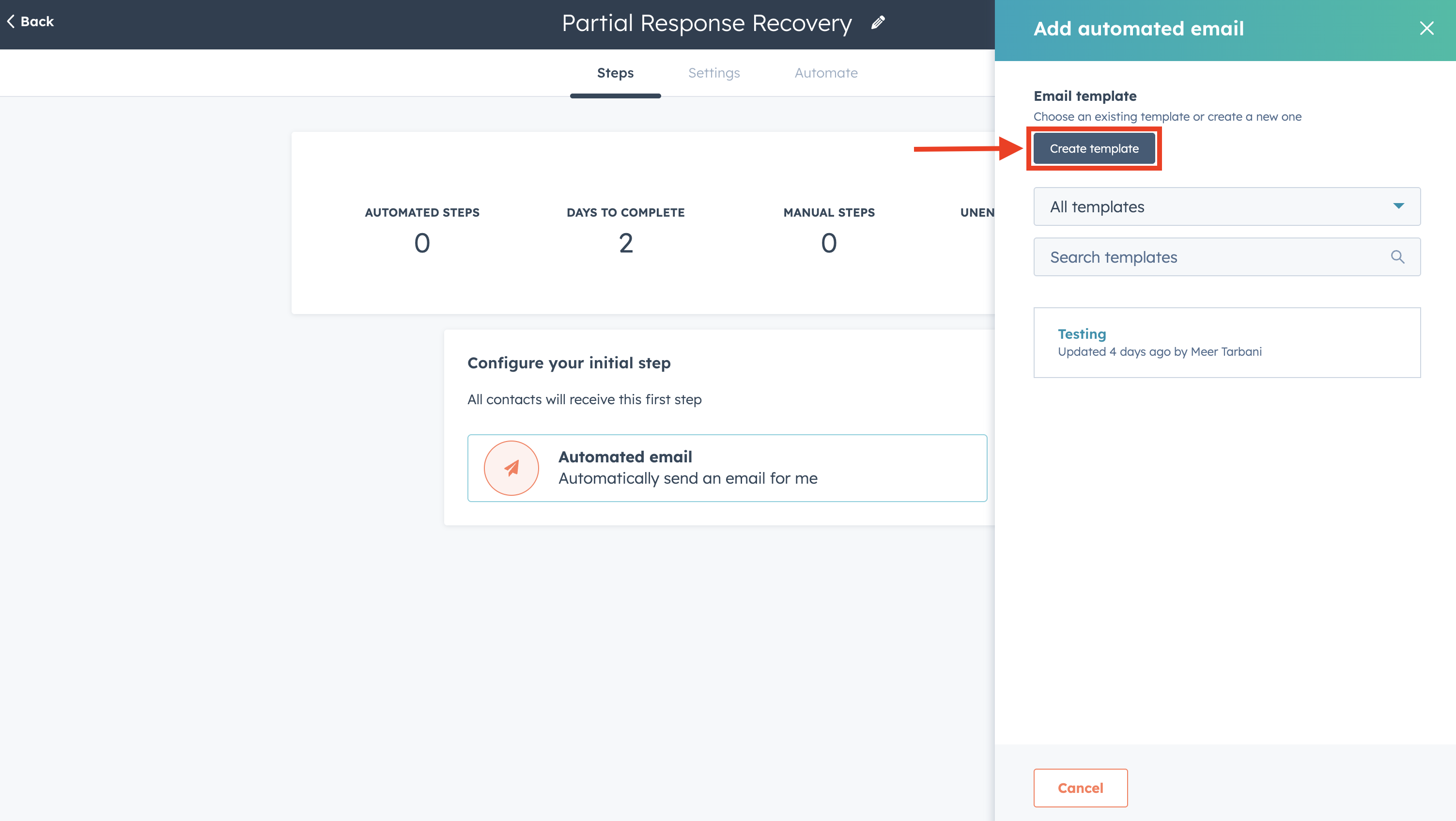 1. Use an **existing email template** from the list, or
2. Click **Create new template** to build one from scratch
You'll edit the content next to add personalization and your meeting link.
## Add Form/Contact Fields to the Email (Personalization Tokens)
1. Use an **existing email template** from the list, or
2. Click **Create new template** to build one from scratch
You'll edit the content next to add personalization and your meeting link.
## Add Form/Contact Fields to the Email (Personalization Tokens)
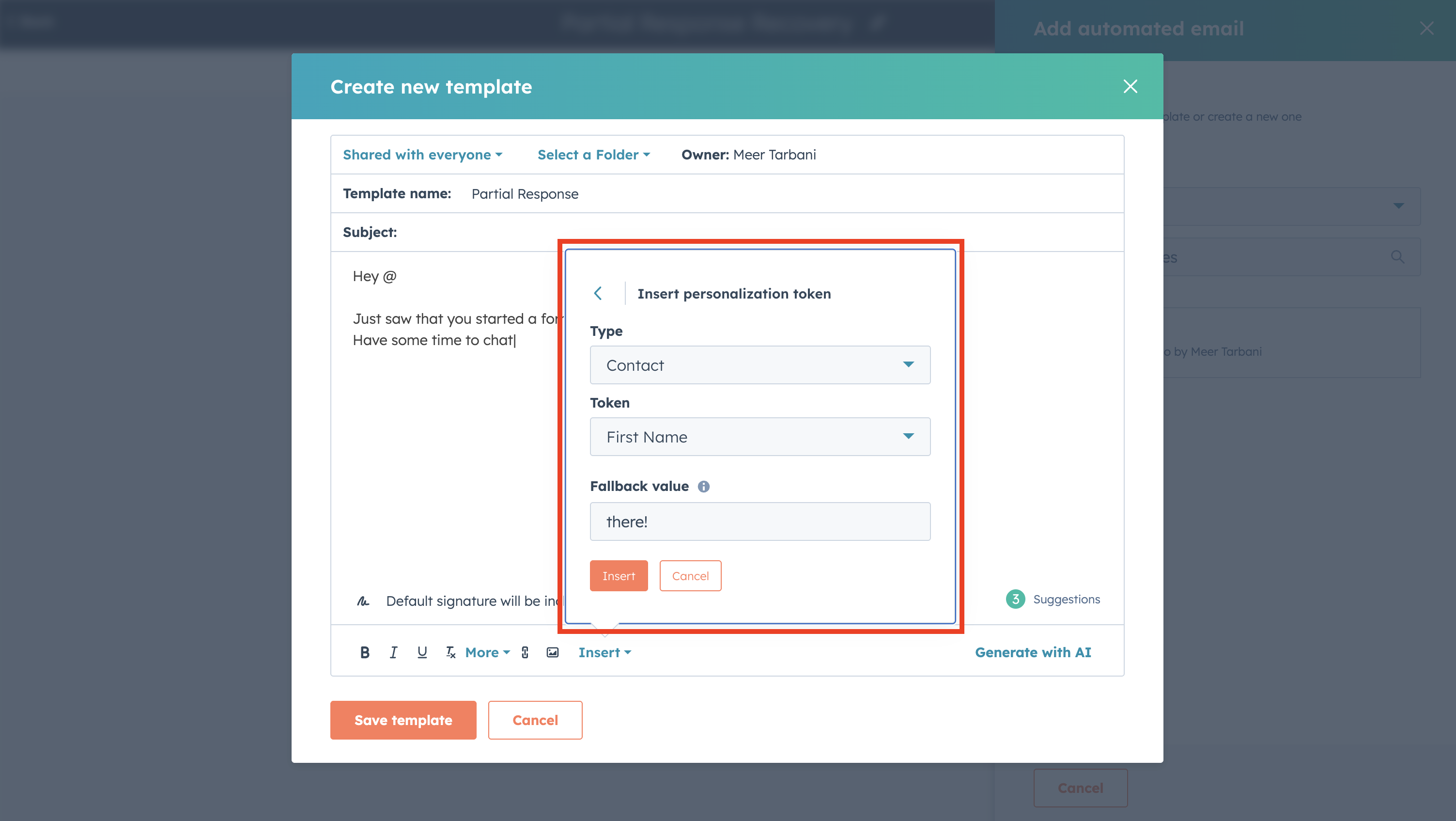 To personalize the email with the contact's name or other data from the form:
1. In the template editor, place the cursor where you want the dynamic value (e.g., `Hi {{ firstname }},` in HubSpot)
2. Click **Insert** → **Personalization tokens**
3. Choose **Contact** and then select the property you want (e.g., **First name**, **Last name**, **Company**)
4. In the token dropdown, configure a **fallback value** for contacts who don't have that field (e.g., "there" if first name is empty)
5. Click **Insert**
Repeat for any other contact properties you want in the email body or subject line.
Tokens pull from the contact record in HubSpot. When Surface sends a form response via Create Form Response, HubSpot updates the contact with the submitted fields, so values like first name and last name will be available in the sequence email if you mapped them in your workflow.
## Add Your HubSpot Meeting Link
To personalize the email with the contact's name or other data from the form:
1. In the template editor, place the cursor where you want the dynamic value (e.g., `Hi {{ firstname }},` in HubSpot)
2. Click **Insert** → **Personalization tokens**
3. Choose **Contact** and then select the property you want (e.g., **First name**, **Last name**, **Company**)
4. In the token dropdown, configure a **fallback value** for contacts who don't have that field (e.g., "there" if first name is empty)
5. Click **Insert**
Repeat for any other contact properties you want in the email body or subject line.
Tokens pull from the contact record in HubSpot. When Surface sends a form response via Create Form Response, HubSpot updates the contact with the submitted fields, so values like first name and last name will be available in the sequence email if you mapped them in your workflow.
## Add Your HubSpot Meeting Link
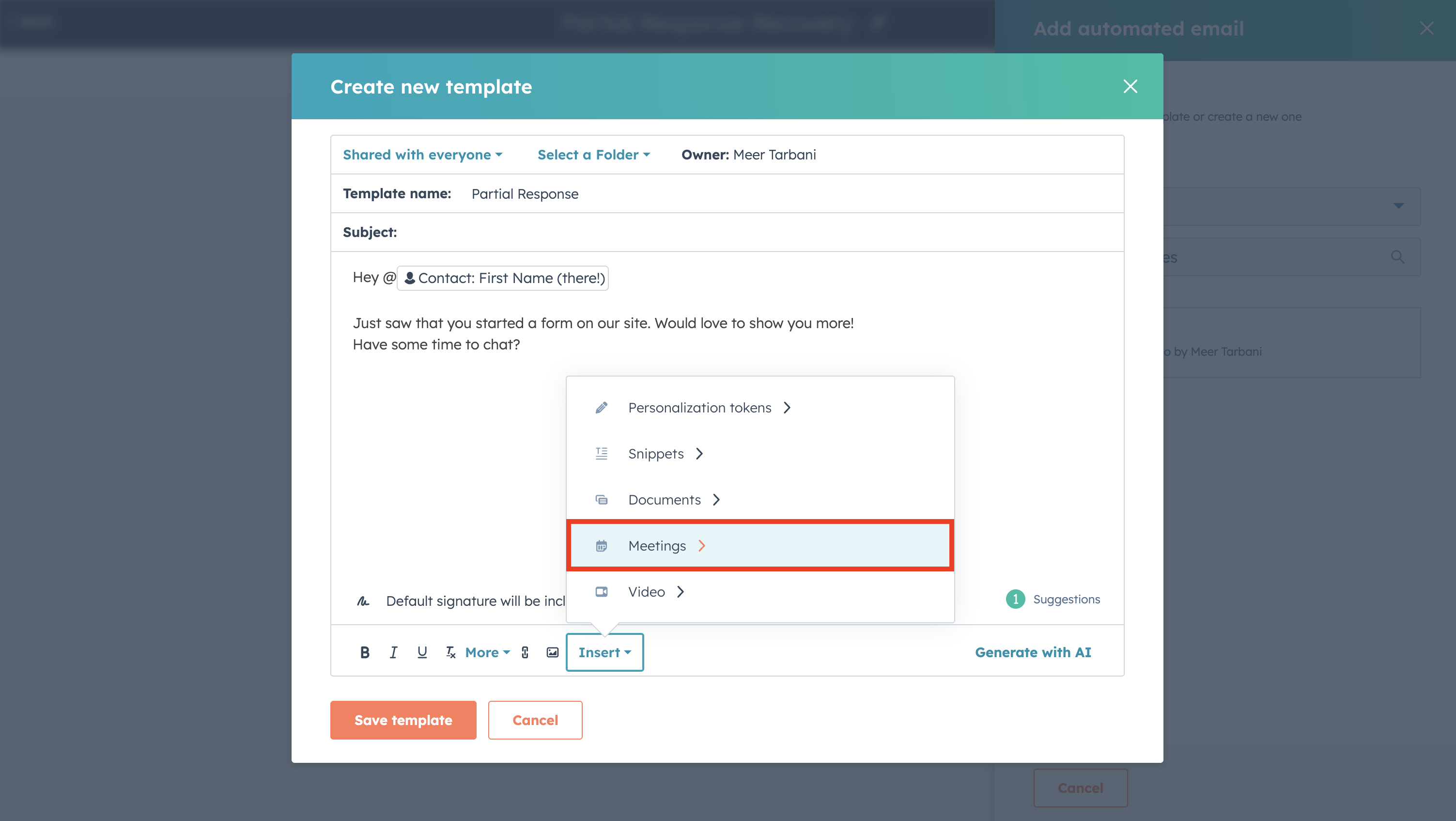 To add a meeting link so leads can book a call:
1. In the template editor, click **Insert** → **Meetings**
2. Select your **HubSpot meeting link** (the one you use for scheduling)
3. Click **Insert**
The link will be added to the email so recipients can book a meeting directly.
## Save the Template
1. Finish editing the subject line and body (including any other copy)
2. Click **Save** (or **Save template**) to store the template
3. The first sequence step is now set with this automated email
To add a meeting link so leads can book a call:
1. In the template editor, click **Insert** → **Meetings**
2. Select your **HubSpot meeting link** (the one you use for scheduling)
3. Click **Insert**
The link will be added to the email so recipients can book a meeting directly.
## Save the Template
1. Finish editing the subject line and body (including any other copy)
2. Click **Save** (or **Save template**) to store the template
3. The first sequence step is now set with this automated email