> ## Documentation Index
> Fetch the complete documentation index at: https://docs.withsurface.com/llms.txt
> Use this file to discover all available pages before exploring further.
# Step 4: Calendly Meeting Check
> Add a webhook node to check if the lead has booked a Calendly meeting—exit the campaign if yes, continue if no
In this step, you'll add a **Send and receive data** (webhook) action to your event-triggered campaigns. This webhook calls the Calendly API to check if the lead has booked a meeting. If they have, the person exits the campaign. Otherwise, the campaign continues to the next email.
## Prerequisites
* **Calendly API token**: Create a [Personal Access Token](https://developer.calendly.com/api-docs/b3A6NTkxNDA4-get-access-token) in your Calendly developer settings
* **Organization URI** or **User URI**: From your Calendly account (required for the API)
* **Event type URI**: The URI of the event type you want to check (e.g., "30-min discovery call")
## Add the Webhook Block
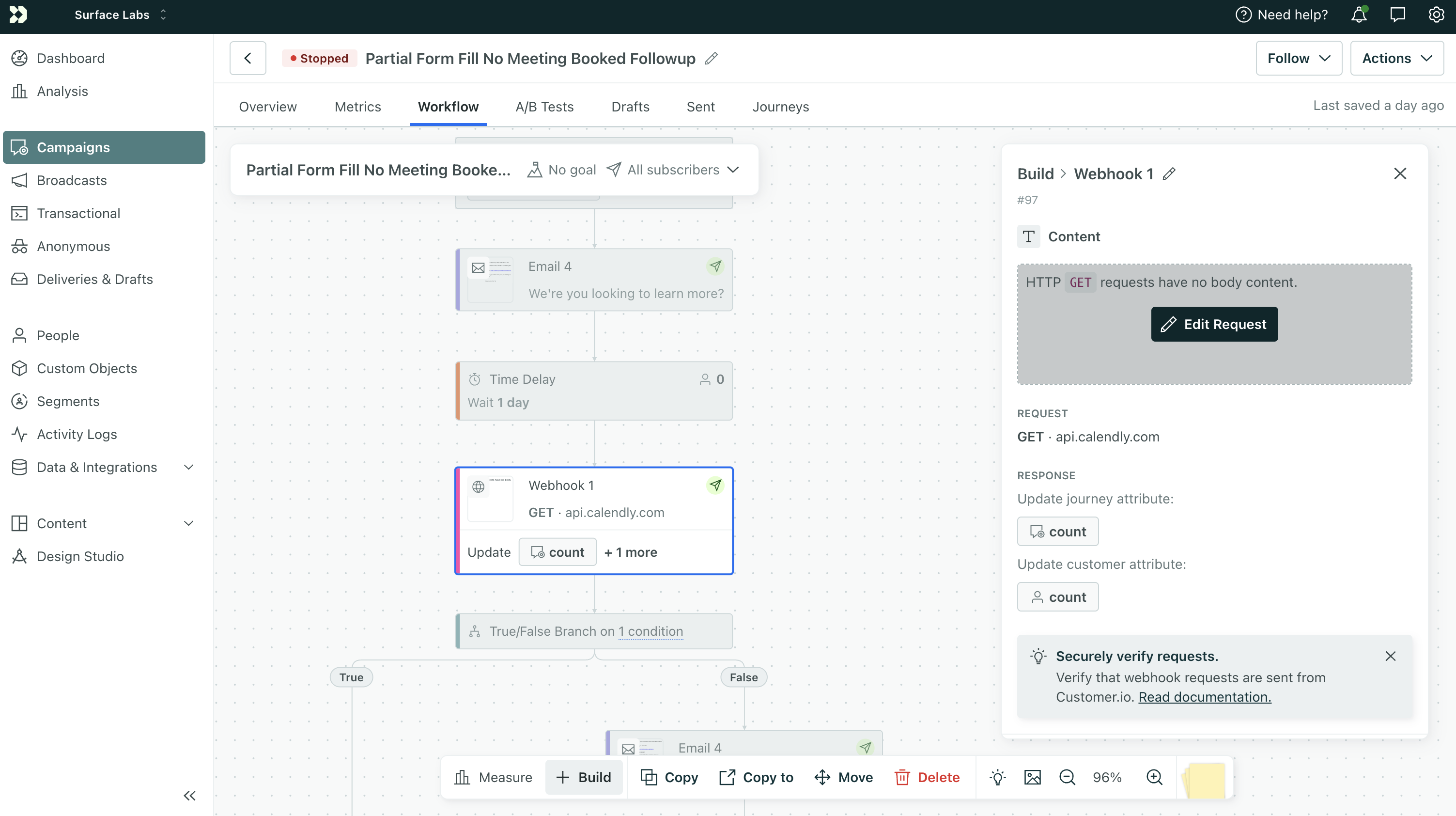 1. In your event-triggered campaign (from [Step 3](/guides/email-sequences-customerio-calendly/step-3-event-campaigns)), add a **Send and receive data** block **after each Delay** and **before each follow-up email** (except the first email)
2. Click the `Edit Request` button to configure the request.
## Configure the Calendly API Request
Call the Calendly [List Scheduled Events](https://developer.calendly.com/api-docs/2d5ed9bbd2952-list-events) endpoint with `invitee_email` to check if the lead has any scheduled meetings.
### Request Setup
| Setting | Value |
| ----------- | ------------------------------------------- |
| **Method** | `GET` |
| **URL** | See the sample URL below |
| **Headers** | `Authorization: Bearer YOUR_CALENDLY_TOKEN` |
**Sample URL** (replace `YOUR_ORG_ID` with your Calendly organization ID):
```
https://api.calendly.com/scheduled_events?organization=https%3A%2F%2Fapi.calendly.com%2Forganizations%2FYOUR_ORG_ID&invitee_email={{event.email}}&status=active&min_start_time=2000-01-01T00:00:00.000000Z&count=1
```
The `invitee_email` parameter filters events by the lead's email. If the response `collection` has items, the meeting is booked. If it's empty, it's not.
Store your Calendly token securely. In Customer.io, you can use a [snippet](https://docs.customer.io/snippets/) or workspace secret to avoid hardcoding it in the workflow.
### Response Configuration
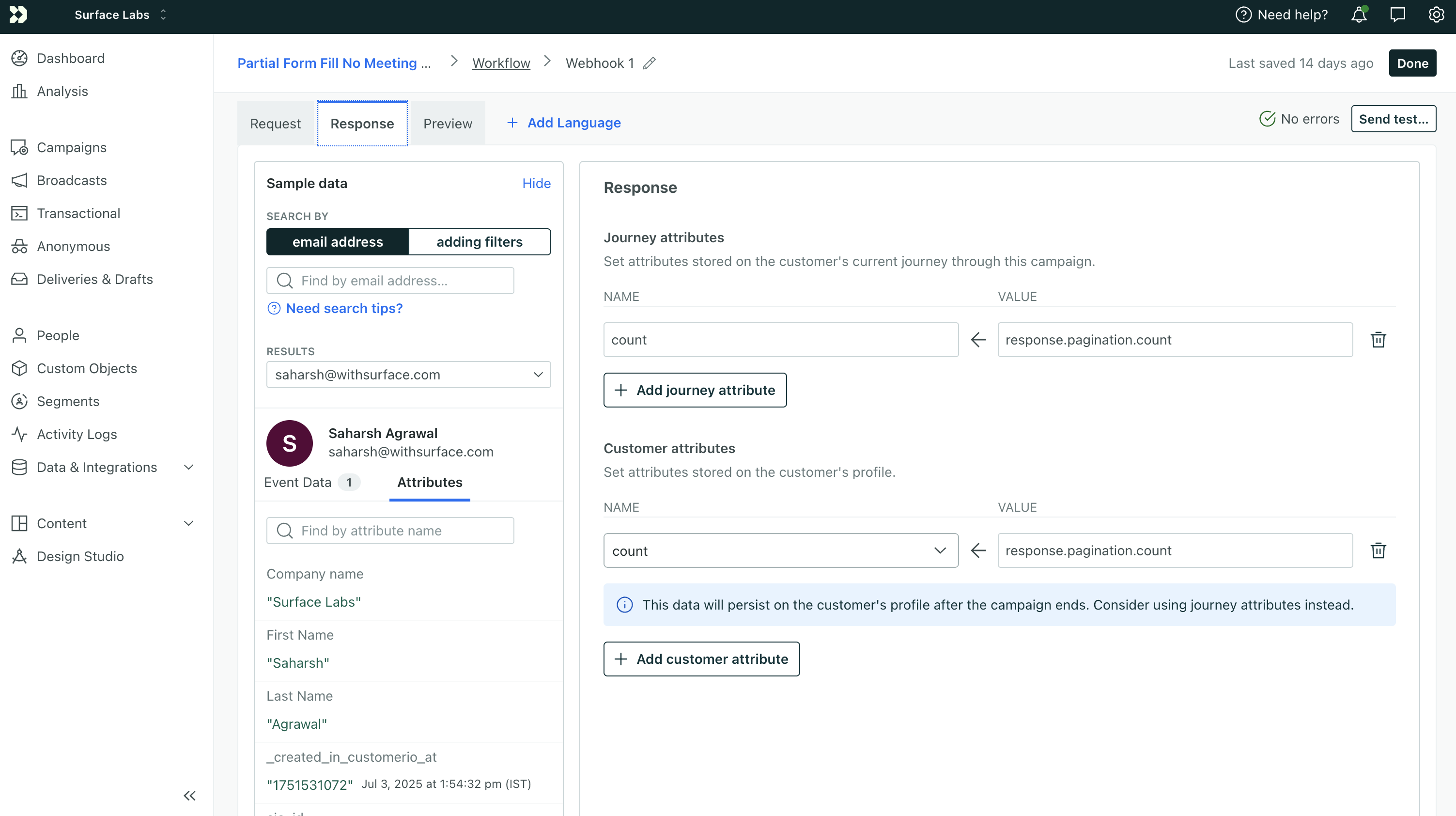
Go to the **Response** tab in the webhook settings and add the following so you can use the Calendly API's pagination count in your branch logic:
**Journey attributes**
| Name | Value |
| ------- | --------------------------- |
| `count` | `response.pagination.count` |
**Customer attributes**
| Name | Value |
| ------- | --------------------------- |
| `count` | `response.pagination.count` |
This stores the number of scheduled events returned by the API. If `count` is greater than 0, the lead has booked a meeting.
1. In your event-triggered campaign (from [Step 3](/guides/email-sequences-customerio-calendly/step-3-event-campaigns)), add a **Send and receive data** block **after each Delay** and **before each follow-up email** (except the first email)
2. Click the `Edit Request` button to configure the request.
## Configure the Calendly API Request
Call the Calendly [List Scheduled Events](https://developer.calendly.com/api-docs/2d5ed9bbd2952-list-events) endpoint with `invitee_email` to check if the lead has any scheduled meetings.
### Request Setup
| Setting | Value |
| ----------- | ------------------------------------------- |
| **Method** | `GET` |
| **URL** | See the sample URL below |
| **Headers** | `Authorization: Bearer YOUR_CALENDLY_TOKEN` |
**Sample URL** (replace `YOUR_ORG_ID` with your Calendly organization ID):
```
https://api.calendly.com/scheduled_events?organization=https%3A%2F%2Fapi.calendly.com%2Forganizations%2FYOUR_ORG_ID&invitee_email={{event.email}}&status=active&min_start_time=2000-01-01T00:00:00.000000Z&count=1
```
The `invitee_email` parameter filters events by the lead's email. If the response `collection` has items, the meeting is booked. If it's empty, it's not.
Store your Calendly token securely. In Customer.io, you can use a [snippet](https://docs.customer.io/snippets/) or workspace secret to avoid hardcoding it in the workflow.
### Response Configuration
Go to the **Response** tab in the webhook settings and add the following so you can use the Calendly API's pagination count in your branch logic:
**Journey attributes**
| Name | Value |
| ------- | --------------------------- |
| `count` | `response.pagination.count` |
**Customer attributes**
| Name | Value |
| ------- | --------------------------- |
| `count` | `response.pagination.count` |
This stores the number of scheduled events returned by the API. If `count` is greater than 0, the lead has booked a meeting.
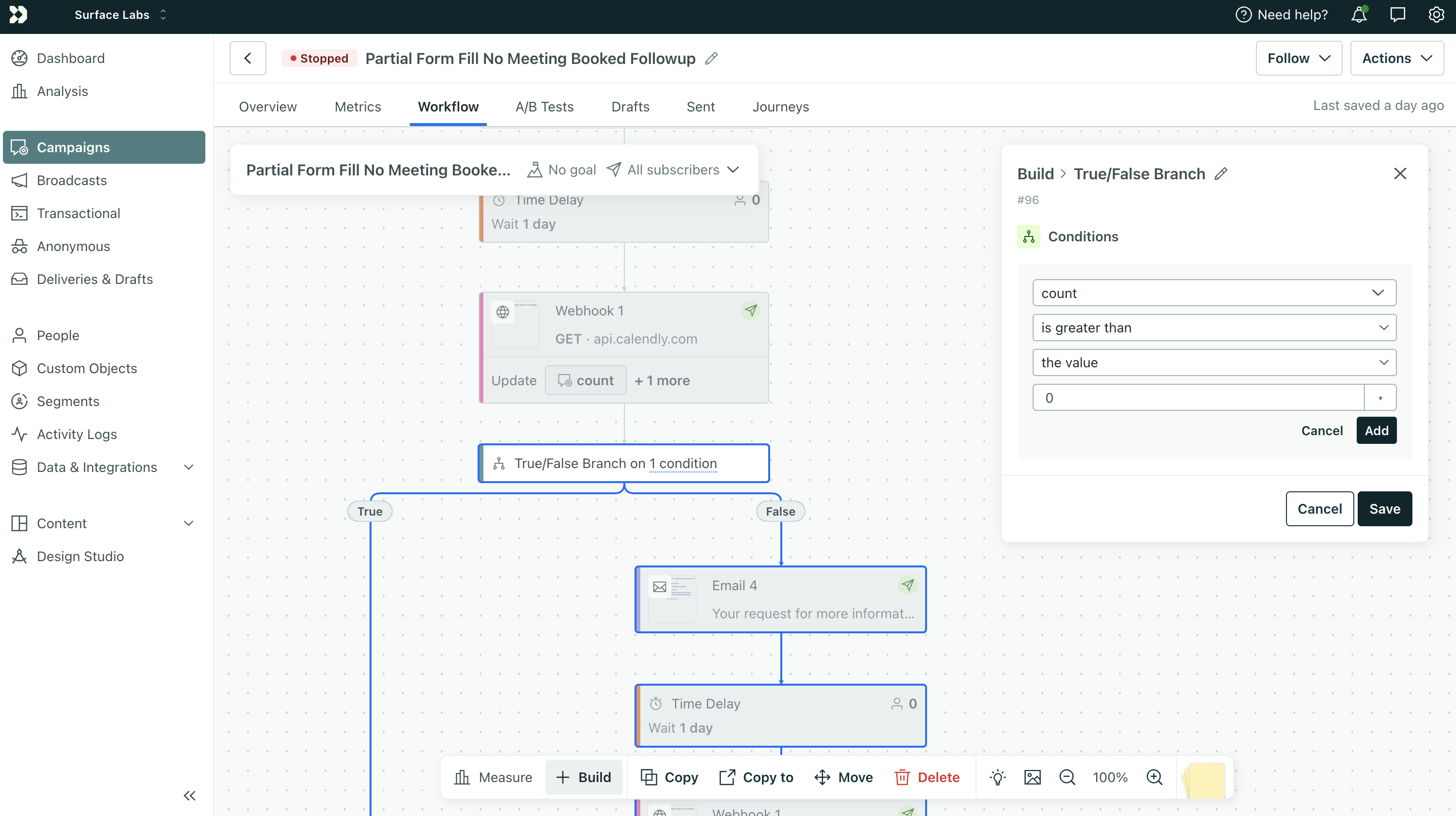
 ## Configure the True/False Branch
After the webhook returns a response, add a **True/False Branch** to decide whether to exit or continue:
1. Add a **True/False Branch** block after the webhook
2. Click **Add condition**
3. Pick **Custom attribute** → `count`
4. Set the condition to **is greater than** → **the value** → `0`
5. Click **Add** and **Save**
**True** path (count > 0): The meeting is booked—add an **Exit** action or leave it empty so the person leaves the campaign.
**False** path (count = 0): Connect to the next **Email** block.
## Configure the True/False Branch
After the webhook returns a response, add a **True/False Branch** to decide whether to exit or continue:
1. Add a **True/False Branch** block after the webhook
2. Click **Add condition**
3. Pick **Custom attribute** → `count`
4. Set the condition to **is greater than** → **the value** → `0`
5. Click **Add** and **Save**
**True** path (count > 0): The meeting is booked—add an **Exit** action or leave it empty so the person leaves the campaign.
**False** path (count = 0): Connect to the next **Email** block.
 ## Place the Check in Your Workflow
The flow for each "cycle" after the first email should be:
```
Delay → Webhook (Calendly check) → True/False Branch
├─ True (count > 0) → Exit
└─ False (count = 0) → Email → (next Delay, etc.)
```
Repeat this pattern for every follow-up email.
## Summary
You now have:
1. Two webhook-triggered campaigns that create/update people and send events (partial + completed)
2. A Surface workflow that sends form data to Customer.io
3. Two event-triggered email campaigns (partial and completed)
4. Calendly meeting checks before each follow-up—exiting the campaign when a meeting is booked
Your leads will receive tailored follow-up sequences until they book a meeting, at which point the campaign stops automatically.
## Place the Check in Your Workflow
The flow for each "cycle" after the first email should be:
```
Delay → Webhook (Calendly check) → True/False Branch
├─ True (count > 0) → Exit
└─ False (count = 0) → Email → (next Delay, etc.)
```
Repeat this pattern for every follow-up email.
## Summary
You now have:
1. Two webhook-triggered campaigns that create/update people and send events (partial + completed)
2. A Surface workflow that sends form data to Customer.io
3. Two event-triggered email campaigns (partial and completed)
4. Calendly meeting checks before each follow-up—exiting the campaign when a meeting is booked
Your leads will receive tailored follow-up sequences until they book a meeting, at which point the campaign stops automatically.