> ## Documentation Index
> Fetch the complete documentation index at: https://docs.withsurface.com/llms.txt
> Use this file to discover all available pages before exploring further.
# Step 2: Configure Surface Workflow
> Set up the Surface Workflow Builder to send form data to Customer.io via webhook when leads submit (partial or completed)
In this step, you'll configure the **Surface Workflow Builder** to send a webhook request to Customer.io whenever a lead submits your form—whether they complete it or drop off partway through.
## Open the Workflow Builder
1. In the Surface app, open your form
2. Go to the **Workflows** section
3. Click **Create Workflow** (or edit an existing workflow)
## Choose Your Triggers
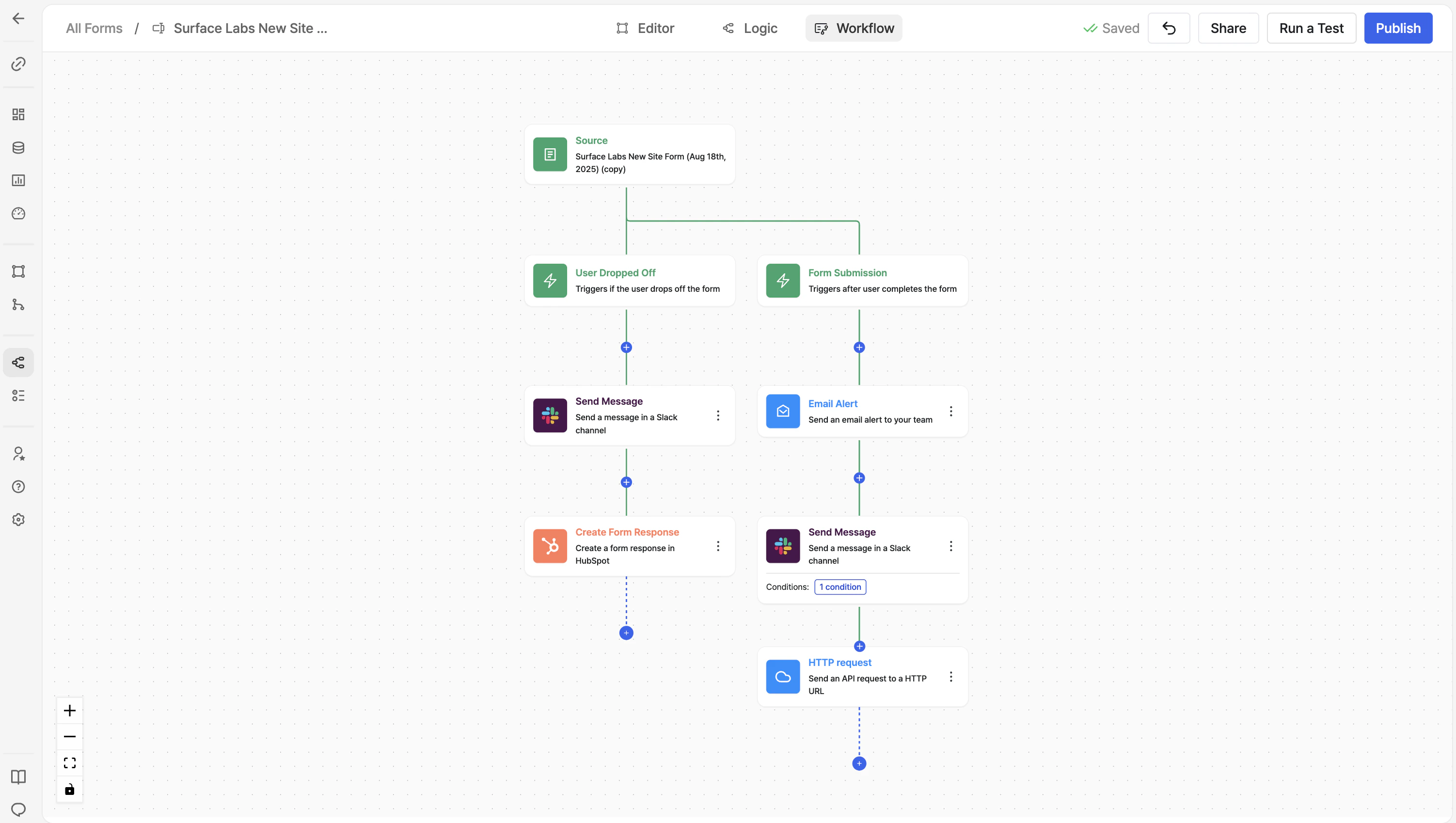 Surface workflows support **paths** for different triggers, so you can handle both partial and completed submissions in **one workflow**:
| Trigger | When it fires | Customer.io webhook URL |
| ------------------- | --------------------------------------- | -------------------------------------------- |
| **Form Submission** | When the lead completes the entire form | URL from your **completed** webhook campaign |
| **Dropped Off** | When the lead abandons the form mid-way | URL from your **partial** webhook campaign |
Add both triggers to your workflow. Each trigger path sends to a **different** Customer.io webhook URL (from [Step 1](/guides/email-sequences-customerio-calendly/step-1-webhook-trigger)), so the right event fires automatically—no need to pass `submission_type` in the payload.
## Add the HTTP Request Action
Surface workflows support **paths** for different triggers, so you can handle both partial and completed submissions in **one workflow**:
| Trigger | When it fires | Customer.io webhook URL |
| ------------------- | --------------------------------------- | -------------------------------------------- |
| **Form Submission** | When the lead completes the entire form | URL from your **completed** webhook campaign |
| **Dropped Off** | When the lead abandons the form mid-way | URL from your **partial** webhook campaign |
Add both triggers to your workflow. Each trigger path sends to a **different** Customer.io webhook URL (from [Step 1](/guides/email-sequences-customerio-calendly/step-1-webhook-trigger)), so the right event fires automatically—no need to pass `submission_type` in the payload.
## Add the HTTP Request Action
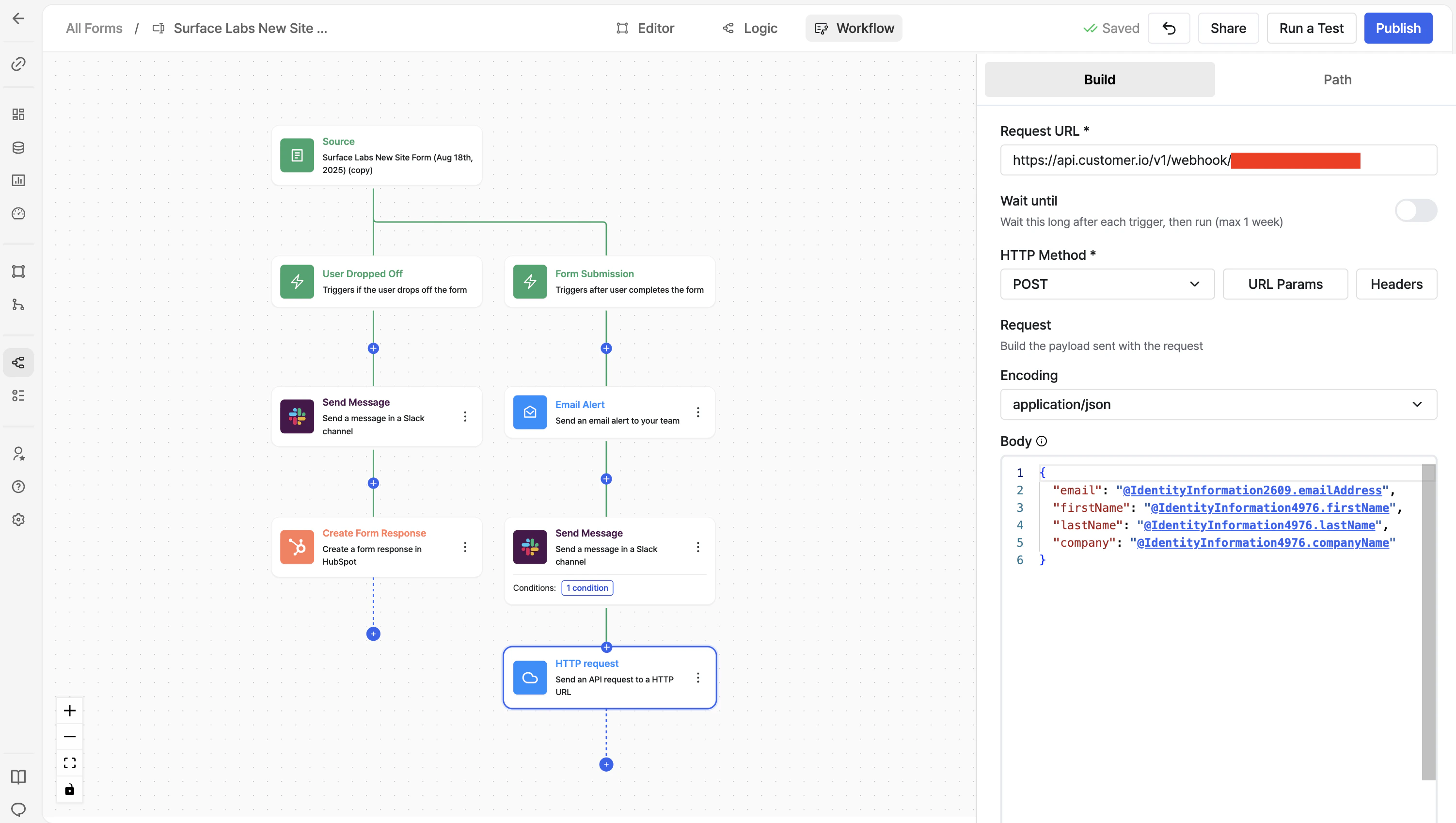 For each trigger path (**Dropped Off** and **Form Submission**):
1. Click the **+** button to add a new node
2. Select **HTTP Request** from the actions menu
3. In the configuration panel, set:
* **Request URL**:
* **Dropped Off** path → Paste the webhook URL from your **partial** Customer.io campaign
* **Form Submission** path → Paste the webhook URL from your **completed** Customer.io campaign
* **HTTP Method**: `POST`
* **Body**: Same payload for both paths (see below)
## Build the Webhook Payload
Use the `@` symbol in the workflow builder to insert form variables. Your payload should include:
* **Identifier** (email) — required for Customer.io to create/update the person
* **Any other fields** you want to pass (name, form ID, etc.)
Use the **same payload** for both paths—the webhook URL determines which event fires in Customer.io.
Example payload:
```json theme={null}
{
"email": "@email",
"first_name": "@first_name",
"last_name": "@last_name",
"form_id": "@form_id",
"submitted_at": "@submitted_at"
}
```
Replace `@email`, `@first_name`, etc. with the actual variable names from your form. Press `@` in the workflow builder to see available fields.
## Activate the Workflow
1. Save the workflow
2. Activate it so it runs when leads submit your form
3. Test with a sample submission and verify the webhook reaches Customer.io
## Verify in Customer.io
After a test submission:
1. Check Customer.io **Campaigns** → your webhook campaigns → **Logs** to see if the webhook was received
2. Check **People** to confirm the lead was created or updated
3. Check that the correct event was recorded (`partialFormFilled` for Dropped Off, `formCompleted` for Form Submission)
## Next Step
Create the event-triggered email campaigns that will run when these events fire. See [Step 3: Event-Based Email Campaigns](/guides/email-sequences-customerio-calendly/step-3-event-campaigns).
For each trigger path (**Dropped Off** and **Form Submission**):
1. Click the **+** button to add a new node
2. Select **HTTP Request** from the actions menu
3. In the configuration panel, set:
* **Request URL**:
* **Dropped Off** path → Paste the webhook URL from your **partial** Customer.io campaign
* **Form Submission** path → Paste the webhook URL from your **completed** Customer.io campaign
* **HTTP Method**: `POST`
* **Body**: Same payload for both paths (see below)
## Build the Webhook Payload
Use the `@` symbol in the workflow builder to insert form variables. Your payload should include:
* **Identifier** (email) — required for Customer.io to create/update the person
* **Any other fields** you want to pass (name, form ID, etc.)
Use the **same payload** for both paths—the webhook URL determines which event fires in Customer.io.
Example payload:
```json theme={null}
{
"email": "@email",
"first_name": "@first_name",
"last_name": "@last_name",
"form_id": "@form_id",
"submitted_at": "@submitted_at"
}
```
Replace `@email`, `@first_name`, etc. with the actual variable names from your form. Press `@` in the workflow builder to see available fields.
## Activate the Workflow
1. Save the workflow
2. Activate it so it runs when leads submit your form
3. Test with a sample submission and verify the webhook reaches Customer.io
## Verify in Customer.io
After a test submission:
1. Check Customer.io **Campaigns** → your webhook campaigns → **Logs** to see if the webhook was received
2. Check **People** to confirm the lead was created or updated
3. Check that the correct event was recorded (`partialFormFilled` for Dropped Off, `formCompleted` for Form Submission)
## Next Step
Create the event-triggered email campaigns that will run when these events fire. See [Step 3: Event-Based Email Campaigns](/guides/email-sequences-customerio-calendly/step-3-event-campaigns).