> ## Documentation Index
> Fetch the complete documentation index at: https://docs.withsurface.com/llms.txt
> Use this file to discover all available pages before exploring further.
# Claude OAuth Setup
> Connect Surface to Claude via OAuth using the Connectors feature — no API key required
Claude supports connecting to MCP servers via OAuth through its **Connectors** feature. This lets you connect Surface to Claude without needing to manage API keys — just authenticate with your Surface account directly.
## Setup
Go to [claude.ai/customize/connectors](https://claude.ai/customize/connectors). Click the **+** button at the top and choose **Add custom connector**.
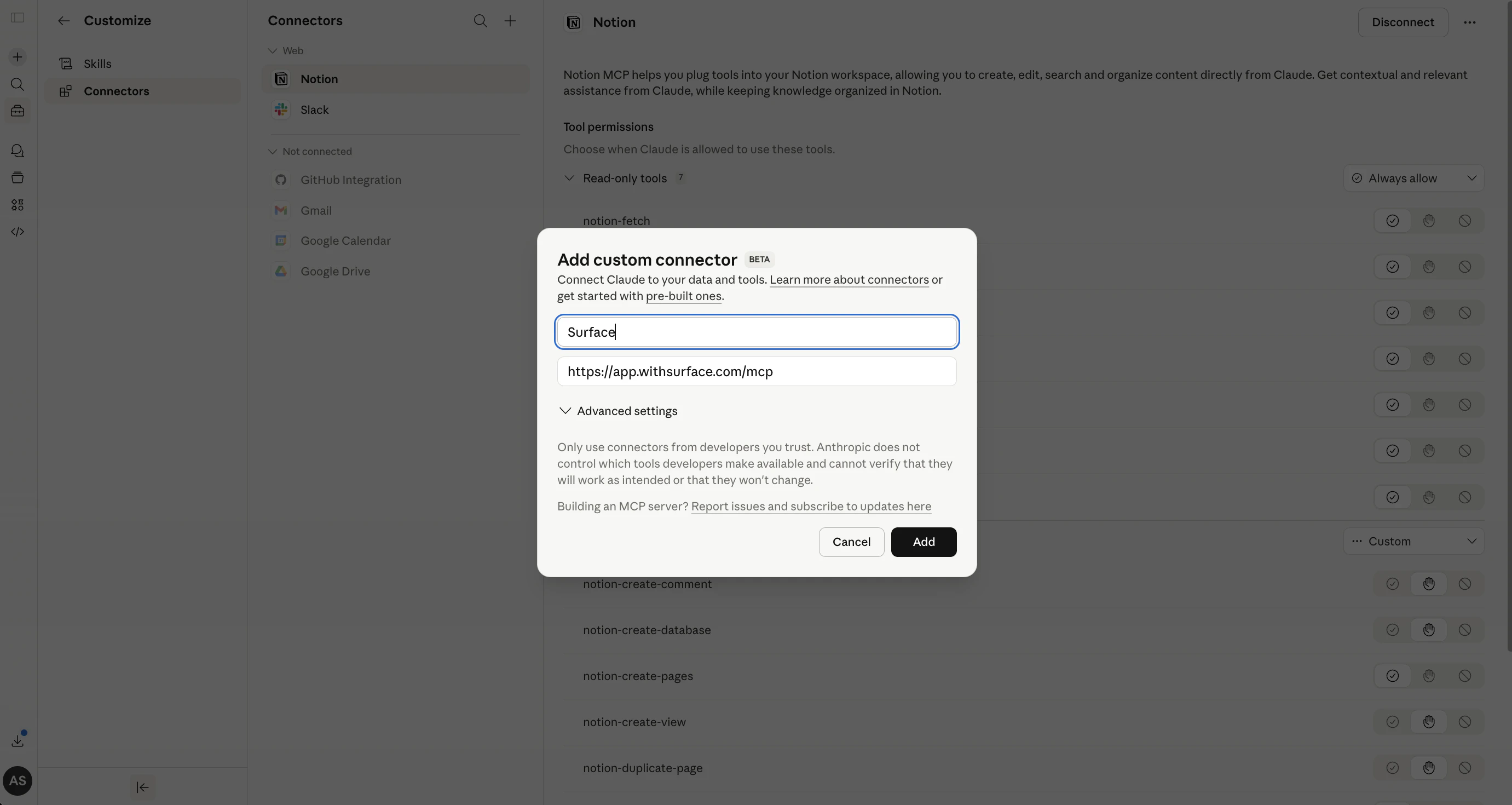
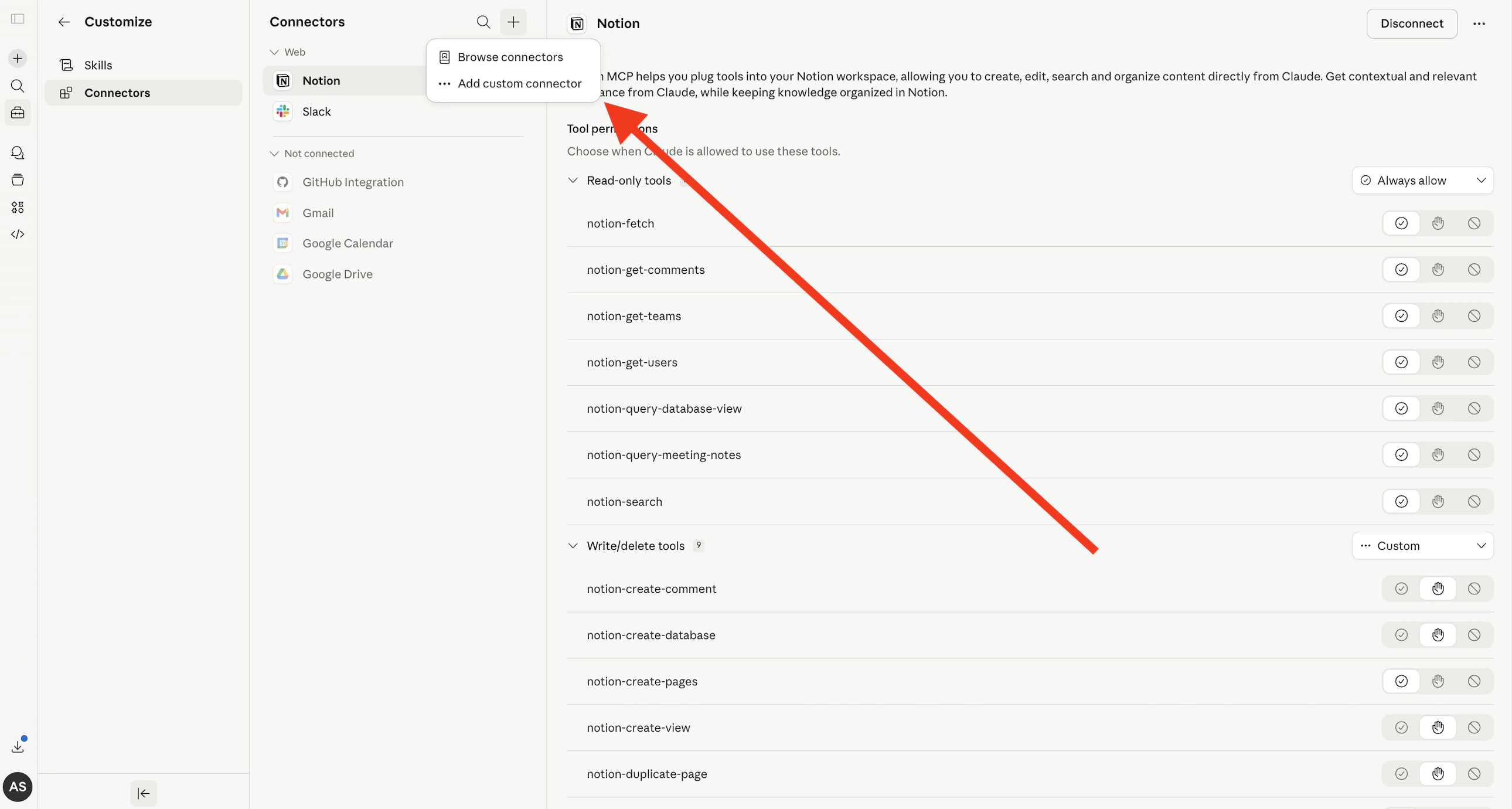 In the modal that appears, fill in the following:
* **Name:** `Surface`
* **Remote MCP server URL:** `https://app.withsurface.com/mcp`
Then click **Add**.
In the modal that appears, fill in the following:
* **Name:** `Surface`
* **Remote MCP server URL:** `https://app.withsurface.com/mcp`
Then click **Add**.
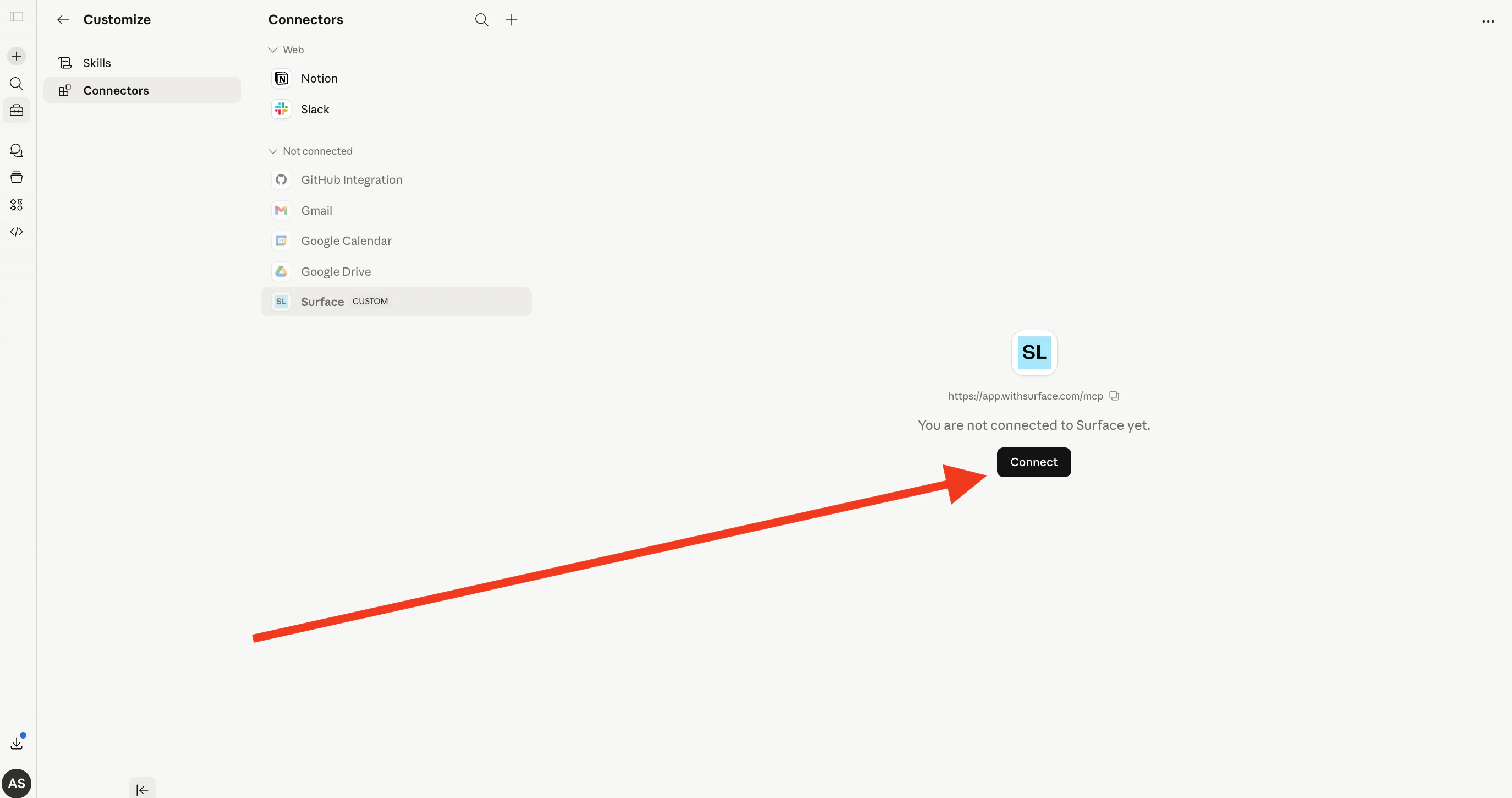
 After adding the connector, click the **Connect** button to authenticate with your Surface account via OAuth.
 Choose your environment and complete the connection. That's it — Surface is now available as a connector in Claude.
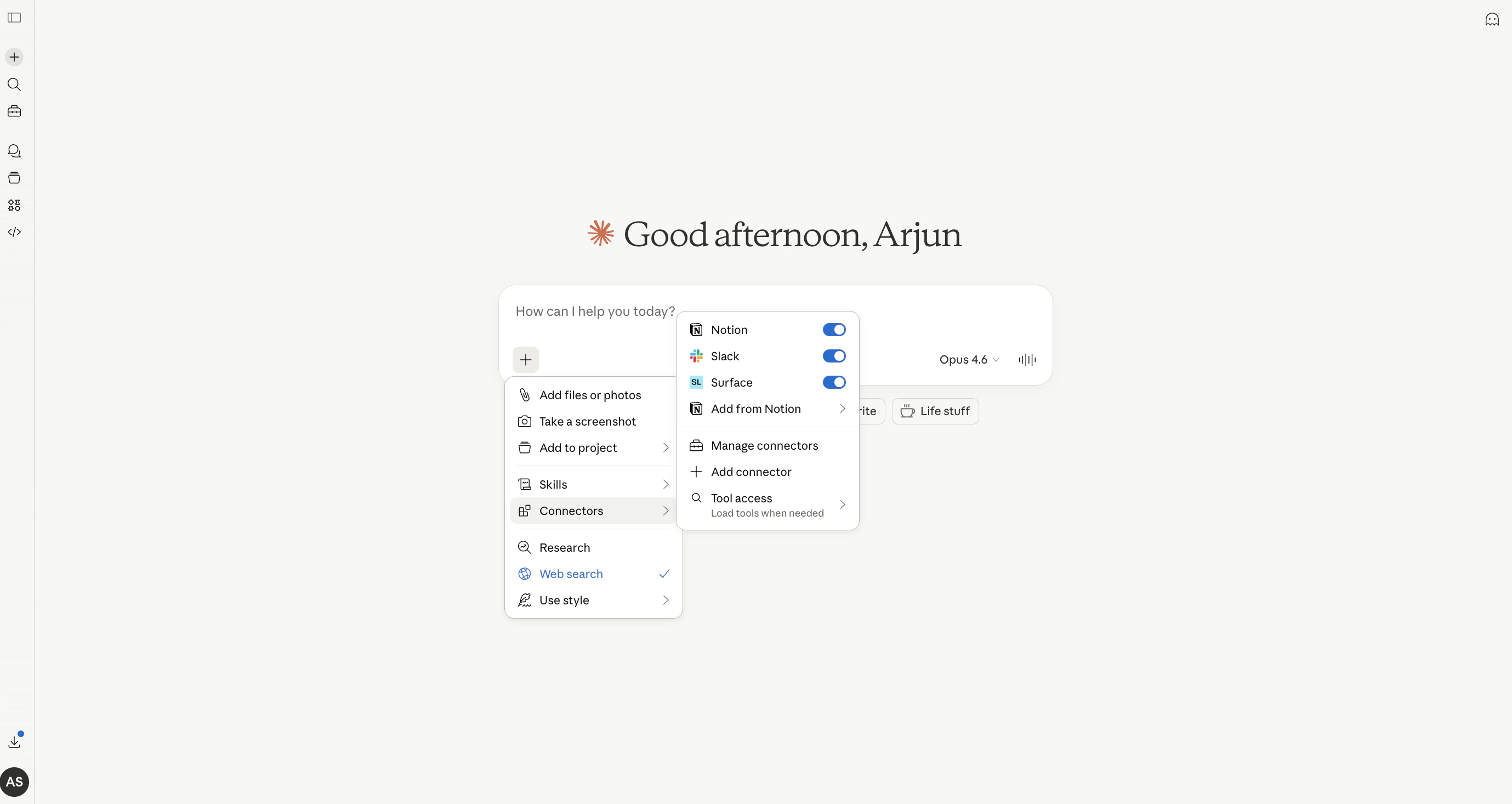
You can now toggle the Surface connector on in any Claude chat via the **+** menu and **Connectors**. Once enabled, Claude can use all Surface MCP tools to query your forms, responses, leads, and more.
Choose your environment and complete the connection. That's it — Surface is now available as a connector in Claude.
You can now toggle the Surface connector on in any Claude chat via the **+** menu and **Connectors**. Once enabled, Claude can use all Surface MCP tools to query your forms, responses, leads, and more.
 The OAuth connection is tied to your Surface account and environment. You don't need to manage or rotate API keys — Claude handles the authentication automatically.