> ## Documentation Index
> Fetch the complete documentation index at: https://docs.withsurface.com/llms.txt
> Use this file to discover all available pages before exploring further.
# Google Analytics Tracking
> Track Surface Form events in Google Analytics using Google Tag Manager (GTM)
Make sure to implement [Google Tag Manager
(GTM)](/docs/events/google-tag-manager) first before setting up Google
Analytics tracking.
## 1. Create a new data stream in Google Analytics
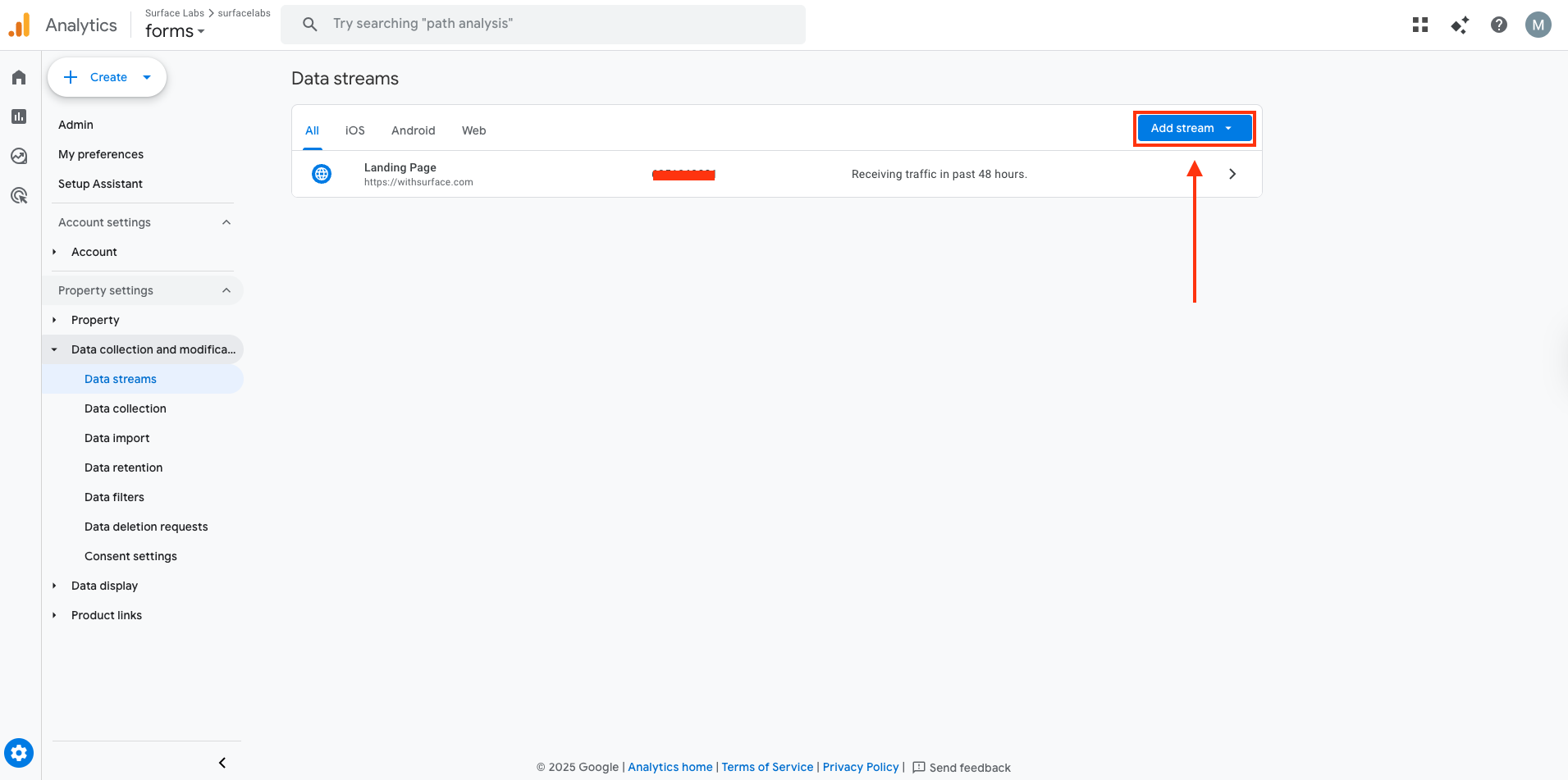 Navigate to your Google Analytics property and create a new data stream for your website.
**Steps:**
1. Go to **Admin** → **Data Collection and Modification** → **Data Streams**
2. Click **Add stream** → **Web**
3. Enter your website URL and stream name
4. Click **Create stream**
## 2. Get the Google Analytics Measurement ID
Navigate to your Google Analytics property and create a new data stream for your website.
**Steps:**
1. Go to **Admin** → **Data Collection and Modification** → **Data Streams**
2. Click **Add stream** → **Web**
3. Enter your website URL and stream name
4. Click **Create stream**
## 2. Get the Google Analytics Measurement ID
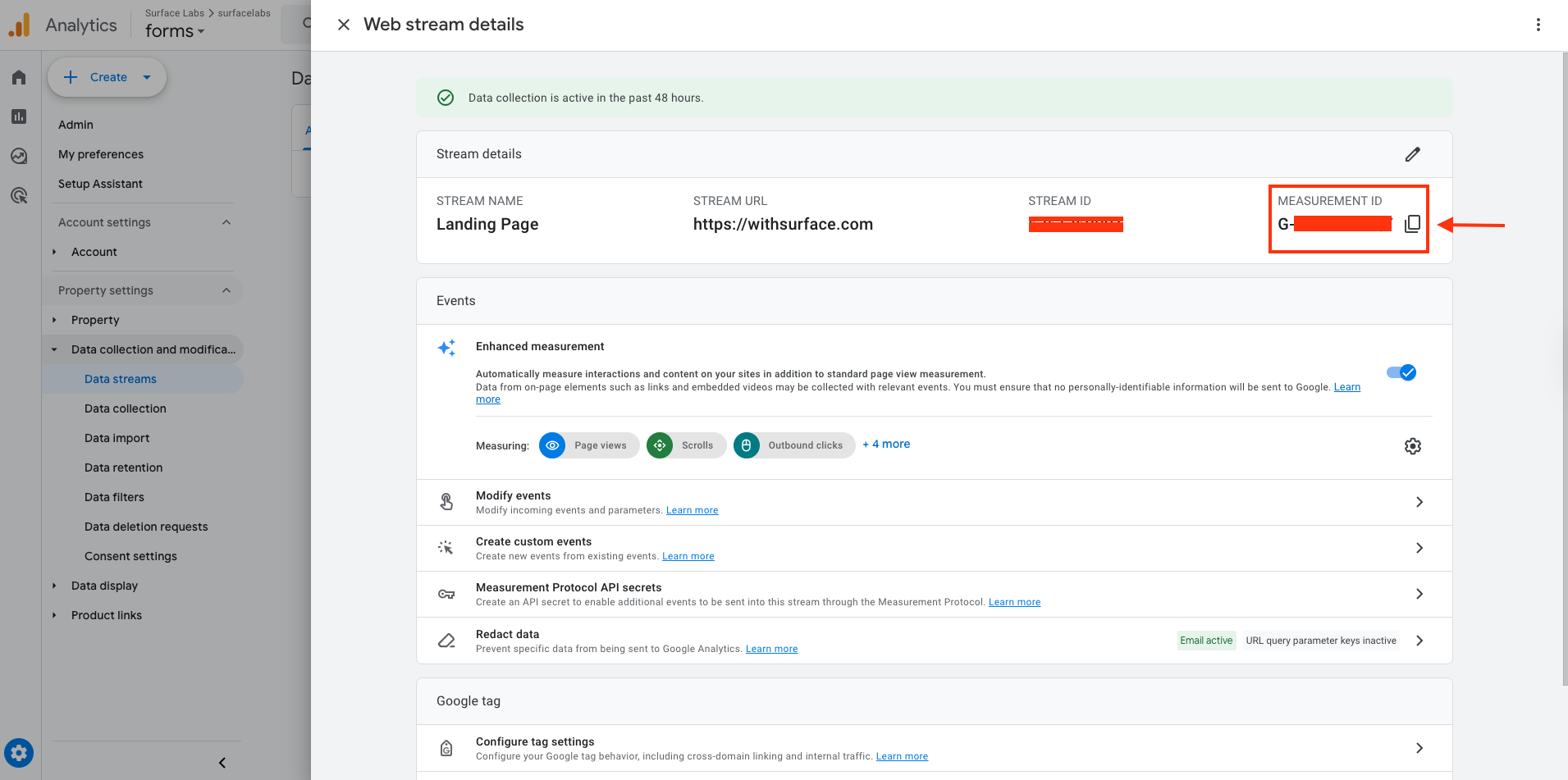 Once your data stream is created, you'll need to copy the Measurement ID to use in GTM.
**Steps:**
1. In the data stream settings, click on your newly created data stream
2. Copy the **Measurement ID** (starts with G-XXXXXXXXXX)
## 3. Create Custom Events in Google Analytics
Before setting up triggers in GTM, you need to create custom events in Google Analytics.
**Steps:**
Once your data stream is created, you'll need to copy the Measurement ID to use in GTM.
**Steps:**
1. In the data stream settings, click on your newly created data stream
2. Copy the **Measurement ID** (starts with G-XXXXXXXXXX)
## 3. Create Custom Events in Google Analytics
Before setting up triggers in GTM, you need to create custom events in Google Analytics.
**Steps:**
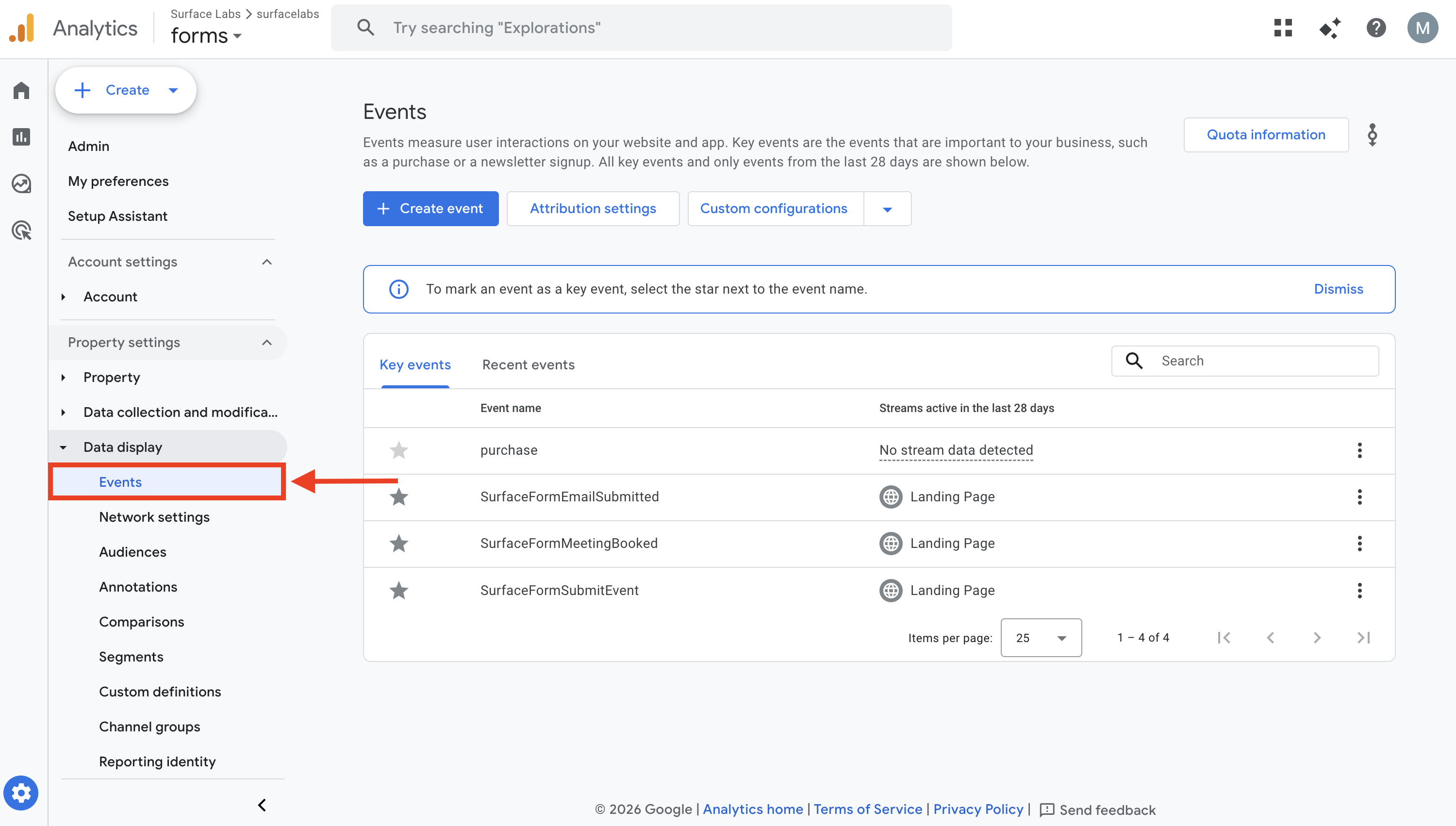 1. Go to **Admin** → **Data Display** → **Events**
2. Click **Create event**
3. Name the event **SurfaceFormSubmitEvent** (this should match the event name you'll use in GTM)
4. Scroll down and click **View more options**
1. Go to **Admin** → **Data Display** → **Events**
2. Click **Create event**
3. Name the event **SurfaceFormSubmitEvent** (this should match the event name you'll use in GTM)
4. Scroll down and click **View more options**
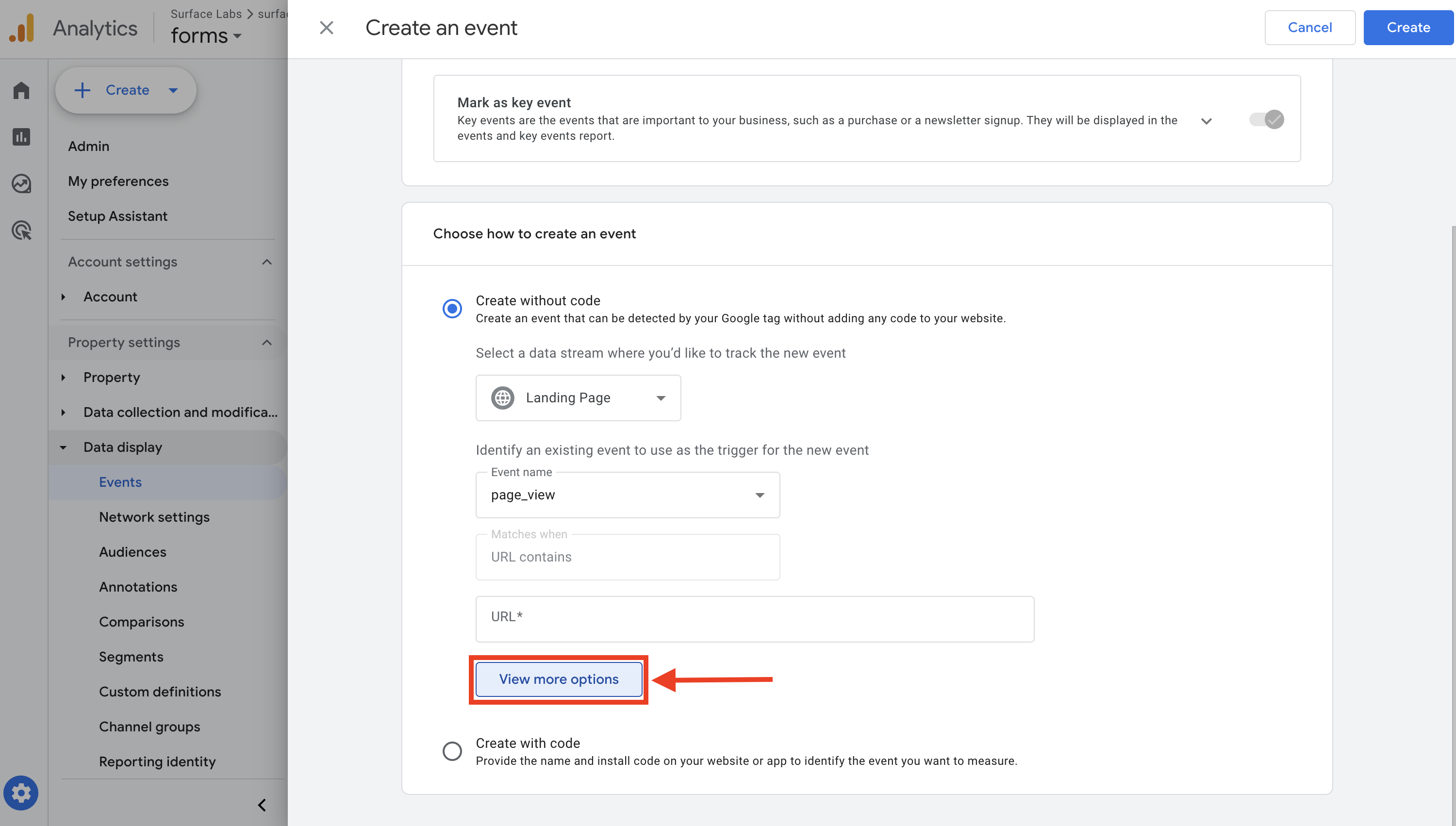
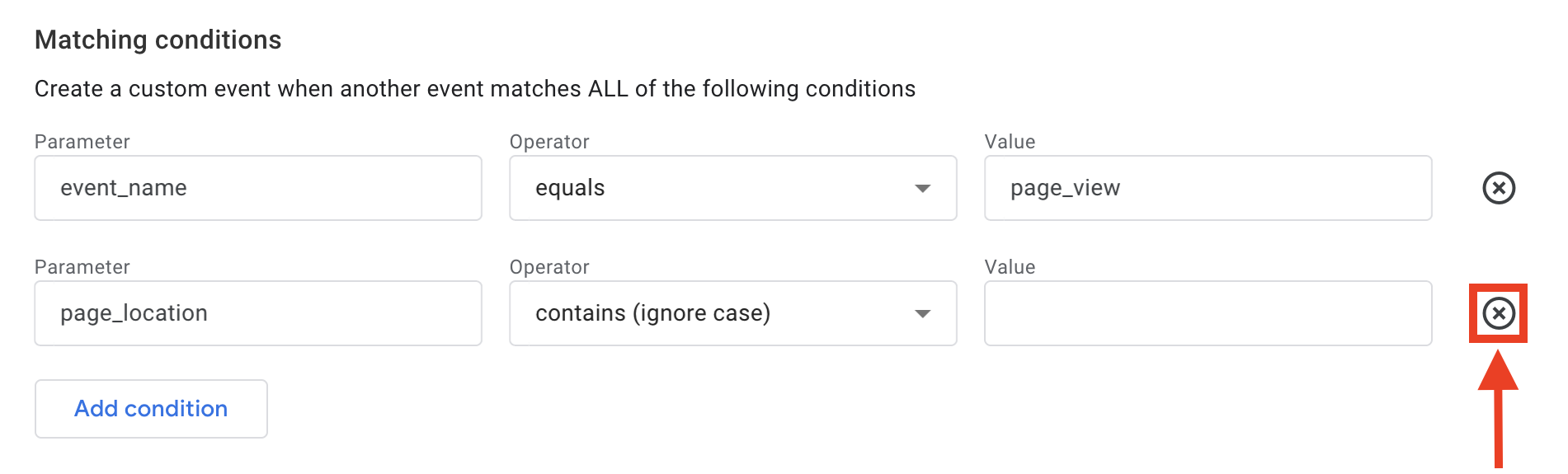 5. Under **Matching conditions**, remove the `page_location` parameter
6. Click **Save**
## 4. Create Custom Event Triggers in GTM
5. Under **Matching conditions**, remove the `page_location` parameter
6. Click **Save**
## 4. Create Custom Event Triggers in GTM
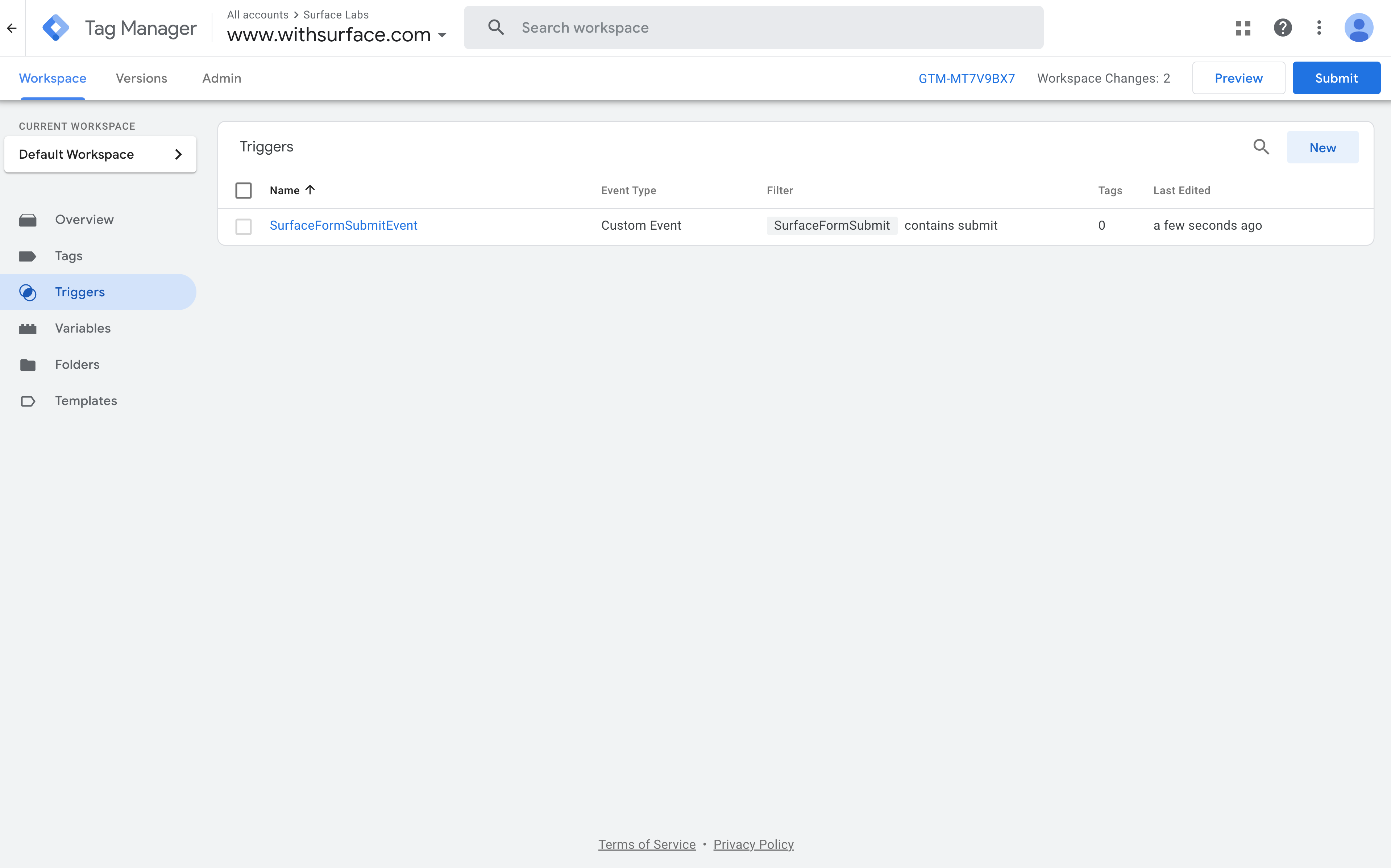
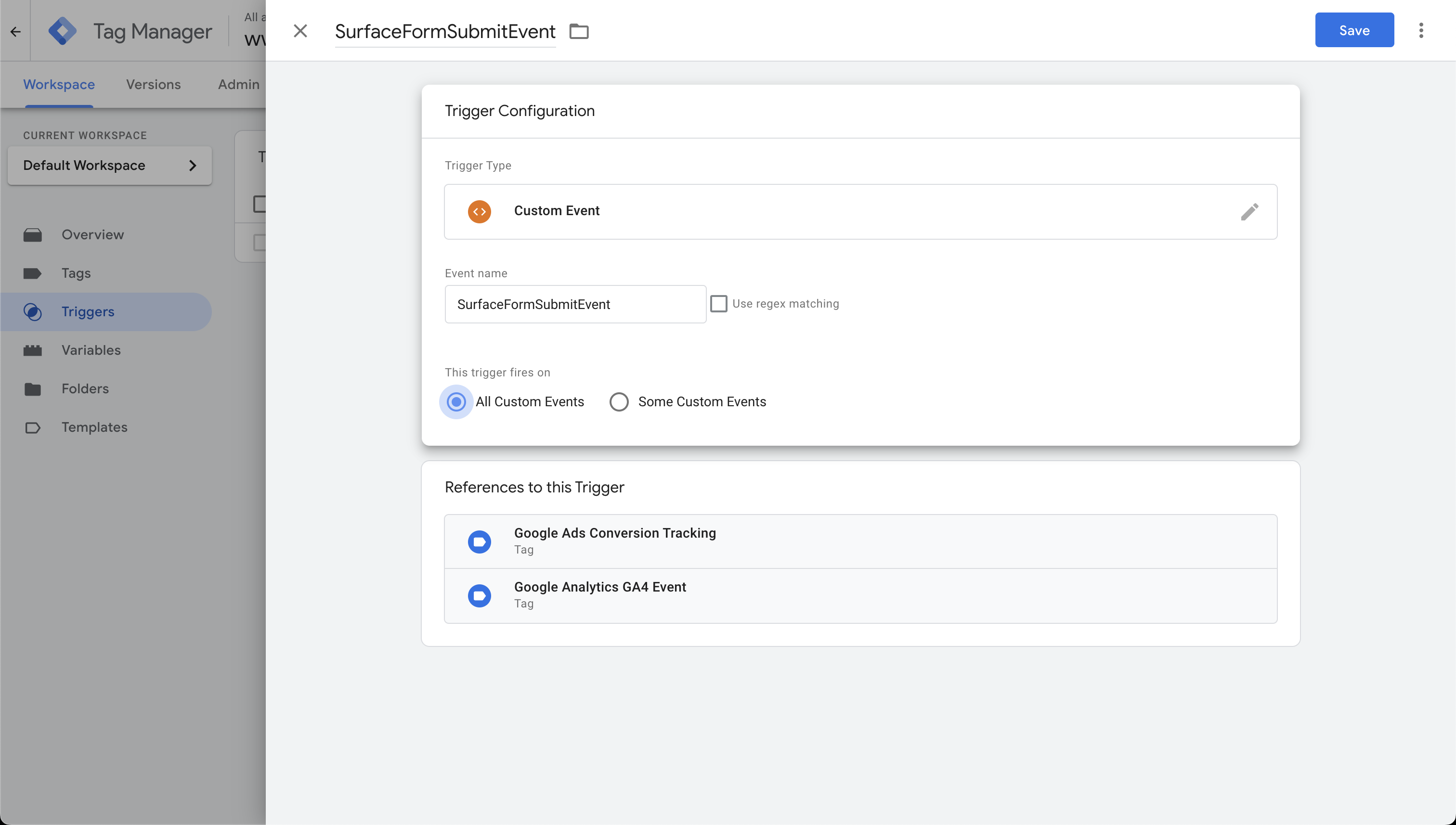 Set up trigger for the Surface Form events you want to track in Google Analytics.
**Steps:**
1. In GTM, go to **Triggers**
2. Click **New** → **Trigger Configuration**
3. Select **Custom Event**
4. Enter the event name as **SurfaceFormSubmitEvent**
5. Click **Save**
## 5. Create Google Analytics GA4 Event Tags
Set up trigger for the Surface Form events you want to track in Google Analytics.
**Steps:**
1. In GTM, go to **Triggers**
2. Click **New** → **Trigger Configuration**
3. Select **Custom Event**
4. Enter the event name as **SurfaceFormSubmitEvent**
5. Click **Save**
## 5. Create Google Analytics GA4 Event Tags
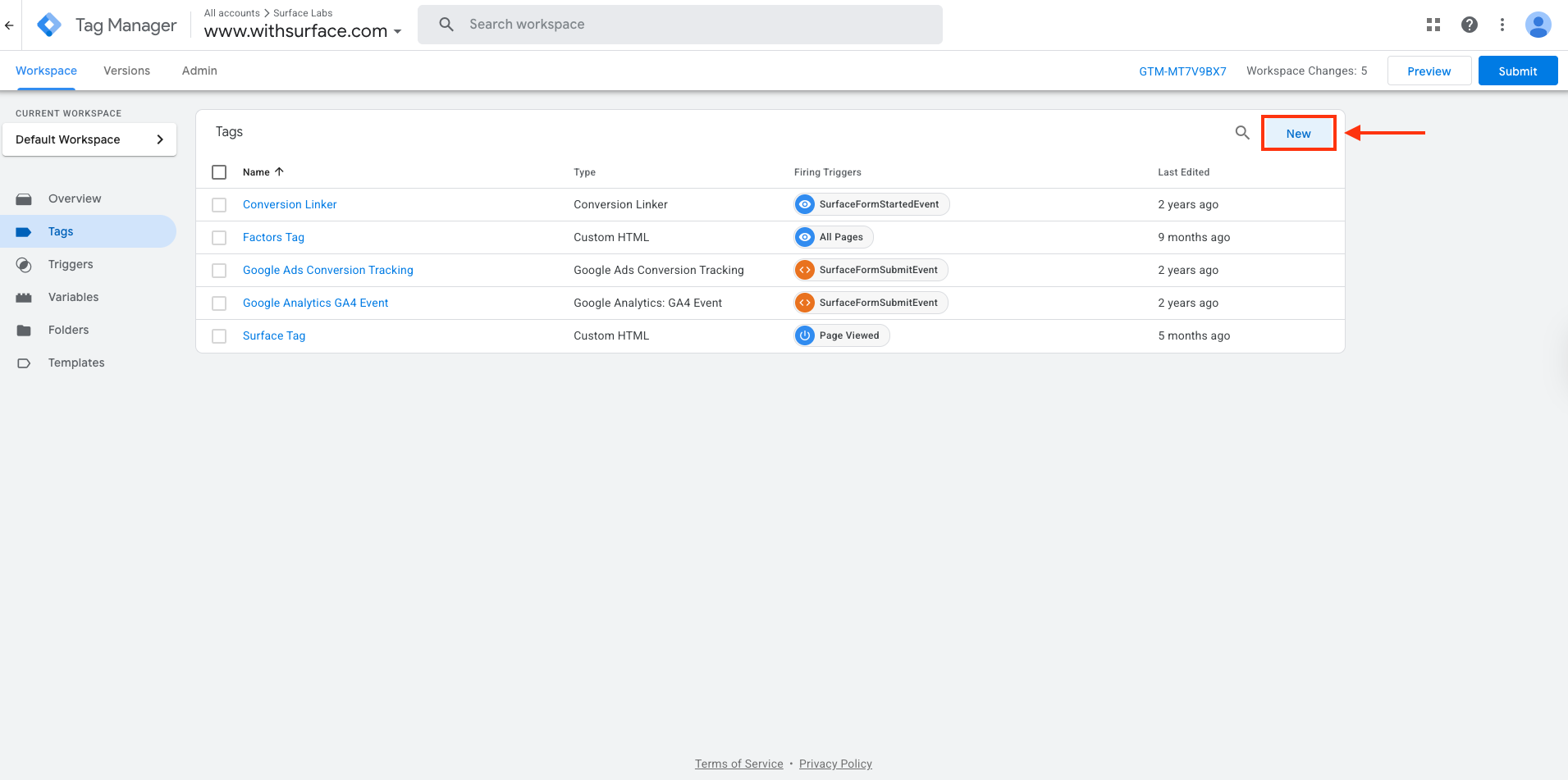
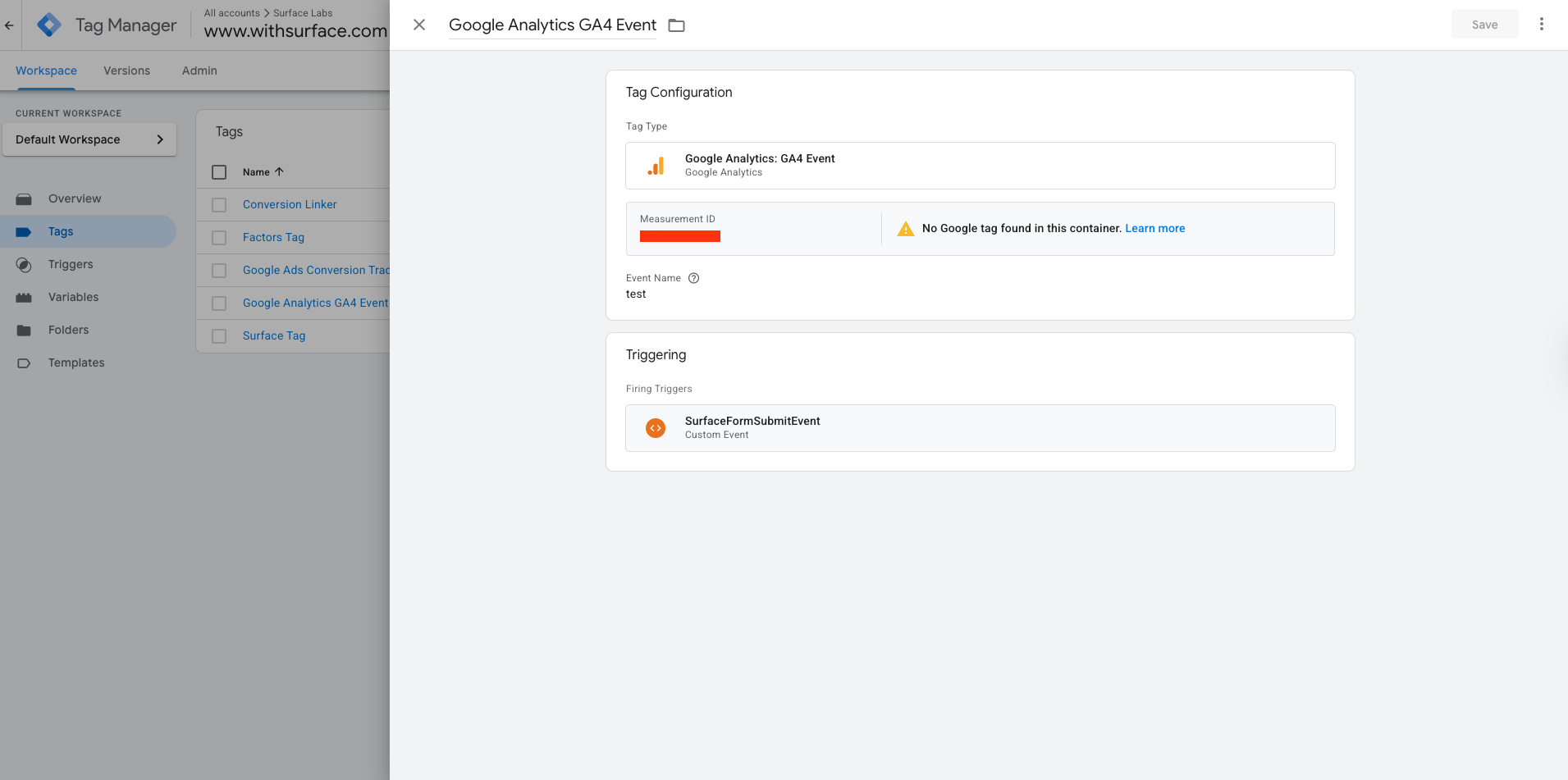 Now create GA4 Event tags that will send the Surface Form events to Google Analytics.
**Steps:**
1. In GTM, go to **Tags**
2. Click **New** → **Tag Configuration**
3. Select **Google Analytics: GA4 Event**
4. Enter your **Measurement ID** (from Step 2)
5. Set the **Event Name**
6. Under **Triggering**, select the trigger you created in Step 4
7. Click **Save**
## 6. Submit and Publish Changes
Now create GA4 Event tags that will send the Surface Form events to Google Analytics.
**Steps:**
1. In GTM, go to **Tags**
2. Click **New** → **Tag Configuration**
3. Select **Google Analytics: GA4 Event**
4. Enter your **Measurement ID** (from Step 2)
5. Set the **Event Name**
6. Under **Triggering**, select the trigger you created in Step 4
7. Click **Save**
## 6. Submit and Publish Changes
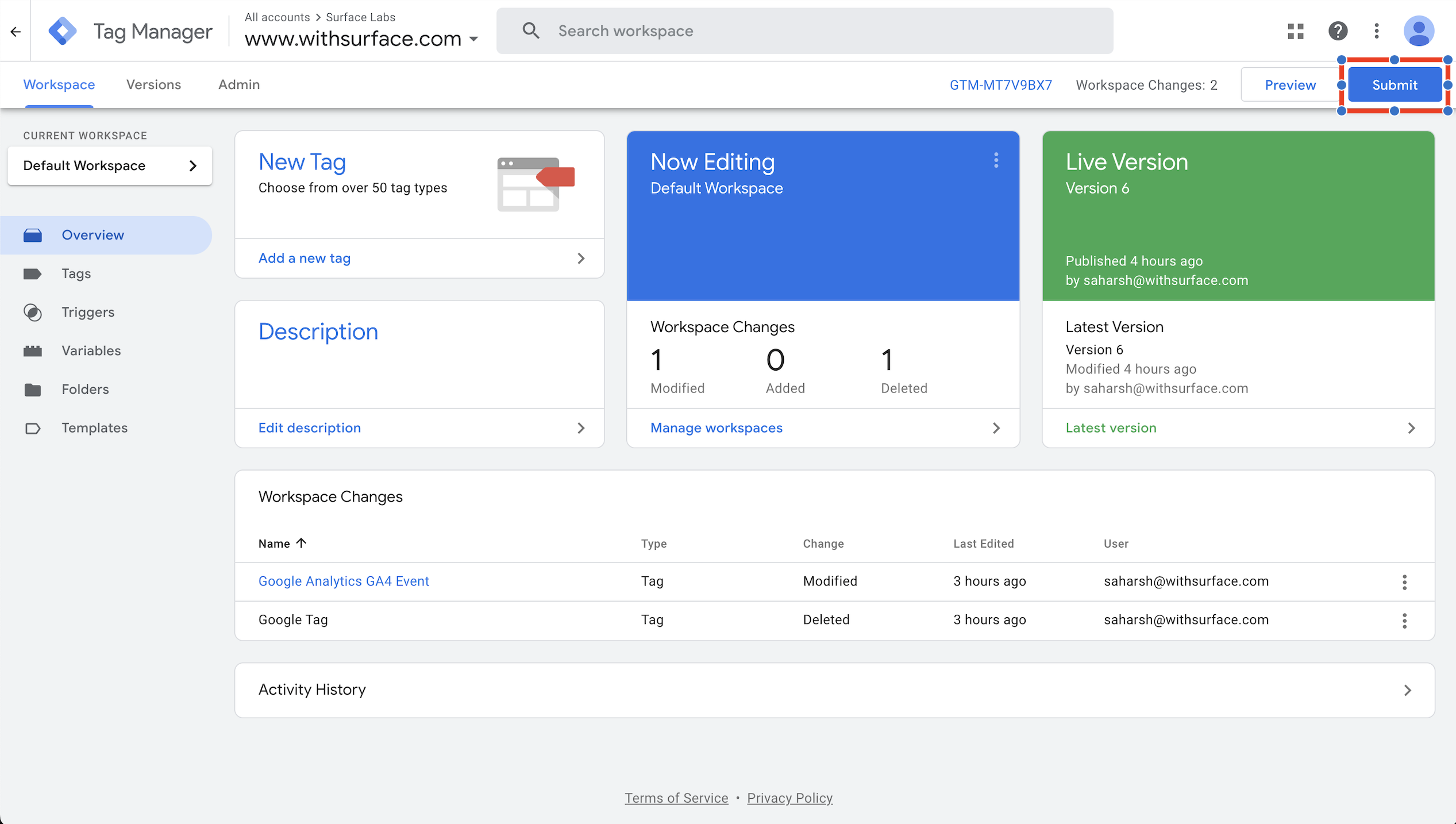 1. Click **Submit** in GTM
2. Add a version name and description
3. Click **Publish**
## Testing using Google Tag Assistant
1. Click **Submit** in GTM
2. Add a version name and description
3. Click **Publish**
## Testing using Google Tag Assistant
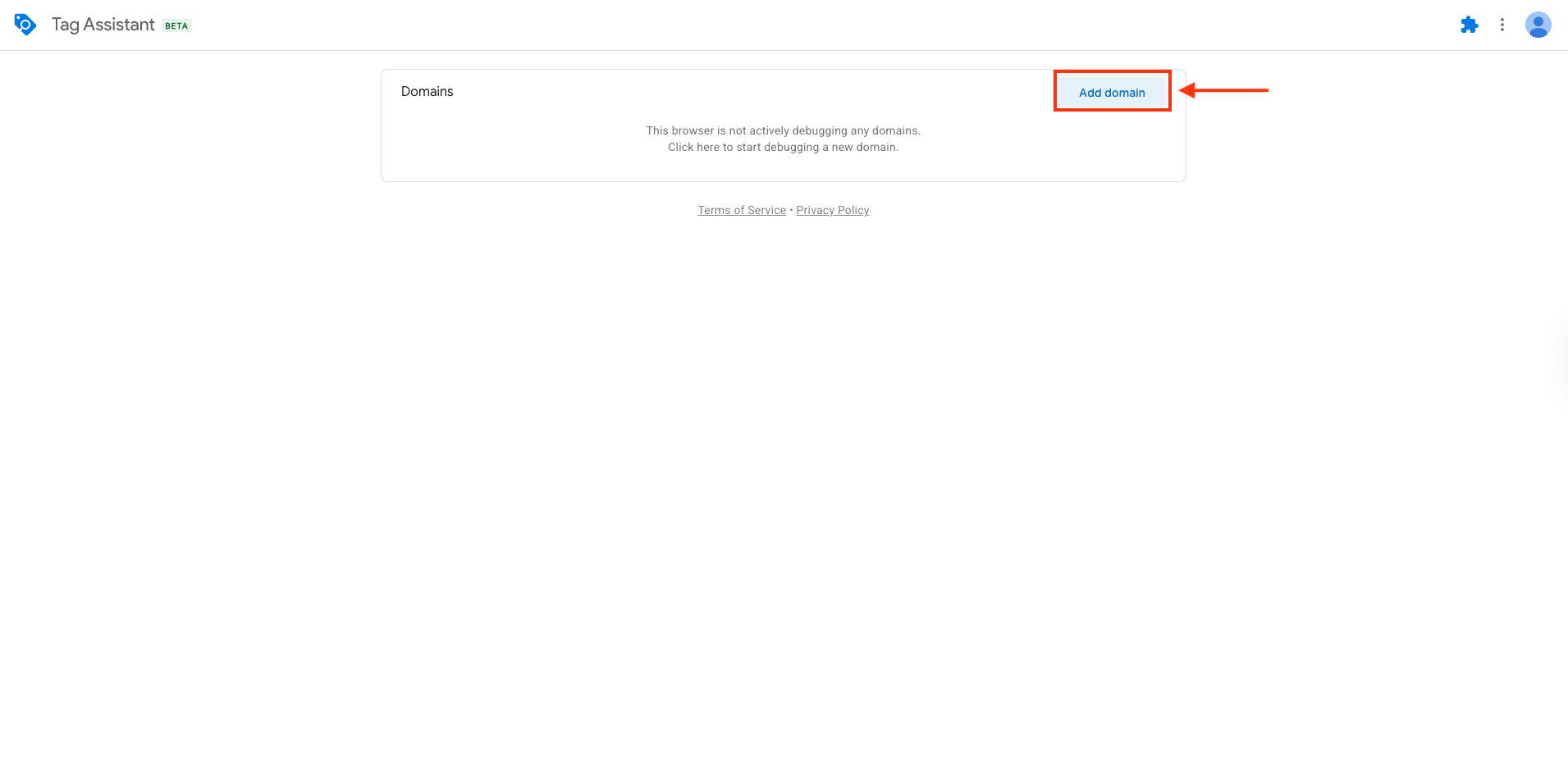 1. Install the [Google Tag Assistant extension](https://tagassistant.google.com/) in your browser
2. Go to [tagassistant.google.com](https://tagassistant.google.com/)
3. Click **Add domain** and enter your website URL > Click **Connect** - this will open your website in a new tab
4. Fill out and submit a Surface Form to see the events being tracked
1. Install the [Google Tag Assistant extension](https://tagassistant.google.com/) in your browser
2. Go to [tagassistant.google.com](https://tagassistant.google.com/)
3. Click **Add domain** and enter your website URL > Click **Connect** - this will open your website in a new tab
4. Fill out and submit a Surface Form to see the events being tracked